Home Screen - Home
Home Screen Overview
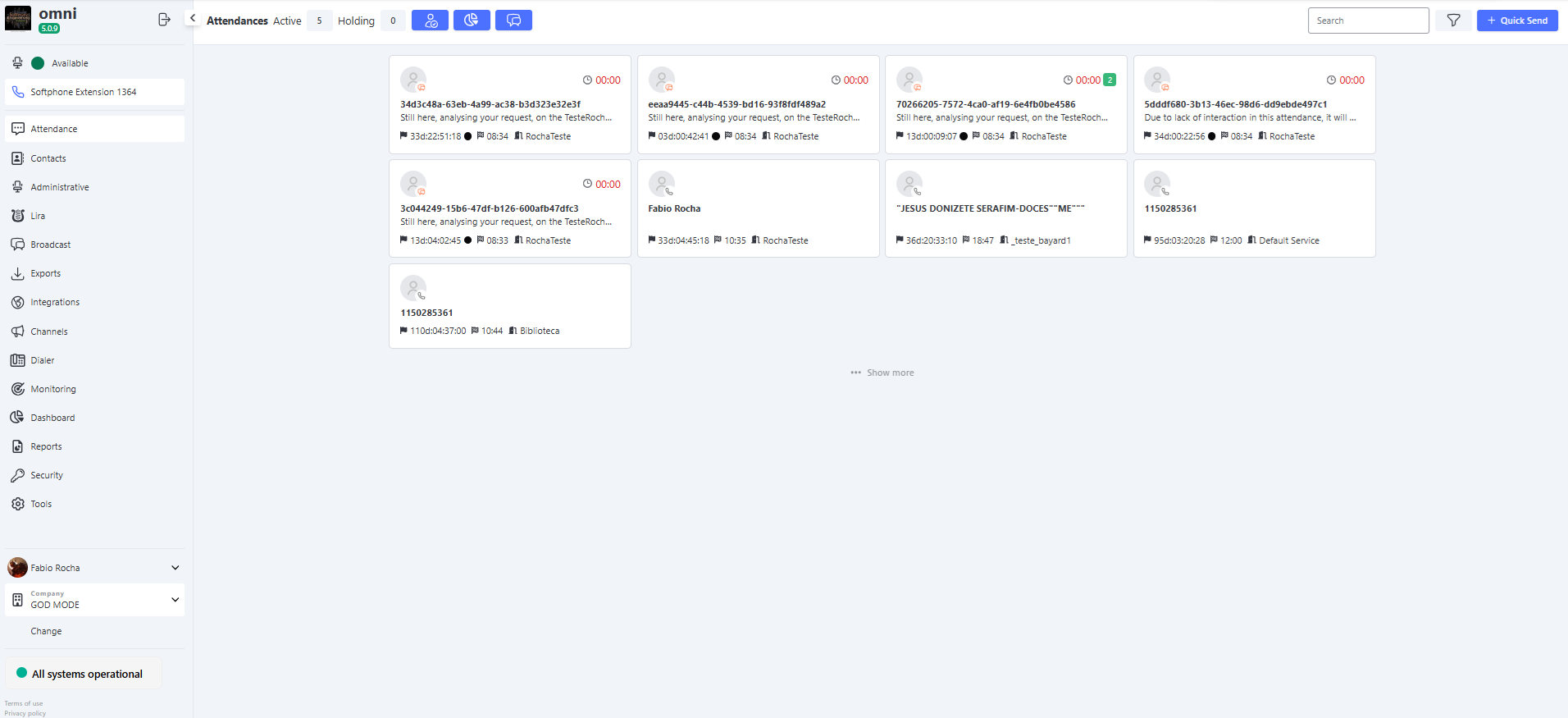
The Home Screen of Omni was designed to provide a unified and accessible view for all users when entering the system. Regardless of permissions, all users see the same initial interface, which organizes information into three main areas:
-
Sidebar:
- Displays a menu with the modules available in the system, according to the user’s permissions.
- Includes important information such as Company Photo, System Version, Agent Status, Extension, and a button to check the System Status.
-
Top Bar:
- Contains essential tools for quick management of attendances and daily operations.
- Shows options such as In-person Attendance, My View, Finished Attendances, Search Field, and Quick Trigger.
-
Center (Attendance Preview):
- Displays a preview of ongoing attendances, organized in card format.
- Each card shows relevant information about the attendance, such as: Client Name, TTA (Total Attendance Time), among others.
Home Screen Organization
The Home Screen was structured to ensure that users have quick access to the most relevant information:
- Sidebar: Centralizes access to the system modules and provides contextual information about the agent and the operational environment.
- Top Bar: Focuses on immediate interactions, such as creating attendances, monitoring performance, and searching for active attendances.
- Center (Attendance Preview): Offers a quick and practical view of ongoing attendances, allowing the agent to visualize and prioritize tasks.
Agent Status
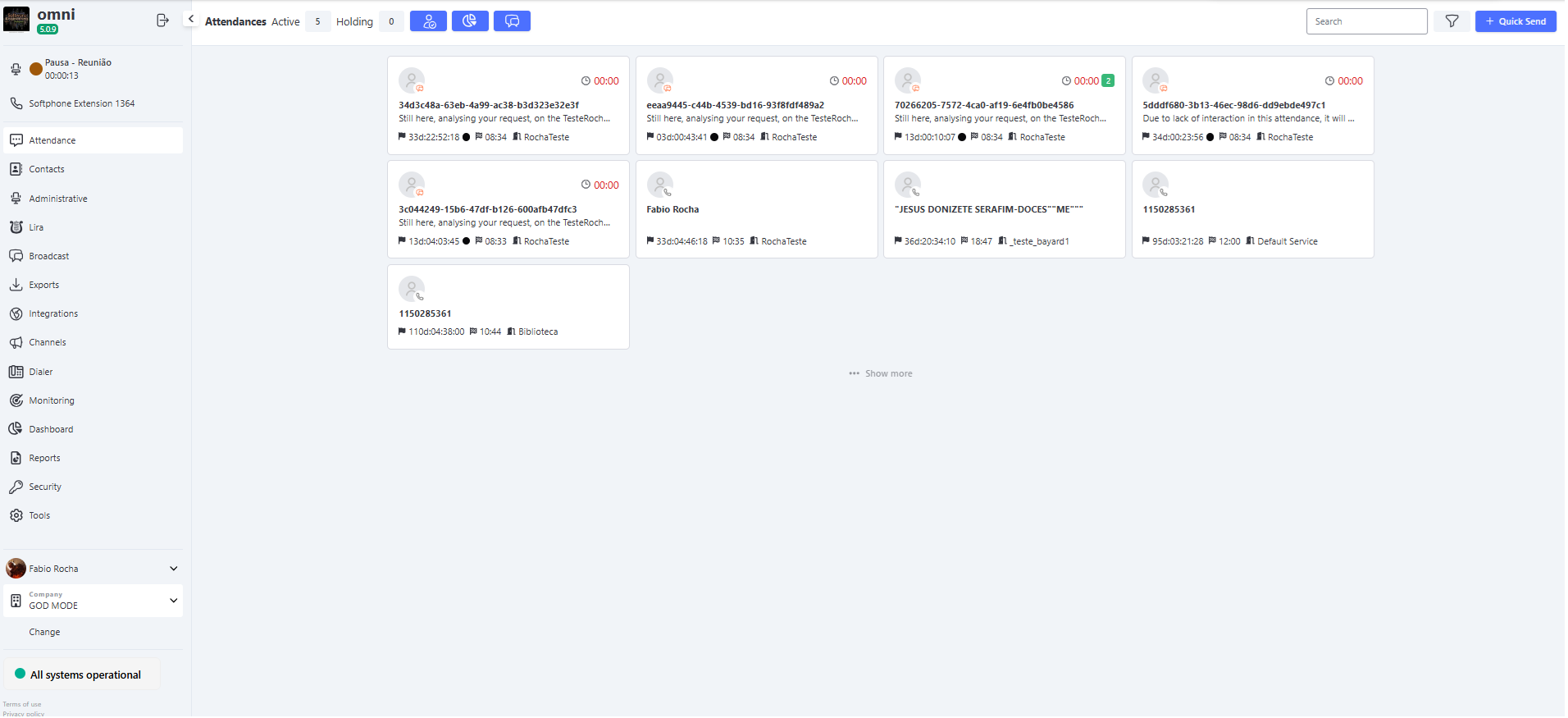
The Agent Status is one of the most relevant elements of the Home Screen. It allows the agent to view and adjust their availability in real time. When the agent changes their status to Pause, the screen displays:
- Pause Time: Count of the elapsed time since the start of the pause.
- Pause Reason: Description of the reason selected by the agent.
This information helps both the agent and supervisors monitor activity in real time.
Sidebar Menu
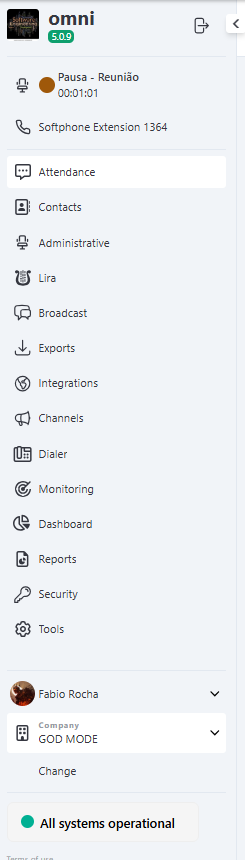
The Sidebar Menu is the main navigation component in Omni and is available on all system screens. It provides quick access to essential modules, user information, and operational tools. Its structure is standardized and consistent, ensuring ease of use and efficiency in the agents’ daily routines.
Information - Upper Section
Located at the top of the menu, these features are related both to the system environment and to the agent’s status:
- Company Photo: Visual representation of the company to which the user belongs.
- System Version: Displays the current version of Omni.
- Logout Button: Securely ends the user’s session in the system.
- Agent Status: Indicates whether the user is Available or On Pause. By clicking, it is possible to change the status as needed.
- Softphone Button: Opens the integrated softphone for voice attendances.
- Extension: Number associated with the user within the telephony system.
System Modules - Central Section
The main modules of Omni are available in the sidebar menu, allowing direct access to system functionalities:
⚠️ Important: The content displayed in the sidebar menu varies according to the permissions assigned to the user. In other words, each agent only sees the menus they are authorized to access.
📞 Attendance
- Direct access to the Attendance Screen to manage customer interactions.
👥 Contacts
- Management of customer records such as name, email, phone number, and other registration details.
⚙️ Administrative
- Configuration of companies, pauses, users, services, and more.
📢 Broadcast
- Sending mass messages via WhatsApp or SMS.
📊 Exports
- Generation of administrative reports in CSV format.
🔌 Integrations
- Connection with external systems.
📡 Channels
- Configuration and monitoring of communication channels (WhatsApp, email, phone, etc.).
📳 Dialer
- Execution of mass calls.
📈 Dashboard
- Visualization of dashboards and metrics.
📄 Reports
- Generation of reports such as Interaction Tracking, Agents, and IVR.
🔒 Security
- Management of security policies, such as profile management (permissions), access grid, and more.
🛠️ Tools
- Mass actions such as transferring attendances, finishing attendances, and closing attendances in queue.
Information - Lower Section
At the bottom of the sidebar menu, useful elements for user identification and configuration are displayed:
- User Name: Name of the user registered in the system.
- User Photo: Visual representation of the logged-in agent.
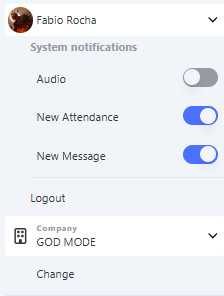
- System Notifications: Allows control of sound and visual alerts during attendances.
- Logout Button: Securely ends the user’s session in the system.
- Company Name: Name of the company linked to the user’s account.
- System Status: Indicator of Omni’s operational state (e.g., Online, Under Maintenance).
⚙️ Notification Settings
Notifications are configured separately, with three distinct options:
-
🔊 Audio Notifications:
Allows enabling or disabling alert sounds triggered during new attendances or when receiving messages. -
💬 New Message (Visual Notification):
Controls the display of visual notifications when receiving new messages in already existing attendances. -
🆕 New Attendance (Visual Notification):
Controls the display of visual notifications when new attendances are shown on the screen for distribution.
⚠️ IMPORTANT:
This data is not stored in the Omni database.
Therefore, there is no log record indicating when the options were enabled or disabled.