DS Dialer
This section demonstrates how to configure the extra steps required for the DS Dialer to work correctly with Omni, allowing users to receive calls in an integrated way.
⚠️ Important: All other standard Omni configurations must be performed normally.
🧭 In Omni, the media used must be configured as Dialer, and all reports and configurations related to this flow must be associated with this media.
Organization Configuration
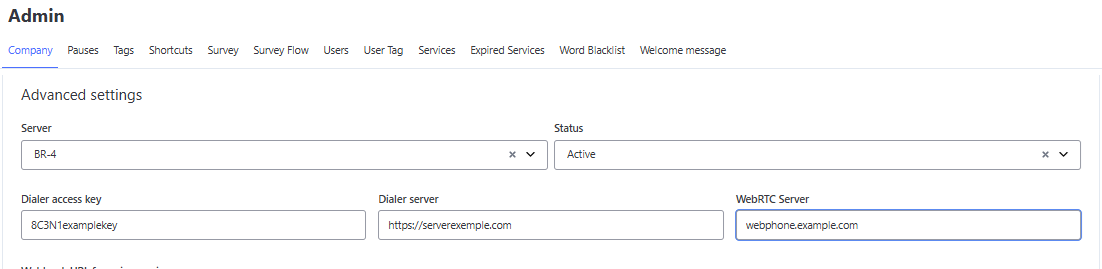
Access the Companies menu and, within the desired organization, fill in the following mandatory parameters to enable integration with the DS Dialer:
- Dialer key
- Dialer server
- WebRTC server
⚠️ Important: This data must be obtained from the team responsible for the dialer, who will provide the correct credentials and configurations for integration.
🔐 Certificate: The DS Dialer API requires a certificate in the X.509 Base64 format (.CRT, .CER, or .PEM extensions).
User Configuration
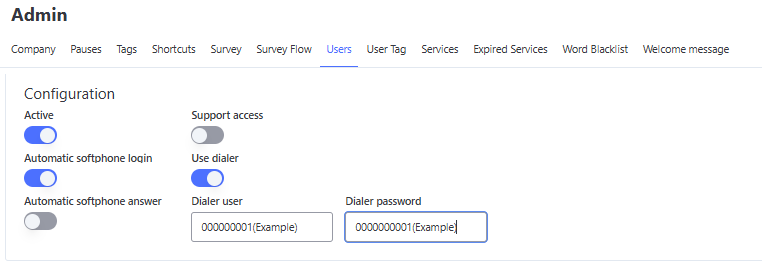
In the registration of each user who will use the Dialer, it is necessary to fill in the following parameters so that the system can automatically connect to the dialer:
- Enable Use dialer
- Dialer username
- Dialer password
⚠️ The information provided must be exactly the same as registered in the dialer system.
Service Configuration with AGV
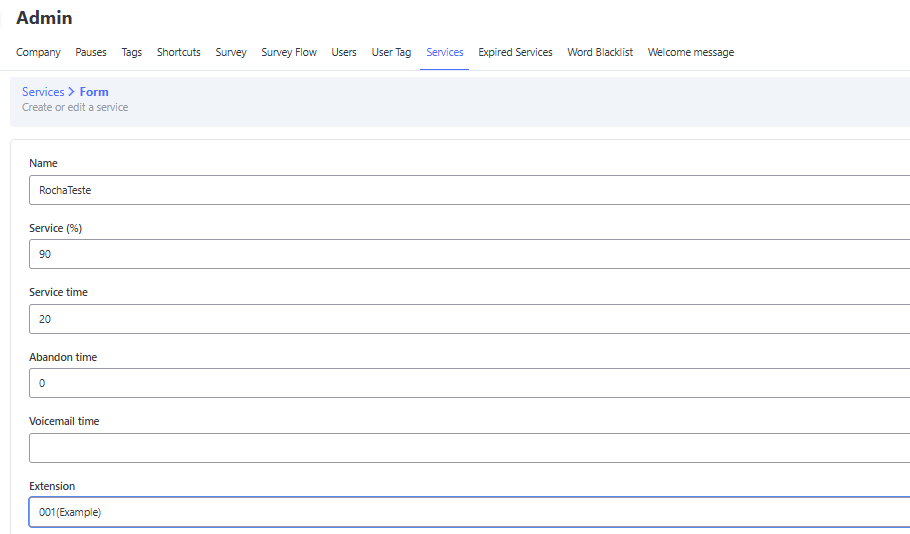
If there is a transfer AGV, it will be necessary to register a Service in Omni that contains the AGV extension as an identifier for receiving transfers.
Service Linkage by Queue Code (DS)
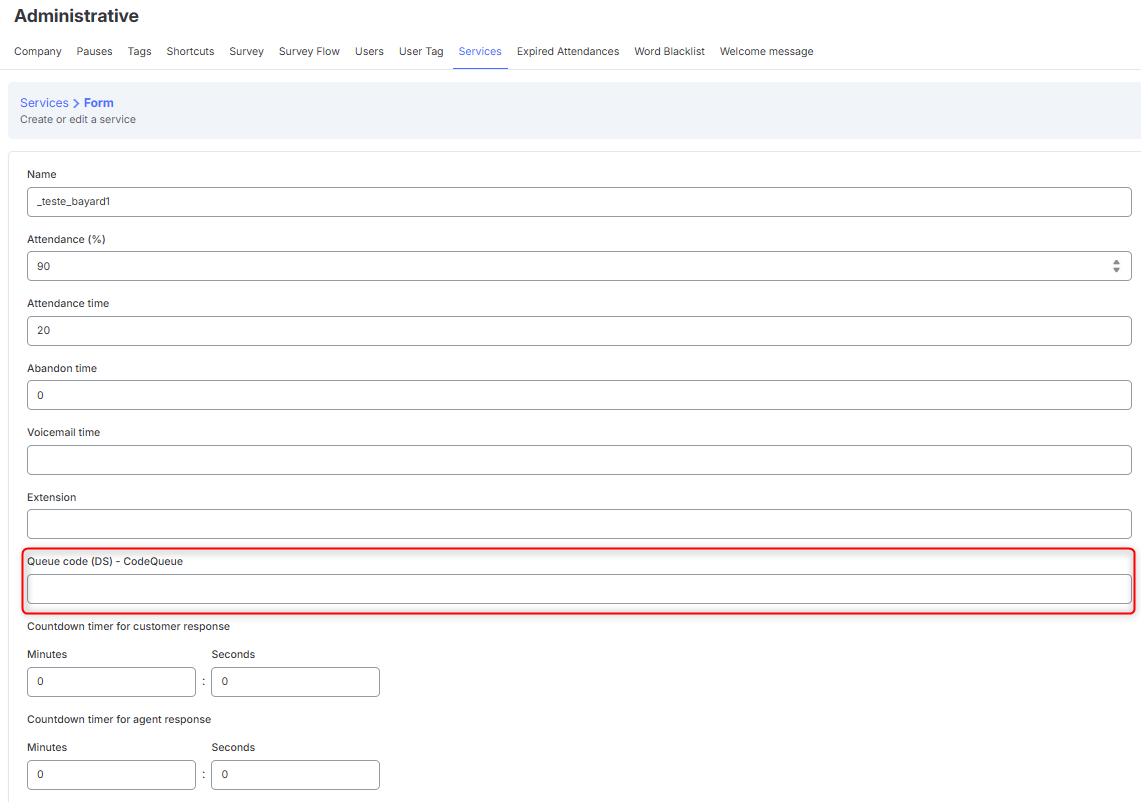
To ensure that calls delivered by the Dialer are routed to the correct service in Omni and include their respective custom disposition tags, you must establish the link using the queue identifier.
In the configuration of the desired service, navigate to Administrative → Services and fill in the field:
- Queue code (DS): Enter the queue code (CodQueue / Service Group) configured in the dialer campaign.
Routing and Disposition Rules
Upon receiving the call from the mailing list on screen, Omni identifies the queue code transmitted by the dialer and behaves as follows:
- 🎯 Populated Queue Code: The interaction is automatically created within the service corresponding to the provided code. The disposition tags displayed to the agent during and after the call will exclusively be those registered for this specific service.
- 📦 Empty or Unlocated Queue Code (Default): If the field is blank or the system does not locate any service linked to the provided code, the interaction will be opened under the Default Service (the organization's default service), using the list of tags already configured for it.
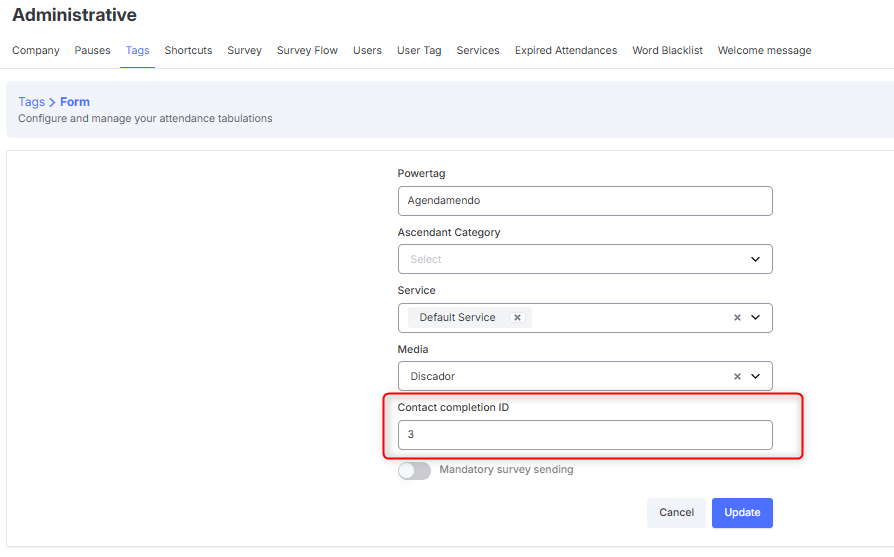
💡 Disposition Identifier: When configuring the completion tags for the service linked to the dialer, make sure to associate the respective Contact Disposition ID (external campaign qualification code) so that the call disposition is properly synchronized between both platforms.
Pause Registration
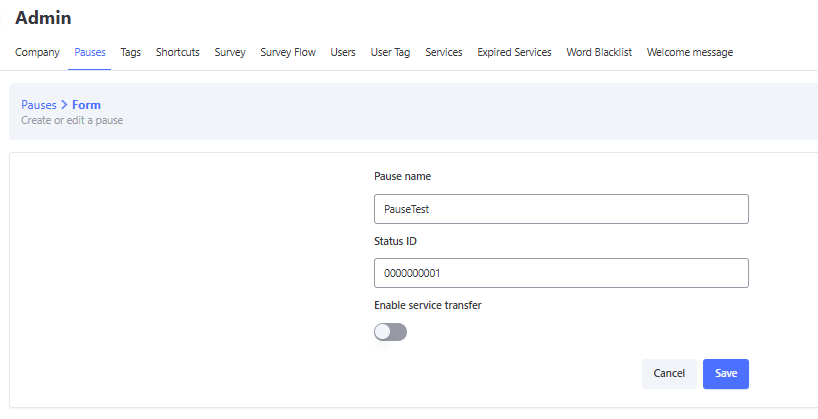
The pauses used by the dialer must be registered in Omni with the following considerations:
- The naming must be exactly the same as that used in the dialer.
- The Status ID field must be filled in correctly according to the registration in the dialer.
Configuration Finalization
After all the configurations described above:
✅ The Dialer will be ready to operate with Omni.
🔄 The user just needs to log out and log back in to the system so that the integration works together with the dialer, which will be responsible for generating the mailing.
Operation Modes: Predictive and Preview Dialing
Omni provides distinct active dialing modes so that operations can perfectly adapt to the profile of each campaign or client. Through the Predictive and Preview models, managers have the power to balance high productivity in volume with the quality of personalized contact.
The choice between these modes defines how the system manages the delivery of contacts to agents, optimizing team occupancy time and ensuring that each approach occurs at the most efficient moment and in the most effective way for the business.
It is important to emphasize that the definition of the dialing mode (Predictive or Preview) is a configuration performed exclusively by the Telecom team directly in the Dialer. Omni acts as the receiver of these calls, with no parameterization for switching between these models within Omni’s administrative interface.
Interface and Visualization in Attendance
Regardless of the mode used (Predictive or Preview), the Attendance interface and the arrangement of information on Omni’s screen remain the same. This ensures a standardized experience for the operator and facilitates data management.
- Customizable Fields: All information and personalized fields that appear during Attendance are configured by the Telecom team through the Dialer.
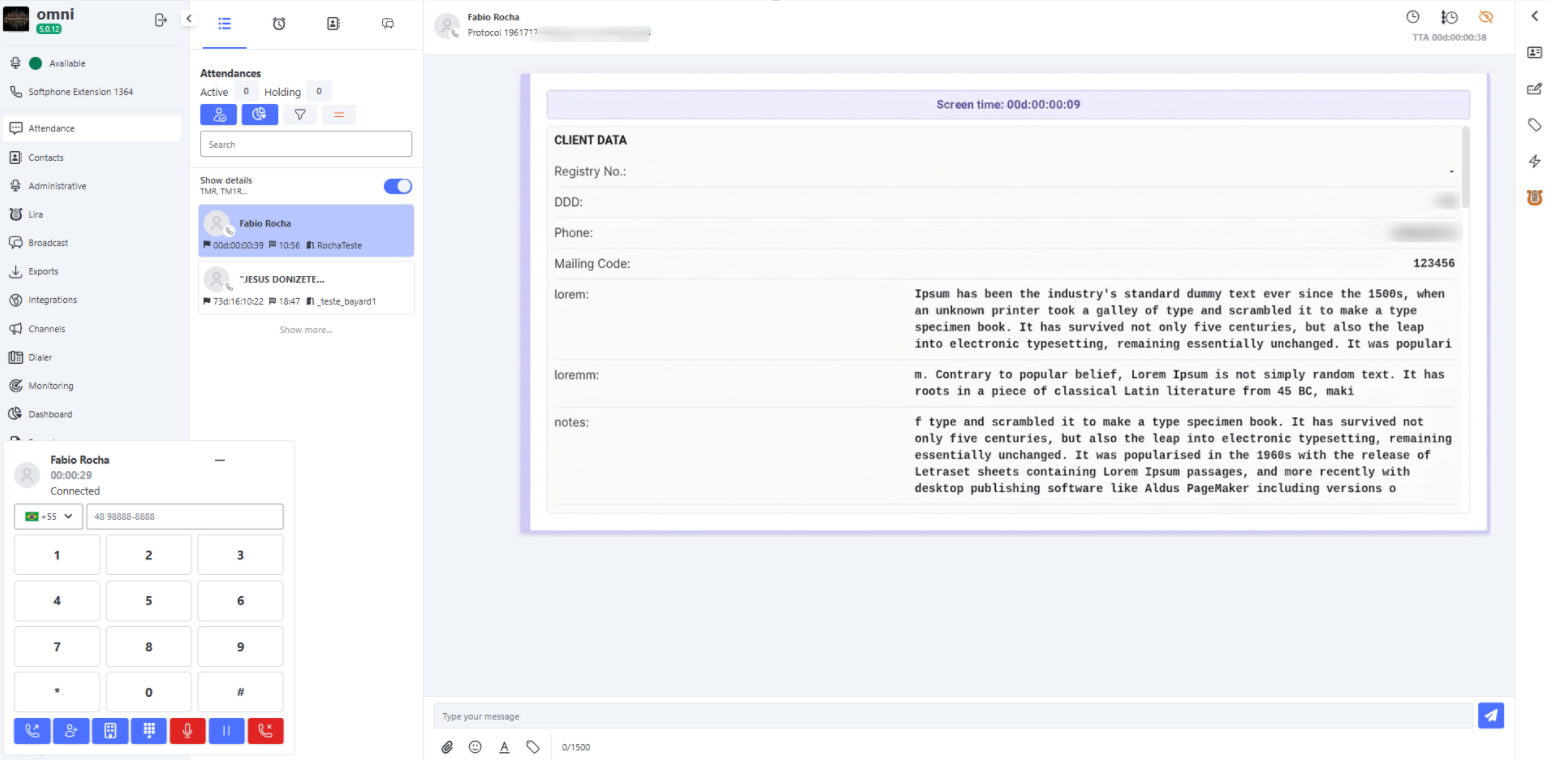
- Visual Difference: The only distinction in the interface between the models is the presence of action buttons and a timer, which are exclusive to the Preview mode. In the Predictive model, the agent receives the call already in progress without the need for accept/reject buttons to initiate dialing.
Predictive Dialer
In the Predictive model, the absolute priority is to maximize the agent’s talk time, ensuring they spend as much time as possible in direct contact with customers. The system works proactively, making multiple automatic calls based on mailing lists and delivering to the operator only the interactions where a real person is on the other end of the line.
🔄 How It Works in Practice:
- Automatic and Intelligent Distribution: The call appears instantly on Omni’s screen. Unlike other models, the agent does not wait for the phone to ring; when the call appears, it is already in progress or fully connected, ready for dialogue.
- Agent’s Role: The process is 100% transparent and free of manual dialing intervention. The operator’s role is purely focused on human interaction, starting the conversation as soon as the system establishes the connection and delivers the contact.
- Operational Advantage: Drastically reduces idle time, eliminating waiting for busy tones, voicemails, or invalid numbers.
Preview Dialer
Unlike the Predictive model, the Preview model focuses on quality and personalized contact. It is ideal for complex sales operations, specific collections, or any service that requires the agent to know the customer’s history before starting the conversation. This mode offers strategic “breathing time,” allowing the operator to properly prepare for the approach.
📋 Mailing Import Requirement
For dialing to work correctly and the system to identify destinations, the mailing must be sent with contact data following the naming and format below:
- Mandatory Format:
NU_DDD_1=XX|NU_PHONE_1=XXXXXXXXX| - Example:
NU_DDD_1=11|NU_PHONE_1=999999999|
❗ Important Note: The functionality of the call button and the trigger of the automatic call (after the timer ends) depend exclusively on the presence of these fields exactly as described. If the mailing is imported with different naming, the system will not be able to process dialing, invalidating the Preview model operation.
⏱️ The Preview Call Cycle:
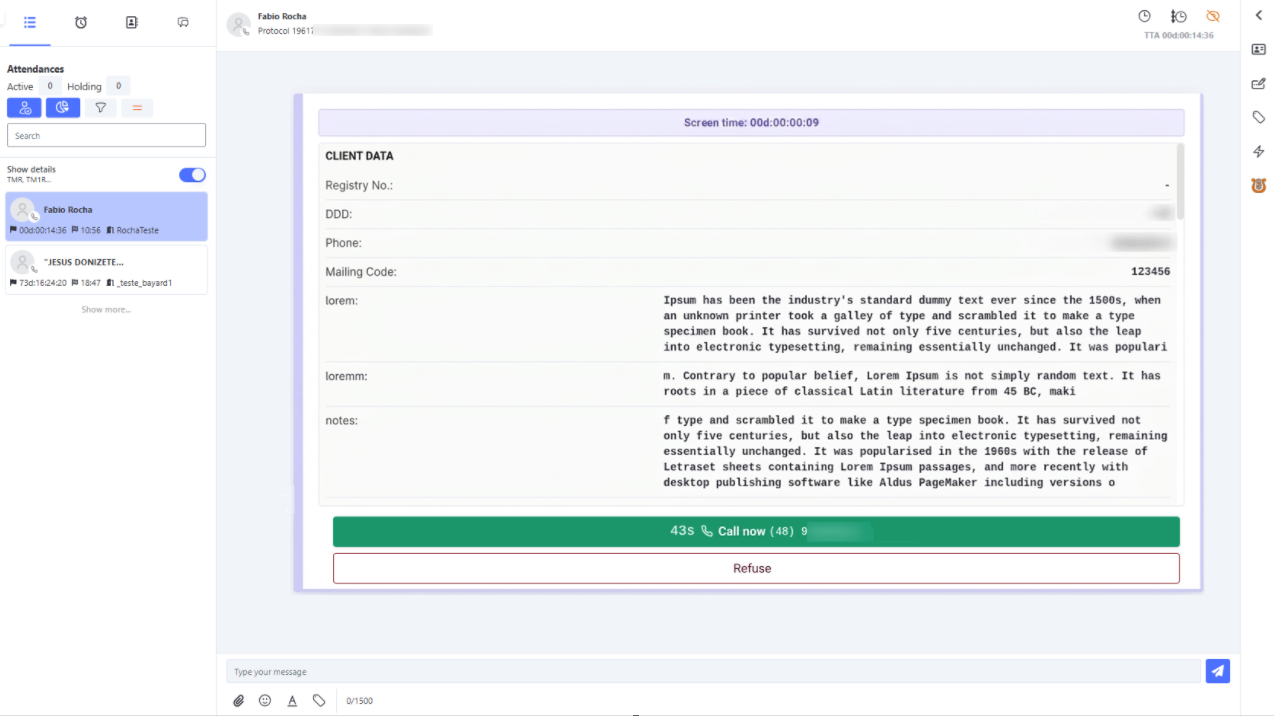
- Delivery and Case Study: The call appears on Omni’s screen with all available contact information, but the call is not initiated immediately. The agent can read notes, check history, and understand the profile before calling.
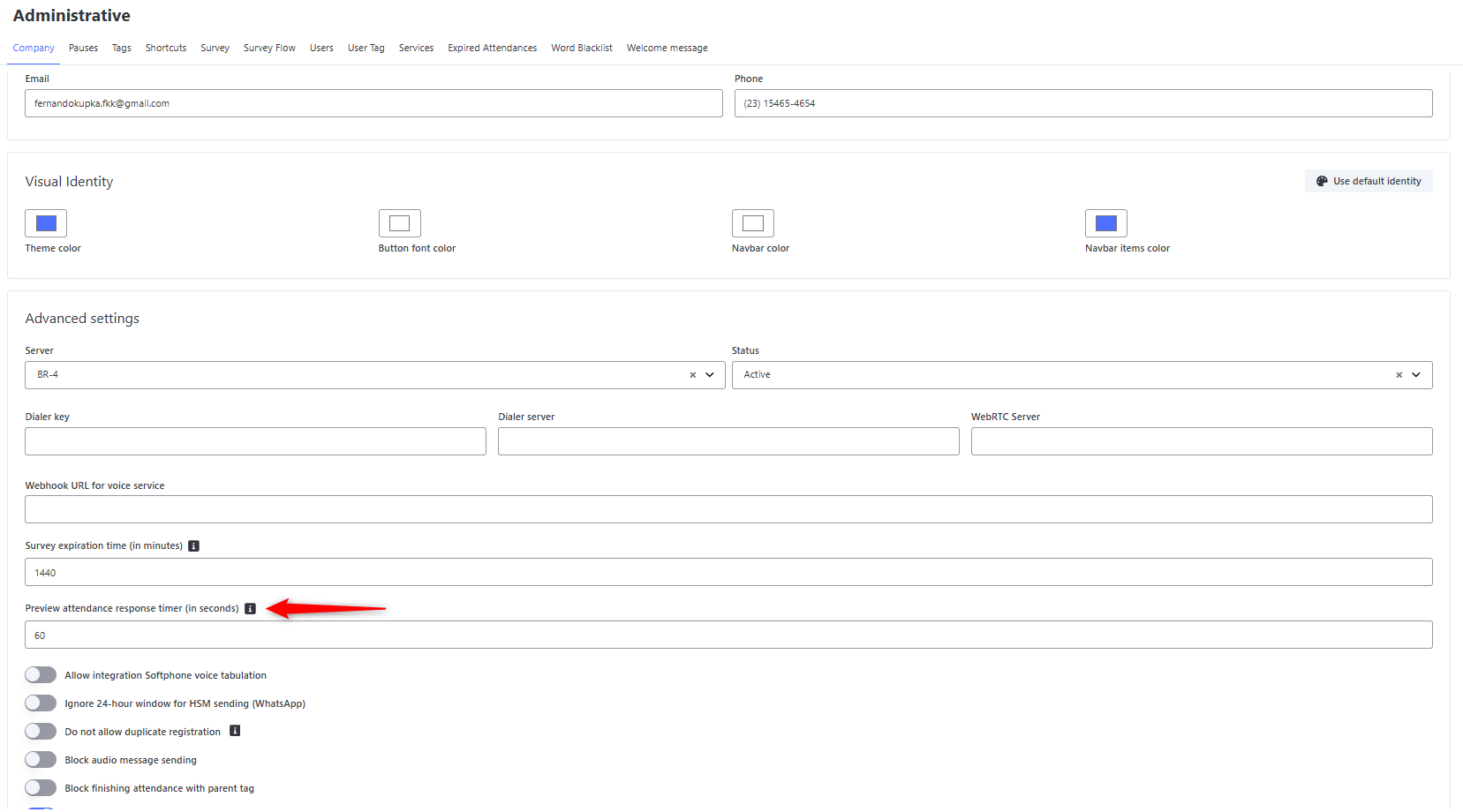
- Analysis Time (Safety Timer): The system provides configurable preparation time (set in Company Menu, default 60 seconds). This timer is visually displayed, ensuring fair analysis time without compromising workflow.
- Conscious Decision Making: During analysis time, the operator decides:
- Green Button (Call): Starts dialing manually when ready.
- Reject Button: If contact is not viable, the agent can refuse. In this case, tabulation and completion tags must be filled.
- Automatic Trigger: To avoid stagnation, if the timer reaches zero without manual action, Omni automatically initiates the call.
💡 Strategic Advantage:
The great strength of Preview is preparation. The agent enters the call already knowing the customer’s name, last interactions, and possible objections, greatly increasing the chances of success.
⚙️ Timer Configuration (Preview)
Although dialing strategy is defined by Telecom, the analysis time in the Preview model is configured directly in Omni’s admin interface. This allows balancing case study time with productivity needs.
Steps to adjust analysis time:
- Go to Settings > Companies.
- Locate Advanced Settings.
- In Timer for preview call response (in seconds), enter the desired value.
- Default is 60 seconds, adjustable up to 24h (86400 seconds).
- Click Save or Update.
Redialing
The Redialing feature allows operators to quickly and strategically retry active calls without reimporting the mailing or manually searching the contact in the database.
Whenever a call ends, disconnects, or is unanswered (without effective customer contact), the dialer status enters Pending Tabulation. At this point, the platform enables redialing tools.
Ways to Execute Redialing
Interface behavior and redialing options vary depending on the active dialer mode in your campaign, adapting to your operation’s strategy.
🤖 Predictive Mode
In Predictive mode, the focus is maximum productivity and time optimization. Call rhythm is automated, keeping the operator’s flow agile. Redialing follows a simplified pattern:
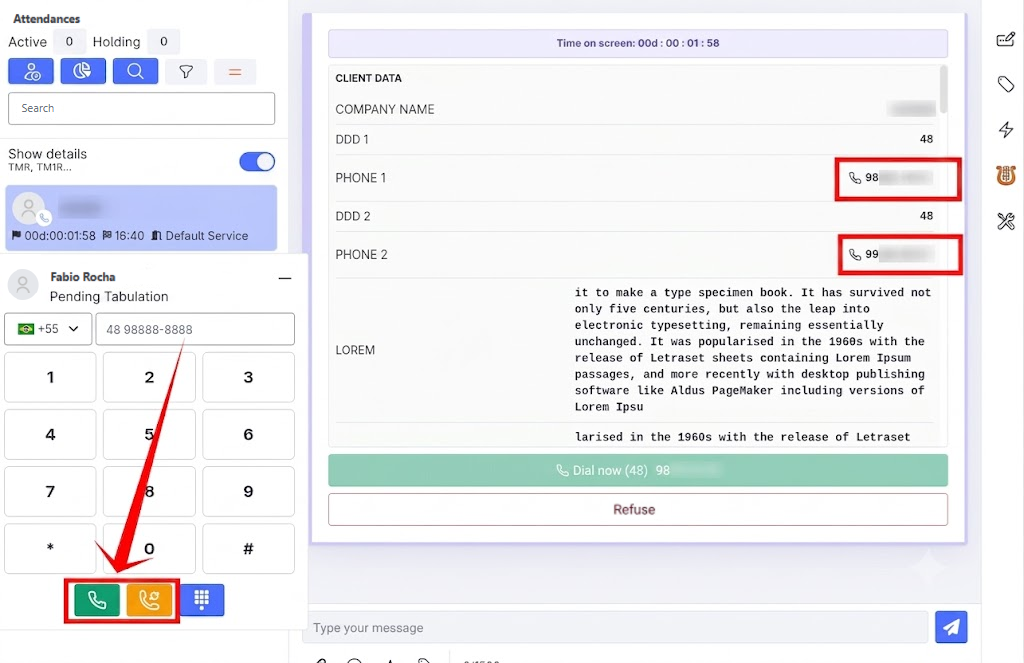
- 🟡 Standard Redial (Yellow Button): The operator clicks the yellow button with the phone + circular arrow icon (bottom bar). The system immediately dials the Phone 1 (Primary) registered.
⚠️ Important Note for Predictive Dialing: When the operator is using the Predictive mode and there is an active call on screen with pending tabulation, only the yellow redial button will be available to make calls.
In this situation, the numeric keypad and manual phone number entry are completely blocked in the interface. The operator will not be able to enter a new number manually, since the yellow button is reserved exclusively for redialing the number linked to the active call that remains on the screen.
👁️ Preview Mode
In Preview mode, the strategy prioritizes flexibility and agent autonomy. Redialing can be executed in three ways:
- 🟡 1. Yellow Button: Direct immediate call to Phone 1 (Primary).
- 📱 2. Direct Click on Data Sheet: The operator clicks any phone number listed in Customer Data (Phone 1, Phone 2, etc.). Omni instantly dials the clicked number.
- 🟢 3. Manual Entry: If needed, the agent can type an alternative number in the dialer text field and click the green call button.
⚠️ Important Note for Preview Dialing: When the operator is using the Preview mode and there is an active call on screen without the first call having been made via mailing, the numeric keypad and manual phone number entry are completely blocked in the interface.
Manual dialing will only be available if it is after the first dialing of the preview call or when there is no active call on screen.
📋 Mandatory Criteria for Manual Dialing: For the call to be successfully completed, the number entered must be strictly numeric and follow the valid formats below:
- DDD: Must contain a valid Brazilian DDD with 2 digits (without the leading zero).
- Mobile Phone: Must contain the digit 9 in front, followed by 8 more digits (Format: DDD + 9XXXXXXXX).
- Example:
48999999999- Landline Phone: Must mandatorily start with digits 2, 3, 4, or 5, followed by 7 more digits (Format: DDD + [2-5]XXXXXXX).
- Example:
4833334444🚫 Critical Restriction: The system does not accept formatting characters (parentheses, hyphens, spaces) nor the international country code (
+55). Enter only clean numbers.
Prior Tabulation in Redial
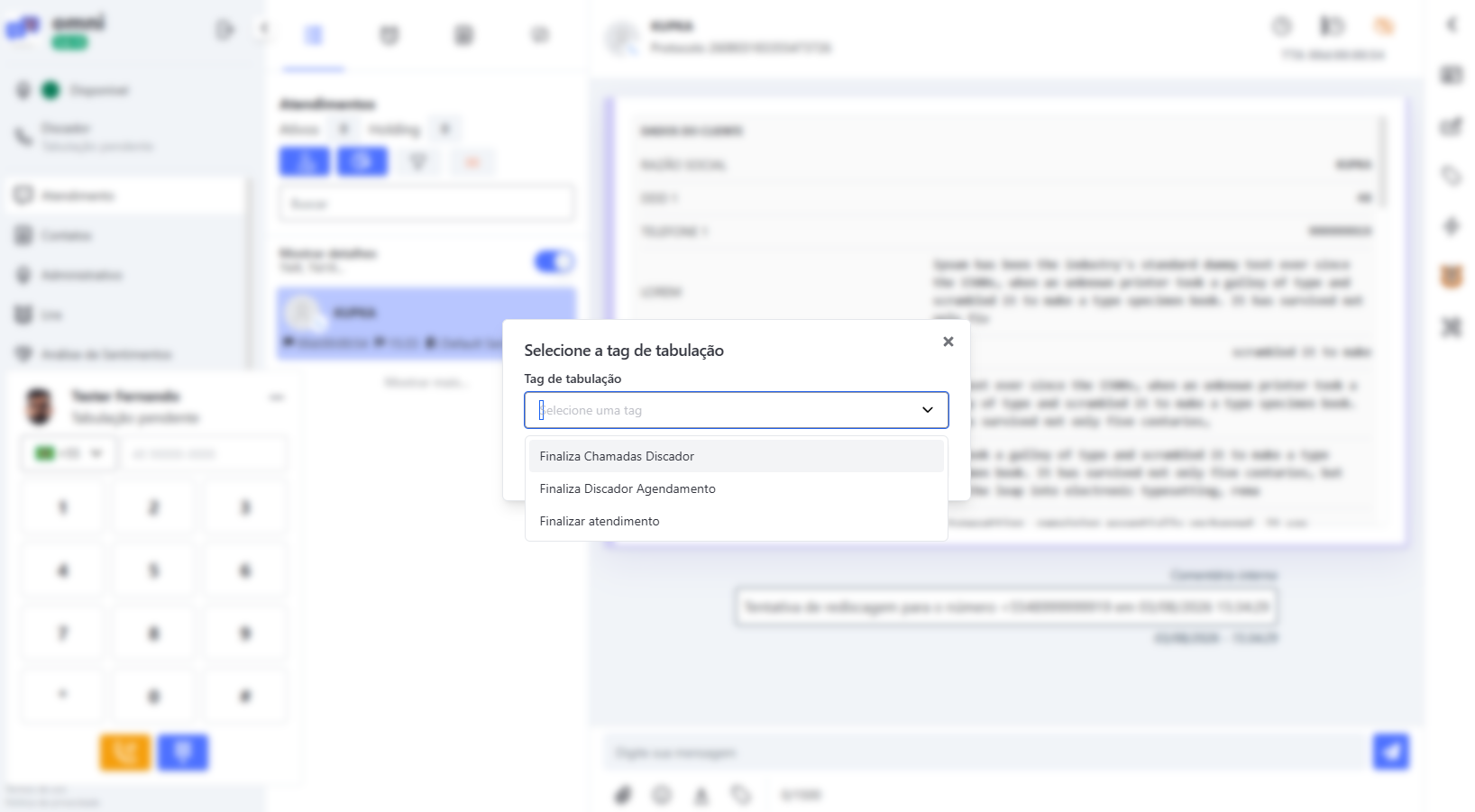
When triggering a redial for the same contact, Omni will display a screen for you to select the reason for ending the previous call.
This ensures that the actual result of the call (such as an unproductive number, voicemail, or contact not located) is correctly recorded in the customer’s history before the new call attempt begins, keeping the attendance screen active for the new dialing.
Interaction Tracking Visualization
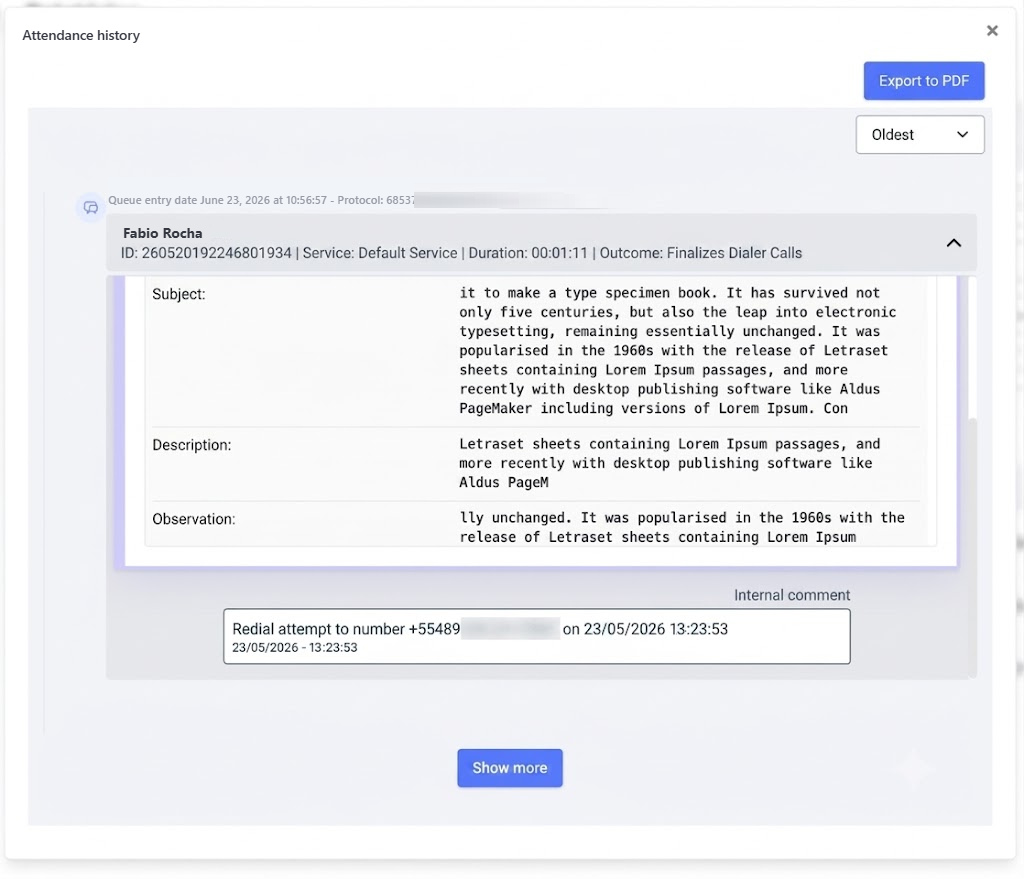
For auditing, supervision, and quality control, all attempts are recorded in the customer’s journey.
In the Interaction Tracking module, Omni automatically inserts an internal comment in the call history, documenting that the operator used redialing for that specific number. This ensures full traceability for managers.
Automatic Attendance Tabulation
Automatic Tabulation is a feature that optimizes the agent's workflow, automatically releasing the dialer after the end of the call, without the need for immediate manual action.
💡 This behavior ensures greater speed and efficiency in operations, preventing the agent from being blocked between calls due to forgetfulness or delays in manual tabulation.
How it works
- The activation of automatic tabulation and the configuration of the waiting time must be requested from Support.
- The time can be parameterized according to the needs of the operation, ensuring flexibility.
- If no specific value is requested, the system will use the default of 30 seconds after the end of the call to perform tabulation automatically.
- After this process, the agent will already be available to receive new calls, without interruptions.
⚙️ During the configured period (by default, 30 seconds), the agent can still manually insert notes or adjust the tabulation if necessary.
If no action is taken within this time, the system completes the tabulation automatically, ensuring the continuity of the flow.
Benefits
✨ Increased productivity: the agent does not need to perform a manual step after each call.
🧩 Continuous flow: avoids queues and bottlenecks, keeping the dialer active and quickly releasing new calls.
🔒 Reliability: reduces the risk of attendances being stuck due to lack of tabulation.
Manager Tabulation
The Manager Finalization feature provides full autonomy in the monitoring screen, allowing managers to intervene and close attendances on behalf of the agent when necessary.
💡 This resource is essential to keep the operation flowing in situations where the agent is unable to complete the attendance, ensuring that the process does not stop.
How it works
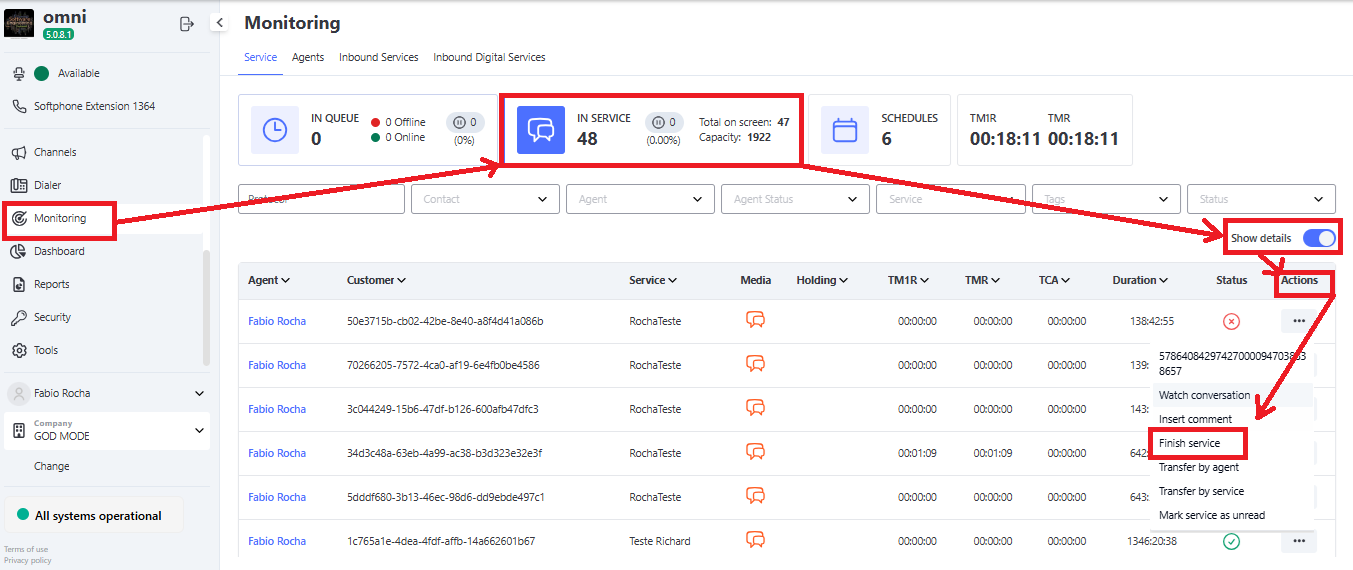
- The manager must access the Monitoring menu and go to the Attendances tab.
- It is necessary to locate the agent in the card view or activate the Show Details option for a general view.
- In the list of attendances, simply click the Actions 🛠️ button and select the Finalize Attendance 🏁 option.
- A window will open to select the corresponding Tabulation (Tag) for the outcome, ensuring correct classification.
⚙️ By confirming the action, the system immediately releases the agent's capacity (slot), allowing them to receive new queue demands as soon as they are available, without blocking the operation.
Benefits
🔄 Operational Continuity: prevents attendances from getting "stuck" in the system, ensuring a formal closure.
🧩 Efficient Slot Management: manually unlocks the agent's queue, optimizing the distribution of new attendances.
📊 Data Integrity: ensures that, even in adverse situations, the reason for contact is correctly tabulated in the reports.
New Contact Search and Call via Dialer
The attendance screen now includes an integrated feature that allows searching for contacts directly through the dialer and starting calls quickly and easily.
Who has access to the feature?
This functionality is designed to optimize operation in Preview Mode. For the dialer search button to be displayed and enabled on the attendance screen, the operator must meet the following criteria:
- Have permission and access to the platform’s dialer.
- Be actively logged into Preview Mode.
💡 Access Note: If the user does not have the dialer or is logged into another mode (such as Predictive), the search button will not be displayed in the interface.
How Contact Search Works
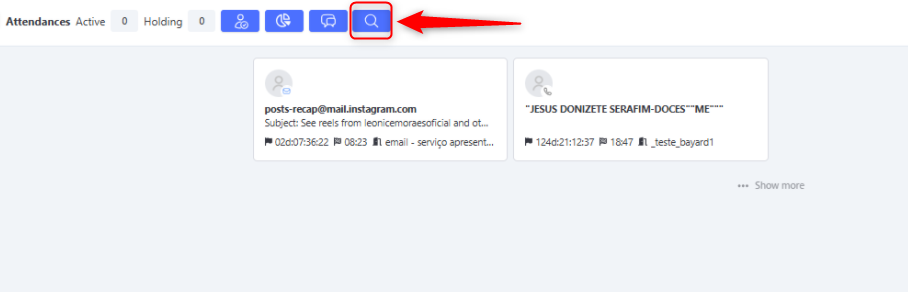
- On the attendance screen, click the Search via Dialer button.
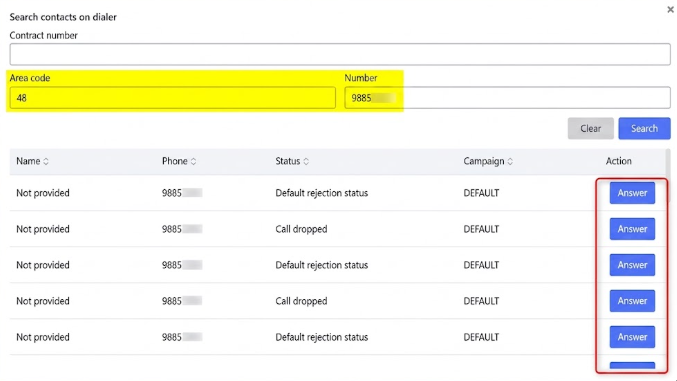
- Enter the desired area code (DDD) and phone number to perform the search in the database.
- The system will return the contact corresponding to the searched number. If the informed number is not registered, the platform will notify that no record was found.
Rules for Making the Call
After locating the desired contact through the search, the button to start the call (Answer) will strictly follow the operator’s dialer status rules:
- 🟢 Dialer Available: The call button will be active and enabled only when the agent’s current dialer status is Available and there is a contact returned in the search. When clicked, the call will start immediately.
- 🔴 Dialer Busy, Paused, or Offline: If the dialer is in any other status (such as paused), the call button will remain disabled, ensuring that the agent only makes new calls when free and fit for operation.
Blended Dialer
The platform provides the Blended operating mode, a feature that allows unifying Active (Outbound) and Receptive (Inbound) attendance queues for the same operator.
Configuration and Activation
All configurations required to enable the Blended mode must be performed by our DS team.
⚠️ Important: If you need to activate this operation, request implementation and feasibility analysis through the technical support channels.
External Transfer via Dialer
Omni allows an active call to be transferred to an external number (mobile or landline) using the Dialer infrastructure. This feature is ideal for cases where problem resolution depends on a third party or a specialist who is not logged into the platform. 🚀
How to Perform the Transfer
The process is simple and integrated directly into the call interface:
- During an active call, locate and select the Transfer button in the Dialer menu. 🔁
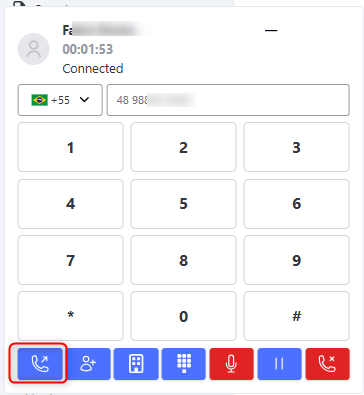
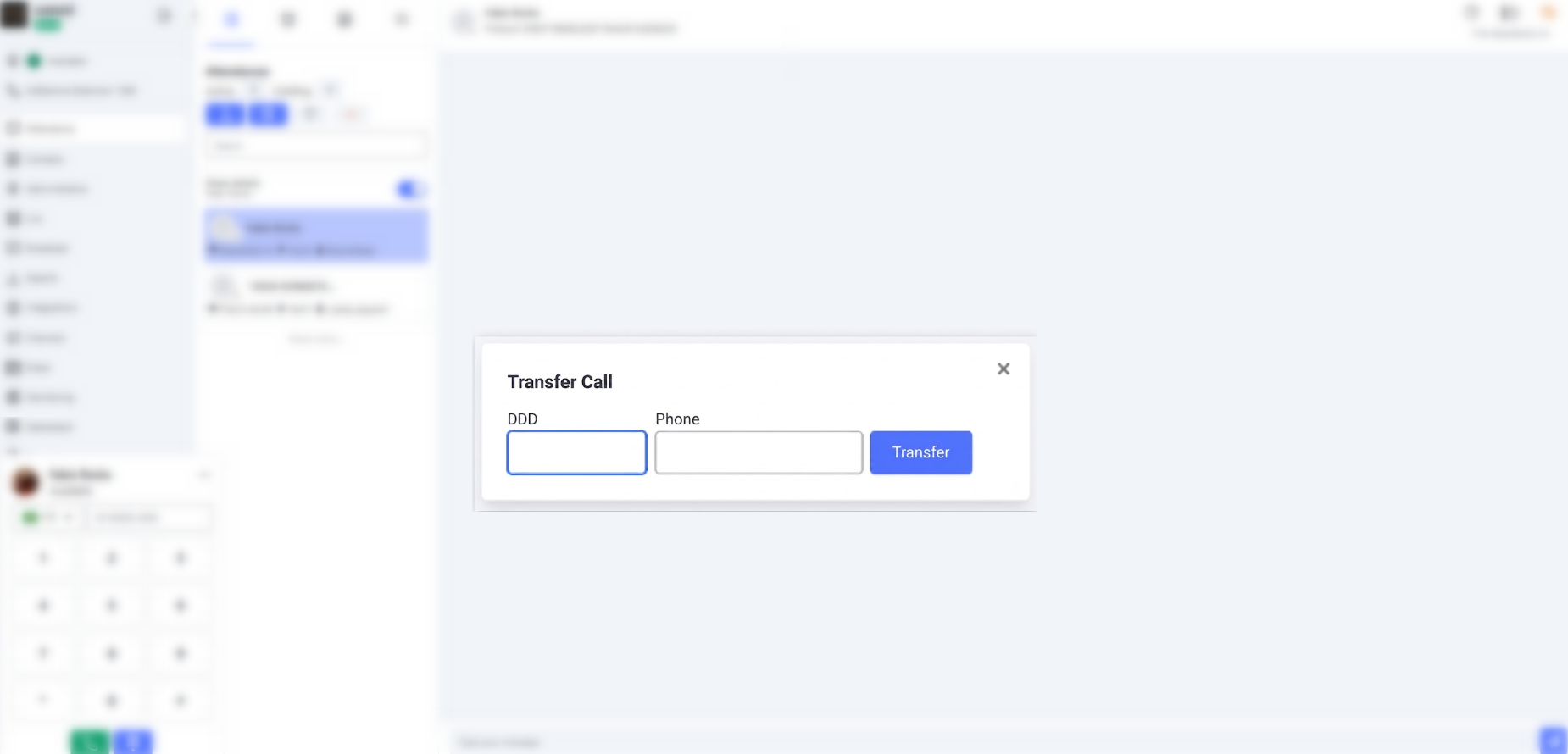
- A new pop-up window will appear for entering the destination.
- Enter the desired Area Code (DDD) + Phone Number (without spaces or special characters).
- Click the Transfer button to complete the operation.
Quick Voice Dispatch via Dialer
For Dialer operations, Omni enables outbound calls directly through the Quick Dispatch feature. This functionality allows you to trigger contacts on the voice channel manually, initiating dialing through the dialer infrastructure and immediately opening the interaction on-screen.
How to Perform a Quick Voice Dispatch
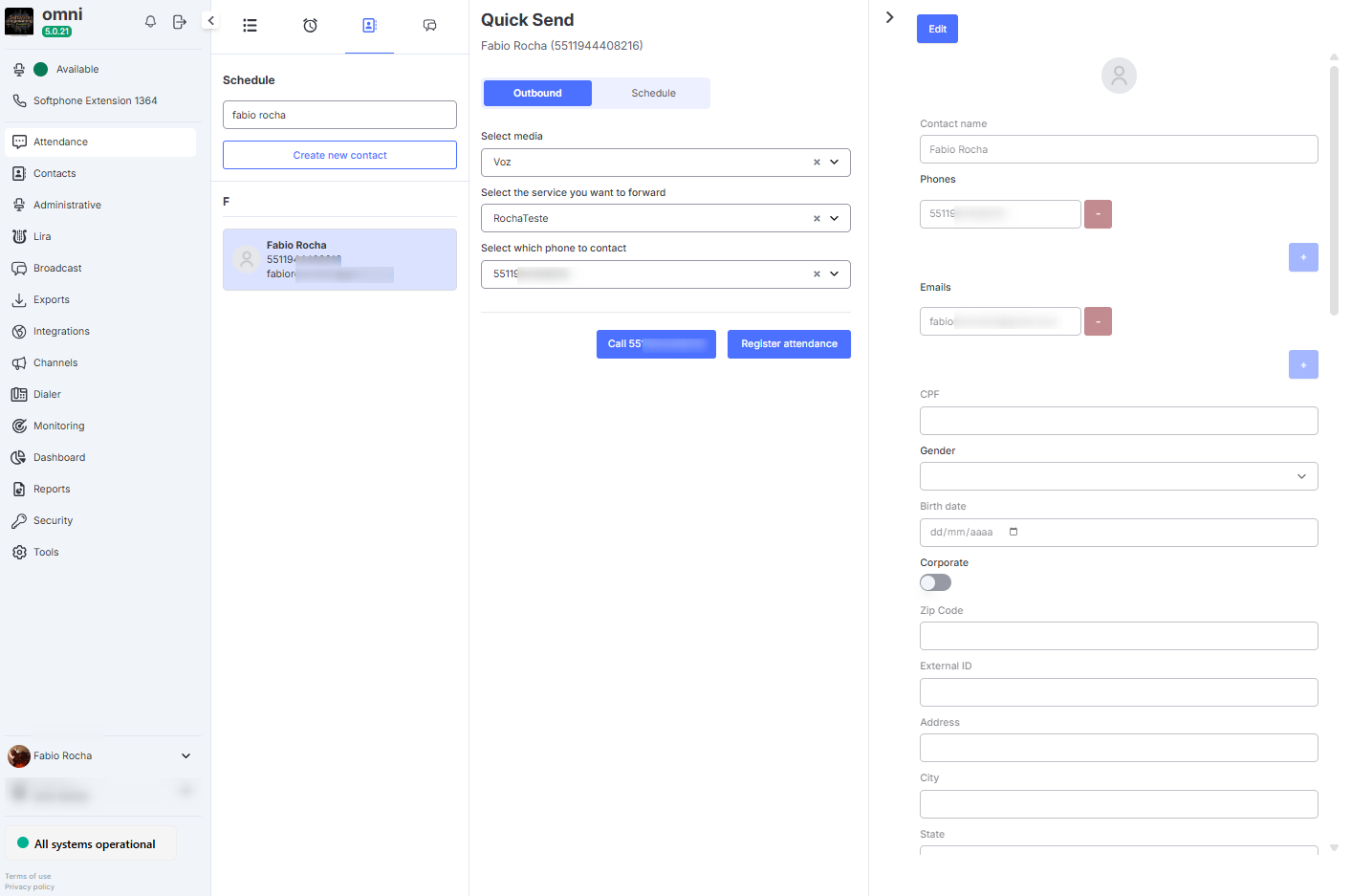
- In the top bar of the system, click the + Quick dispatch button (or, if you are in the list view of the interaction screen, click the phonebook icon).
- Select or search for the desired contact in the database (or register a new record on the spot).
- Select the Voice media channel and the destination phone number registered in Omni.
- Click the call button to initiate the call.
- The dialer will process the outgoing call and the interface will automatically display the ongoing interaction on-screen.
Lock Rules and Validations
- 🟢 Mandatory Available Status: To ensure operational flow and compliance with service policies, agents can only make calls if their dialer status is set to Available. If the agent is in an active call, on pause, or has a pending disposition, dispatching the call will not be permitted.