Omni disconnections
Why Omni disconnected me?
Novo login com um usuário já logado
To ensure data integrity and user presence consistency, Omni operates under a Strict Single Session policy. This mechanism prevents conflicts from causing unexpected logout failures or keeping the user with a "ghost" status (marked as online without having an active connection).
Operation of Simultaneous Access Restriction
The system does not allow simultaneous connections. If you attempt to connect with the same login in a new tab, browser, or computer, Omni will identify the active session and display the lock screen with the option Use Here.
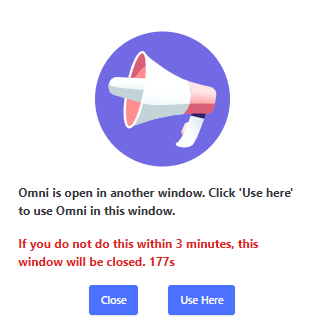
When clicking the Use Here button, the following security flow occurs:
- Global Disconnection: The system performs an immediate logout in all tabs and instances where the user was previously connected.
- Session Reset: All old connections are invalidated to ensure that the new access is unique and stable.
- New Login: It will be necessary to log in again. This procedure is essential to reestablish connection integrity and ensure that the reception of services occurs without failures.
⚠️ Important Information about Disconnection:
- Irreversibility: The disconnection process is automatic and irreversible as soon as the multi-access attempt is detected. Even if the tab is closed without clicking the button, the previous sessions will remain logged out.
- Cessation of Services: Once this process begins, the agent immediately stops receiving calls in the previous sessions to protect the distribution of services.
Connection lost or instability
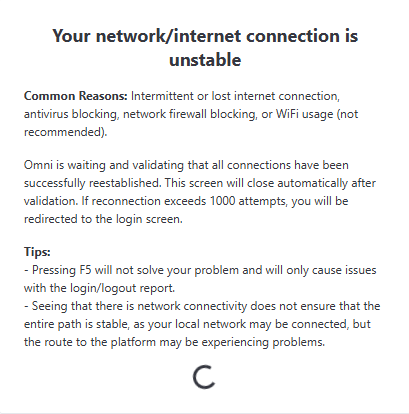
If the system loses its internet connection, it will attempt to reconnect automatically. During this time, the message “Your network/internet connection is unstable” will appear on the screen. This message will remain visible until the connection is restored.
This screen shows up in any interface, at the time the conection is lost or unstable.
The message has the following instructions:
Common Causes: Intermittent or lost internet connection, antivirus blocking, network firewall blocking, or use of Wi-Fi (not recommended). Omni is waiting and validating that all connections have been successfully reestablished. This screen will close automatically after validation. If reconnection exceeds 1000 attempts, you will be redirected to the login screen.
Tips:
- Pressing F5 will not solve your problem and will only cause issues with the login/logout report.
- Seeing that there is network connectivity does not ensure that the entire connection path is stable, as your local network may be connected, but the route to the platform may be experiencing problems.
Restoring Omni Connection
The system will attempt to reconnect up to 1000 times, with 5-second intervals between each attempt, whenever there is a network outage or instability.
It will take approximately more than an hour and a half to complete all these attempts. During this time, the system will attempt to reestablish the connection automatically, ensuring uninterrupted service whenever possible.