API - Historical Data
How to use Omni APIs
This document will show, in a practical and explanatory way, how to use the Omni APIs, which are available at the following link: https://docs-history.omni.digitalcontact.cloud/.
Authentication
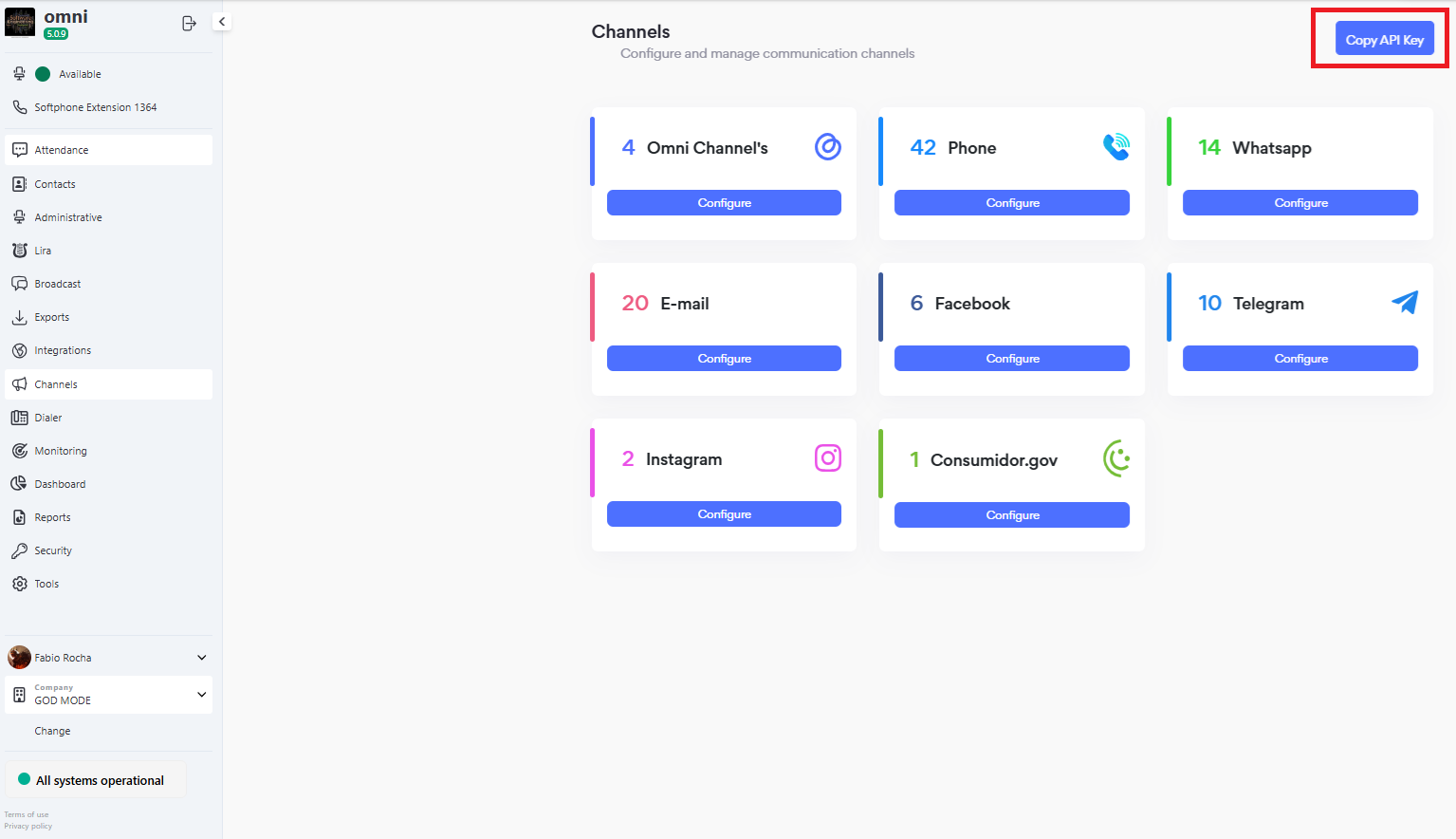
To use the Omni API, you must first perform authentication. For this, you need to copy the x-api-key located in the channels menu within Omni. After that, simply click the Copy API Key button, as shown in the screenshot below:
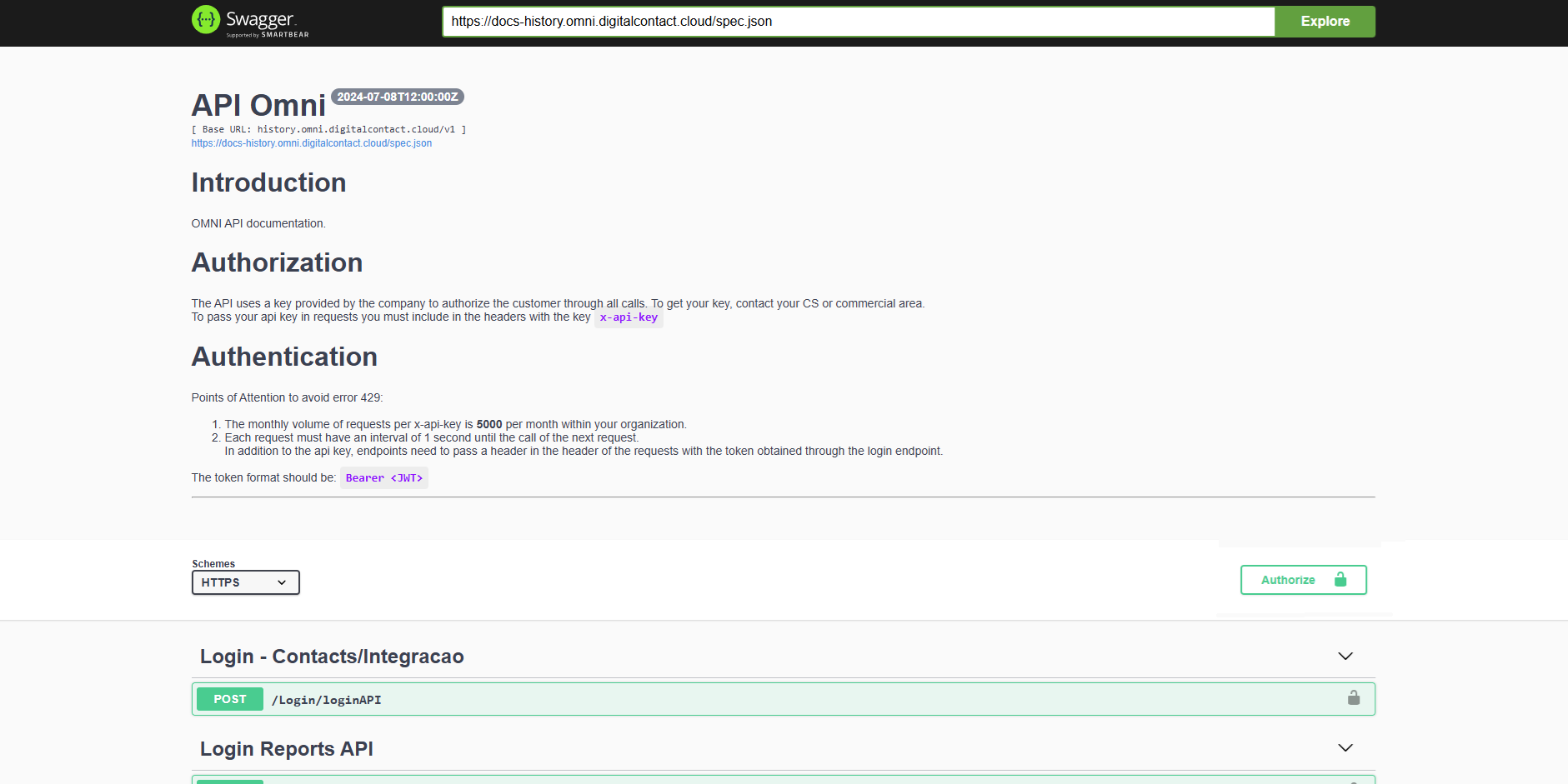
With the key copied, you need to access the Omni APIs through this link: https://docs-history.omni.digitalcontact.cloud/.
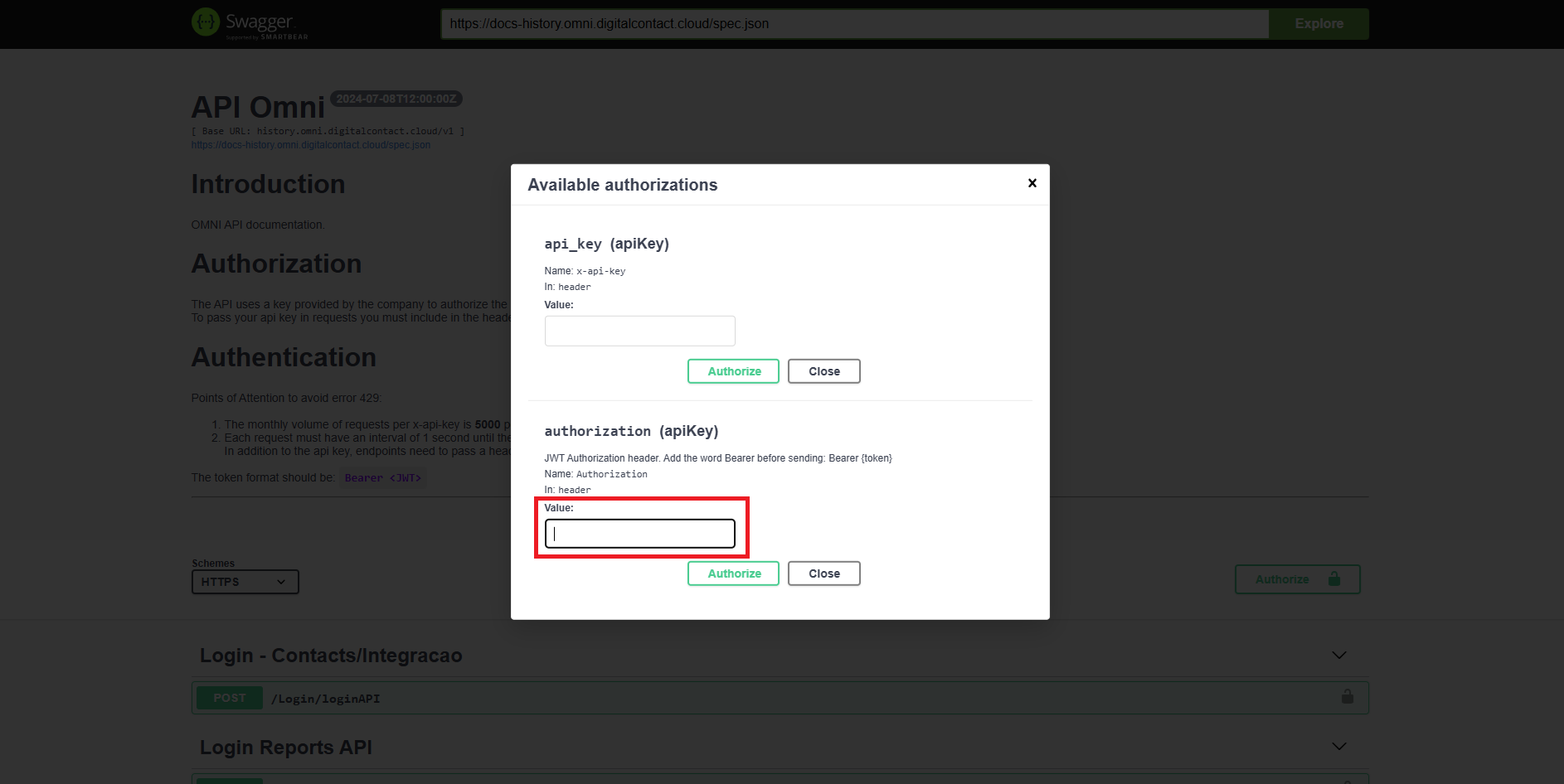
After that, simply click the Authorize button and paste the key into the api_key field.
Below are the screenshots with the step-by-step process:
Login APIs
Currently, there are two login APIs. The /Login/loginApi is required to execute requests from the contact or integration module, and the /Login/organization is used to execute report requests.
Login - Contact or Integration
This API expects two variables: login and password.
To execute the API, you need to click on the /Login/loginApi field and then on the Try it out button:
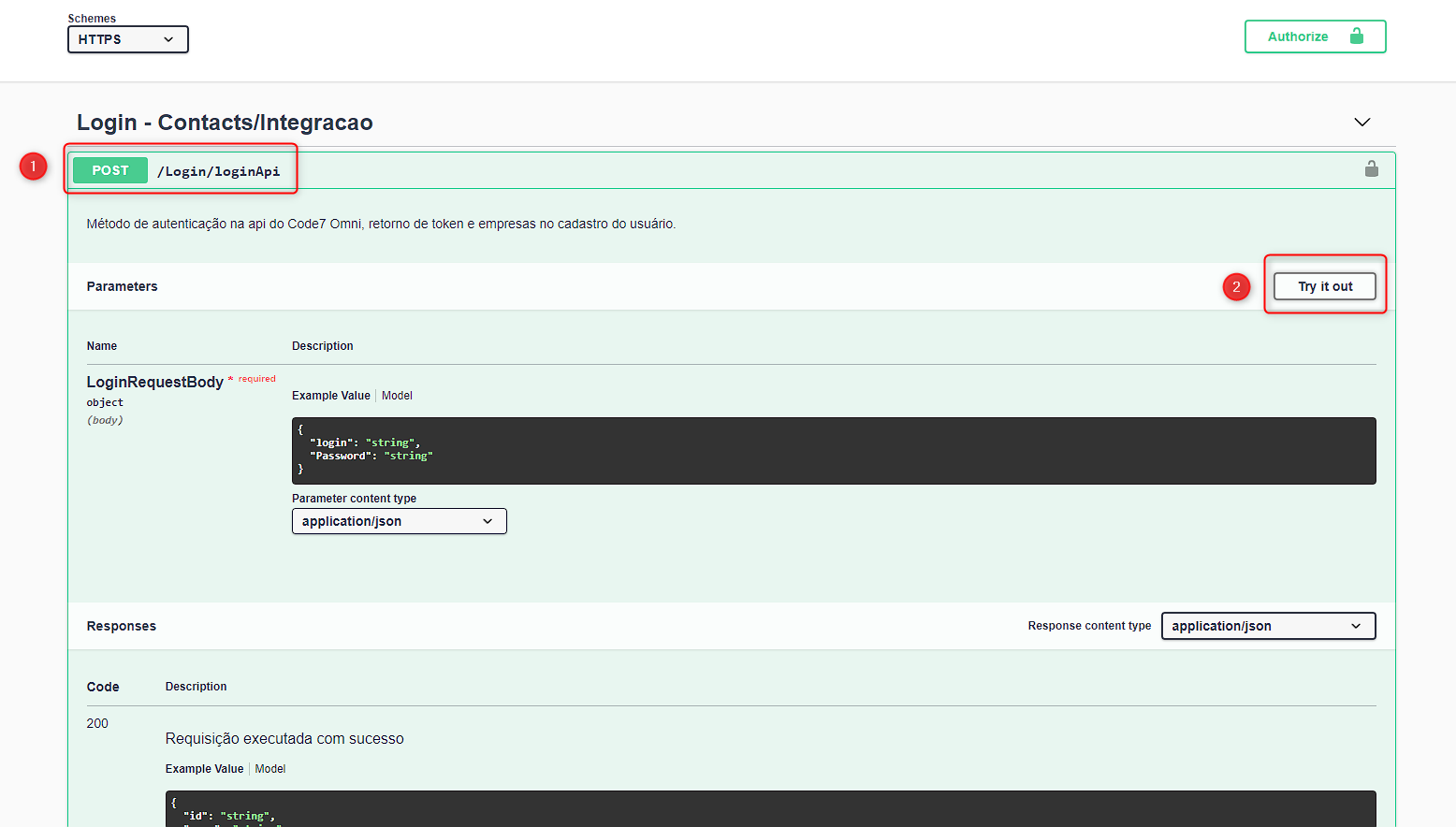
After entering these data, simply click Execute, and the API will return the organizations associated with your user, as shown in the example below:
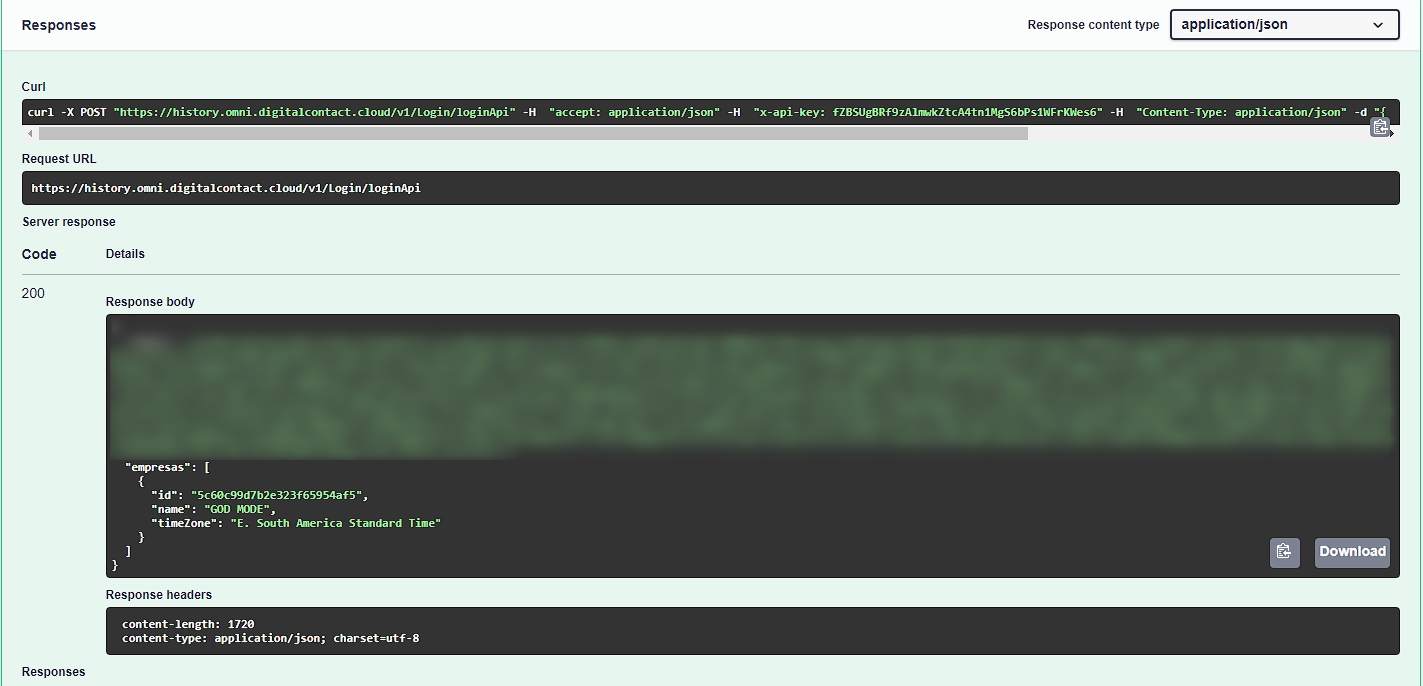
If the goal is to execute the contact or integration APIs, just copy the token into the Authorization field and add Bearer followed by a space before the token.
After that, it is necessary to click the Authorize button, as shown in the screenshot below:
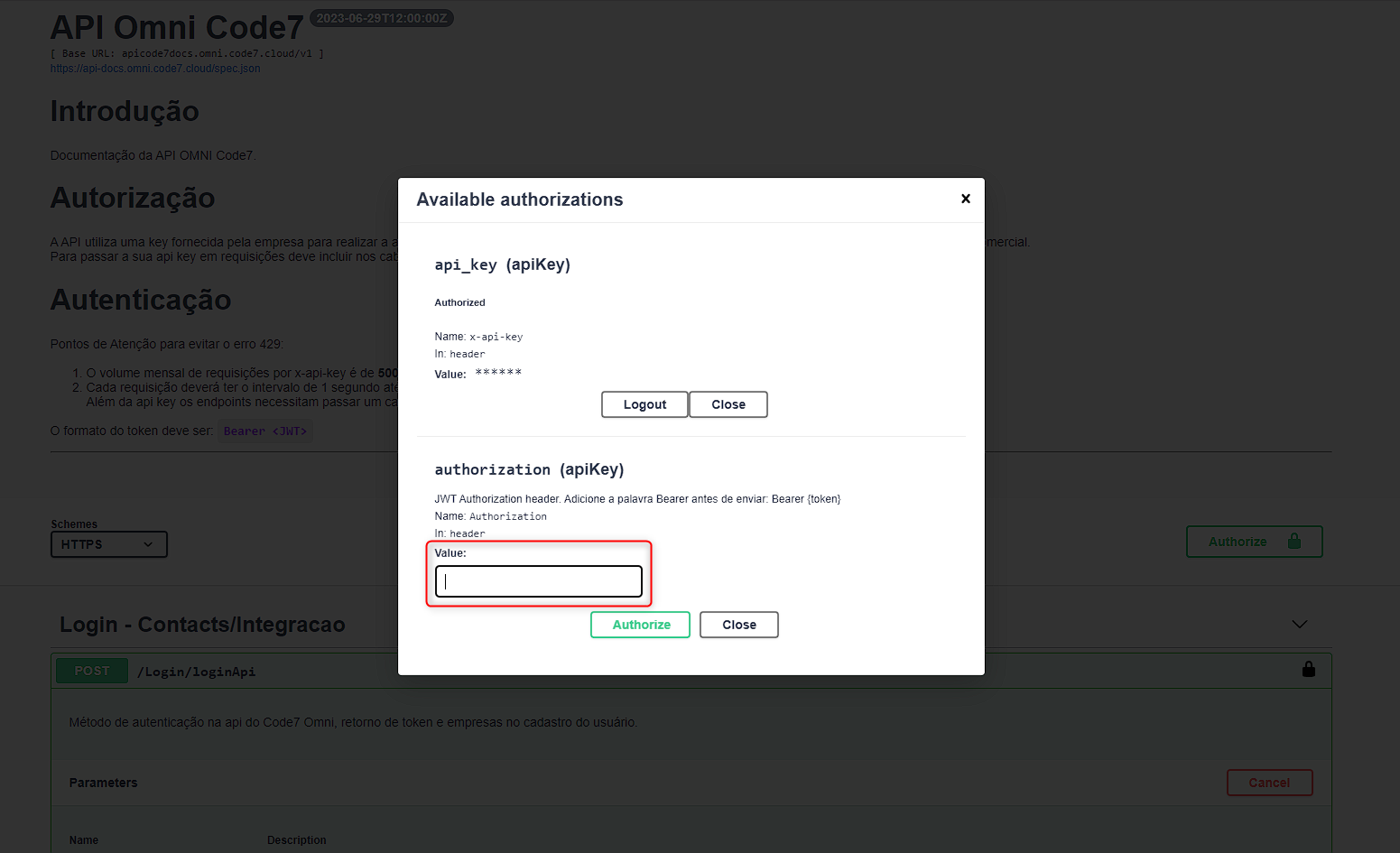
All set — now it will be possible to use all the contact/integration APIs that are available.
Login - Reports
To execute the report APIs, we need to copy the organization ID from the /Login/loginApi API and then select the /Login/organization API, clicking again on the Try it out button:
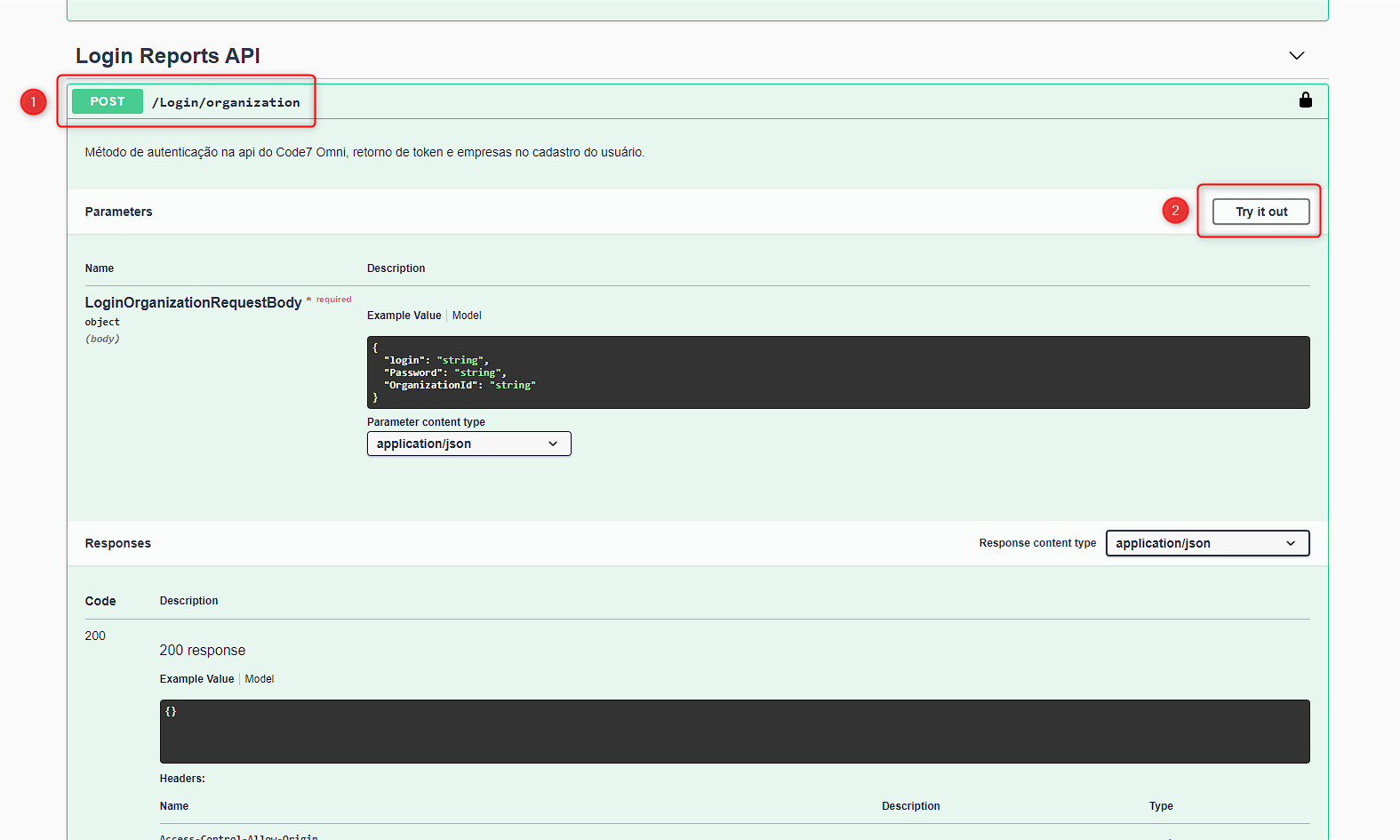
This API expects the login, password, and the organization ID that was copied earlier.
After entering these data, simply click Execute, and the API will return the token and the organization data, as shown in the example below:
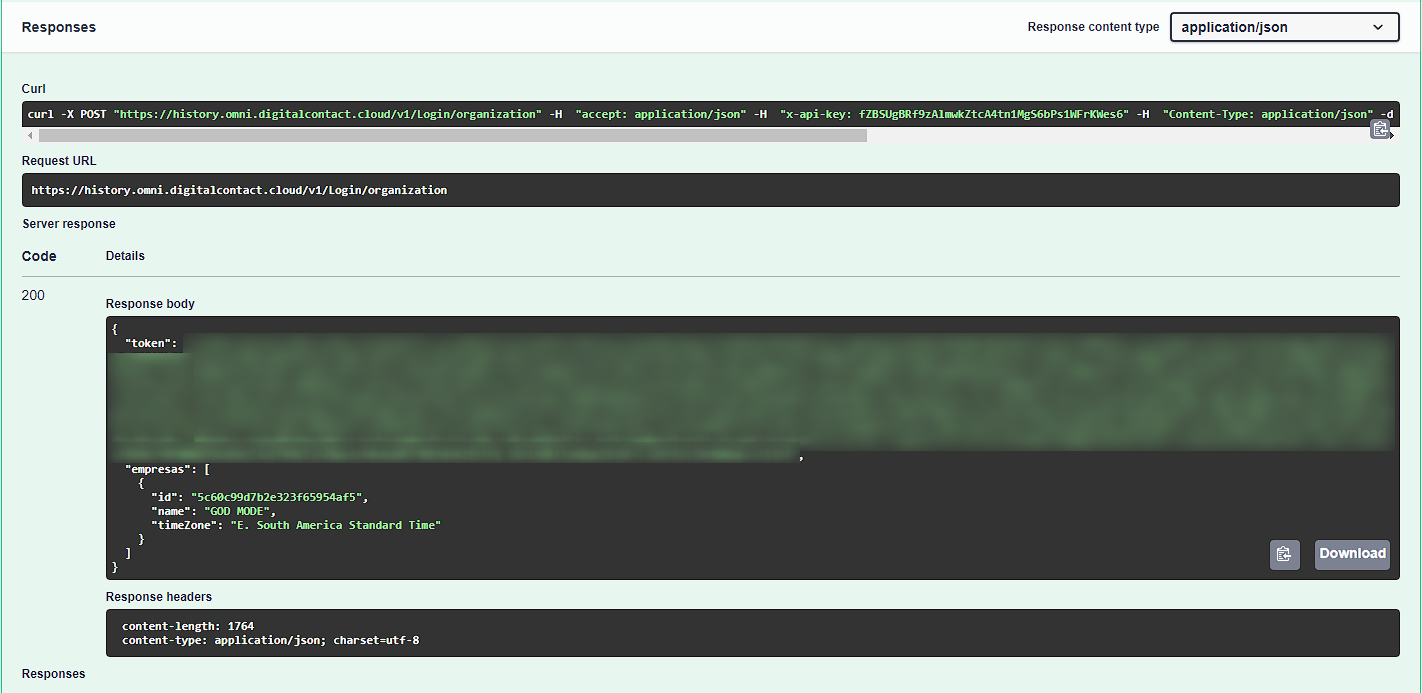
In this case, we only need the token. After copying the token, we can return to the Authorize menu, where we previously placed the api_key.
Now simply paste the token into the Authorization field and add Bearer followed by a space before the token.
After that, it is necessary to click the Authorize button, as shown in the screenshot below:
All set — now it will be possible to use all the report APIs that are available.
In addition, here is a video demonstrating all the steps mentioned earlier:
Main routes: service-history, voice-log, and service-history-audio-links
The main routes are as follows:
- service-history
- Captures data from all attendances between the dates specified in the request.
- voice-log
- Returns data from inbound and outbound calls between the dates specified in the request.
- service-history-audio-links
- Route that allows obtaining the link to recordings of attendances carried out on the platform, between the dates specified in the request.
Service-history
A rota service-history está esperando três variáveis, segue a explicação:
-
report-skip
- Defines which page of documents the API will return. By default, the value is
0. - The API returns 1000 documents per page, so this value must be increased to capture additional records.
- Defines which page of documents the API will return. By default, the value is
-
date_ini
- The initial date the API will consider when searching for records.
- The route accepts two date formats: with or without time.
- Examples:
2024-12-31,2024-12-31 00:00:00.
-
date_end
- The final date the API will consider when searching for records.
- Like
date_ini, it accepts two formats: with or without time. - Examples:
2024-12-31,2024-12-31 23:59:00.
-
interaction_type_id
- Optional code (not required to fill or assign a value).
- Used to filter records by media type.
- Supported values:
1- Voice2- Chat3- Email4- WhatsApp5- Facebook/Messenger12- Instagram17- Consumidor Gov
- The route supports codes sent as either integer (e.g.,
1,2,3) or string (e.g.,'1','2','3').
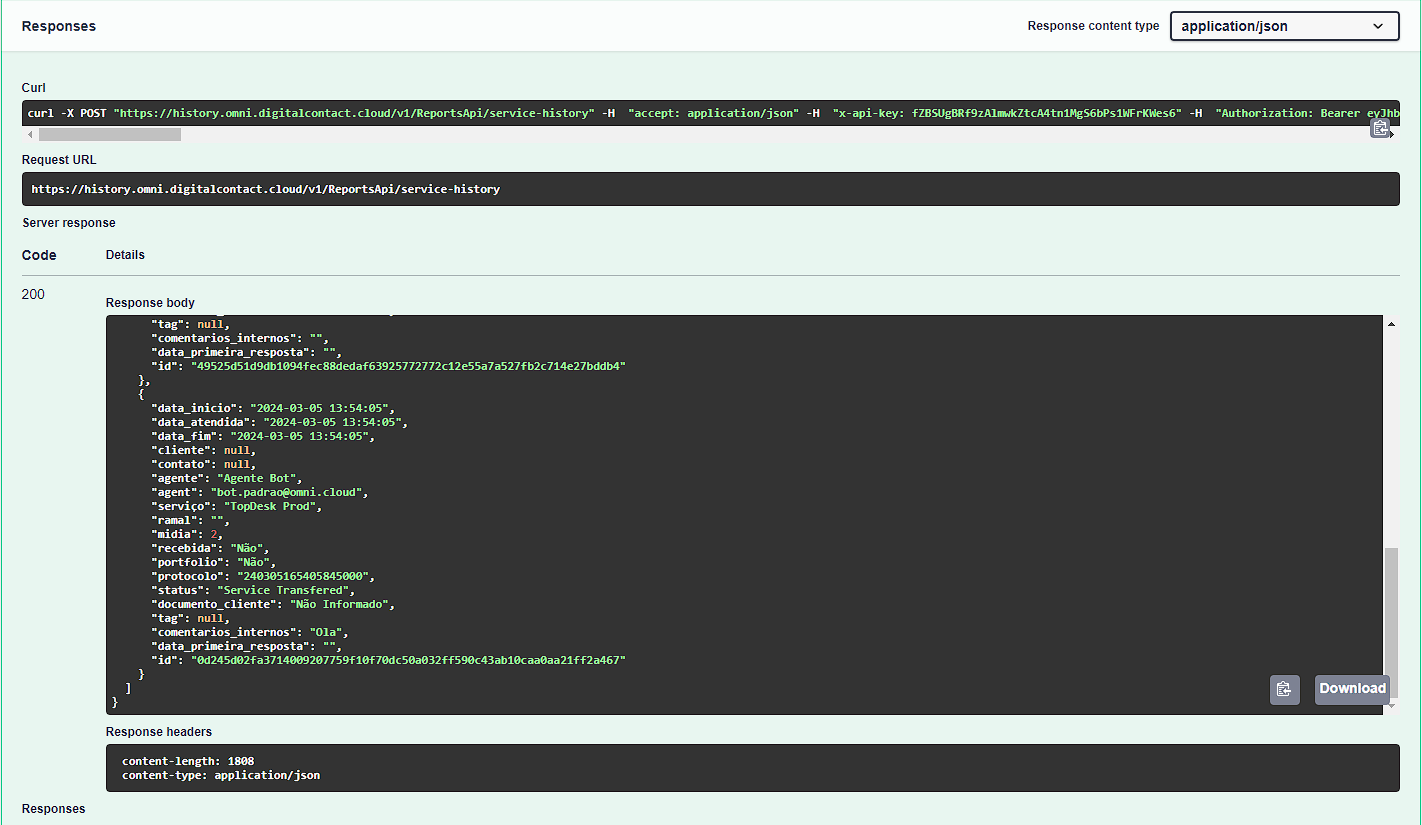
After the request is made, the API will return a set of information for each attendance. Below is the definition of each returned attribute:
- Total
- Total number of documents found.
- Page
- Value entered in the “report_skip” field when generating the data for the response.
- Data
- List of all information found within the previously defined parameters.
- agente
- Name of the user/agent who received the attendance.
- agent
- Email of the user/agent.
- cliente
- Client identifier (phone number, email, bot ID, etc.).
- contato
- Contact name.
- data_inicio
- Date and time the attendance was received. For chat media, it is the entry time into Omni.
- data_atendida
- Start date of the attendance between client and agent. For chat media, it is the date/time of the agent’s first interaction.
- data_fim
- End date of the attendance.
- data_primeira_resposta
- Date of the agent’s first response.
- midia
- Media code in which the attendance was carried out. Common codes:
- 1 - Voice
- 2 - Chat
- 3 - Email
- 4 - WhatsApp
- 5 - Facebook/Messenger
- 12 - Instagram
- 17 - Consumidor Gov
- Media code in which the attendance was carried out. Common codes:
- portfolio
- Indicates whether the attendance is portfolio-based or not.
- protocolo
- Unique identifier of the attendance.
- ramal
- Agent’s extension.
- serviço
- Name of the service used for the attendance.
- documento_cliente
- Client’s CPF or CNPJ.
- status
- Call status.
- tag
- Name of the tag or tabulation used to finalize the attendance.
- recebida
- Interaction flow.
- comentarios_internos
- Internal comments about the attendance.
- id
- Key used internally.
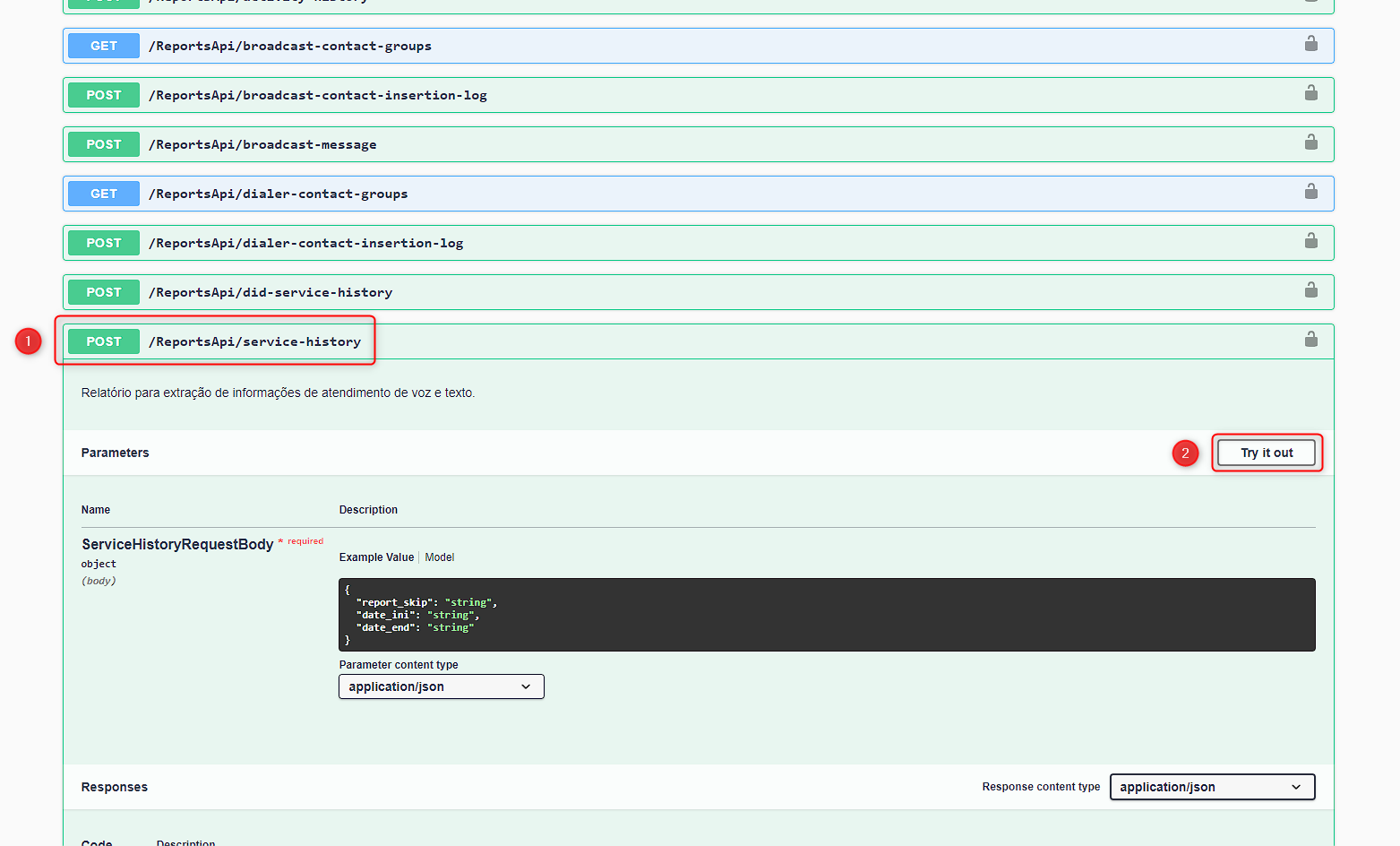
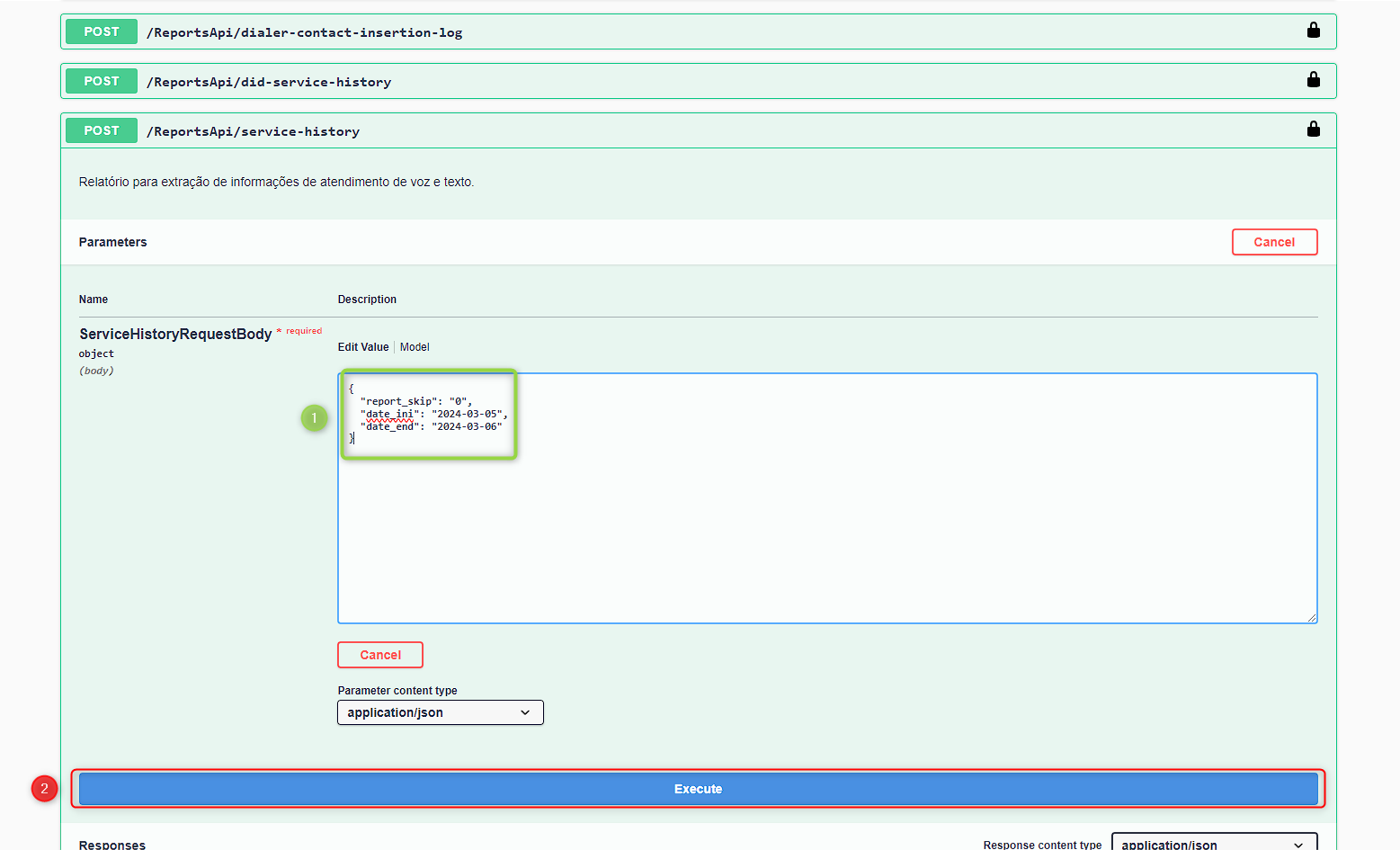
To access this route, simply go to the /ReportsApi/service-history field and click the “Try it out” button:
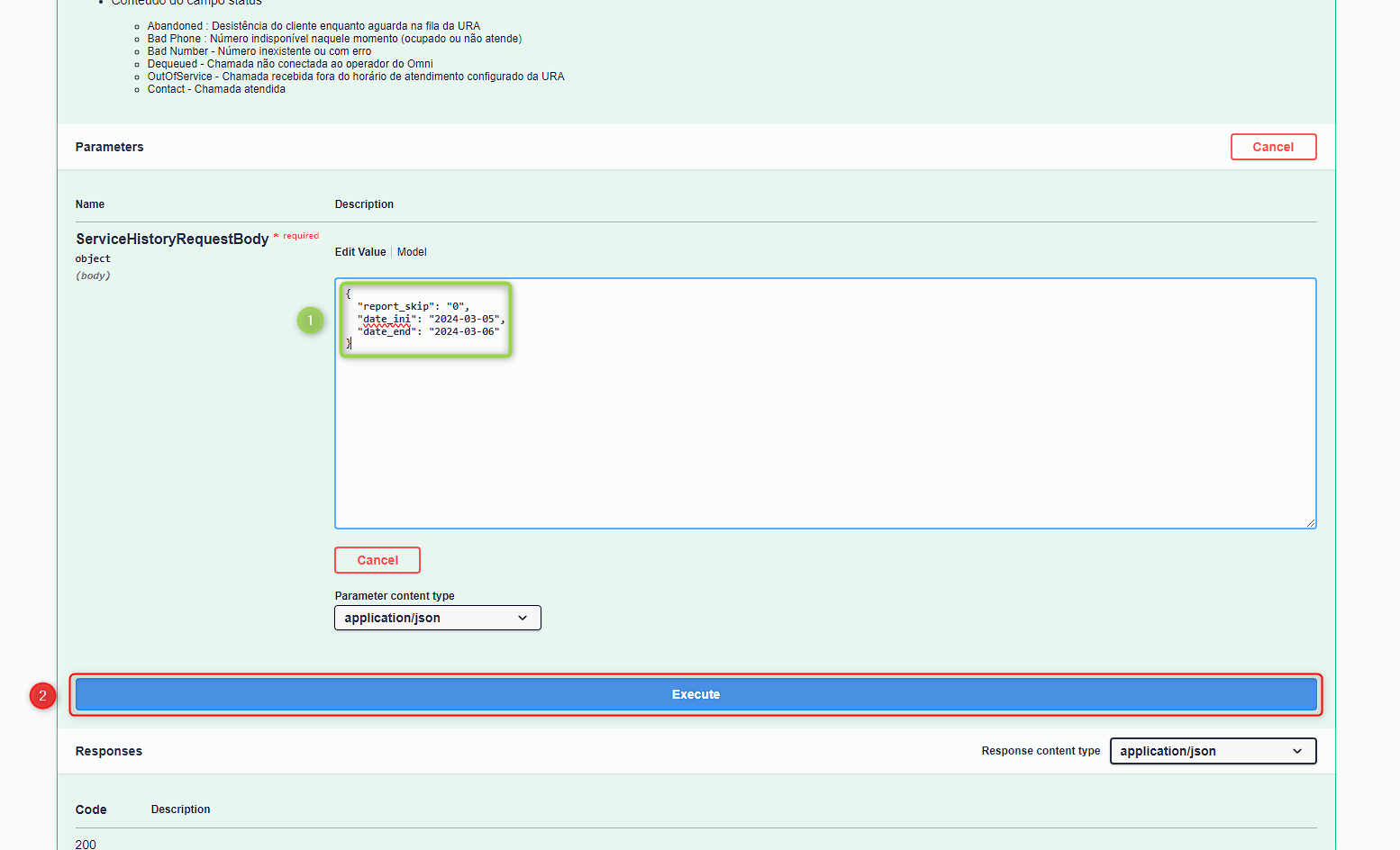
After entering the data, simply click the Execute button located just below the panel:
This is an example of API service-history:
Voice-log
Just like the service-history route, the voice-log route expects three variables, explained below:
- report-skip
- Defines which page of documents the API will return. By default, the value is 0. The API returns 1000 documents per page, so it is necessary to increase this value to capture other calls.
- date_ini
- The initial date the API will consider when searching for calls. The route accepts two date formats, with or without a defined time. Examples:
2024-12-31,2024-12-31 00:00:00.
- The initial date the API will consider when searching for calls. The route accepts two date formats, with or without a defined time. Examples:
- date_end
- The final date the API will consider when searching for calls. Like date_ini, it accepts two formats, with or without a defined time. Examples:
2024-12-31,2024-12-31 23:59:00.
- The final date the API will consider when searching for calls. Like date_ini, it accepts two formats, with or without a defined time. Examples:
After the request is made, the API will return a set of information for each call performed. Below is the definition of each returned attribute:
- Total
- Total number of documents found.
- Page
- Value entered in the “report_skip” field when generating the response.
- Data
- List of all information found within the previously defined parameters.
- data_inicio — Date and time the attendance was received
- data_atendida — Start date of the attendance between client and agent
- data_primeira_resposta — Date of the agent’s first response
- data_fim — End date of the attendance
- serviço — Name of the service used for the attendance
- agente — Name of the user/agent who received the attendance
- agent — Email of the user/agent
- ramal — Agent’s extension
- contato — Contact name
- status — Call status
- portfolio — Indicates whether the attendance is portfolio-based or not
- tipo — Classification of the call type (inbound or outbound)
- integração — Type of integration
- src_voice_log — Source
- from_voice_log — Source identifier
- type_voice_log — Call type (inbound or outbound)
- voice_internal_status — Internal call status
- ipbx_external_endpoint — External endpoint
- ipbx_dialed_string — Dialed value
- ipbx_external_callerid — External ID
- ipbx_external_channel_id — External channel ID
- ipbx_external_channel_desc — Description of external channel ID
- ipbx_external_channel_creationtime — External channel creation time
- ipbx_internal_channel_creationtime — Internal channel creation time
- service_flow_type_did — DID flow
- ipbx_internal_channel_desc — Description of internal channel ID
- ipbx_internal_channel_id — Internal channel ID
- feature_request_type — Request type
- transfer_result — Transfer result
- protocolo — Unique identifier of the attendance
- comentarios_internos — Internal comments about the attendance
- respostas_pesquisas
- questão — Title of the answered question
- score — Answer score
- status — Answer status
- data_encerramento — Date the answer was finalized
- id — Primary key of the answer
- id — Primary key
- ligo_ivr_id
- Call ID in Ligo IVR (if originating from Ligo IVR)
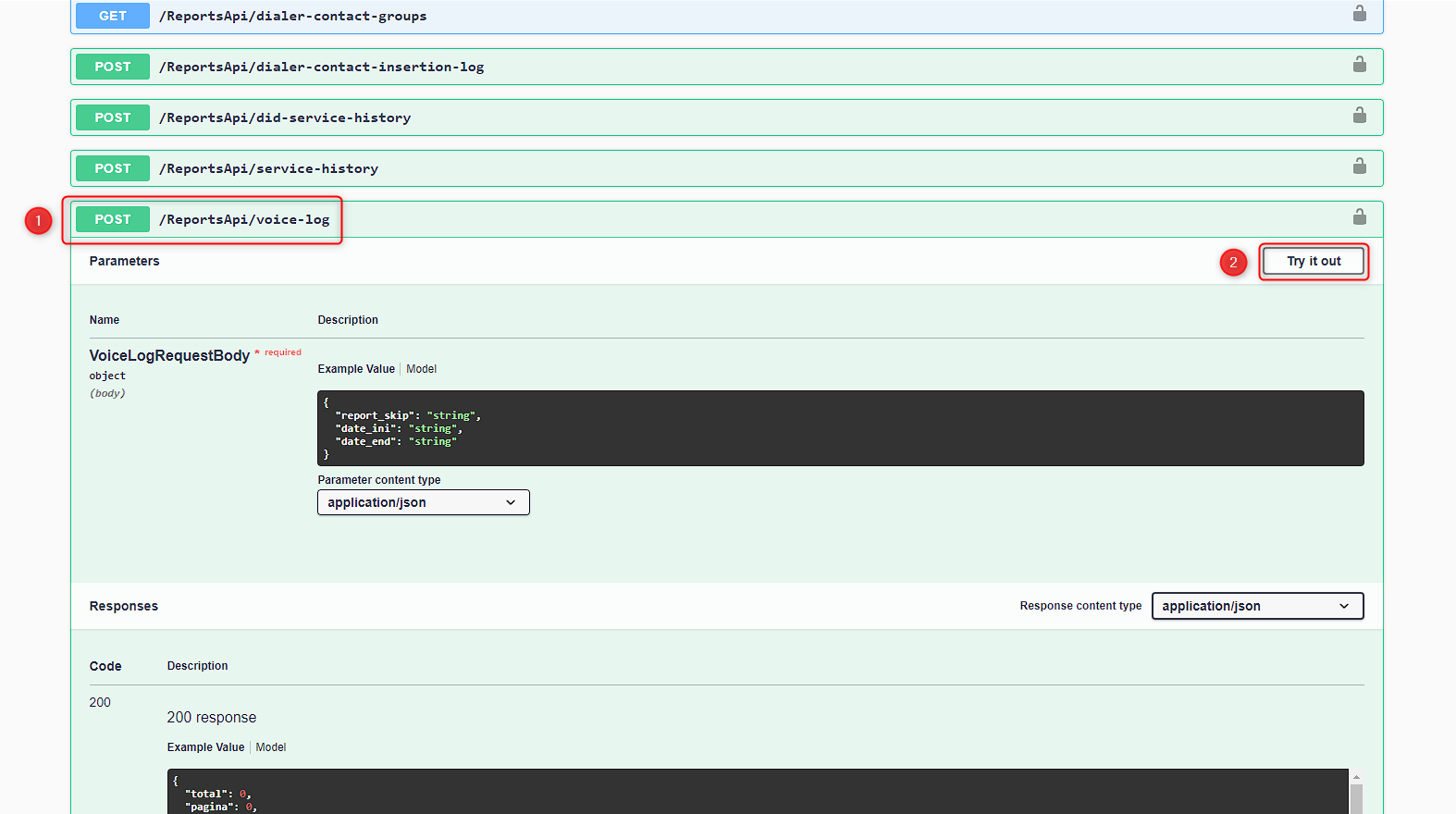
To access this route, simply go to the /ReportsApi/voice-log field and click the “Try it out” button:
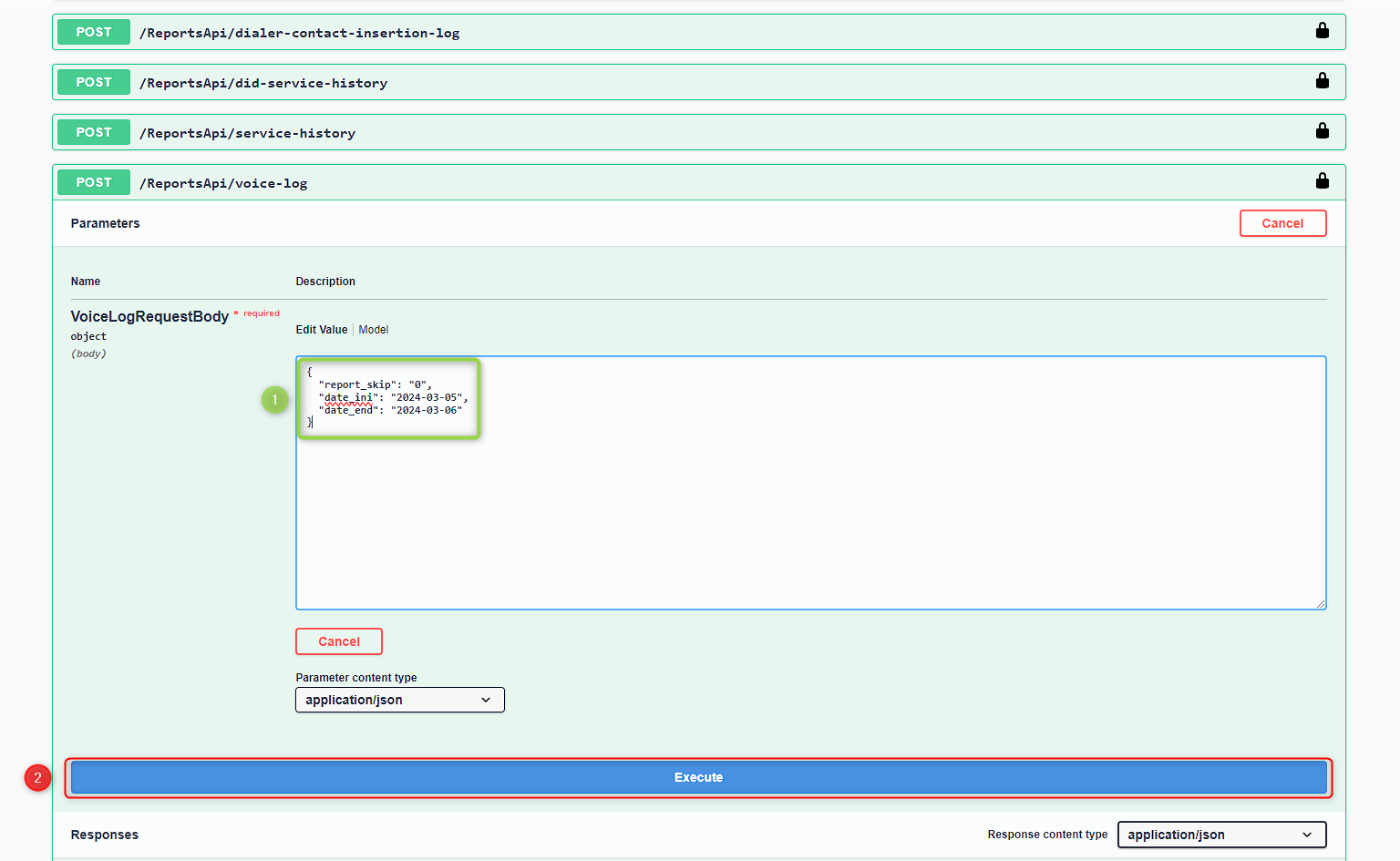
After entering the data, simply click the Execute button located just below the panel:
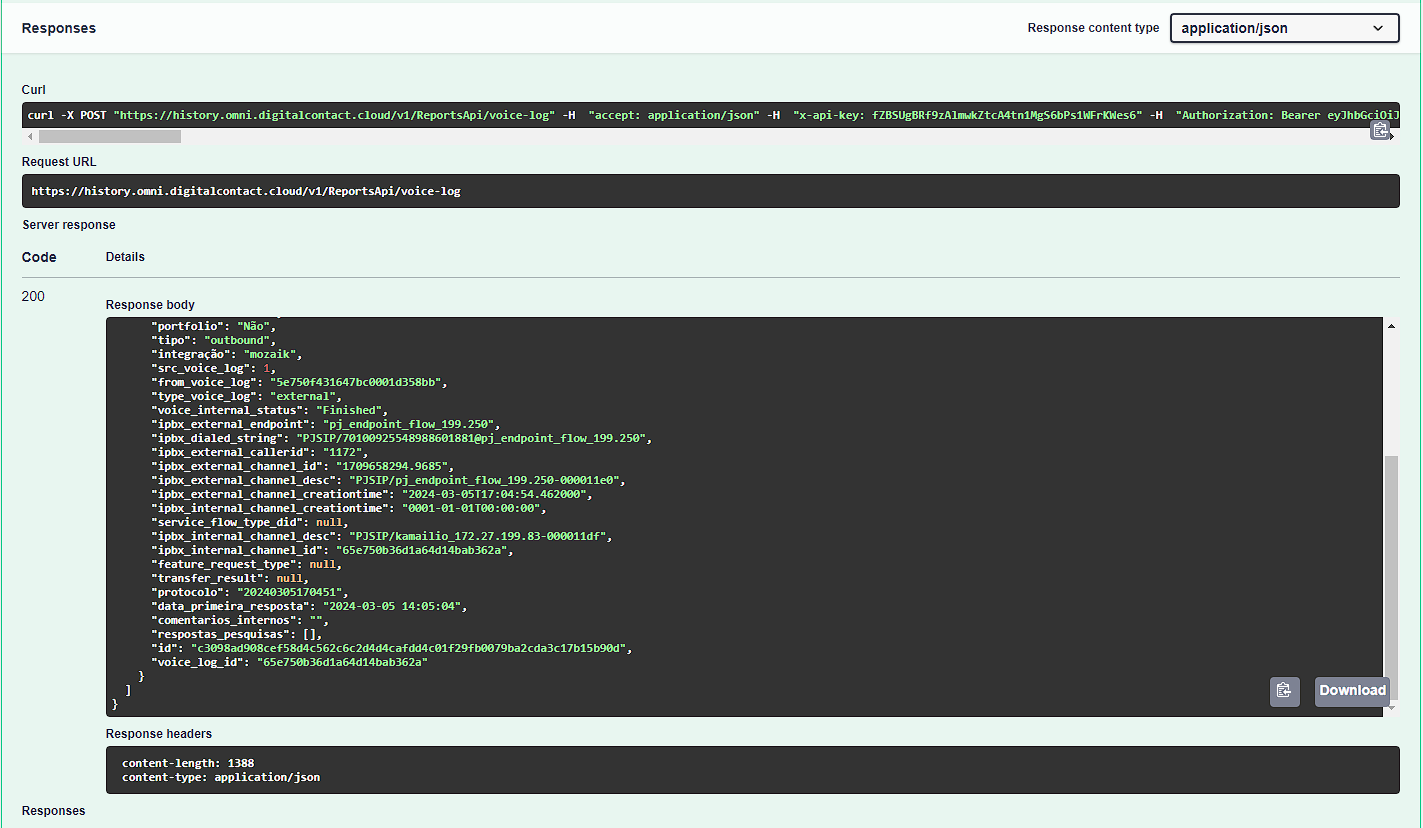
Here is an example of the return from the voice-log API:
Service-history-audio-links
Just like the service-history and voice-log routes, the service-history-audio-links route expects three variables, explained below:
- report-skip
- Defines which page of documents the API will return. By default, the value is 0. The API returns 1000 documents per page, so it is necessary to increase this value to capture other attendances.
- date_ini
- The initial date the API will consider when searching for attendances. The route accepts two date formats, with or without a defined time. Examples:
2024-12-31,2024-12-31 00:00:00.
- The initial date the API will consider when searching for attendances. The route accepts two date formats, with or without a defined time. Examples:
- date_end
- The final date the API will consider when searching for attendances. Like date_ini, it accepts two formats, with or without a defined time. Examples:
2024-12-31,2024-12-31 23:59:00.
- The final date the API will consider when searching for attendances. Like date_ini, it accepts two formats, with or without a defined time. Examples:
After the request is made, the API will return a set of information for each attendance. Below is the definition of each returned attribute:
- Total
- Total number of documents found.
- Page
- Value entered in the “report_skip” field when generating the response.
- Data
- List of all information found within the previously defined parameters.
- _id — Interaction ID
- data_inicio — Date and time the attendance was received
- data_atendida — Date and time the attendance started
- data_fim — Date and time the attendance ended
- cliente — Client identifier
- contato — Contact
- agente — Agent name
- agent — Agent’s email
- servico — Service
- ramal — Extension
- origem — Inbound/Outbound
- protocolo — Attendance protocol
- status — Call status
- documento — Client’s CPF or CNPJ
- tag — Tag or tabulation name used to finalize the attendance
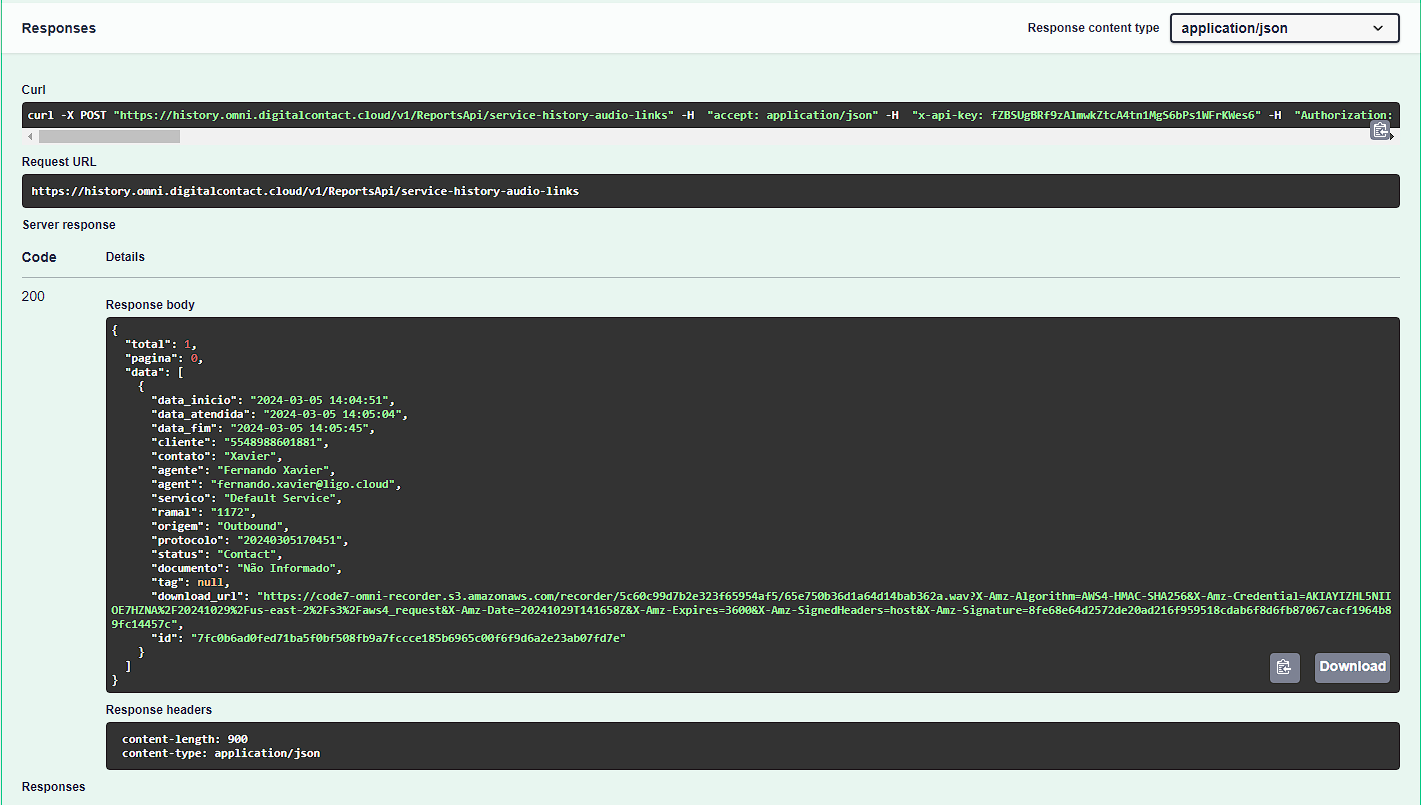
- download_url — File link (only for status Contact — attended call)
- id — Primary key
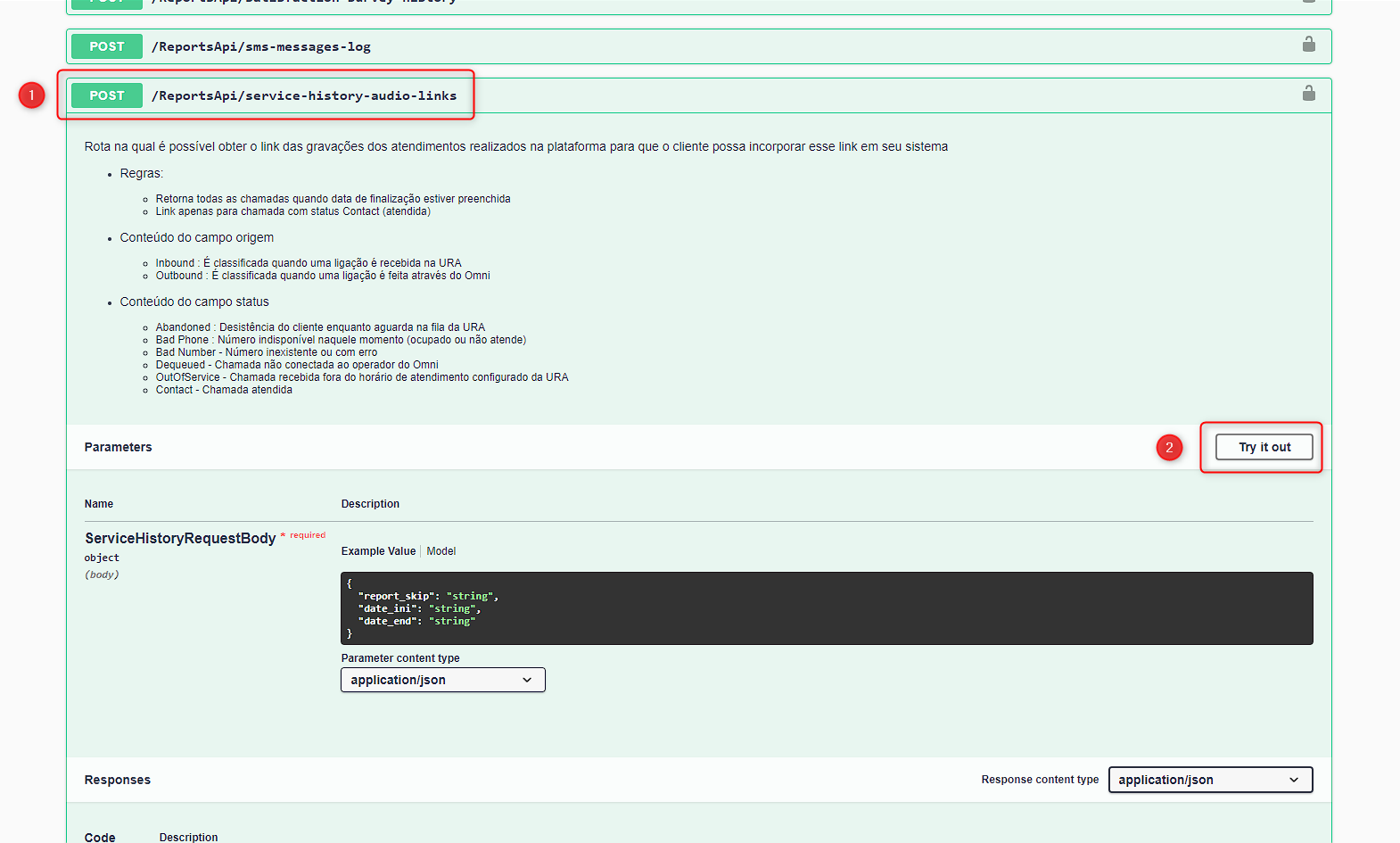
To access this route, simply go to the /ReportsApi/service-history-audio-links field and click the “Try it out” button:
After entering the data, simply click the Execute button located just below the panel:
Here is an example of the return from the service-history-audio-links API:
In addition, below is a video explaining how to execute the previously mentioned routes:
Login and Pause Report: activity-history
Just like the other report routes, the activity-history route expects three variables, explained below:
- report-skip
- Defines which page of documents the API will return. By default, the value is 0. The API returns 1000 documents per page, so it is necessary to increase this value to capture user logins/logouts.
- date_ini
- The initial date the API will consider when searching for user logins/logouts. The route accepts two date formats, with or without a defined time. Examples:
2024-12-31,2024-12-31 00:00:00.
- The initial date the API will consider when searching for user logins/logouts. The route accepts two date formats, with or without a defined time. Examples:
- date_end
- The final date the API will consider when searching for user logins/logouts. Like date_ini, it accepts two formats, with or without a defined time. Examples:
2024-12-31,2024-12-31 23:59:00.
- The final date the API will consider when searching for user logins/logouts. Like date_ini, it accepts two formats, with or without a defined time. Examples:
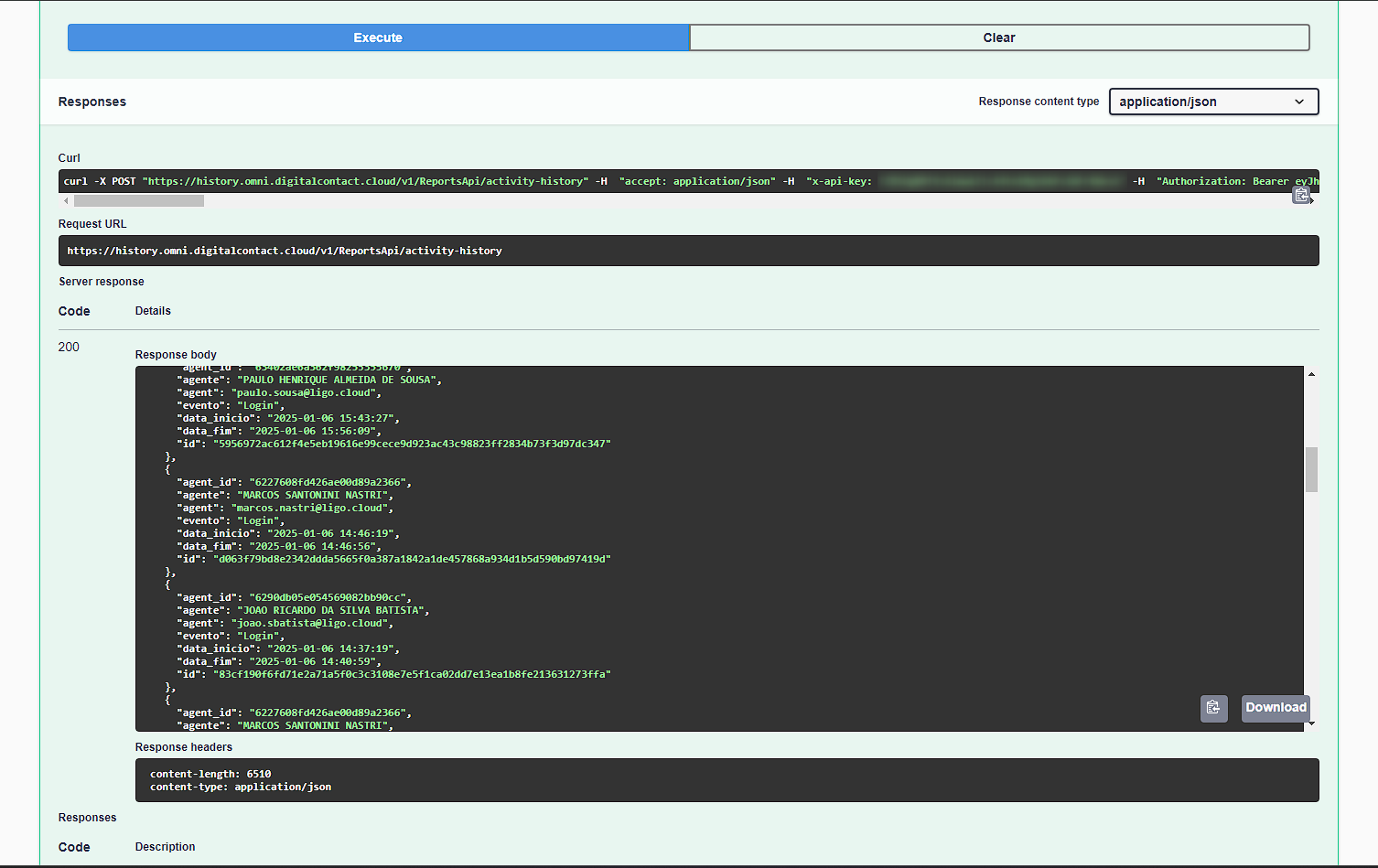
After the request is made, the API will return a set of information for each login and pause. Below is the definition of each returned attribute:
- Total
- Total number of documents found.
- Page
- Value entered in the “report_skip” field when generating the response.
- Data
- List of all information found within the previously defined parameters.
- agent_id — Agent ID, for internal use
- agente — User name
- agent — User email
- evento — Type of action taken (Login or Pause)
- data_inicio — Start date and time of the event
- data_fim — End date and time of the event
- id — Identifier for internal use
If there are customized pauses configured in Omni, the pause name will be returned in the evento field, provided that a user has registered that pause.
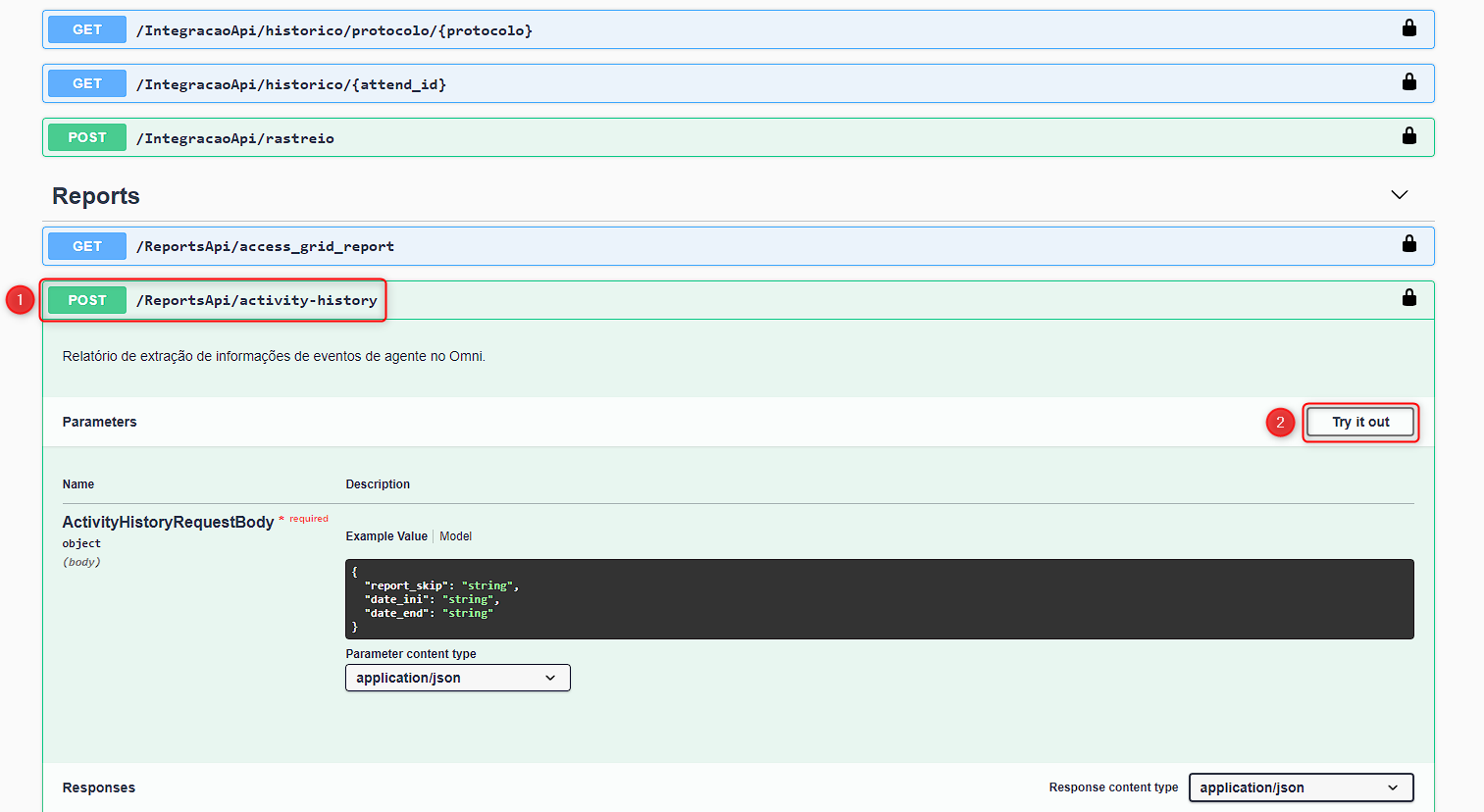
To access this route, simply go to the /ReportsApi/activity-history field and click the “Try it out” button:
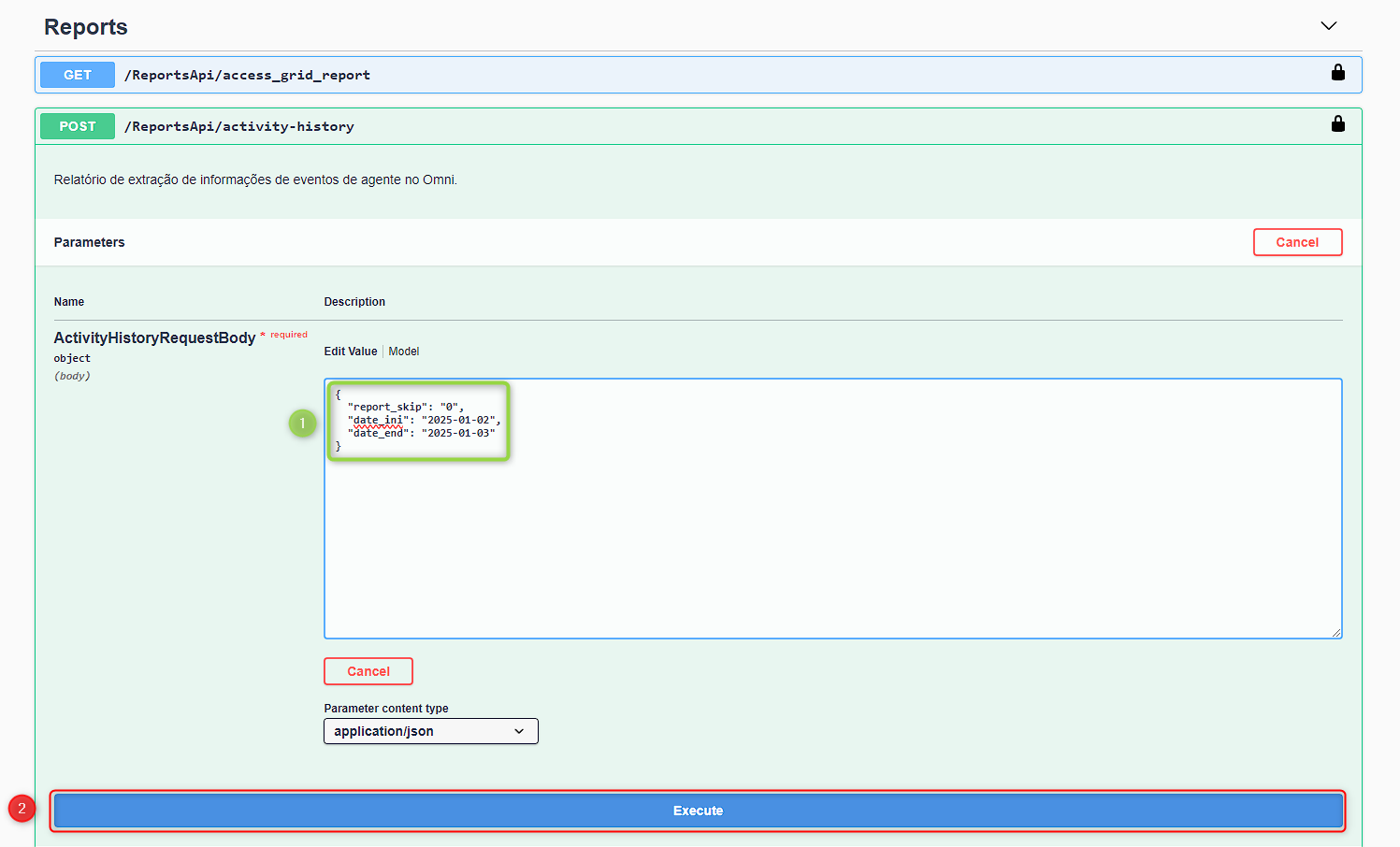
After entering the data, simply click the Execute button located just below the panel:
Here is an example of the return from the activity-history API:
Below is a video explaining how to execute the activity-history route:
Satisfaction Survey Report: satisfaction-survey-history
This request returns all surveys assigned to attendances within the specified date. Just like the other report routes, the satisfaction-survey-history route expects three variables, explained below:
- report-skip
- Defines which page of documents the API will return. By default, the value is 0. The API returns 1000 documents per page, so it is necessary to increase this value to capture the remaining surveys.
- date_ini
- The initial date the API will consider when searching for satisfaction surveys. The route accepts two date formats, with or without a defined time. Examples:
2024-12-31,2024-12-31 00:00:00.
- The initial date the API will consider when searching for satisfaction surveys. The route accepts two date formats, with or without a defined time. Examples:
- date_end
- The final date the API will consider when searching for satisfaction surveys. Like date_ini, it accepts two formats, with or without a defined time. Examples:
2024-12-31,2024-12-31 23:59:00.
- The final date the API will consider when searching for satisfaction surveys. Like date_ini, it accepts two formats, with or without a defined time. Examples:
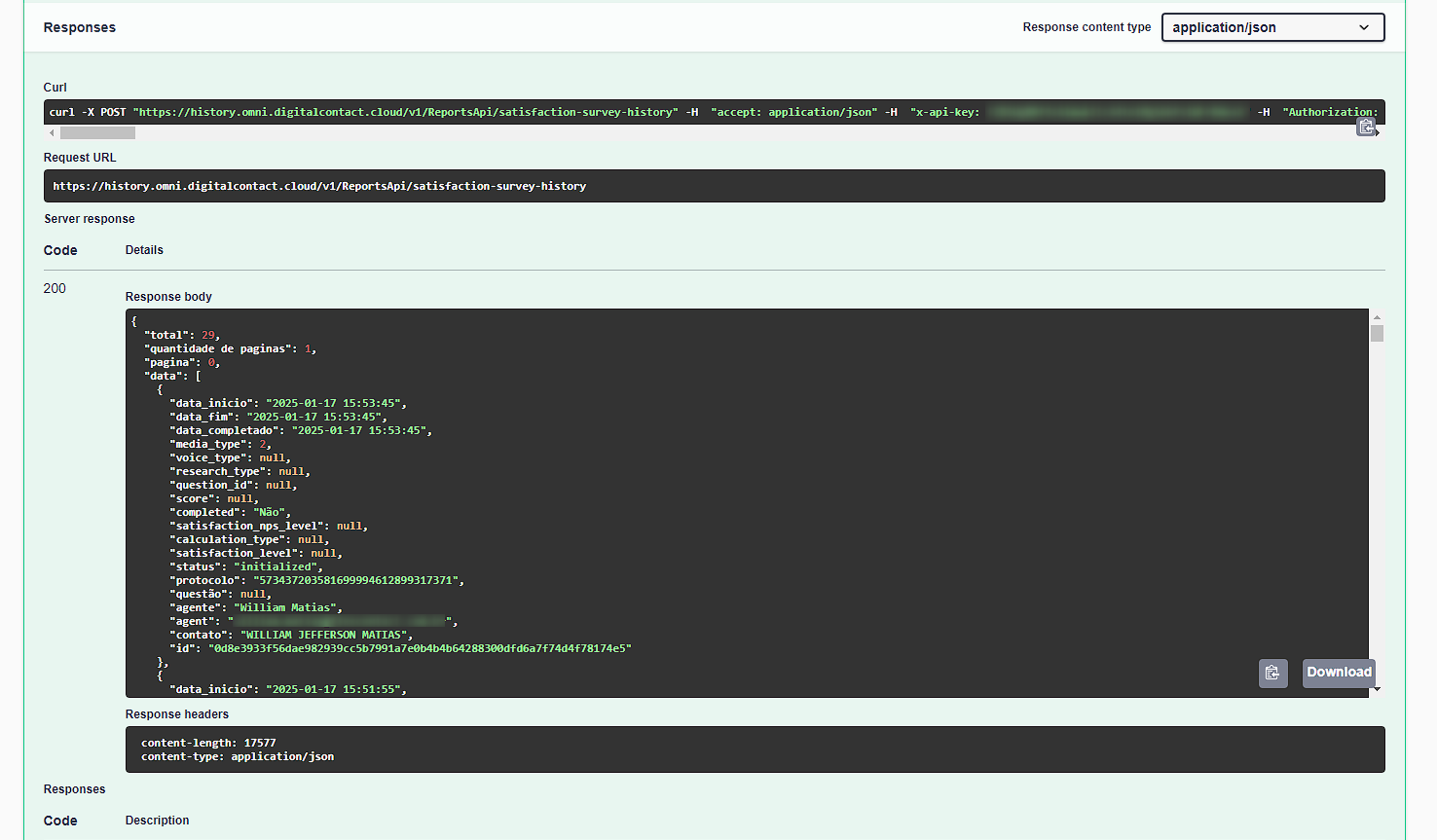
After the request is made, the API will return a set of information for each satisfaction survey. Below is the definition of each returned attribute:
- Total — Total number of documents found.
- Page — Value entered in the “report_skip” field when generating the response.
- Data — List of all information found within the previously defined parameters.
- data_inicio — Date and time the survey response was received
- data_fim — Date and time the survey response ended
- data_completado — Date and time the survey response was completed
- media_type — Media type (1 - Voice, 2 - Chat, 4 - WhatsApp)
- voice_type — For voice calls, inbound or outbound
- research_type — CSAT or NPS
- question_id — Question identifier for internal use
- score — Survey score
- completed — Whether the survey was completed (yes or no)
- satisfaction_nps_level — NPS level
- calculation_type — Calculation type
- satisfaction_level — Satisfaction level
- status — Response status
- protocolo — Attendance protocol
- questão — Title of the answered question
- agente — Agent name
- agent — Agent email
- contato — Contact name/code/identifier
- id — Unique key for internal use
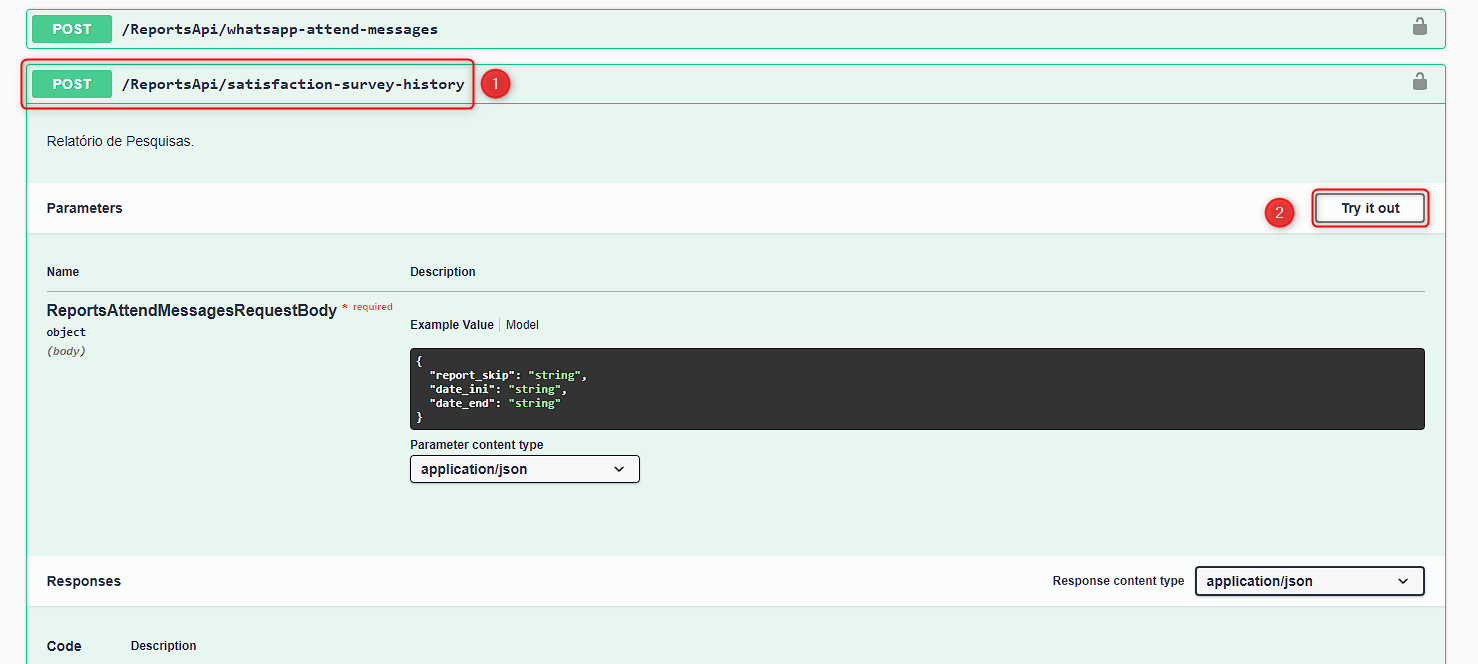
To access this route, simply go to the /ReportsApi/satisfaction-survey-history field and click the “Try it out” button:
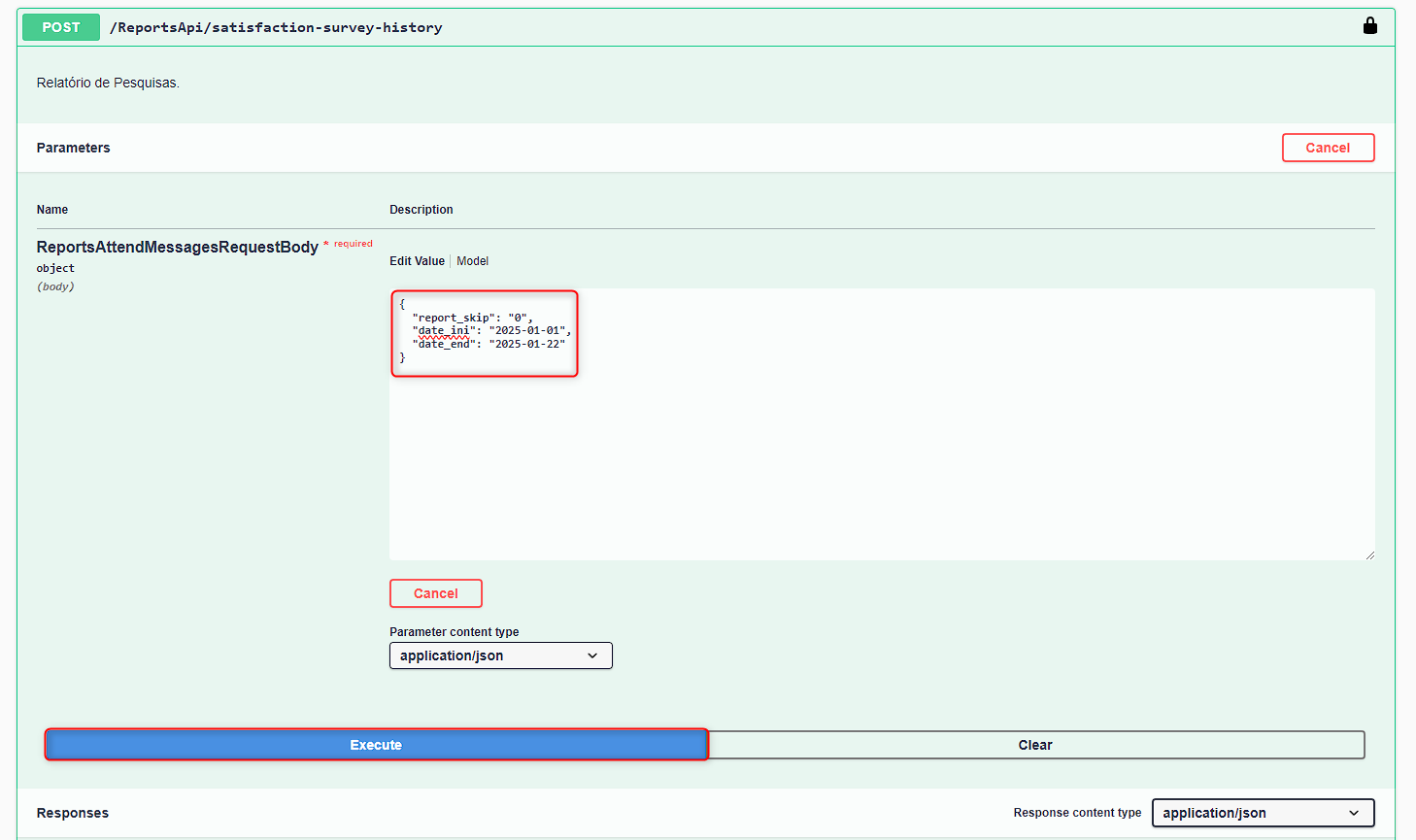
After entering the data, simply click the Execute button located just below the panel:
Here is an example of the return from the satisfaction-survey-history API:
Below is a video explaining how to execute the satisfaction-survey-history route:
Attendance Message History: service-history-messages
This request returns all attendances and their associated messages within the specified date. Just like the other report routes, the service-history-messages route expects three variables, explained below:
- report-skip
- Defines which page of documents the API will return. By default, the value is 0. The API returns 1000 documents per page, so it is necessary to increase this value to capture the remaining records.
- date_ini
- The initial date the API will consider when searching for attendances. The route accepts two date formats, with or without a defined time. Examples:
2024-12-31,2024-12-31 00:00:00.
- The initial date the API will consider when searching for attendances. The route accepts two date formats, with or without a defined time. Examples:
- date_end
- The final date the API will consider when searching for attendances. Like date_ini, it accepts two formats, with or without a defined time. Examples:
2024-12-31,2024-12-31 23:59:00.
- The final date the API will consider when searching for attendances. Like date_ini, it accepts two formats, with or without a defined time. Examples:
After the request is made, the API will return a set of information for each interaction. Below is the definition of each returned attribute:
- Total — Total number of documents found
- Number of pages — Total number of pages
- Page — Value entered in the “report_skip” field when generating the response
- Data — List of all information found within the previously defined parameters
- data_inicio — Date and time the interaction started
- data_atendida — Date and time the interaction was assigned to the agent
- data_fim — Date and time the attendance ended
- contato — Contact
- agente — Agent name
- agent — Agent email
- servico — Service
- media_type — Media type (2 - Chat, 3 - Email, 4 - WhatsApp, 5 - Facebook/Messenger, 12 - Instagram, 17 - Consumidor Gov)
- protocolo — Attendance protocol
- mensagens
- recebida — Field will be true if the message is from the client
- send_time — Date and time the message was sent
- message — Message content
- media — If any media is attached to the message, it will appear in this field
- message_type — Message type
- id — Unique attendance identifier
To access this route, simply go to the /ReportsApi/service-history-messages field and click the “Try it out” button:
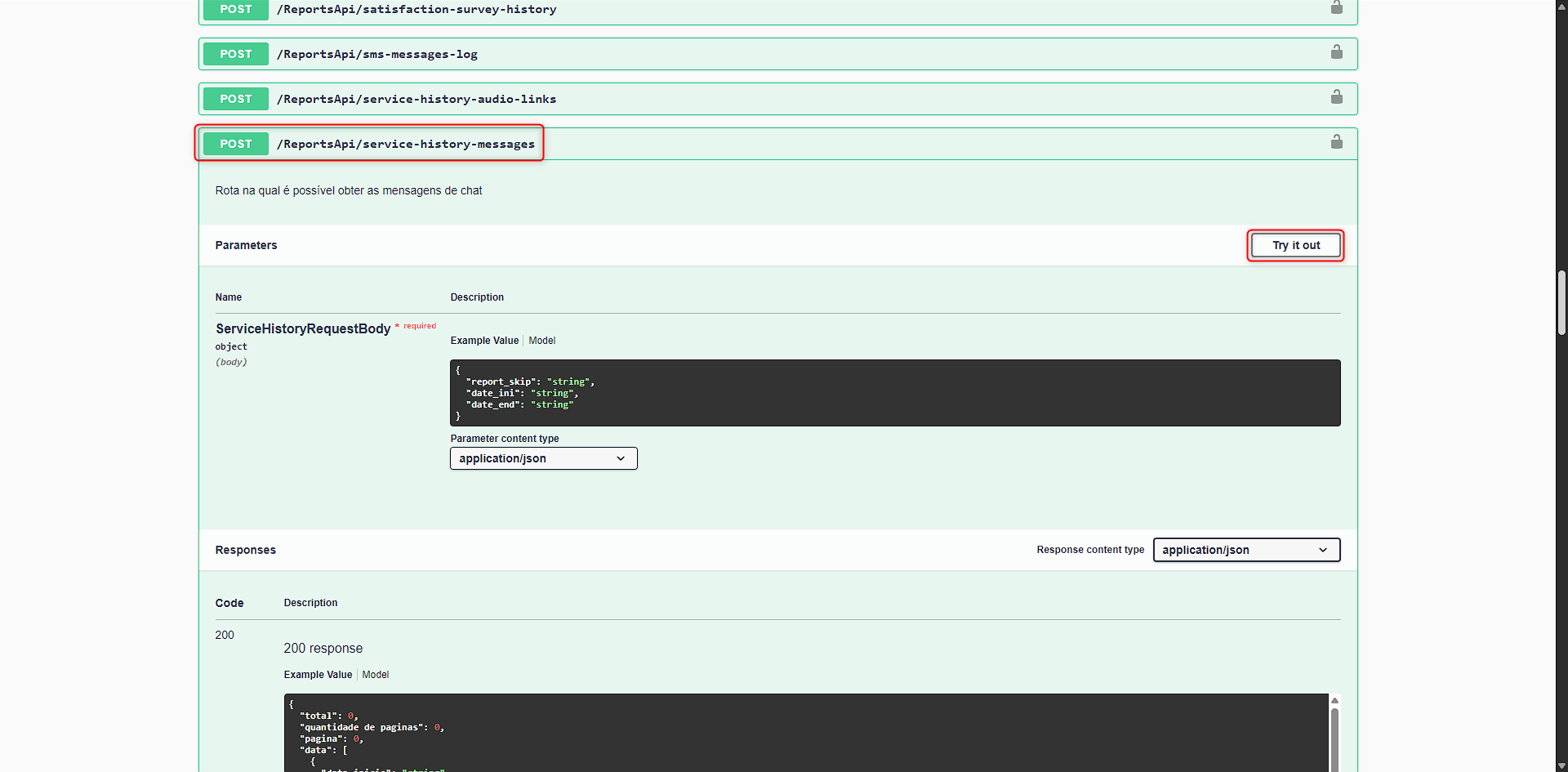
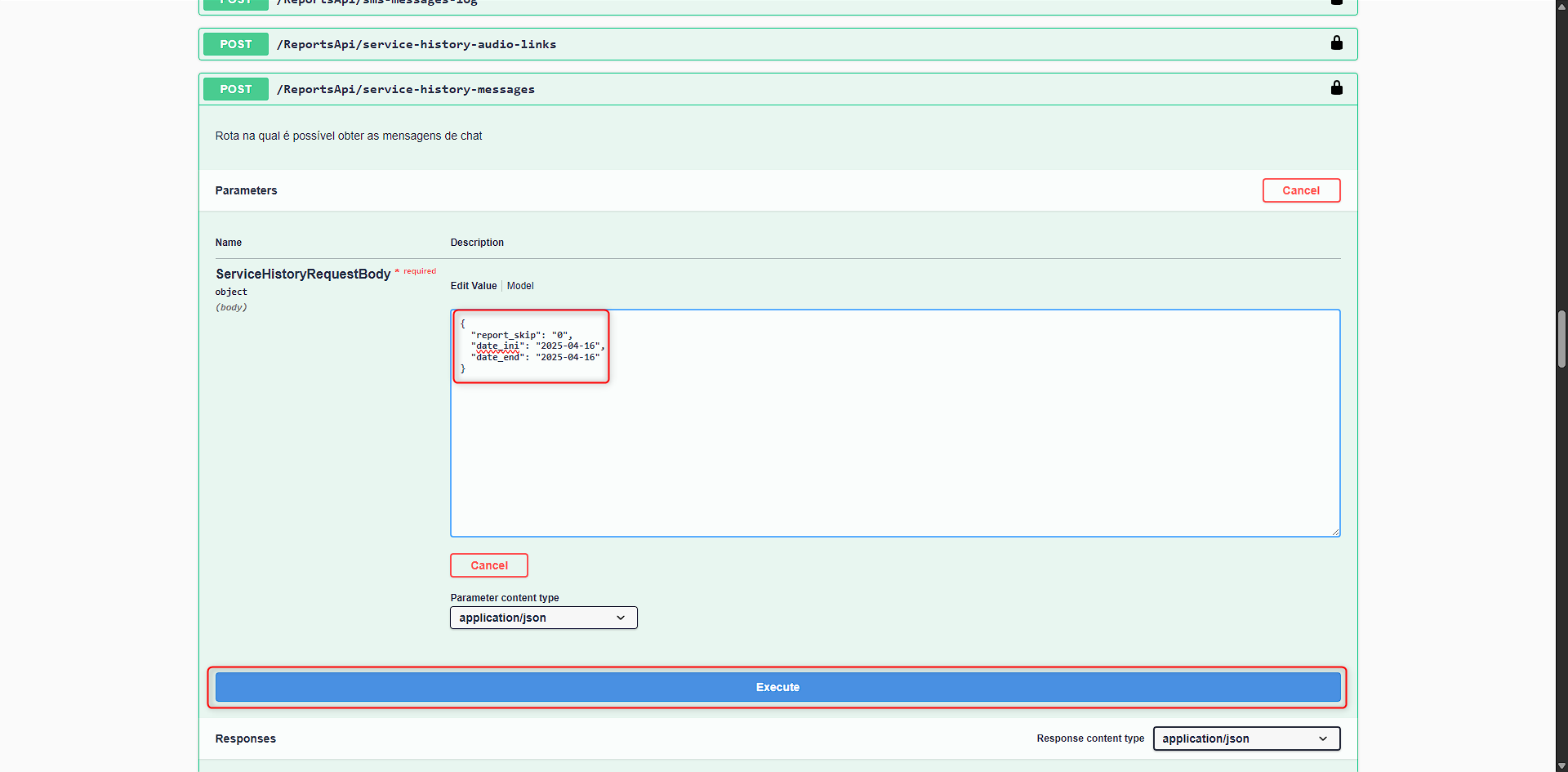
After entering the data, simply click the Execute button located just below the panel:
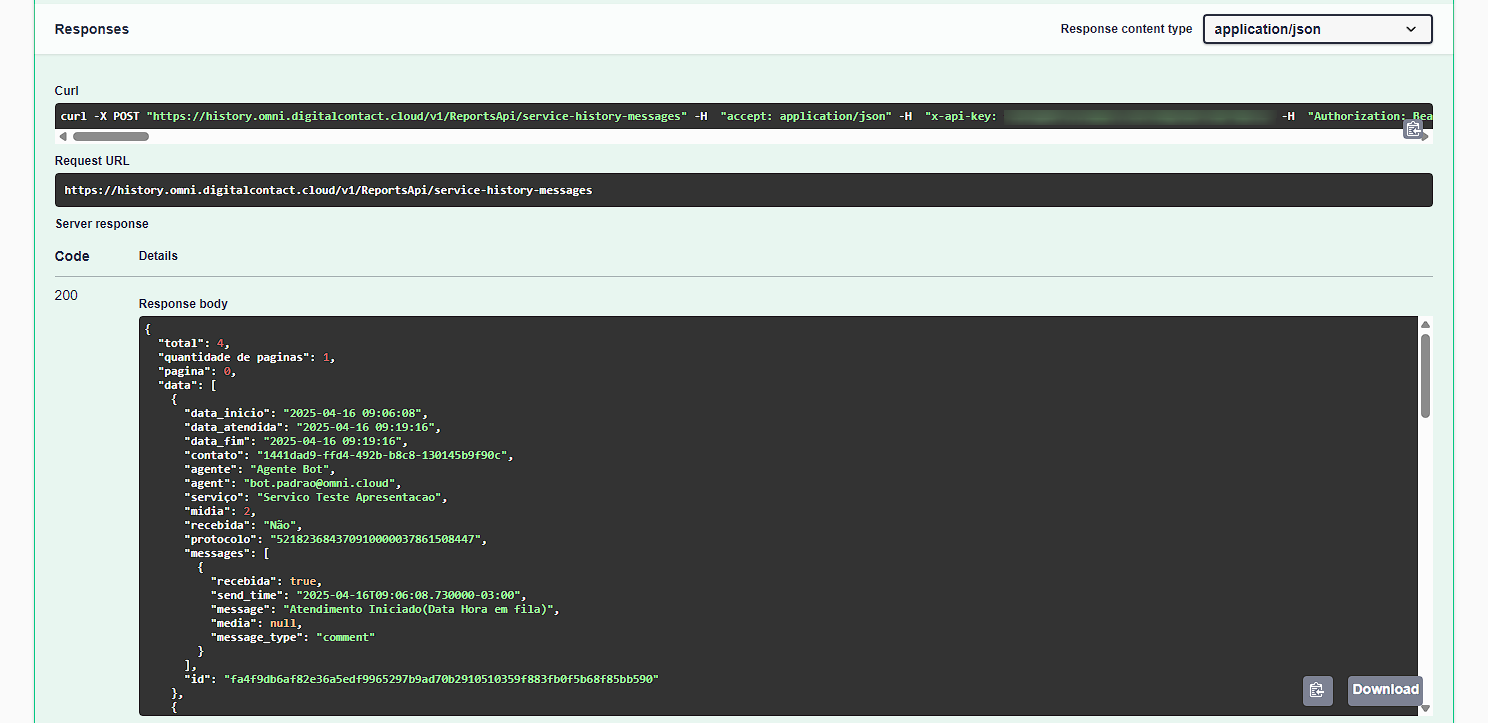
Here is an example of the return from the service-history-messages API:
Report on Messages Sent via Broadcast: broadcast-messages
This request returns data for all messages sent via broadcast within the specified date range. Similar to other report endpoints (reports), the broadcast-messages endpoint expects three variables, detailed below:
- report-skip
- Defines which document page the API will return; by default, the value is 0. The API will return 1000 documents per page, requiring you to increment this value to retrieve the remaining messages.
- date_ini
- As a general rule, this is the start date the API will consider when searching for sent messages. The endpoint accepts two date formats, with and without a specified time. Here are two examples: 2024-12-31, 2024-12-31 00:00:00.
- date_end
- Generally, this is the end date the API will consider for sent messages. Like date_ini, date_end accepts two date formats, with and without a specified time. Here are two examples: 2024-12-31, 2024-12-31 23:59:00.
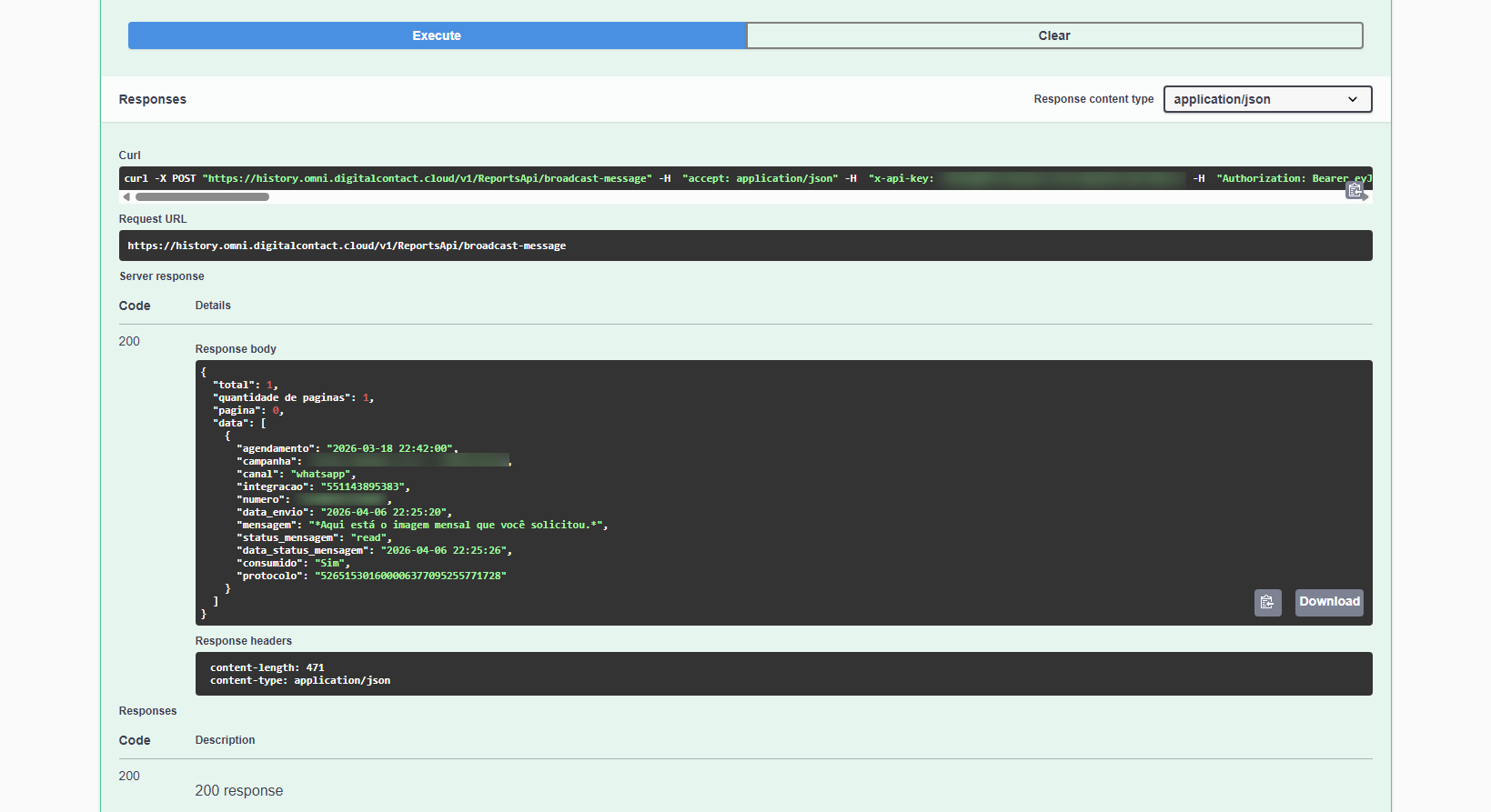
After making the request, the API will return a dataset for each message. Here is the definition of each returned attribute:
- Total
- The total quantity of documents found.
- Quantidade de páginas
- Total quantity of pages.
- Página
- Value provided in the "report_skip" field when generating data to create the response.
- Data
- Contains the listing of all information found within the previously specified parameters.
- agendamento
- Date when the broadcast was executed.
- campanha
- Campaign name.
- canal
- Channel used to send the broadcast.
- integracao
- Previously registered medium used for sending on the channel — Example: WhatsApp channel number used for sending.
- numero
- Customer's phone number.
- data_envio
- Date the message was sent.
- mensagem
- Message sent to the customer.
- status_mensagem
- Message status: sent - Sent, delivered - Delivered, undelivered - Undelivered, blocked - Blocked, failed - Failed, not_received - Not received, read - Read.
- data_status_mensagem
- Date and time when the Message Status was received.
- consumido
- Yes or No. The field is set to 'Yes' when a new interaction is opened as a result of the customer replying to this dispatch. In the absence of interaction, the default value is "No".
- protocolo
- Identifier of the interaction initiated by the customer following the completed dispatch.
- external_status
- Code and status description returned directly by the partner channel or provider. Examples: "3 - READ", "5 - UNDELIVERED".
- template_id
- Unique identifier of the message template (template/HSM) used in the campaign dispatch.
- template_name
- Descriptive name identifying the registered and approved template for the channel.
- errors
- Error code and detailed error message returned by the provider if the dispatch fails or is rejected (e.g., "Message undeliverable"). Left blank on successfully completed dispatches.
To access this endpoint, simply go to the /ReportsApi/broadcast-message field and click the "Try it out" button:
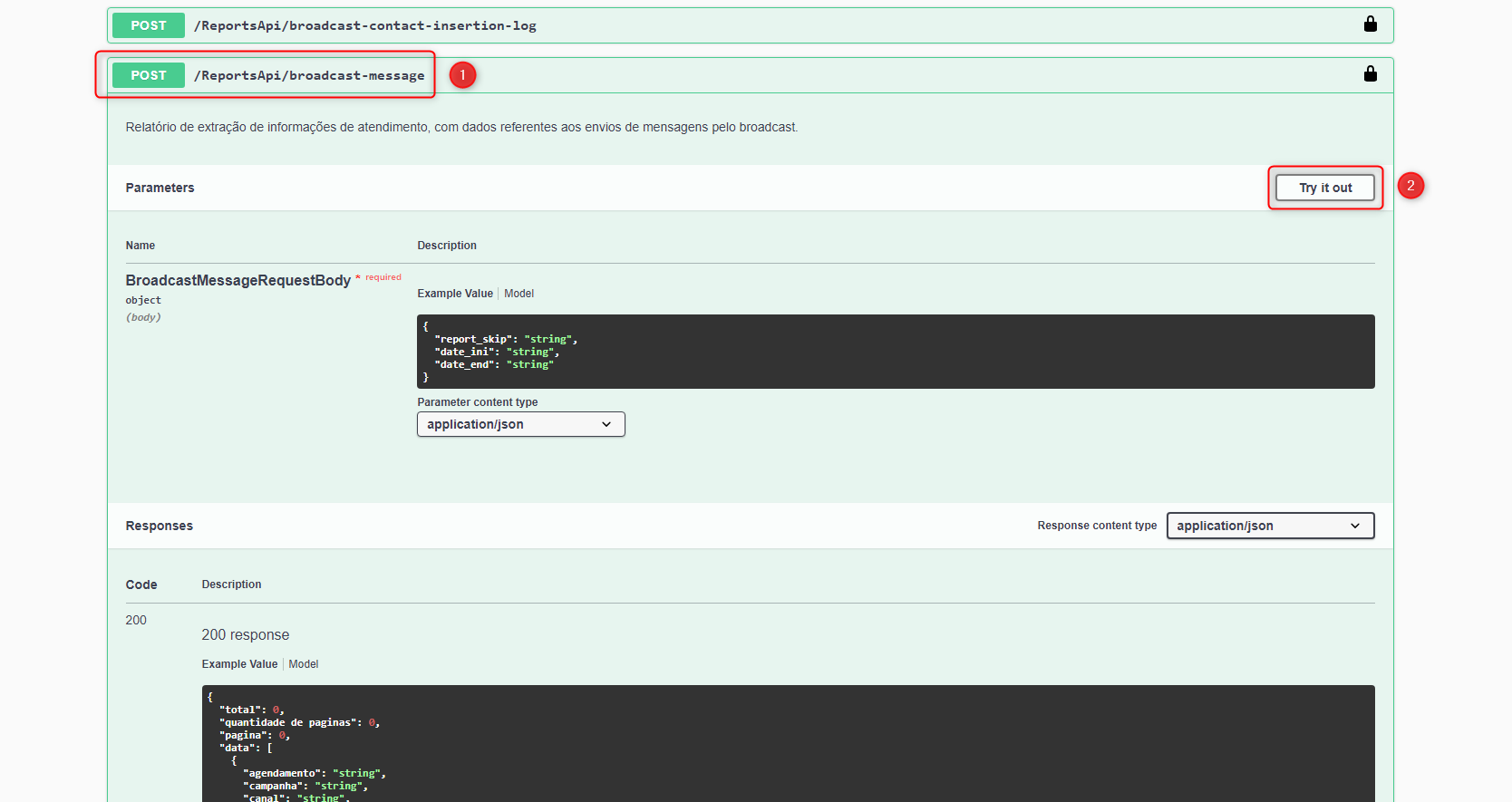
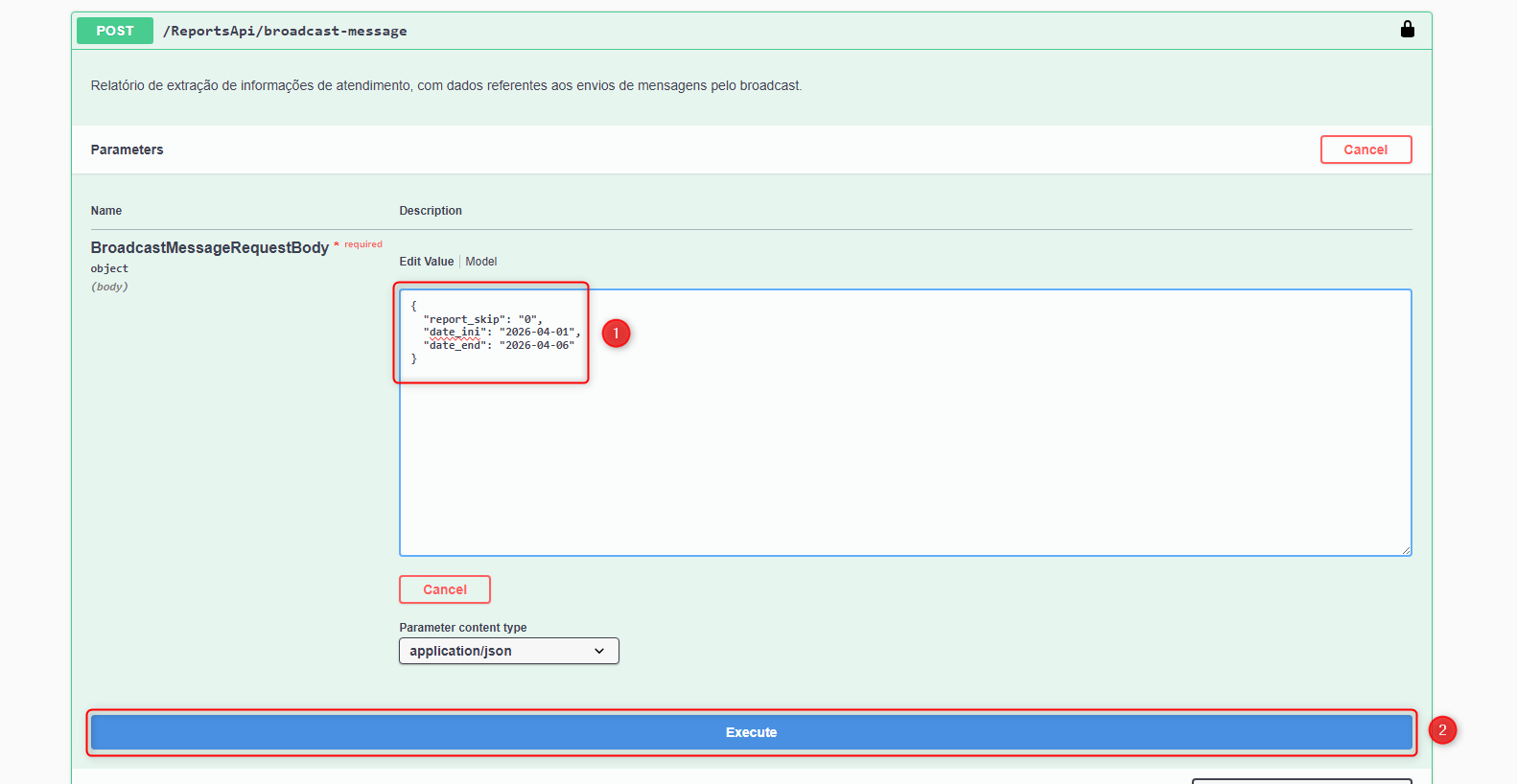
After populating the fields, simply click the "Execute" button located directly below the panel:
Here is an example response from the broadcast-message API:
Relatório de consumo de requisições da API: usage-summary
This route returns the total number of API requests made within the specified date range. The usage_summary route expects three variables, detailed below:
- api_key
- Defines which API key (x-api-key) will be used to query consumption data..
- month
- As a general rule, this is the month the API will consider when searching for consumption data. The endpoint accepts integer values from 1 to 12.
- year
- Generally, this is the year the API will consider. Example format to be used: 2024, or the target reference year.
After making the request, the API will return a dataset detailing the total number of requests made based on the provided filters. Here is the definition of each returned attribute: Note: Executing this endpoint does not consume your monthly request quota.
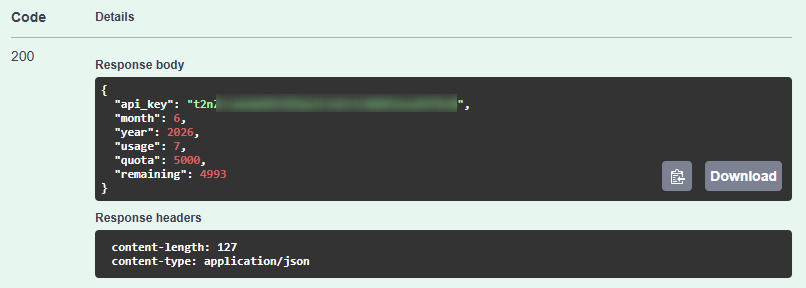
- API_key
- Displays the API key used in the query.
- Month
- Month in which the requests were made.
- Year
- Year in which the requests were made.
- Usage
- Number of requests consumed within the period.
- Quota
- Usage limit configured on the last day of the selected period.
- Remaining
- Remaining quantity available within the period.
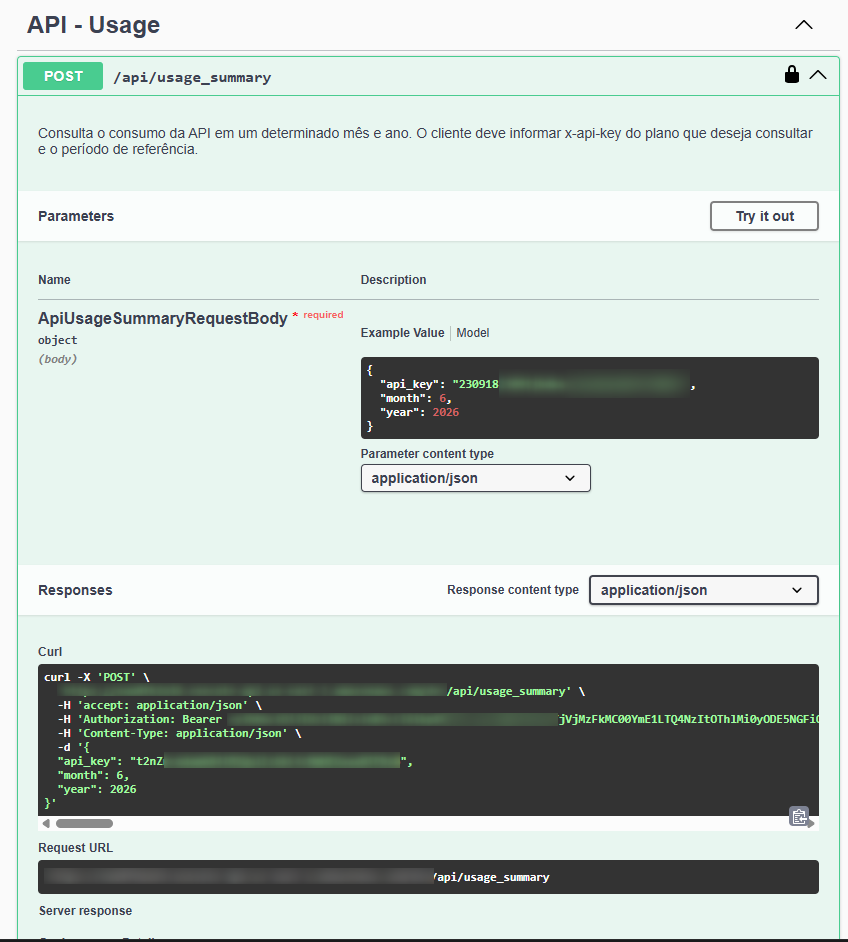
To access this endpoint, simply navigate to the /api/usage_summary field and click the "Try it out" button:
After entering the data, simply click the "Execute" button located directly below the panel:
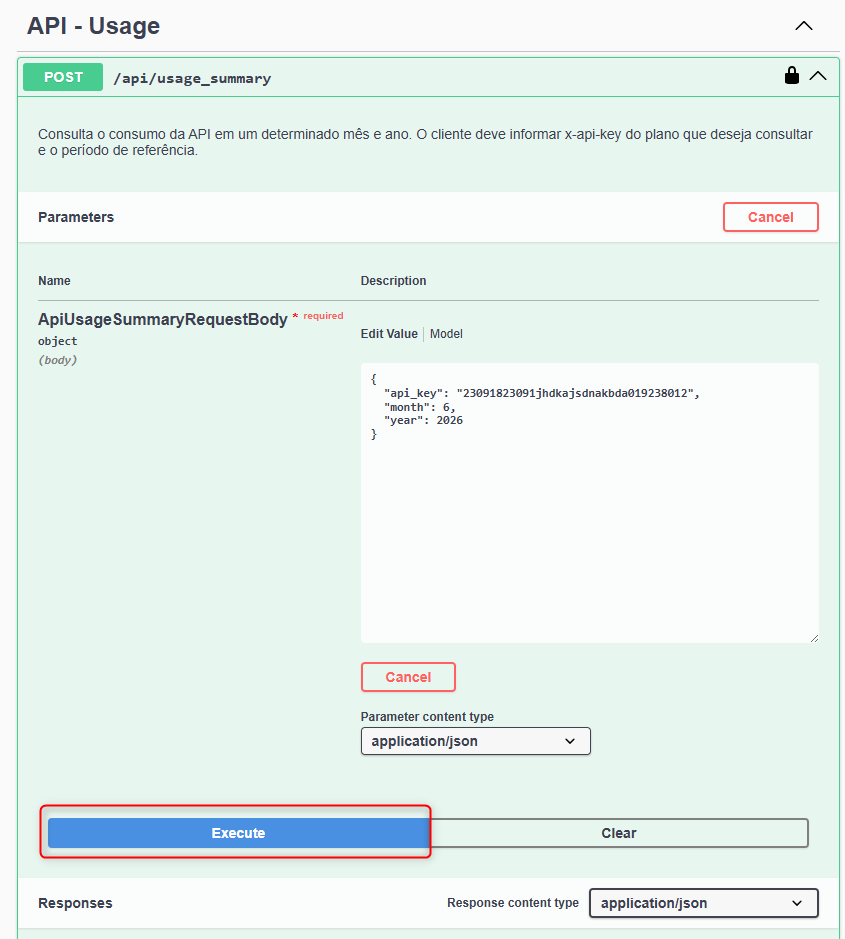
Here is an example response from the usage_summary API: