API - WFM
What is WFM and how to use the related APIs
WFM, or Workforce Management, is a set of routes that help companies plan, manage, and optimize the use of their workforce, aiming for greater efficiency and productivity.
This document will show in a practical and explanatory way how to use the WFM APIs of Omni, which are available at the following link: https://docs-wfm.omni.digitalcontact.cloud/.
Authentication
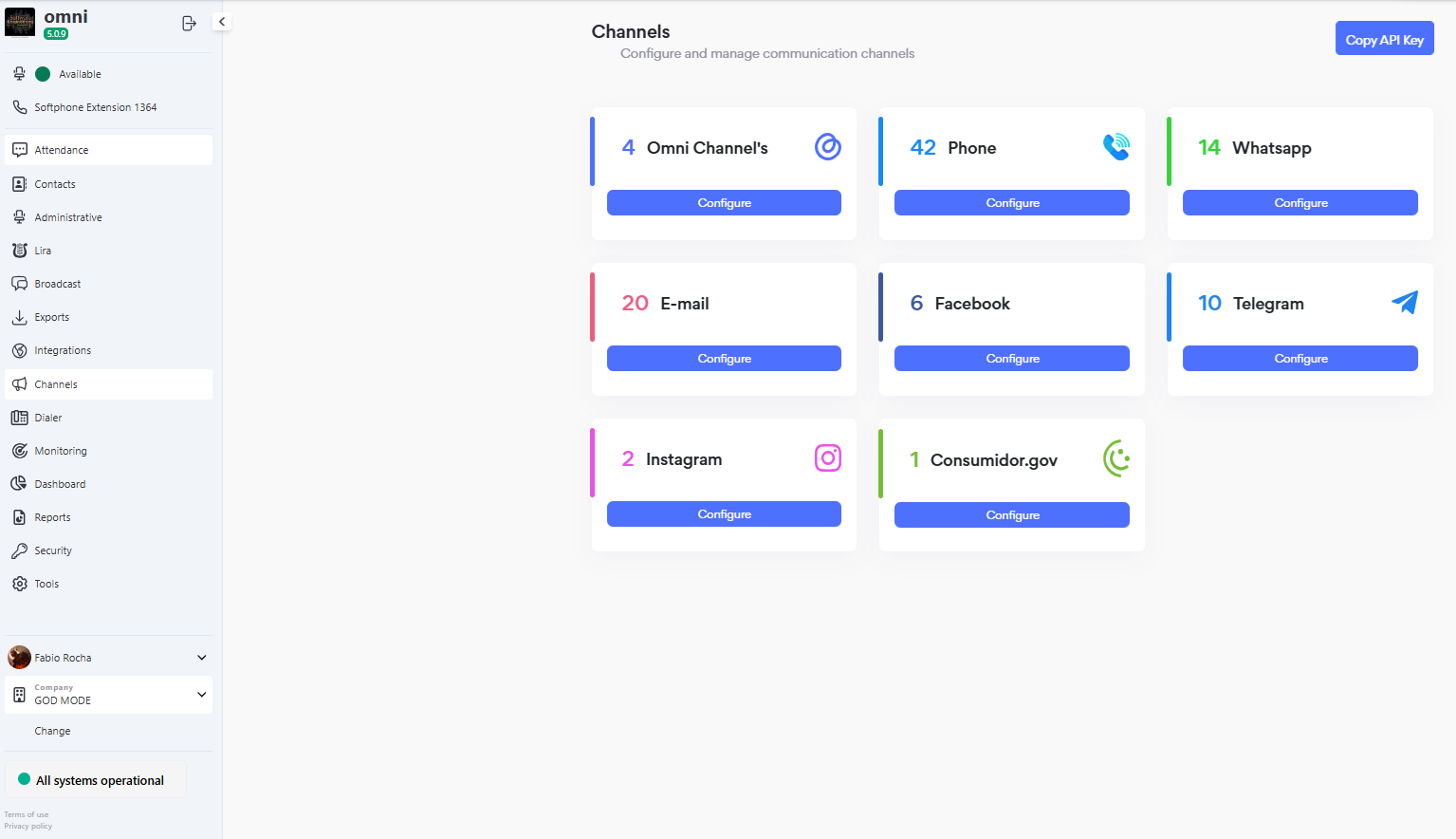
To use the WFM API, you must first perform authentication. For this, you need to copy the x-api-key located in the channels menu within Omni. After that, simply click the “Copy API Key” button, as shown in the screenshot below:
With the key copied, you need to access the WFM APIs through this link: https://docs-wfm.omni.digitalcontact.cloud/.
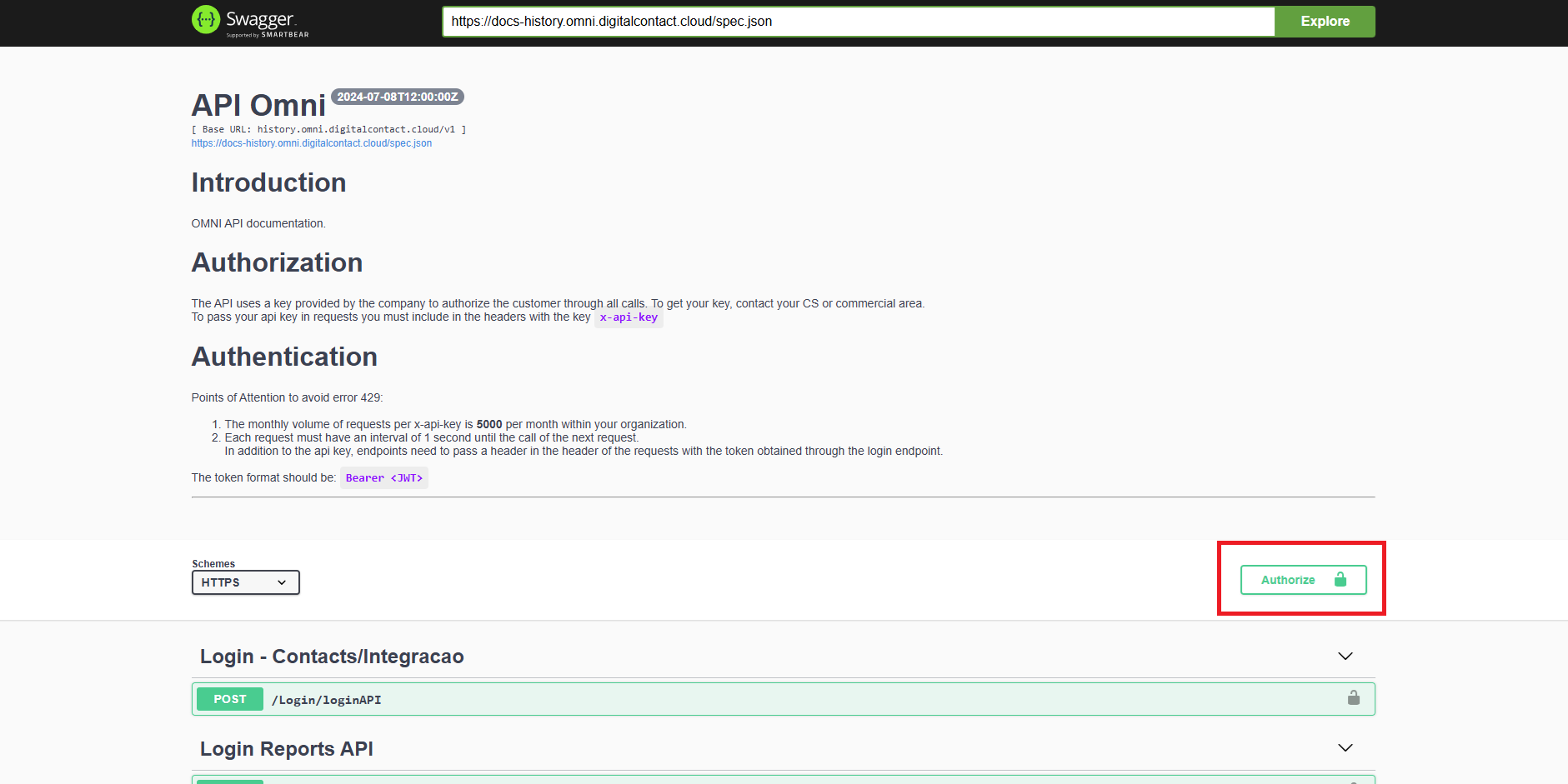
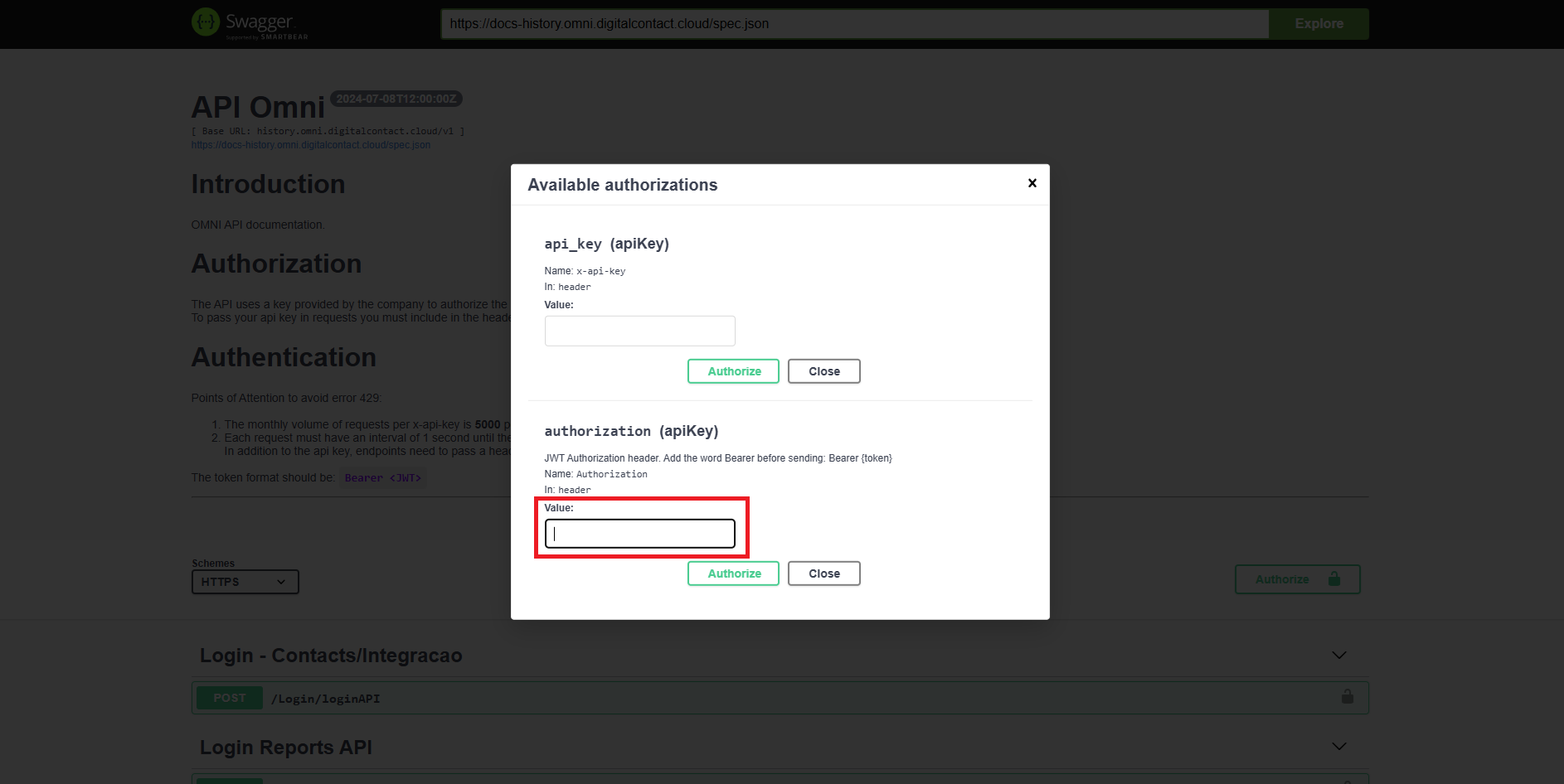
After that, simply click the Authorize button, paste the key into the api_key field, and click the Authorize button below the field.
See the screenshots with the step-by-step process below:
For the "/user/deactivate" and "/user/activate" routes, it is necessary to perform another authentication process, which will be explained below.
Login - For using the user/deactivate and user/activate routes
To log in, select the "/user/login/api" route and click the "Try it out" button. As shown in the screenshot below:
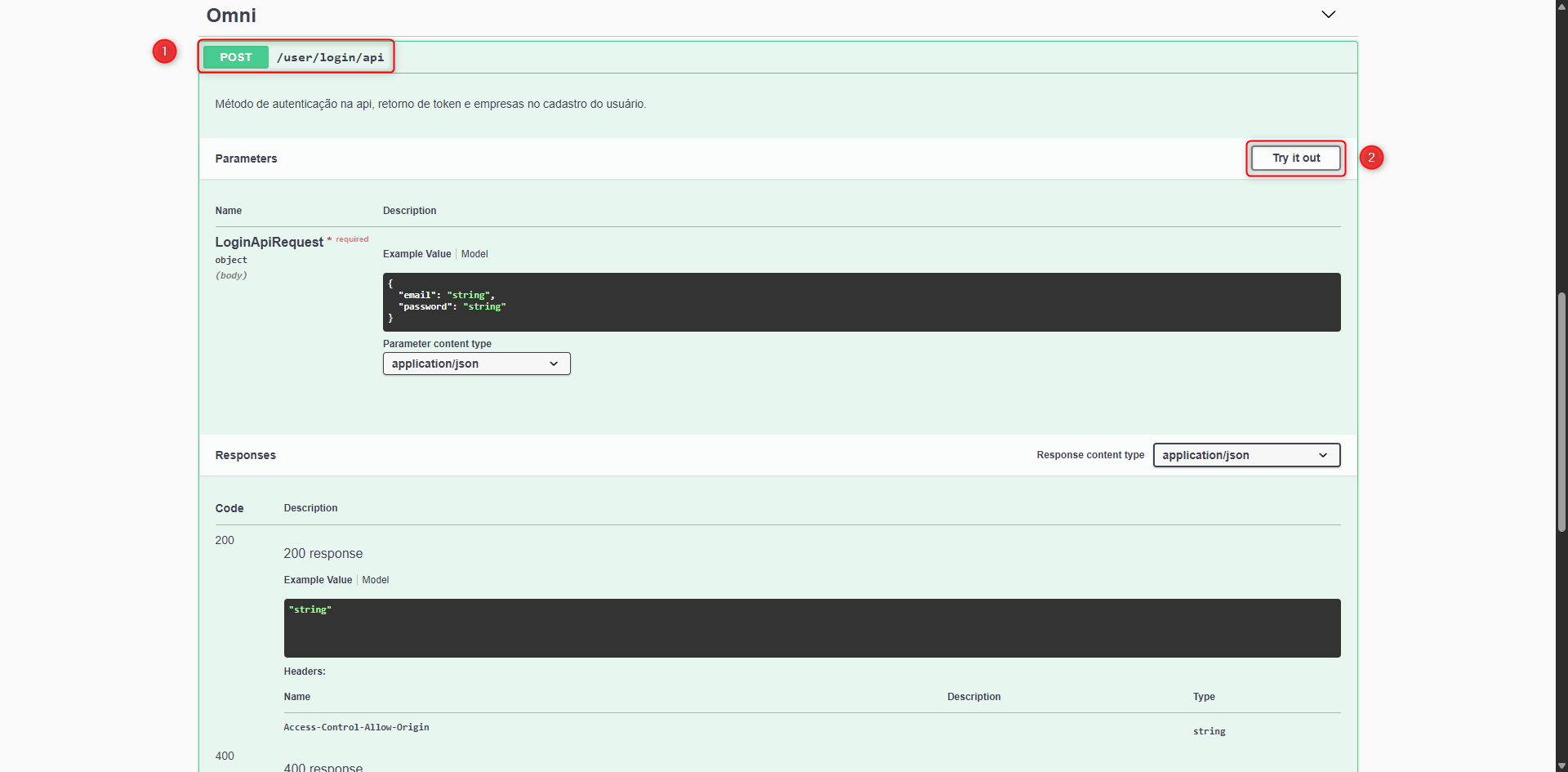
Now, enter your Omni user email and password and click Execute:
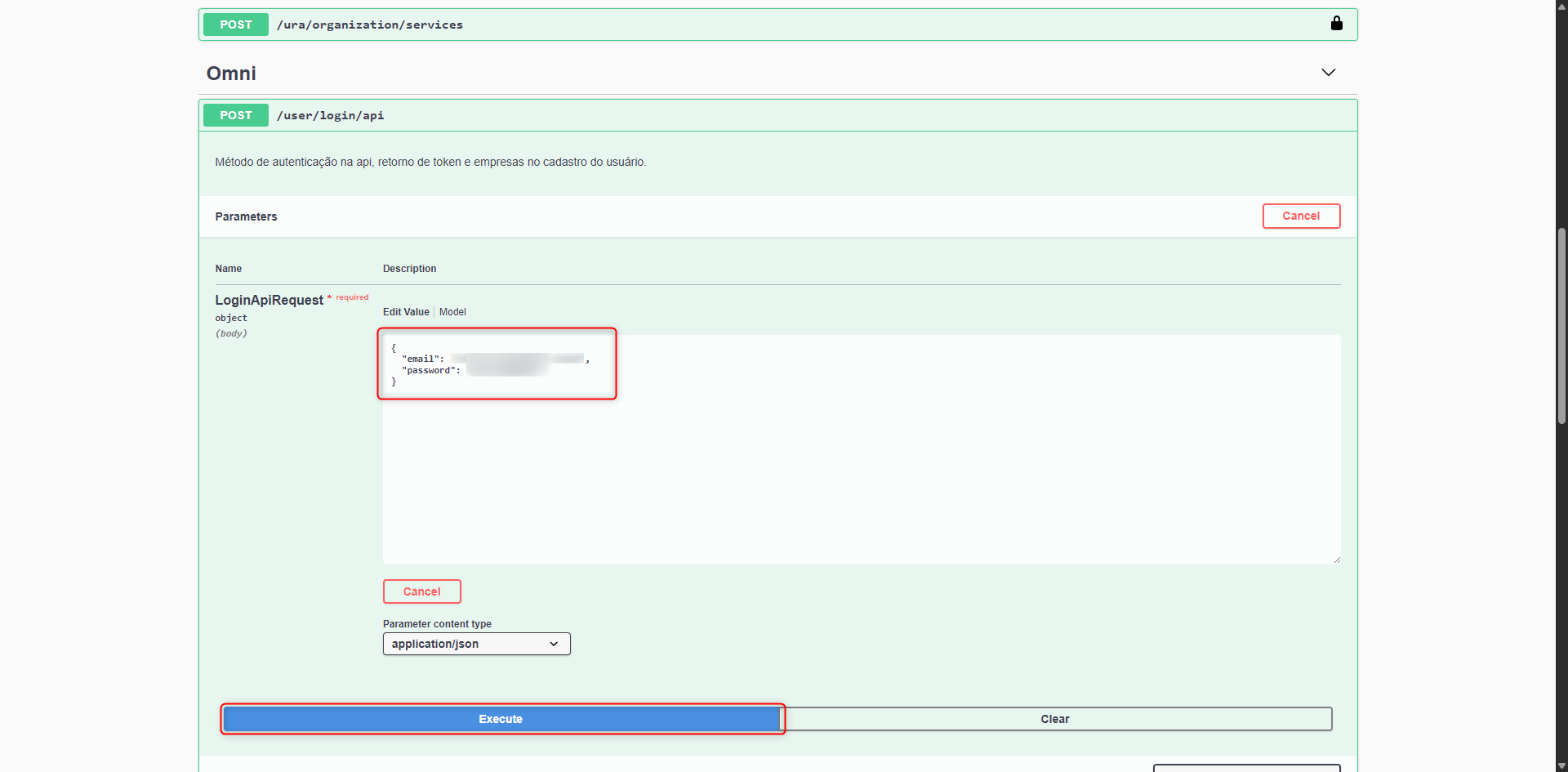
After that, copy the token that will appear just below. As shown in the image below:
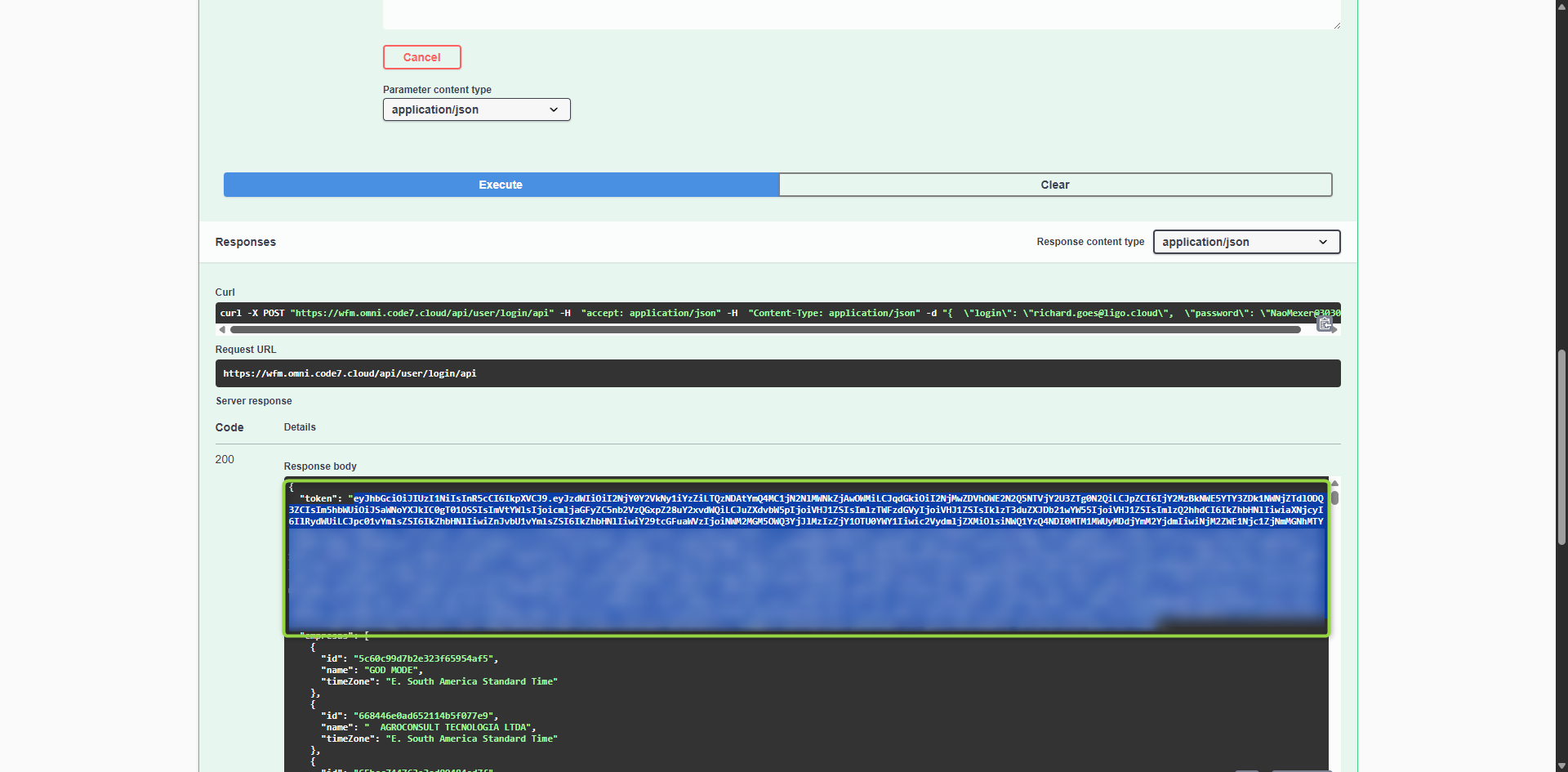
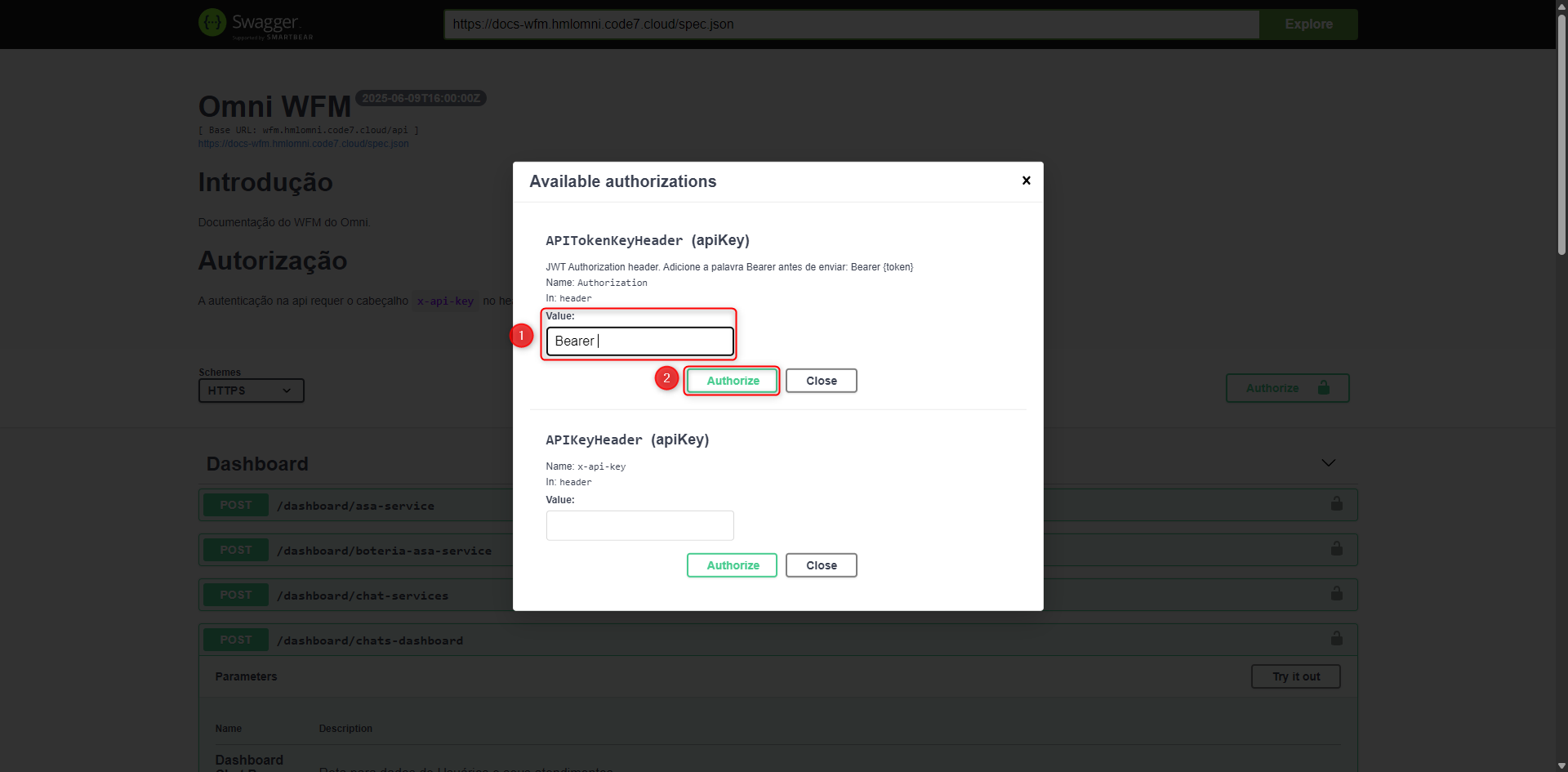
With the token copied, simply go back to the authorization menu, type Bearer and paste the token right after, in the APITokenKeyHeader field.
To finish, just click the Authorize button.
chats-dashboard - Chat Dashboard by Agent
The chats-dashboard route returns the data of agents who are linked to chat attendances. This route requires only one variable: the organization ID in Omni. After the request is made, the API will return a set of information for each agent. Below is the definition of each returned attribute:
- Agent
- User alias
- User_short_name
- User name
- Capacity
- Maximum number of inbound attendances
- Status
- Agent’s state at the time of the query. It will show whether the user is offline, available, or in pause.
- Service
- List of services linked to the agent
- Attendance
- Lists the interactions being handled by the agent
- Status
- State of the interaction, normal or holding for interactions in the holding process
- Service
- Name of the service of the interaction
- Protocol
- Interaction protocol
- TCA
- Time the client has been waiting for the agent’s response.
- This indicator counts the time since the client sent the response and is waiting for the agent’s reply, and the count resets upon agent interaction or attendance transfer by service.
- Transfers by agent will not reset the indicator counter.
- Time the client has been waiting for the agent’s response.
Transfers by agent will not reset the indicator counter.
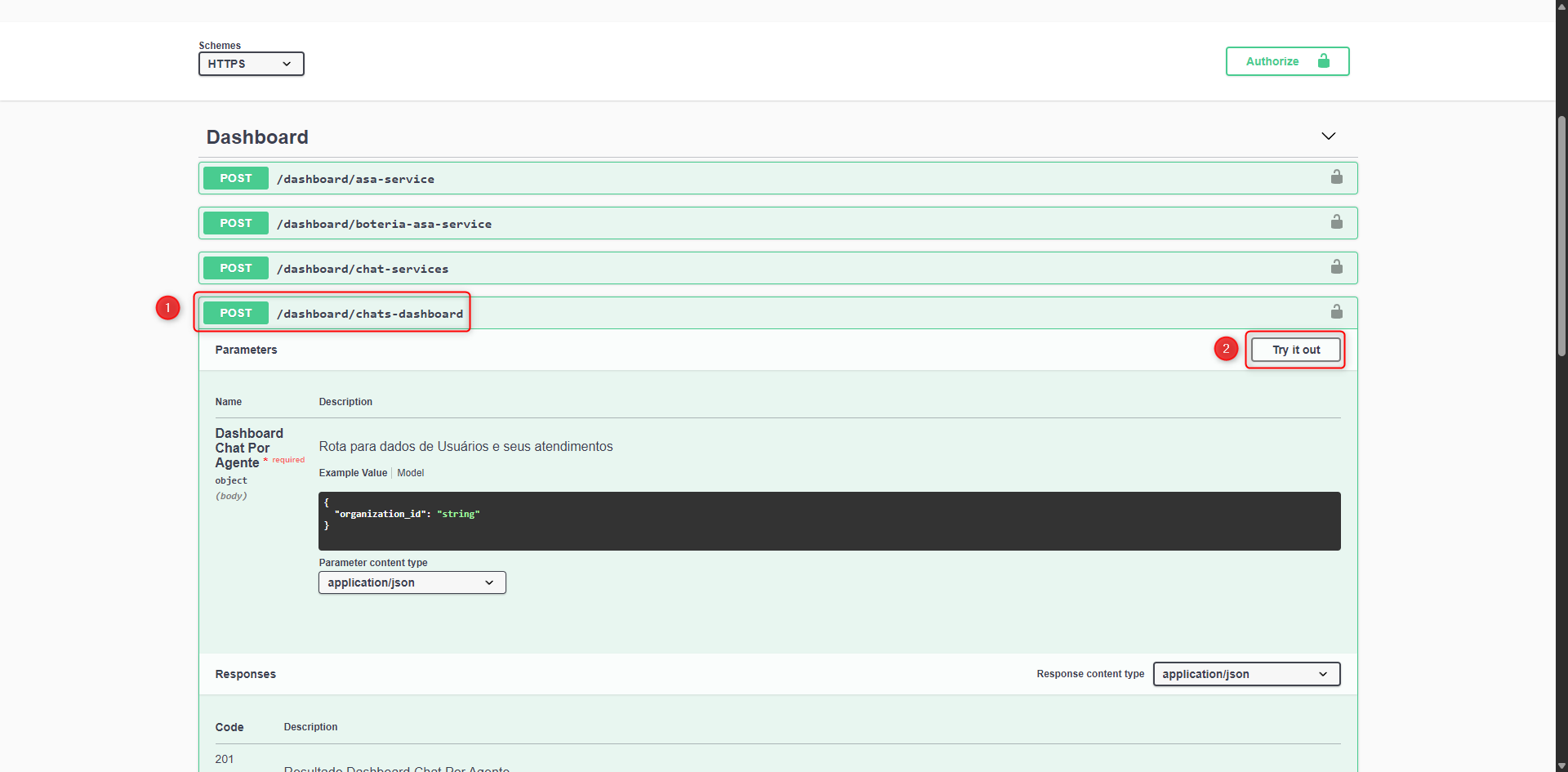
To access this route, simply go to the /dashboard/chats-dashboard field and click the “Try it out” button:
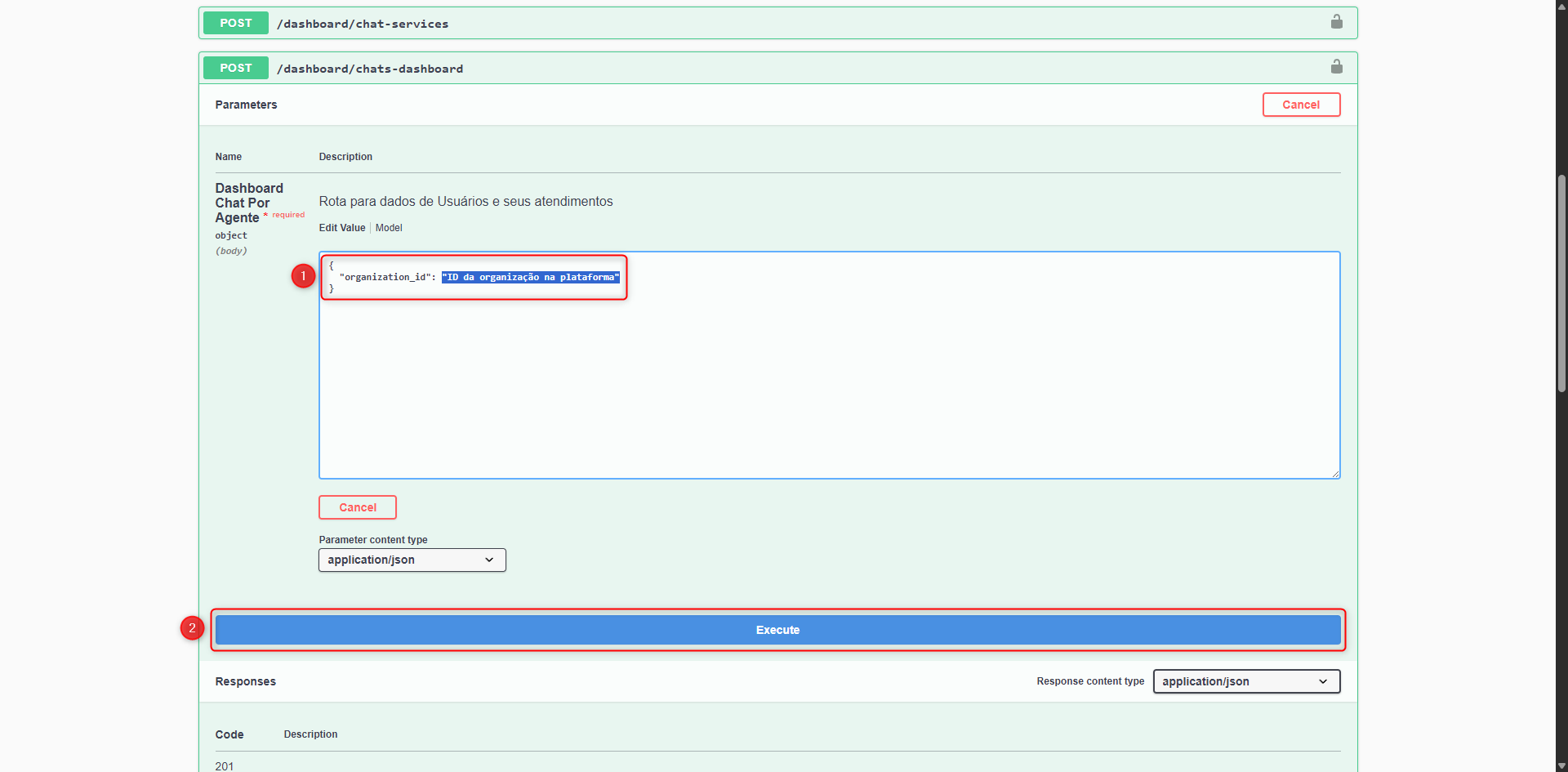
After entering the data, simply click the Execute button located just below the panel:
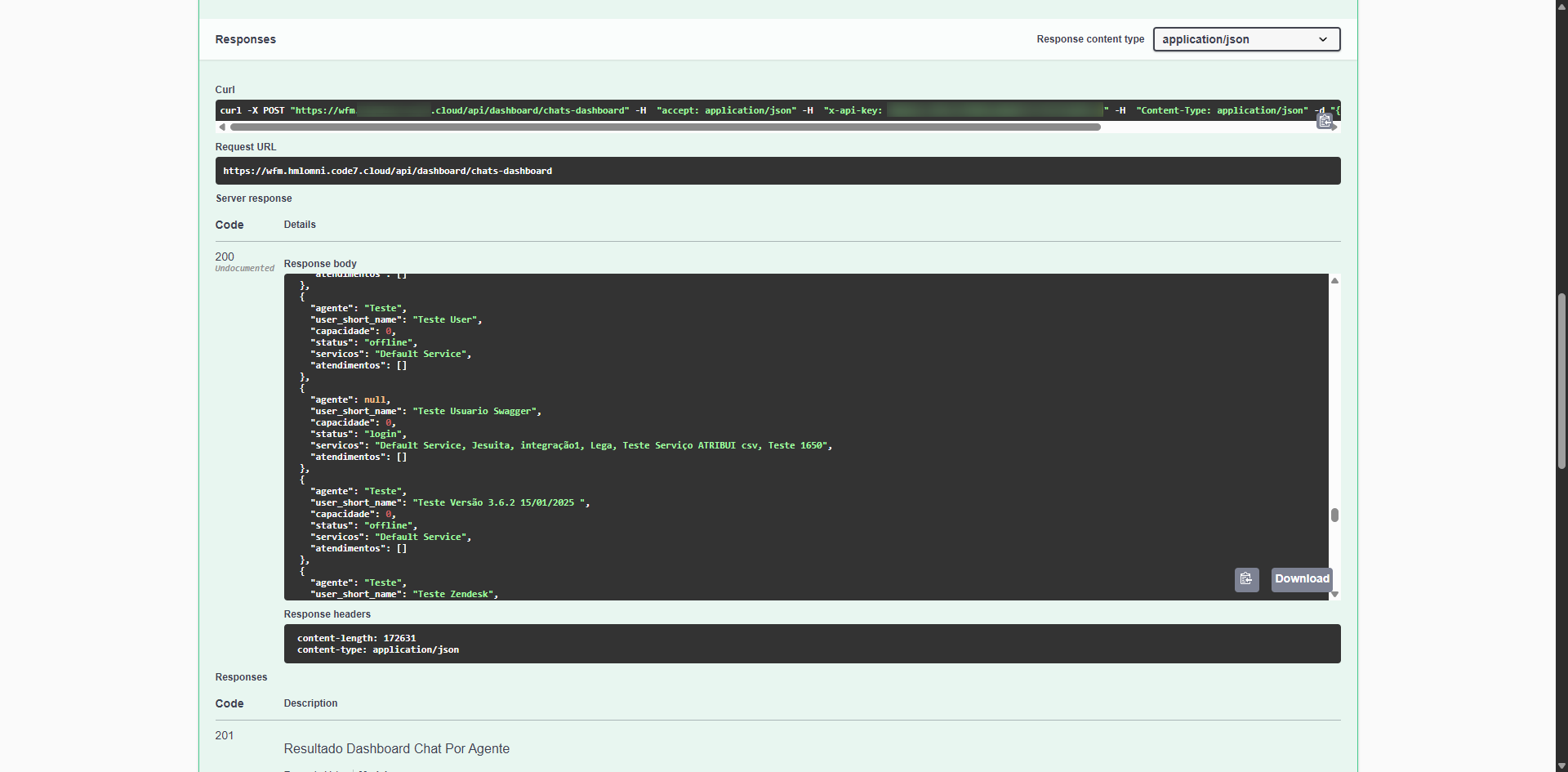
Here is an example of the return from the chats-dashboard API:
deactivate - User Deactivation
This route is used to deactivate a specific user based on name, email, or CPF. The route expects four variables, of which only two are mandatory. Below is the explanation:
- Name
- Name of the user to be deactivated. It can be left empty if the email or CPF field is filled.
- Email
- Email of the user to be deactivated. It can be left empty if the name or CPF field is filled.
- Organization
- The ID of the organization to which the user to be deactivated is linked. If the field remains null or empty, the ID of the organization of the user making the request will be used.
- CPF
- CPF of the user to be deactivated. It can be left empty if the email or name field is filled.
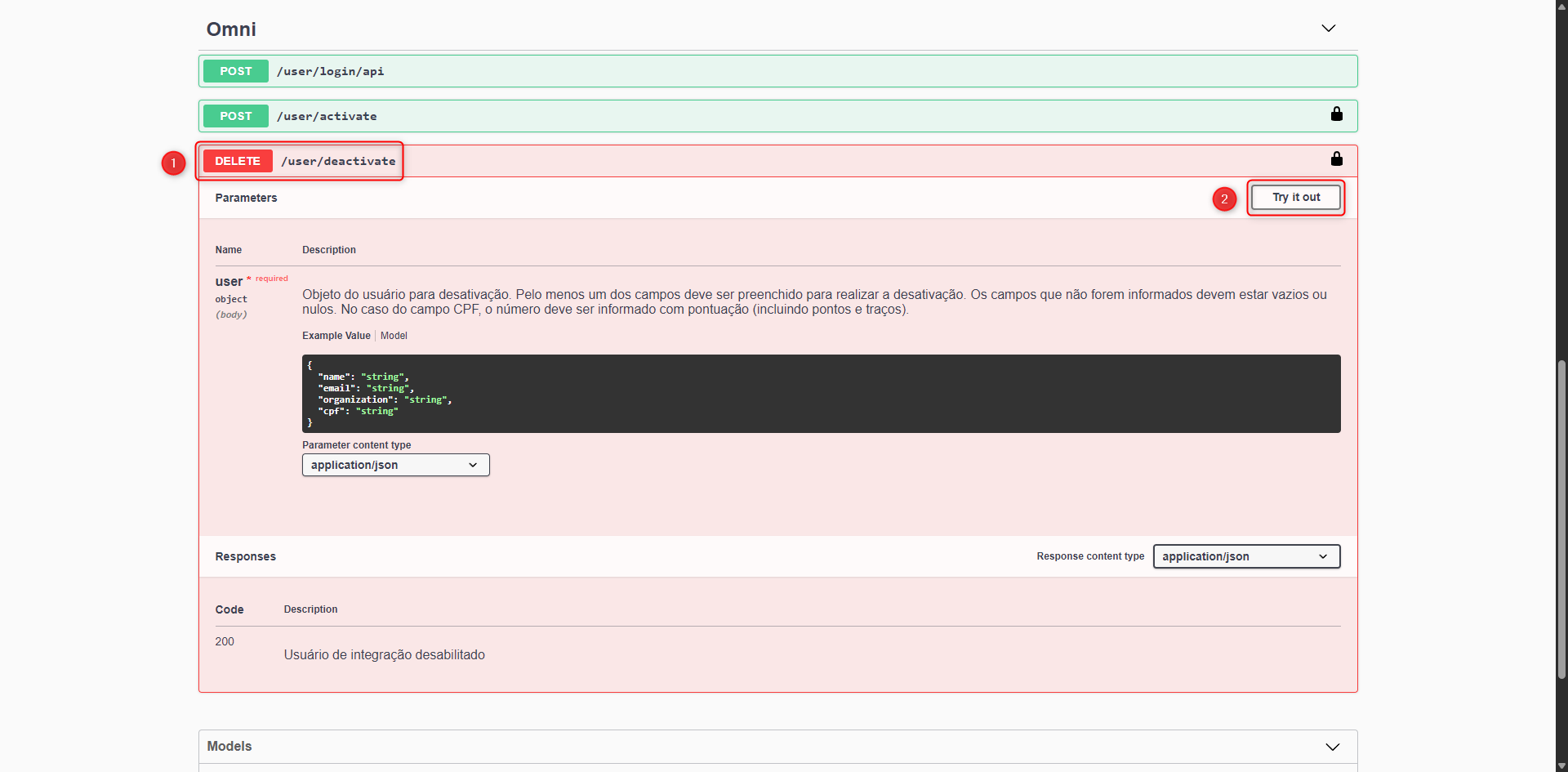
To access this route, simply go to the user/deactivate field and click the “Try it out” button:
After entering the data, simply click the Execute button located just below the panel:
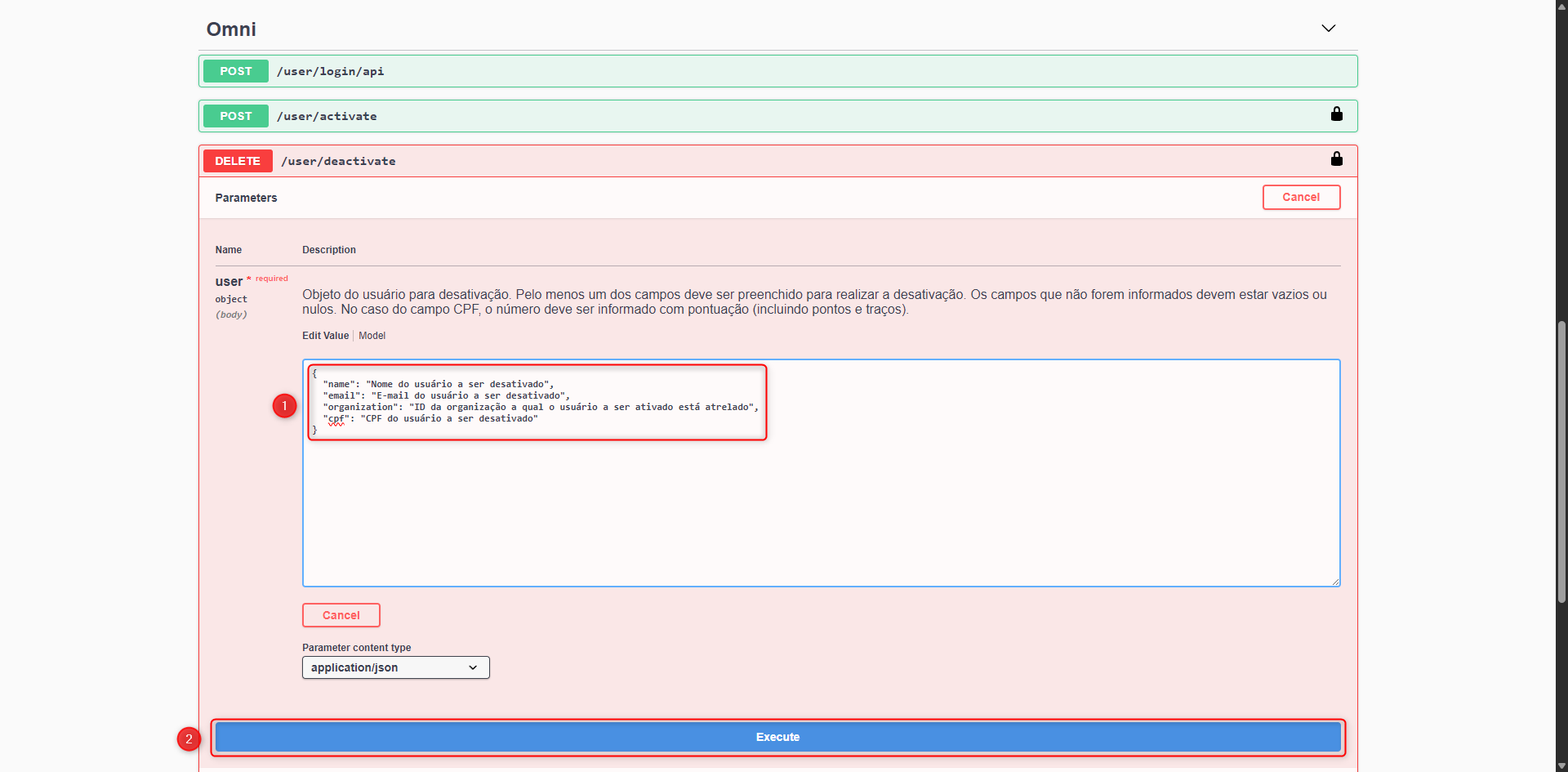
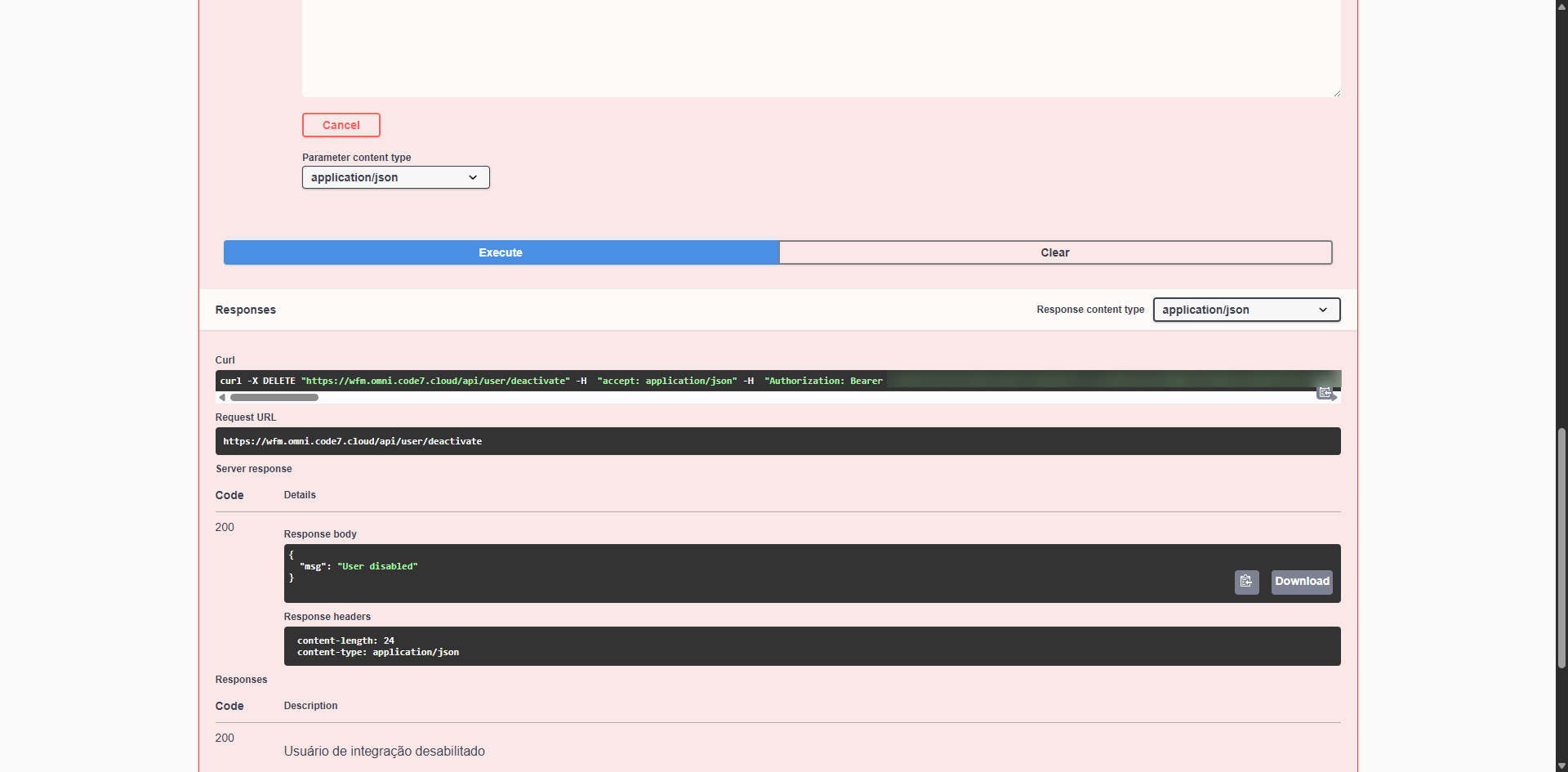
Here is an example of the return from the user/deactivate route:
activate - User Activation
This route is used to activate a specific user based on name, email, or CPF. The route expects four variables. Below is the explanation:
- Name
- Name of the user to be activated. It can be left empty if the email or CPF field is filled.
- Email
- Email of the user to be activated. It can be left empty if the name or CPF field is filled.
- Organization
- The ID of the organization to which the user to be activated is linked. If the field remains null or empty, the ID of the organization of the user making the request will be used.
- CPF
- CPF of the user to be activated. It can be left empty if the email or name field is filled.
To access this route, simply go to the user/activate field and click the “Try it out” button:
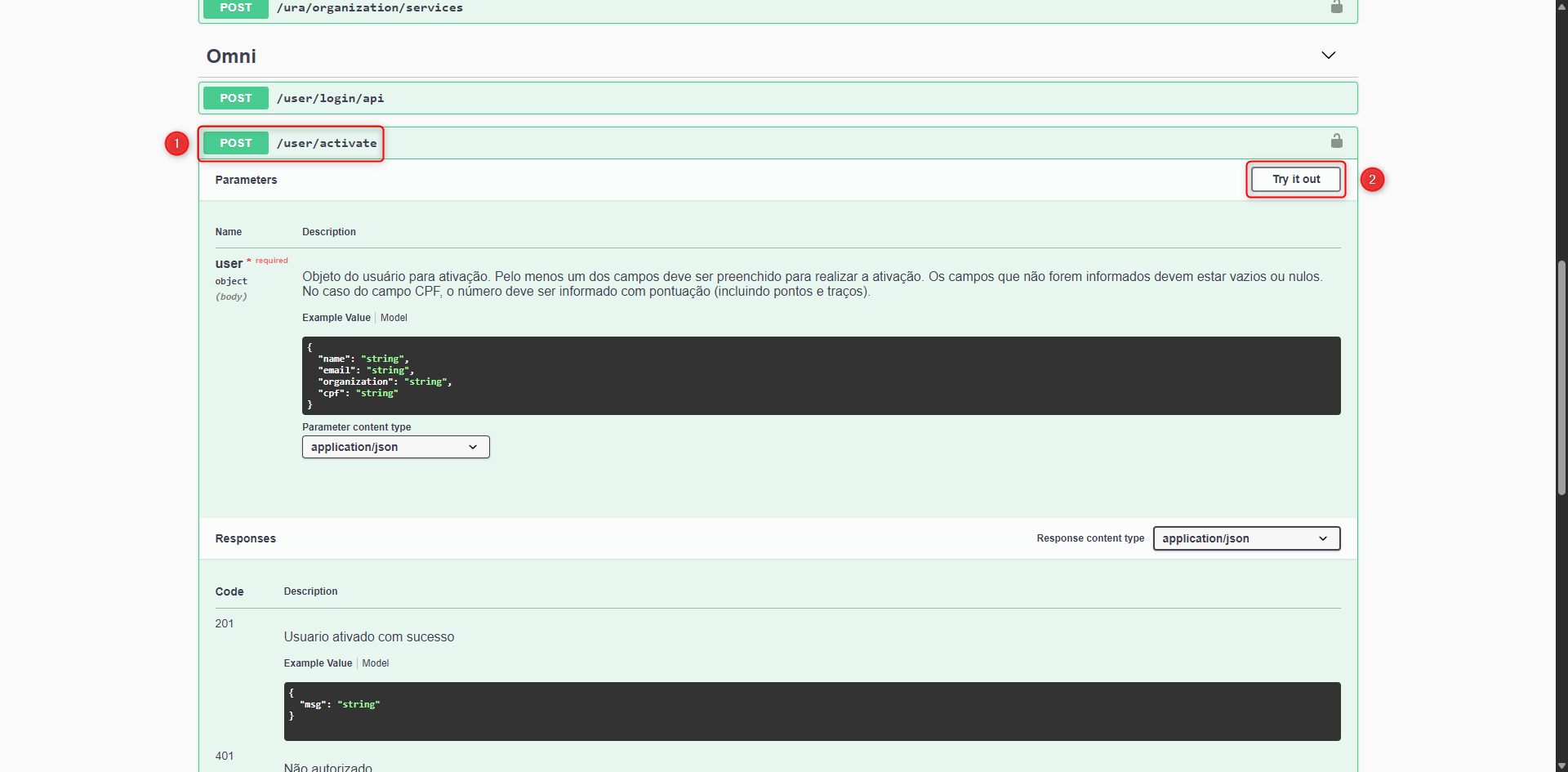
After entering the data, simply click the Execute button located just below the panel:
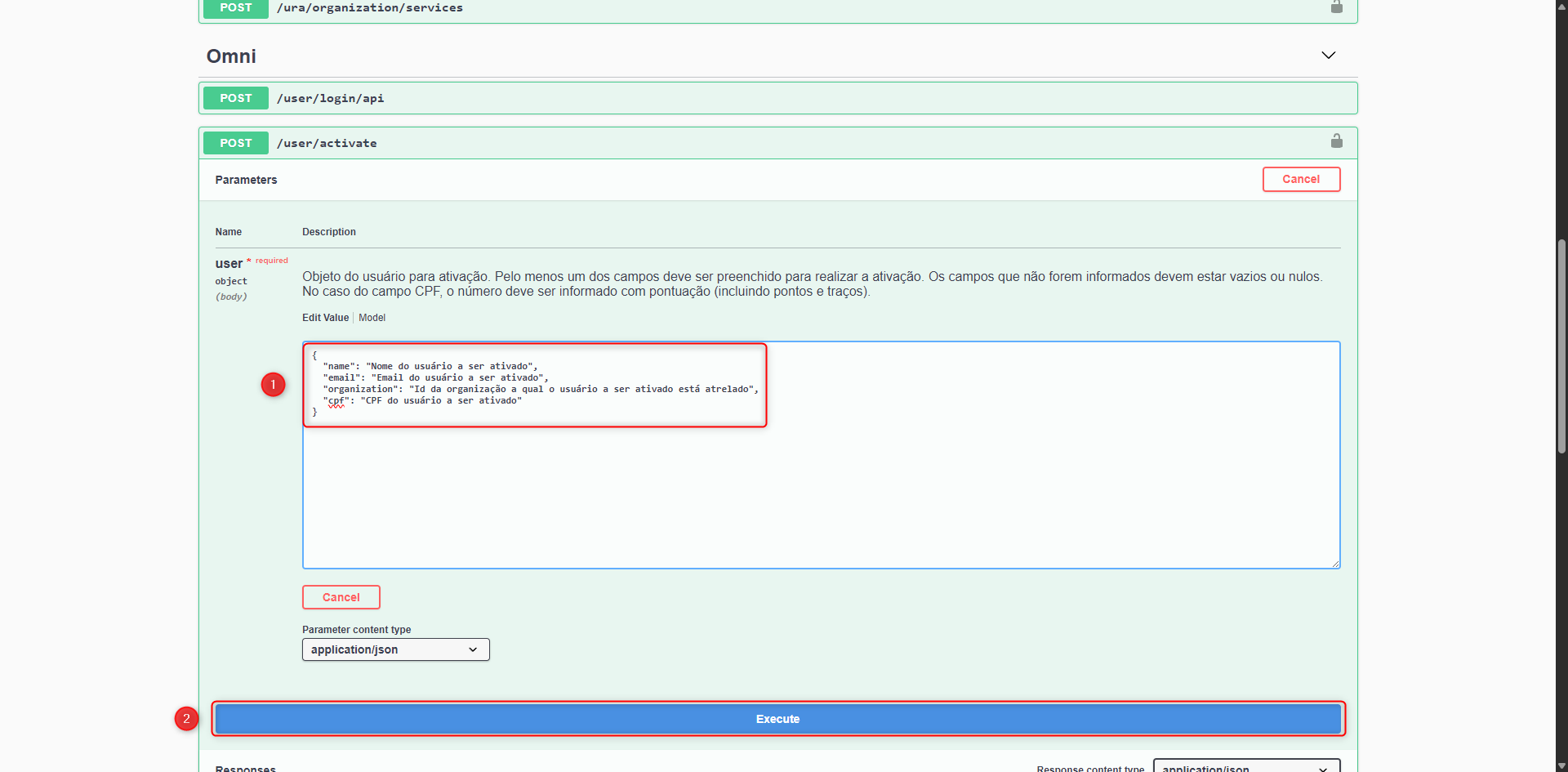
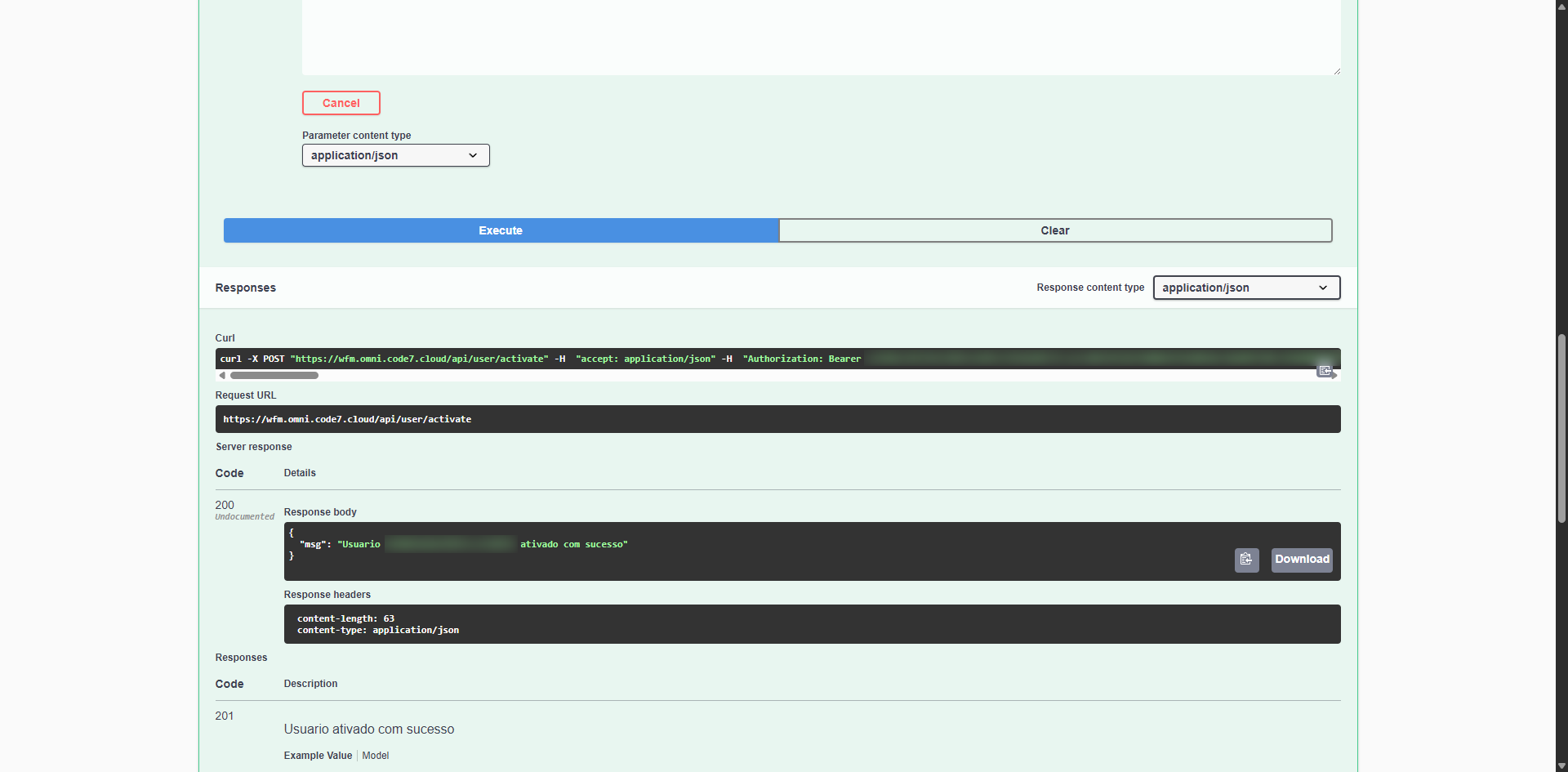
Here is an example of the return from the user/activate route:
chat-services - Digital Attendance Dashboard
This route returns all consolidated data about attendances, both total indices and separated by service. The route expects four variables, explained below:
- organization_id
- Organization ID, mandatory field
- service_id
- Service ID, if filtering by service is needed. Since this field is not mandatory, it can be left empty
- user_id
- User ID, if filtering by user is needed. Since this field is not mandatory, it can be left empty
- media_filter
- Type of media of the attendances to be filtered. Valid media types: chat, email, and WhatsApp.
After the request is made, the API will return a set of information for each service and attendance, according to the defined filter. Below is the definition of each returned attribute:
- Queue
- Total number of attendances in queue
- Received
- Total number of interactions received during the day
- Sessions
- Total number of sessions in attendance
- Finished_sessions
- Total number of attendances completed during the day
- Current_chats
- Total number of clients in attendance
- Chat_aht
- Average Handling Time, the average duration of attendances
- Chat_tmr
- Average response time, the average time the agent takes to reply to the client
- Chat_tmr1
- Average first response time, the average time the agent took to send the first reply
- Total_available
- Sum of the total attendance capacity of agents who are online
- Total_slots
- Total number of attendance slots already filled
- _logged
- Total number of agents who are online
- _countAvailable
- Total number of agents available
- _countPaused
- Total number of agents in pause
- _countTalking
- Total number of agents in a call (voice attendances only)
- Offline
- Total number of agents who are offline
- Services
- Service
- Service name
- Chat_tm1r
- Average first response time
- Chat_aht
- Average Handling Time
- Chat_tmr
- Average response time
- Attended
- Number of interactions attended or currently being attended
- Received
- Total number of attendances received during the current day
- Finished
- Total number of interactions finished during the current day
- Total_available
- Sum of the total attendance capacity of agents online for the given service
- In_attendance
- Number of interactions in attendance for the given service
- Queue
- Number of interactions in queue for the given service
- Logged
- Total number of agents linked to the service who are online
- CountAvailable
- Total number of agents linked to the service who are available
- CountPaused
- Total number of agents linked to the service who are in pause
- CountTalking
- Total number of agents linked to the service who are in a call (voice attendances only)
- Offline
- Total number of agents linked to the service who are offline
- MIN_TIME
- Shortest time an interaction remained in the queue
- AVG_TIME
- Average time interactions remained in the queue
- MAX_TIME
- Longest waiting time of an interaction in the queue
- Service
- Chat_queue
- List with detailed information about the attendance queue by service
- Service
- Service name
- Client
- Client name or identifier in the queue
- Status_client
- Current status of the attendance (online or offline)
- Status_chat
- Chat status — "0" for Holding and "1" for Online
- Time_queue
- Total time the client has been waiting in the queue (format HH:MM:SS)
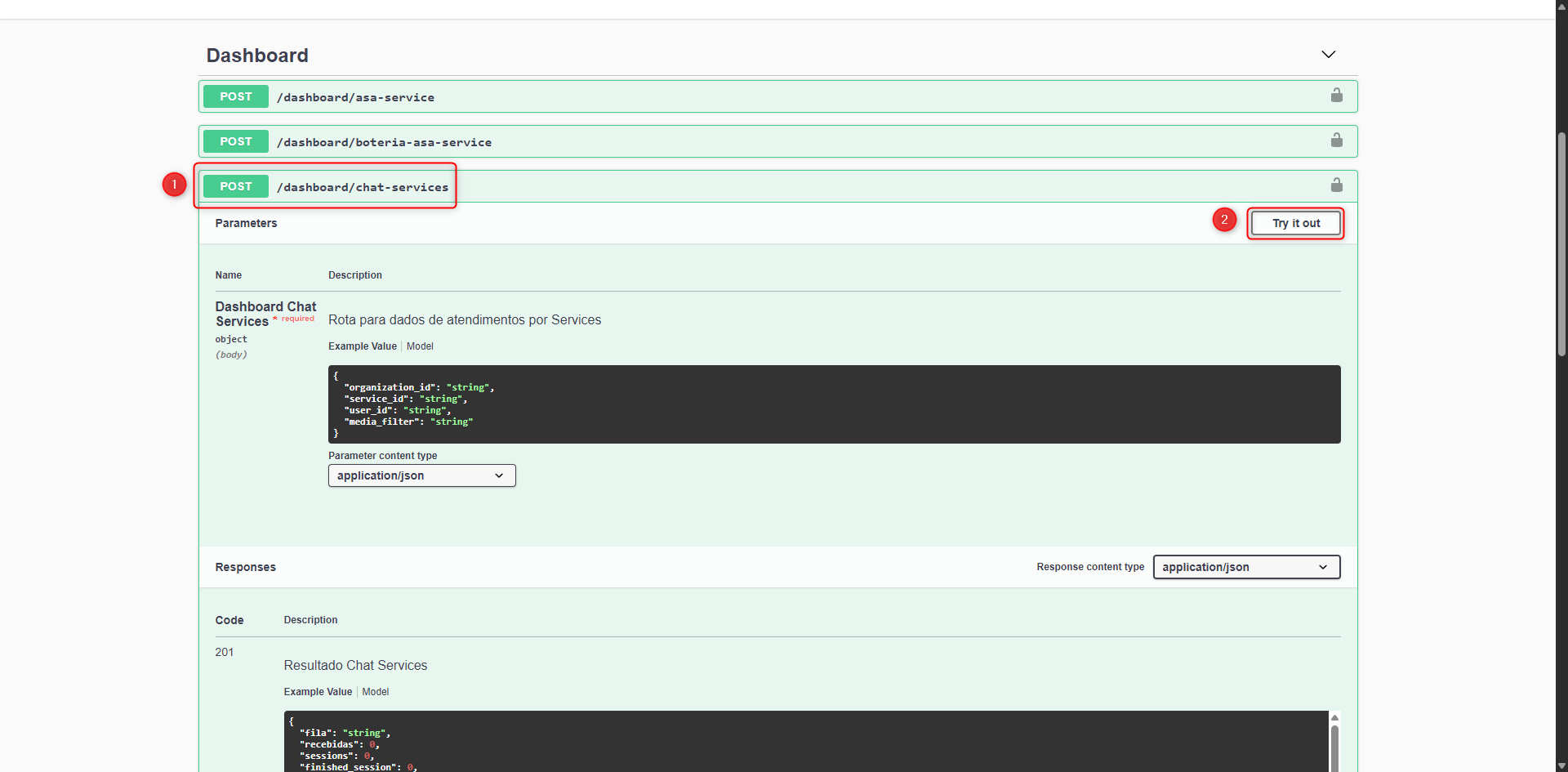
To access this route, simply go to the /dashboard/chats-dashboard field and click the “Try it out” button:
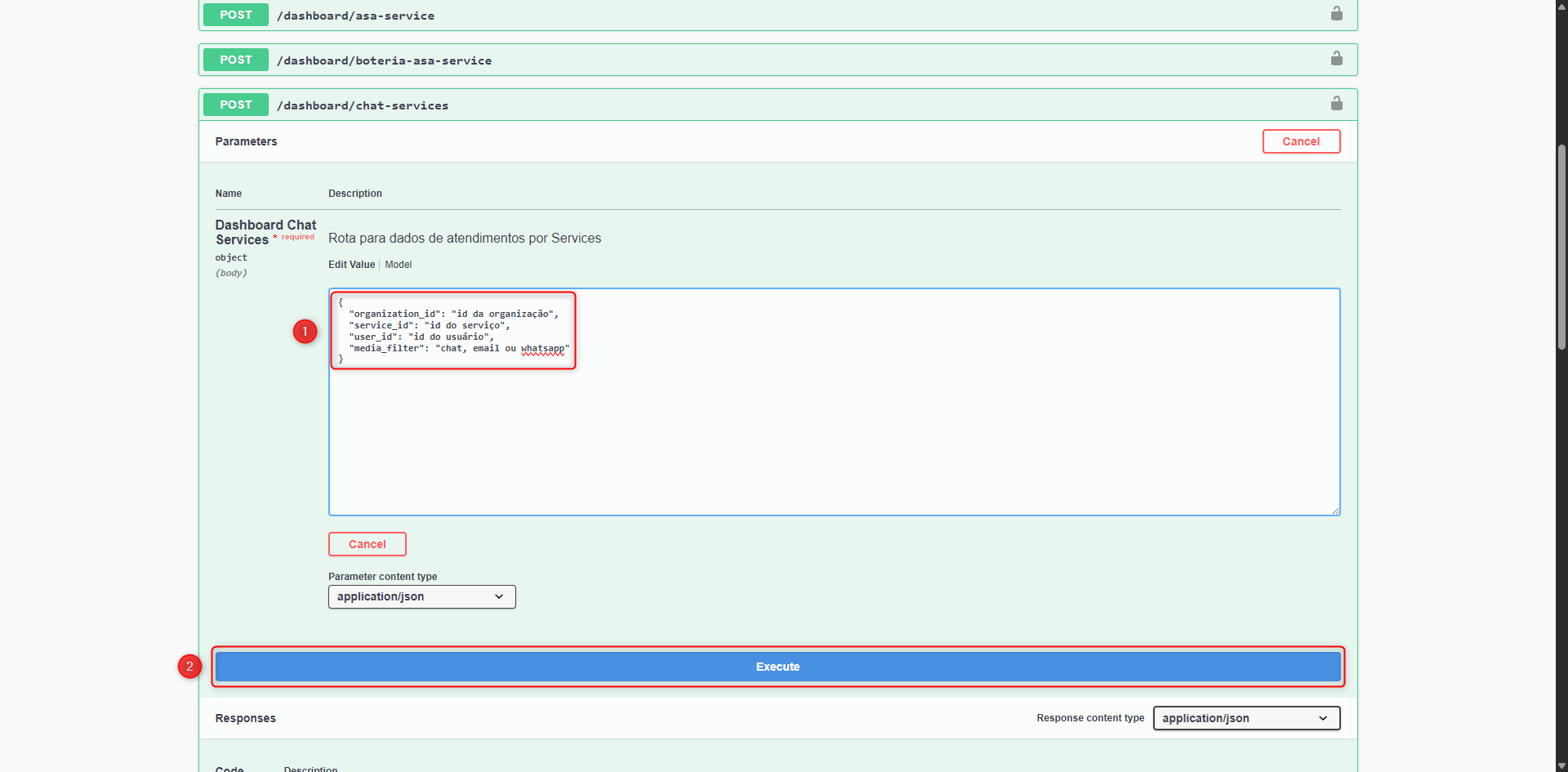
After entering the data, simply click the Execute button located just below the panel:
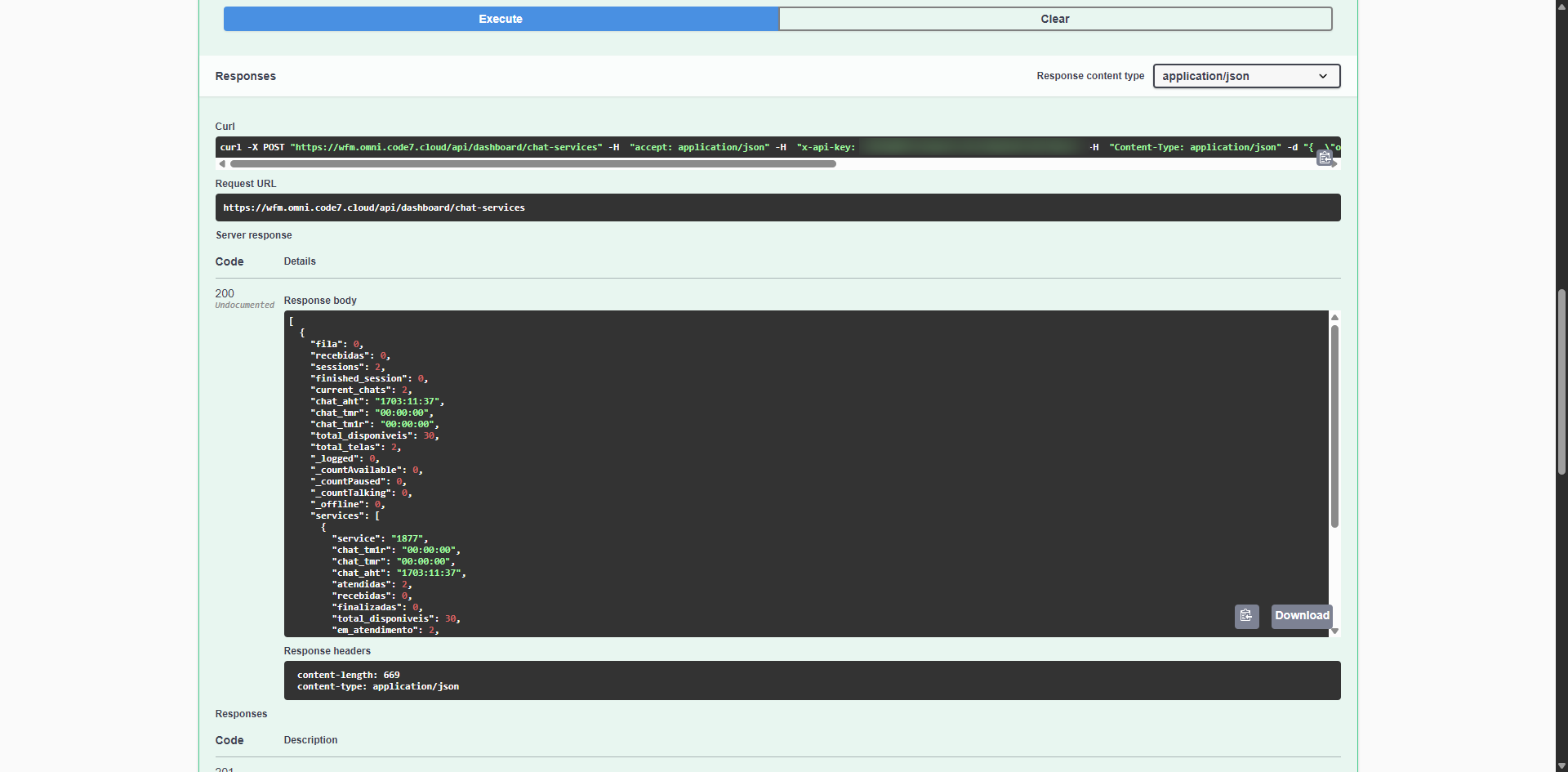
Here is an example of the return from the chats-dashboard API:
dashboard - SMA (Monitoring\Agents)
This is the route for user status and login data, according to softphone logins:
- organization_id
- Organization ID, required field. This field cannot be a list.
- user_id
- User ID, if filtering by user is needed. It can be more than one if filtering by multiple user_ids is required.
- service_id
- Service ID, if filtering by service is needed. It can be more than one if filtering by multiple service_ids is required.
- pause_filter
- ID of a pause, it can be more than one if filtering by multiple pauses is required.
- user_tags
- ID of a user_tag, it can be more than one if filtering by multiple user_tags is required.
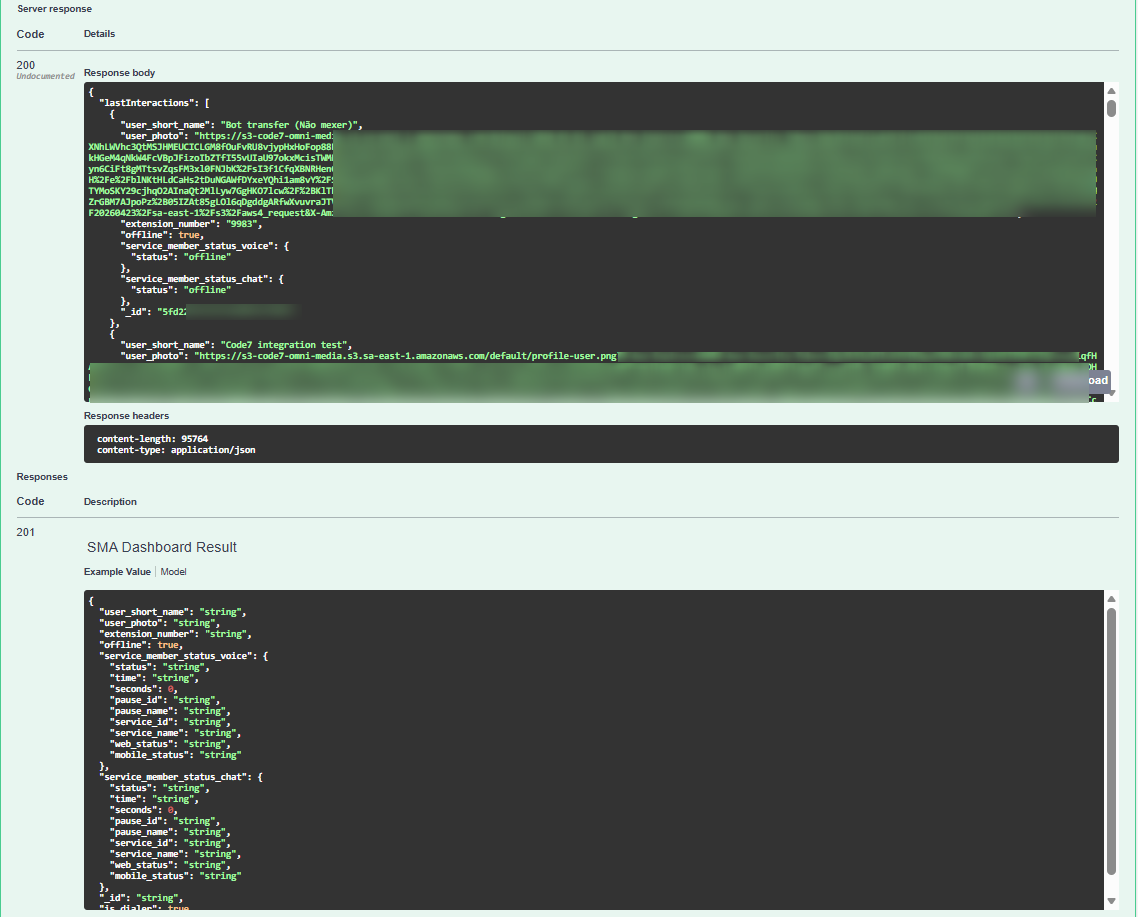
After the request is made, the API will return a set of information according to the defined filter. Below is the definition of each returned attribute:
- user_short_name
- Agent name
- user_photo
- Agent photo link
- extension_number
- Agent extension number
- offline
- Agent offline
- service_member_status_voice
- Voice status
- service_member_status_chat
- Chat status
- _id
- Agent ID
- is_dialer
- Dialer
To access this route, go to the field /dashboard/sma and click the “Try it out” button:
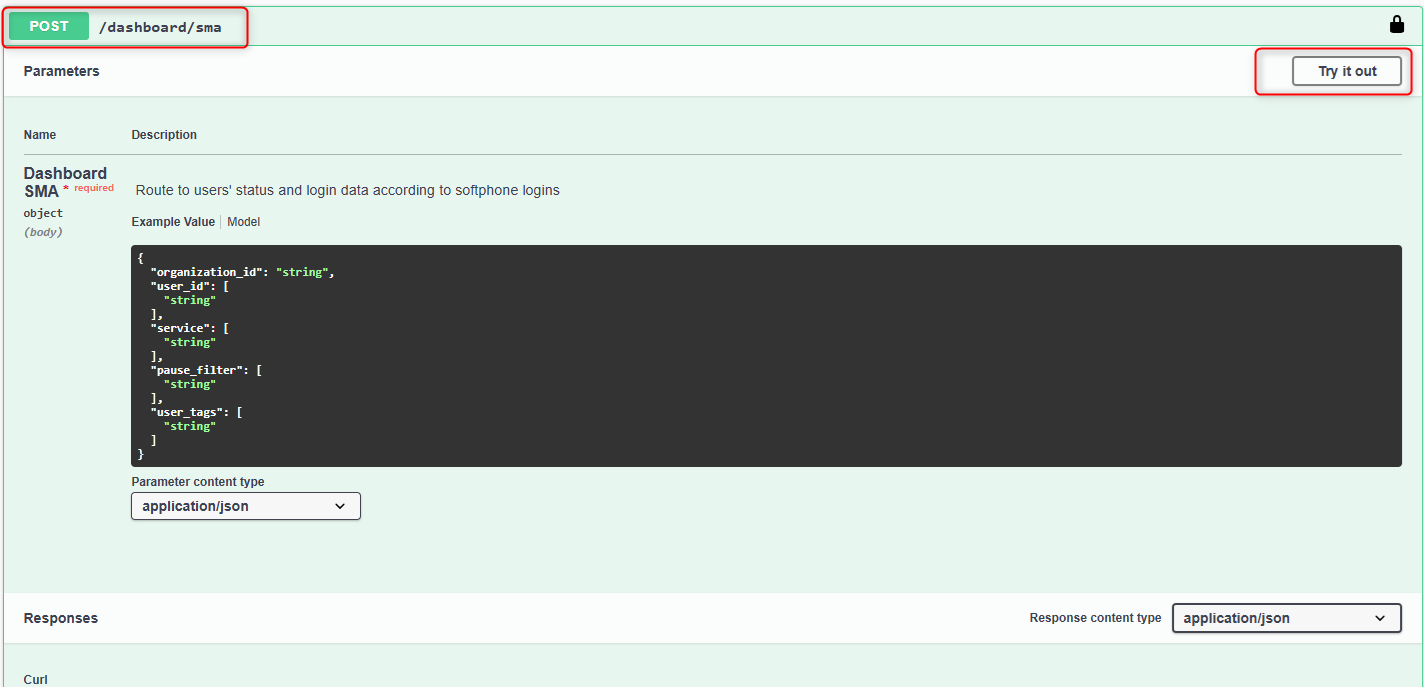
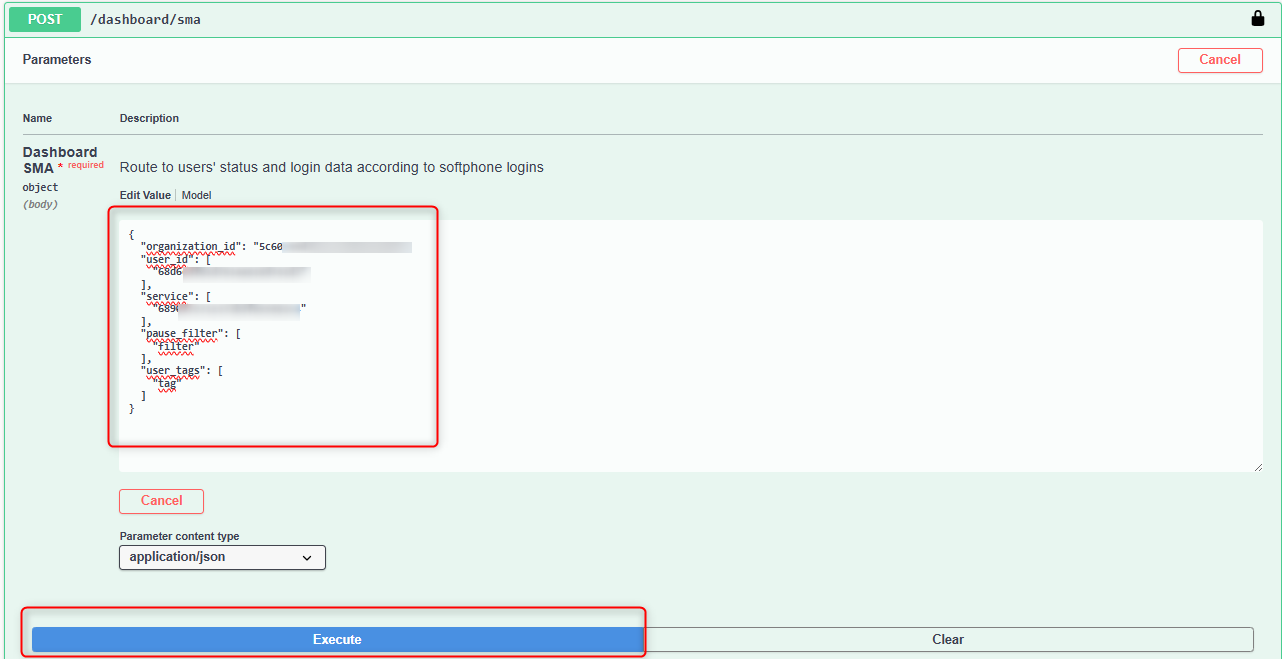
After entering the data, just click the execute button located right below the panel:
Here is an example of an SMA-dashboard API response:
asa-service - dashboard - Dashboard Inbound
The asa-service route returns consolidated data about the platform’s voice operation. The route expects the following search parameters:
- organization_id
- Organization ID, required field. This field cannot be a list.
- service_id
- Service ID, if it is necessary to filter by service. More than one item can be selected in the search.
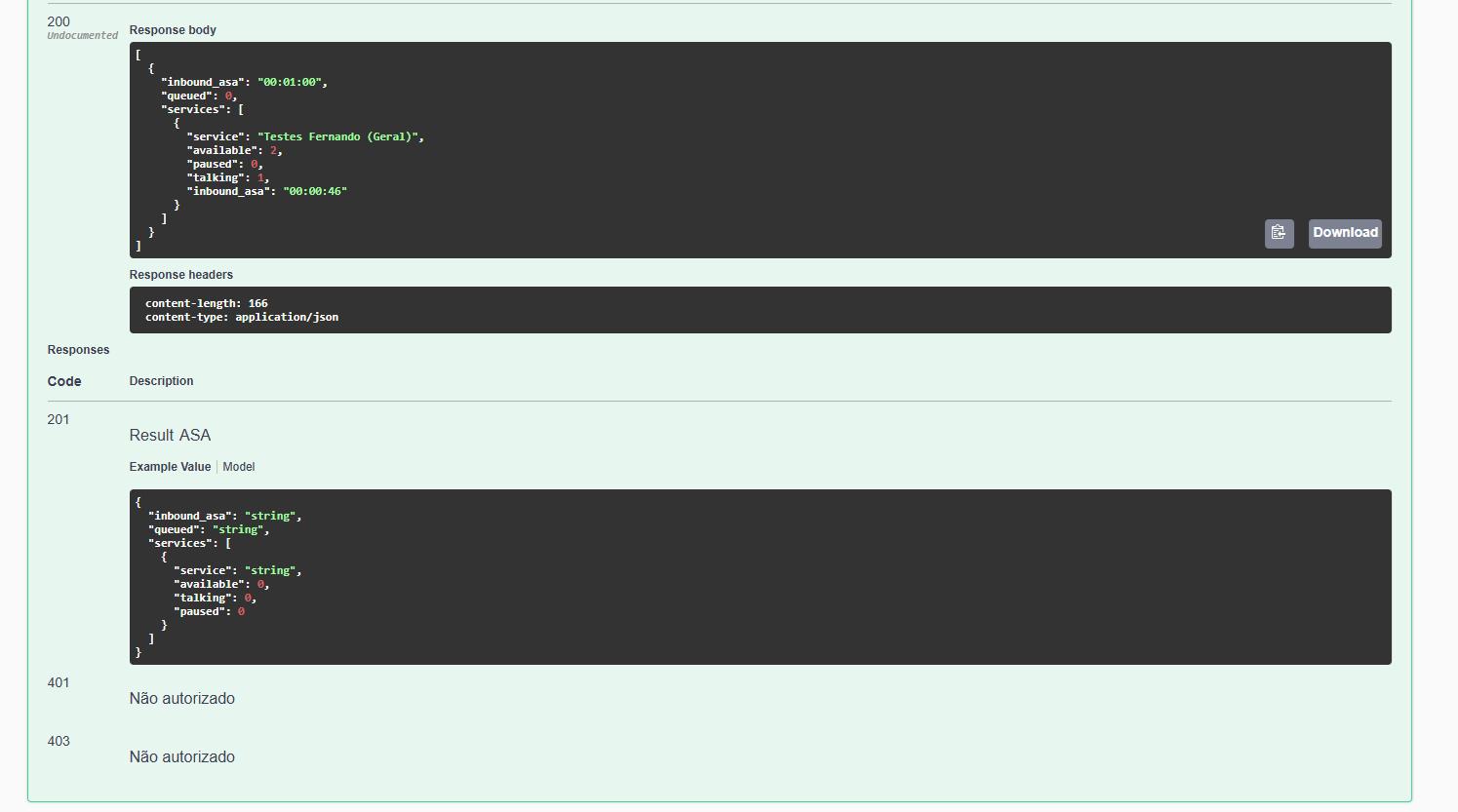
After the request is made, the API will return the following performance metrics and voice agent statuses:
- inbound_asa
- Average Handling Time, representing the average time inbound calls take to be answered.
- queued
- Total number of calls currently waiting for attendance in the queue.
- service
- Name of the service associated with the returned metrics.
- available
- Total number of voice agents who are online and available to receive calls.
- talking
- Total number of agents currently on an active call with a customer.
- paused
- Total number of voice agents currently on some type of pause.
After entering the data, simply click the execute button located just below the panel.
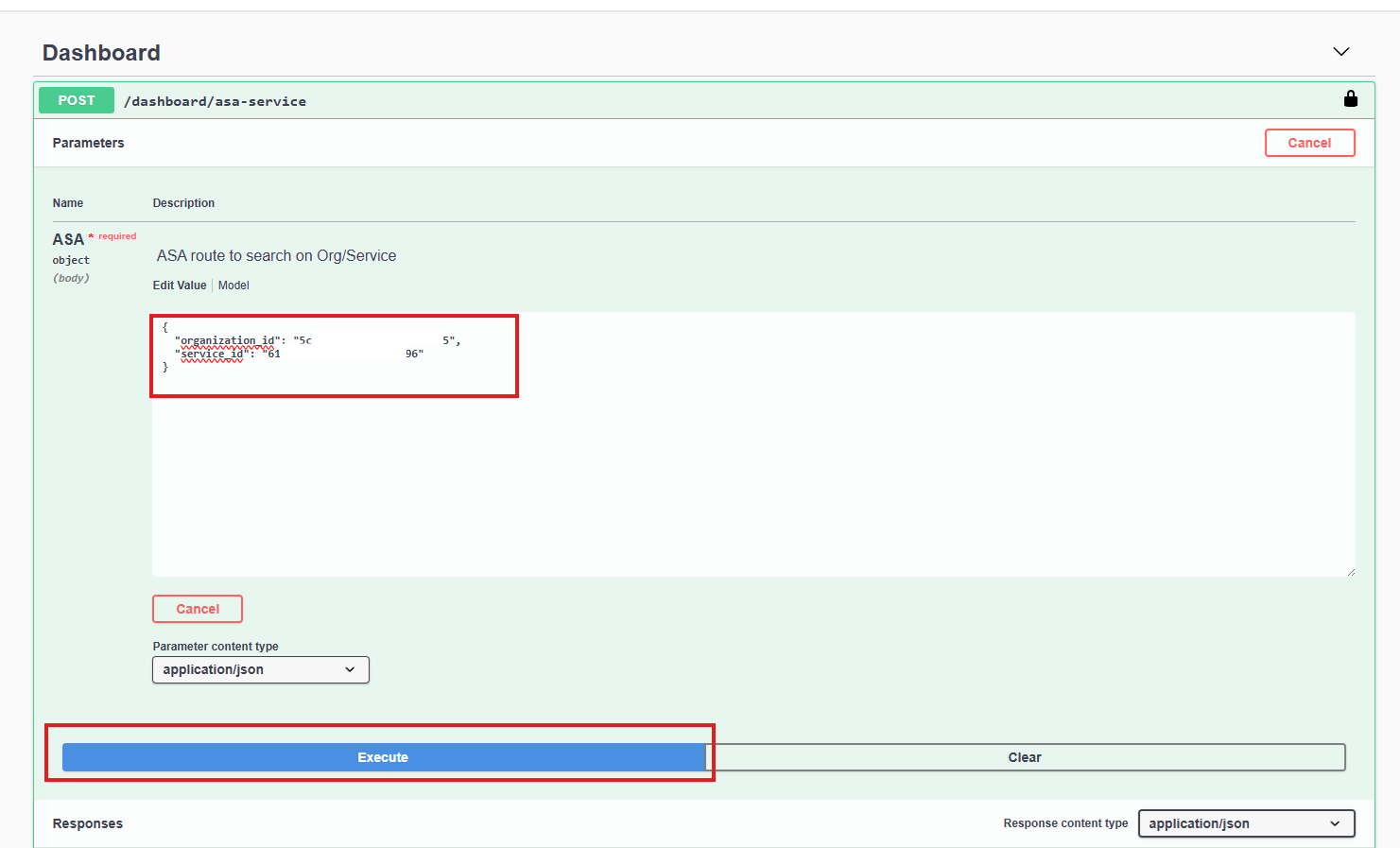
Here is an example of the return from the asa-service-dashboard API:
boteria-asa-service - dashboard - Boteria Interactions Dashboard (ASA)
The boteria-asa-service route presents attendance indicators and average times focused on interactions that flow through the integration with Boteria. The route expects the following search parameters:
- organization_id
- Organization ID, required field. This field cannot be a list.
- service_id
- Service ID, if it is necessary to filter by service. More than one item can be selected in the search.
After the request is made, the API will return the consolidated dataset about Boteria’s digital sessions:
- sessions
- Total number of active sessions or sessions in attendance during the period.
- finished_session_percentage
- Percentage of interactions and sessions that were properly completed/tabulated.
- chat_aht
- Average Handling Time, indicating the average duration of Boteria chats.
- current_chats
- Total number of customers currently in simultaneous attendance.
- chat_tmr
- Average Response Time, indicating the average time the agent takes to reply to messages sent by the customer.
- chat_tm1r
- Average First Response Time, calculating the average time the agent took to send the first message to the customer after the start of the chat.
- chat_queue
- Total number of interactions from Boteria that are waiting in the attendance queue.
- chat_longest_wait
- Longest waiting time recorded for an interaction that is waiting in the attendance queue.
After entering the data, simply click the execute button located just below the panel.
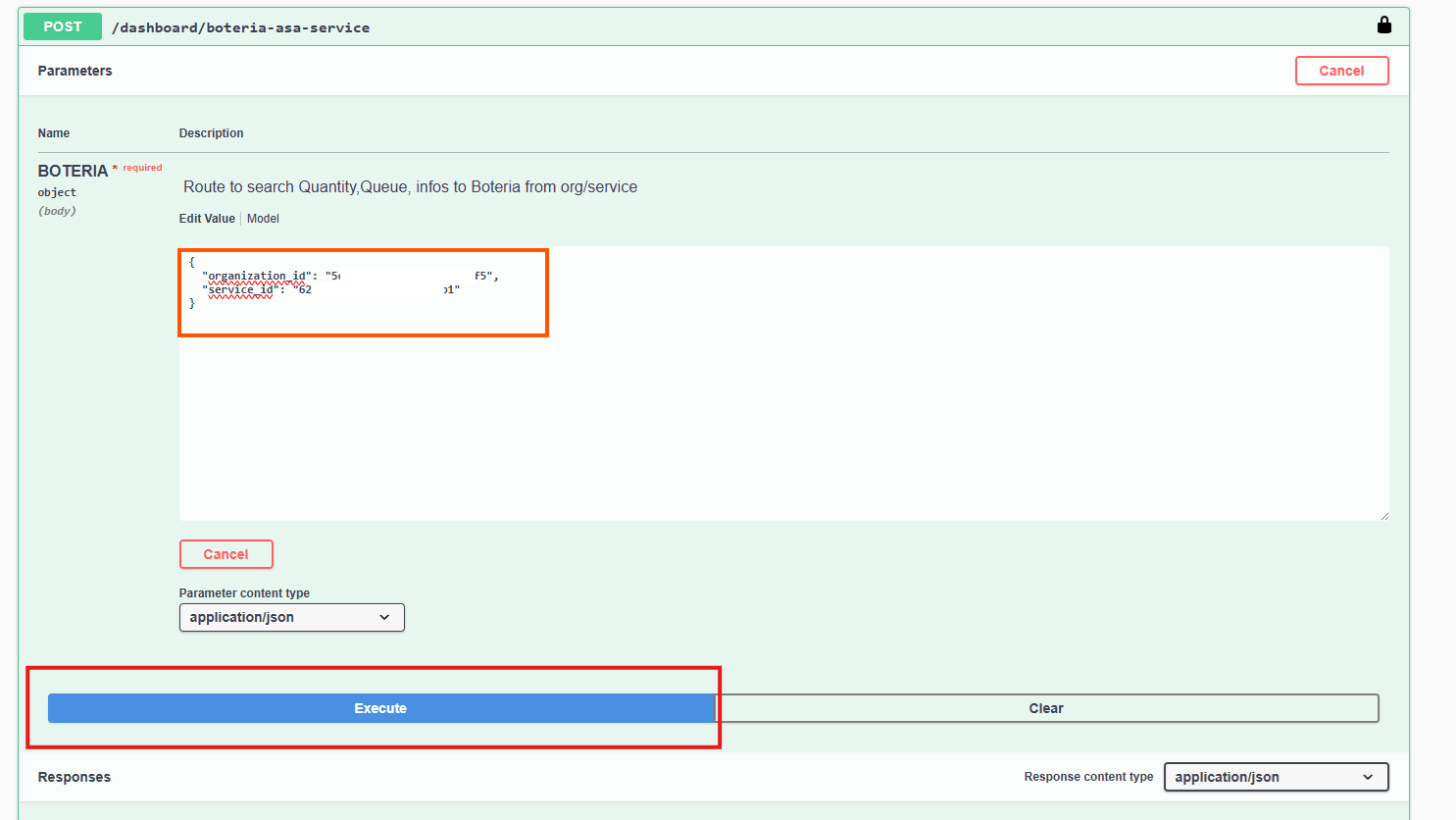
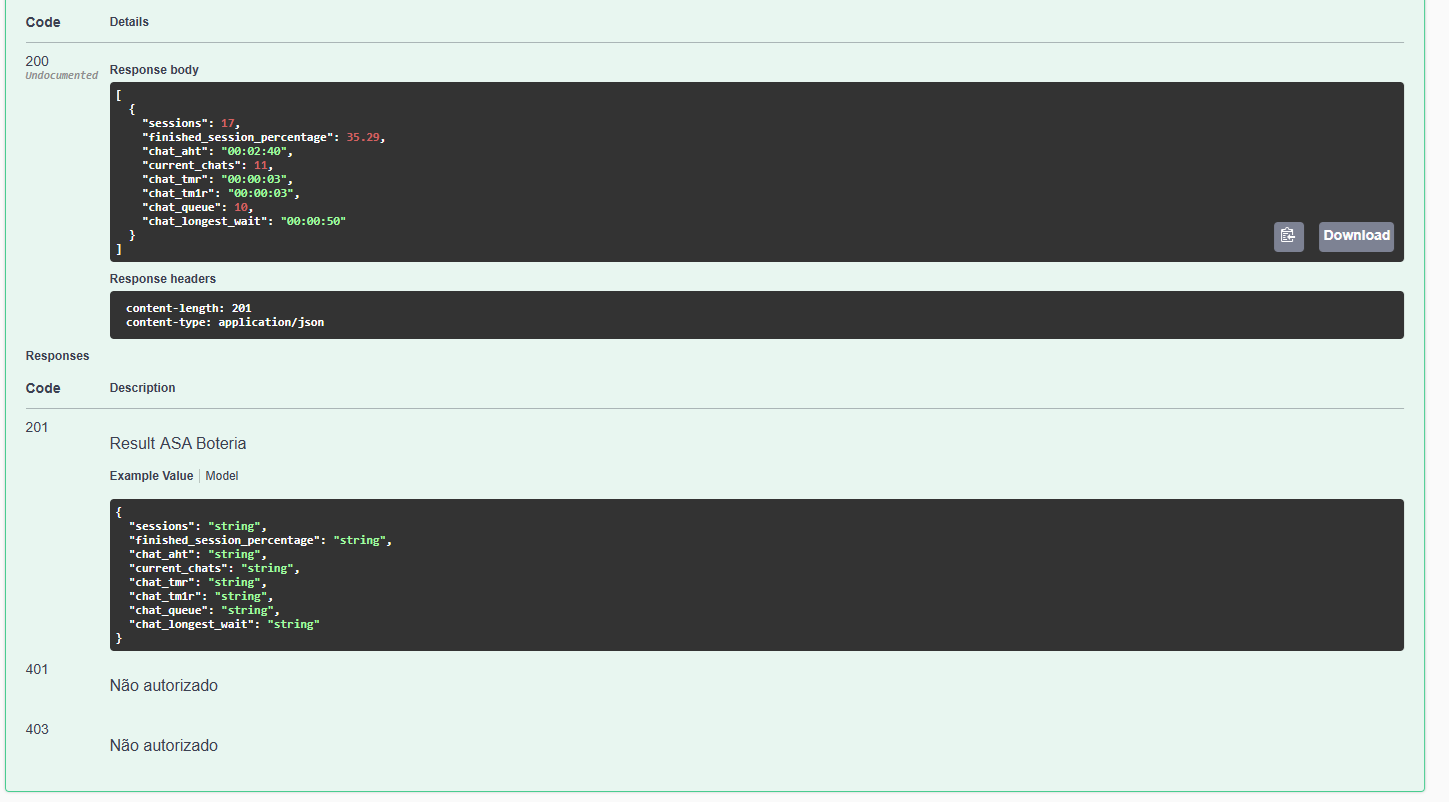
Here is an example of the return from the /dashboard/boteria-asa-service-dashboard API: