Reports
Viewing Reports
Interaction Tracking
Report that provides a view of each interaction handled on the platform, that has already been finalized, including information such as Date/Time, type of media, user, handling time, and the outcome of the interaction — identified through the TAG.
Interaction Tracking Screen
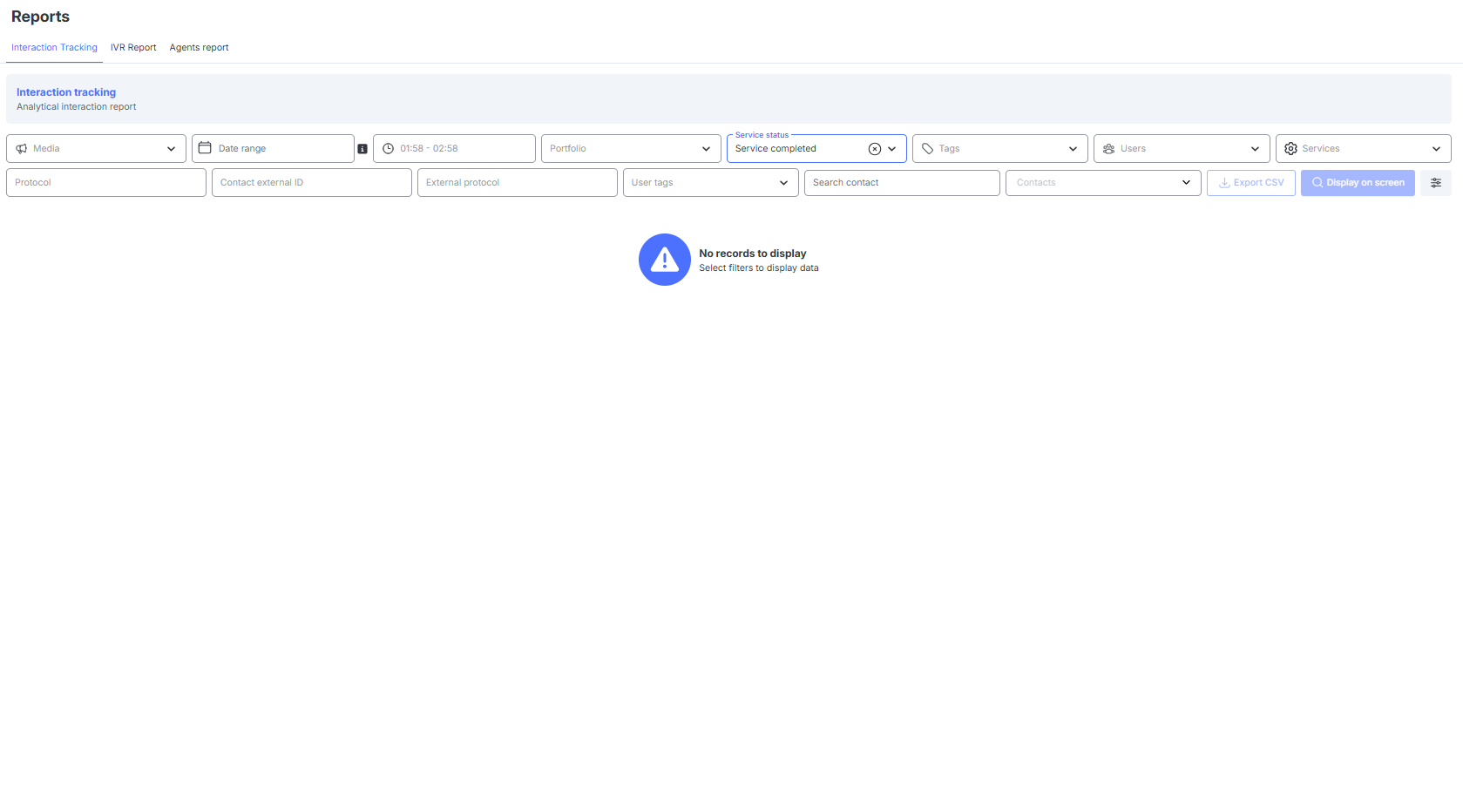
For extracting the report, the mandatory field is "Media"; the other fields are optional.
Media Filters Screen
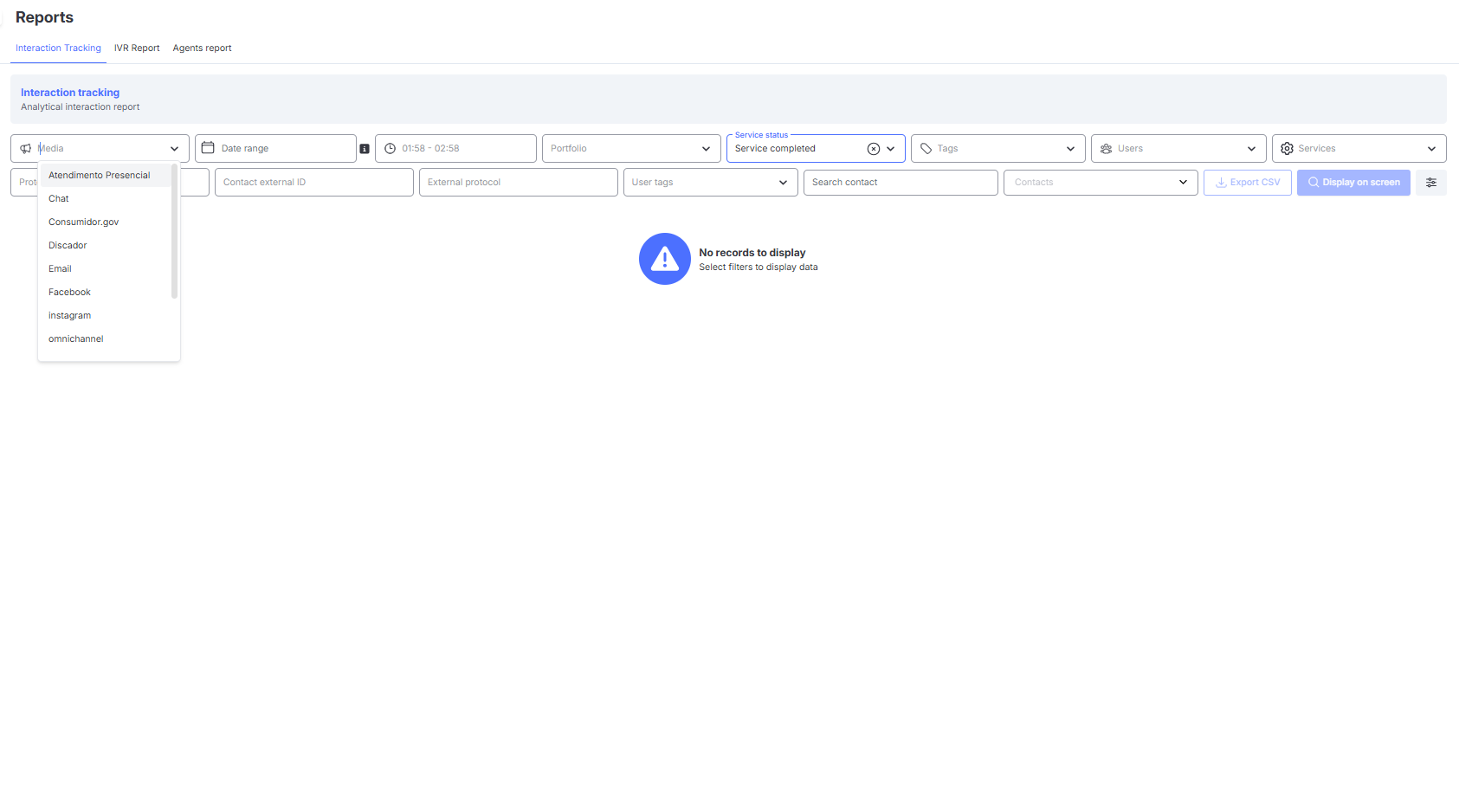
There are filter options by Date, User, Time, Protocol, Services, and other fields.
The extracted data can be viewed directly on the system screen, or it can also be downloaded in CSV format to facilitate information analysis.
Results Table
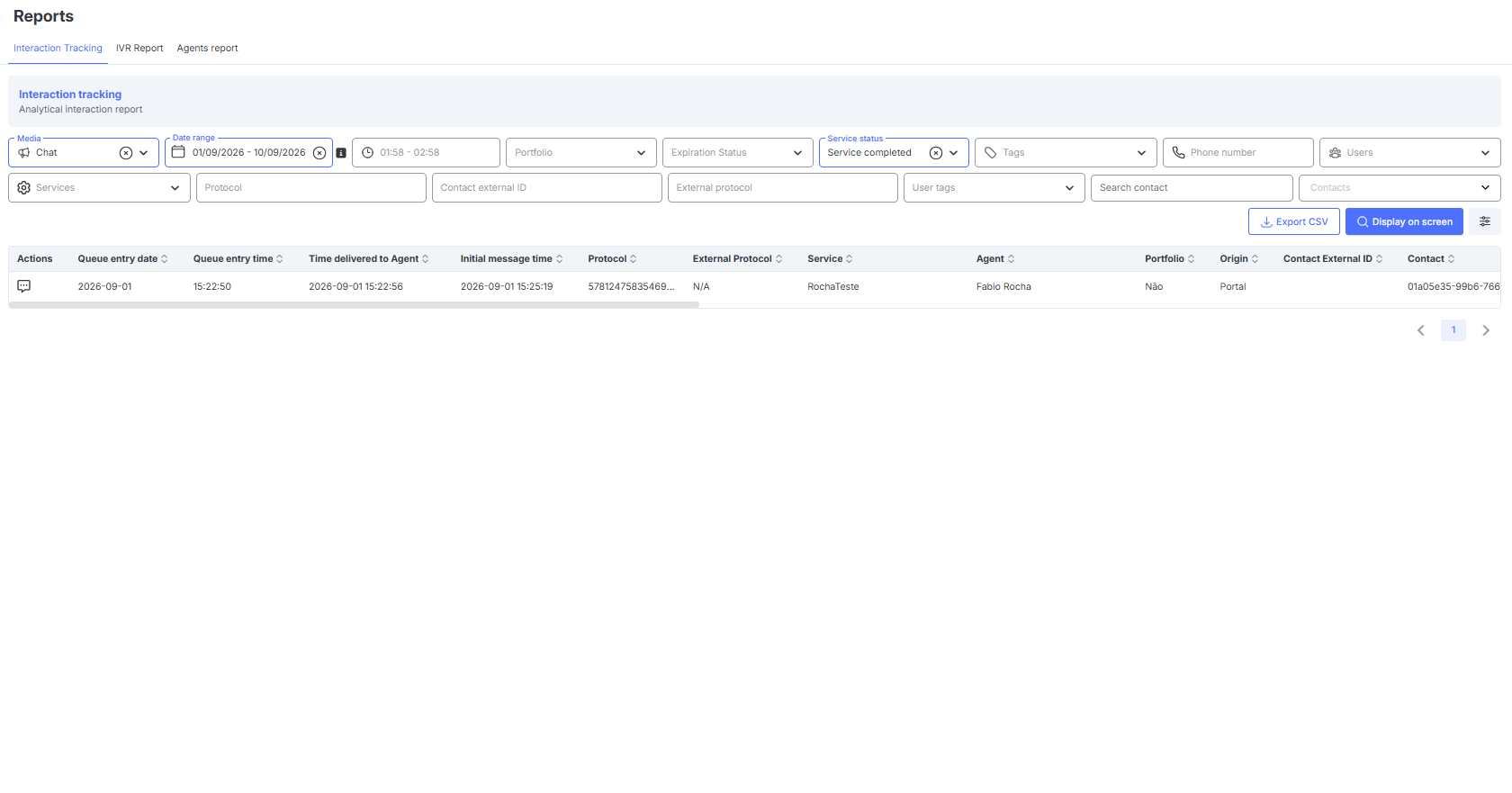
Interaction Tracking Filters
The interaction tracking screen allows detailed searches of finalized interactions on the platform.
Through the available filters, it is possible to refine the search based on information such as interaction channel, period, responsible agent, completion status, and other relevant data.
Below is the description of each available filter field:
- Media: Allows selecting the channel used (e.g., WhatsApp, Voice, Email, etc).
- Date: Defines the date range for the search.
- Time: Allows filtering interactions by time range.
- Portfolio: Defines whether the interaction is assigned or unassigned, according to the segmentation configured in the system.
- Expiration Status: Allows filtering interactions based on completion status, Expired or Active.
- Note: This field is displayed when the selected media is Chat or WhatsApp.
- Voice Status: Allows filtering voice interactions based on the type of call termination. Available options: Abandoned, Answered, Voicemail, Not Connected, Out of Service, Not Answered, Message.
- Note: This field is displayed when the selected media is Voice.
- Service Status: Defines the final status of the interaction. Available options: Service Completed and Service Transferred.
- Note: This field is not available for Voice and Email interactions. For other channels, the option Service Completed is selected by default.
- Tags: Allows filtering interactions based on the tag selected at the time of completion.
- Email: Allows filtering interactions based on the email address of the contact who initiated the interaction.
- Note: This field is displayed only when the selected media is "Email".
- Accepted format: The email must follow RFC 5322 standards, containing:
- Allowed characters in the local part (before @): letters (a-z, A-Z), numbers (0-9), dot (.), underscore (_), hyphen (-), plus (+).
- Mandatory @ character.
- Valid domain containing letters, numbers, dot, or hyphen.
- TLD (Top Level Domain) with at least 2 characters after the last dot (e.g., .com, .br, .org).
- Valid examples:
test@gmail.com,user.name@company.com.br,abc123@mail.co - Invalid examples:
test@gmail(no TLD),@gmail.com(no user),test@.com(invalid domain),test@gmail.c(TLD with 1 letter) - Not allowed characters: spaces, accents (á, é, ç, ã, etc.), special symbols like
< > ( ) [ ] : ; \ , " ', line breaks, and tabs.
- Phone Number:
- Note: This field is displayed only when the selected media is "Email".
- Phone Number: Allows locating interactions based on the phone number linked to the interaction record.
- Note: This field is displayed when the selected media is Chat, WhatsApp, Voice, SMS, or ReclameAqui.
- Users: Selects specific agents to search for interactions handled by them.
- Services: Displays the list of available services in the platform.
- Protocol: Direct search by a system-generated protocol number.
- External Contact ID: Searches interactions related to an external identifier assigned to the contact.
- External Protocol: Searches interactions linked to protocols generated outside the platform, which were entered at the time of completion.
- User Tags: Allows filtering by tags applied directly to the user (agent).
- Search Contact: Pre-filter used to type the contact name to be located.
- Contacts: Displays a list of contacts matching the name previously typed in the "Search Contact" field.
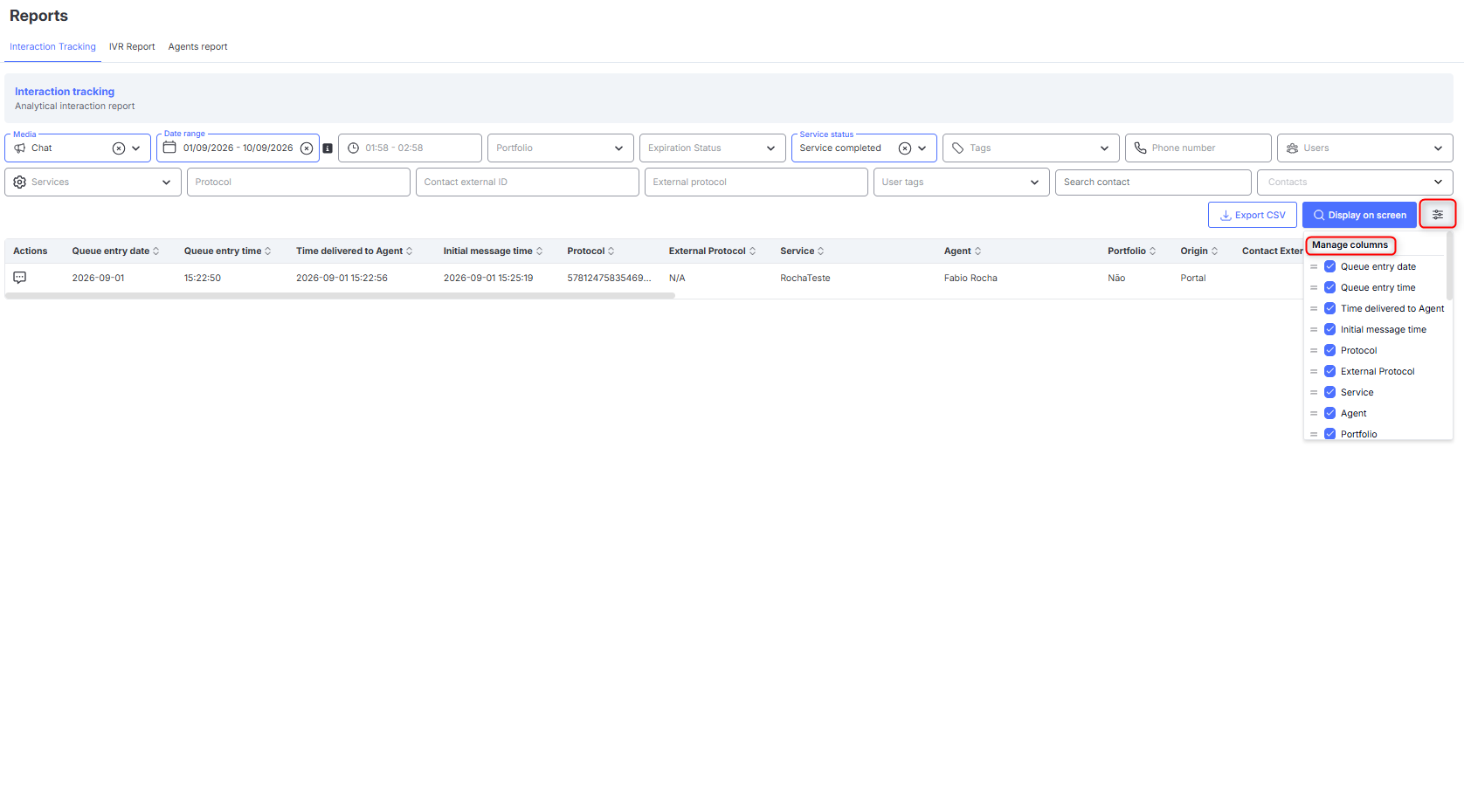
- Manage Columns: displays a list of filters to be added or removed in the report columns.
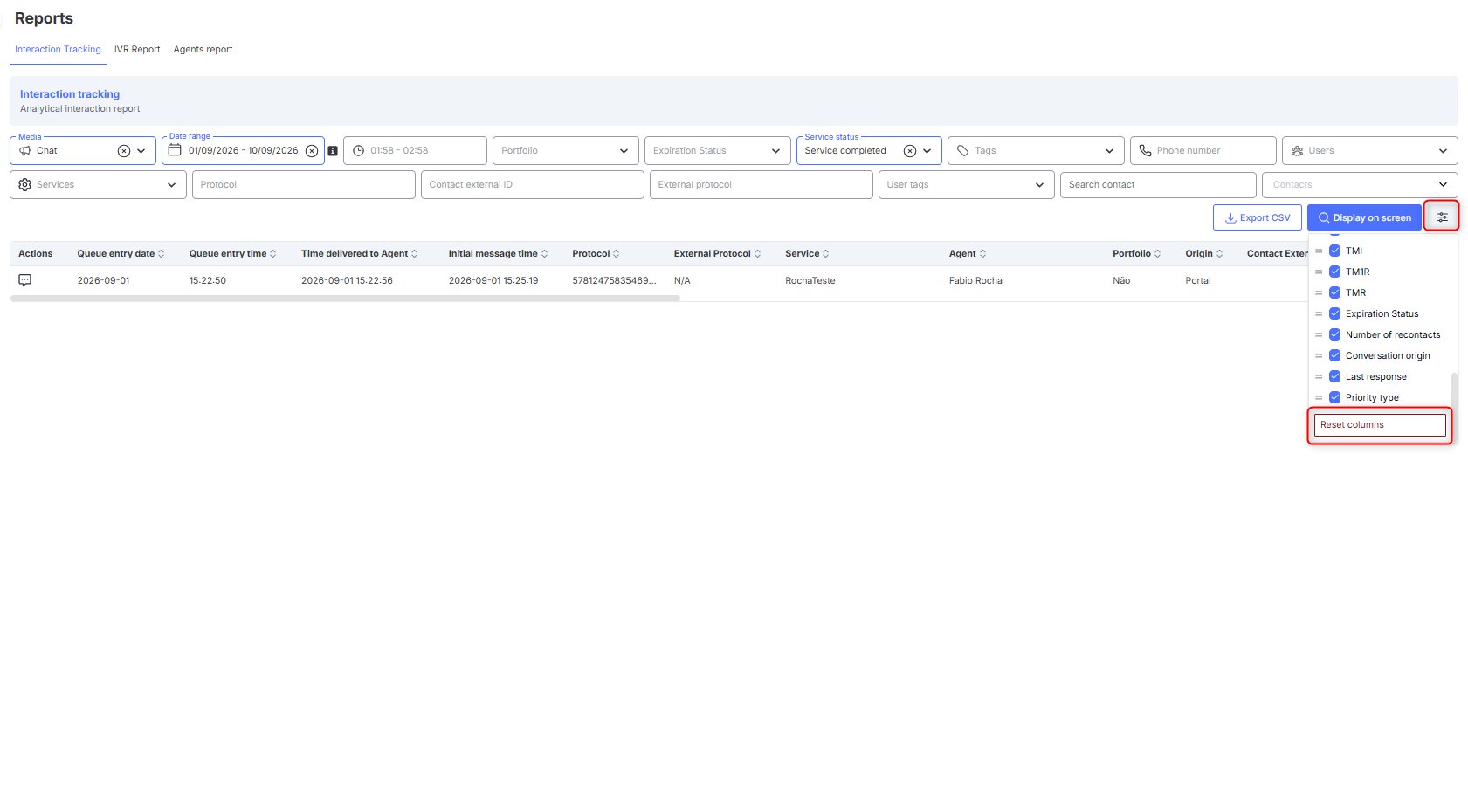
- Manage Columns > Restore default columns: restores the initial default of the columns displayed in the report.
Export CSV - Interaction Tracking
One of the features available in the interaction tracking menu is the export of filtered attendances in CSV format.
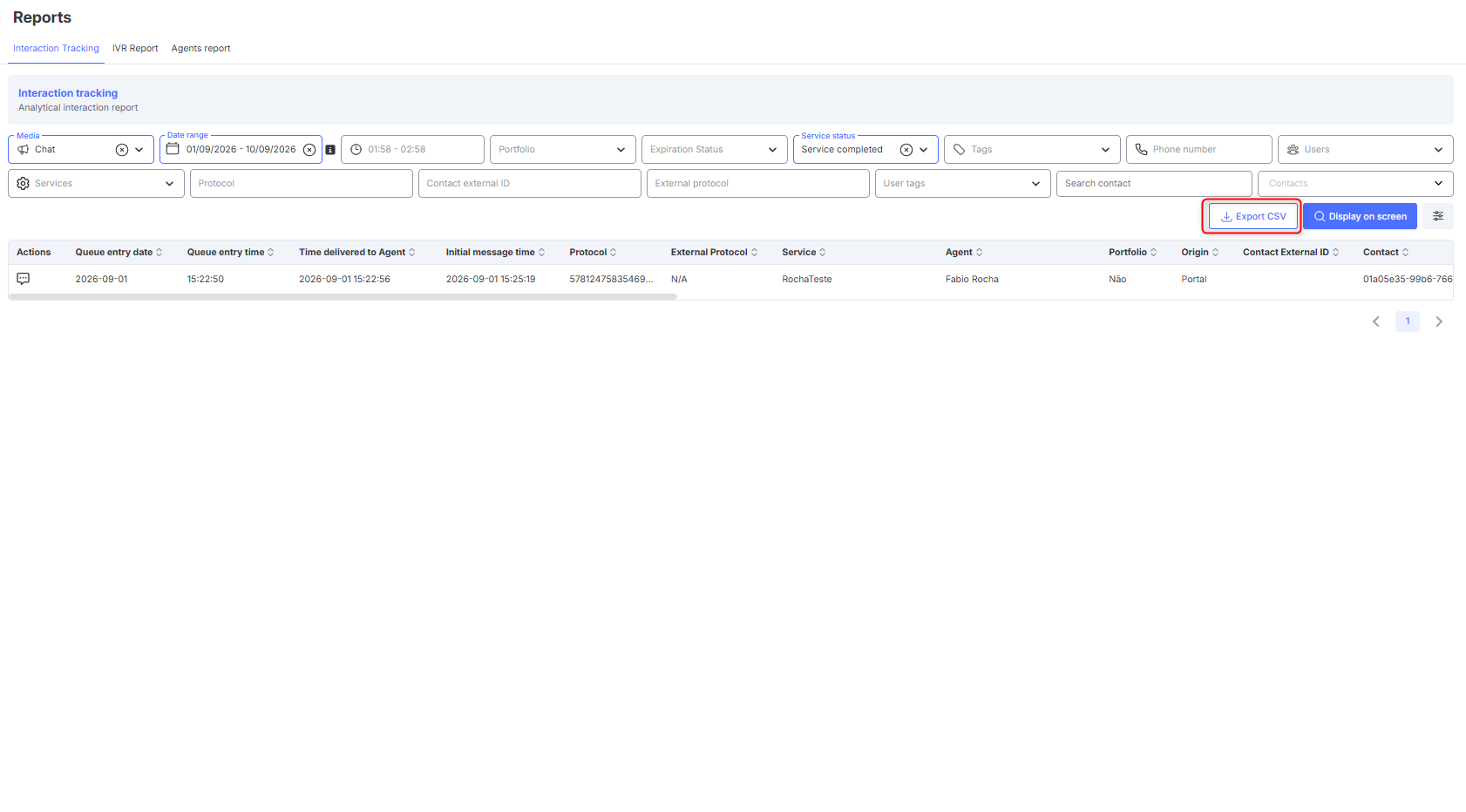
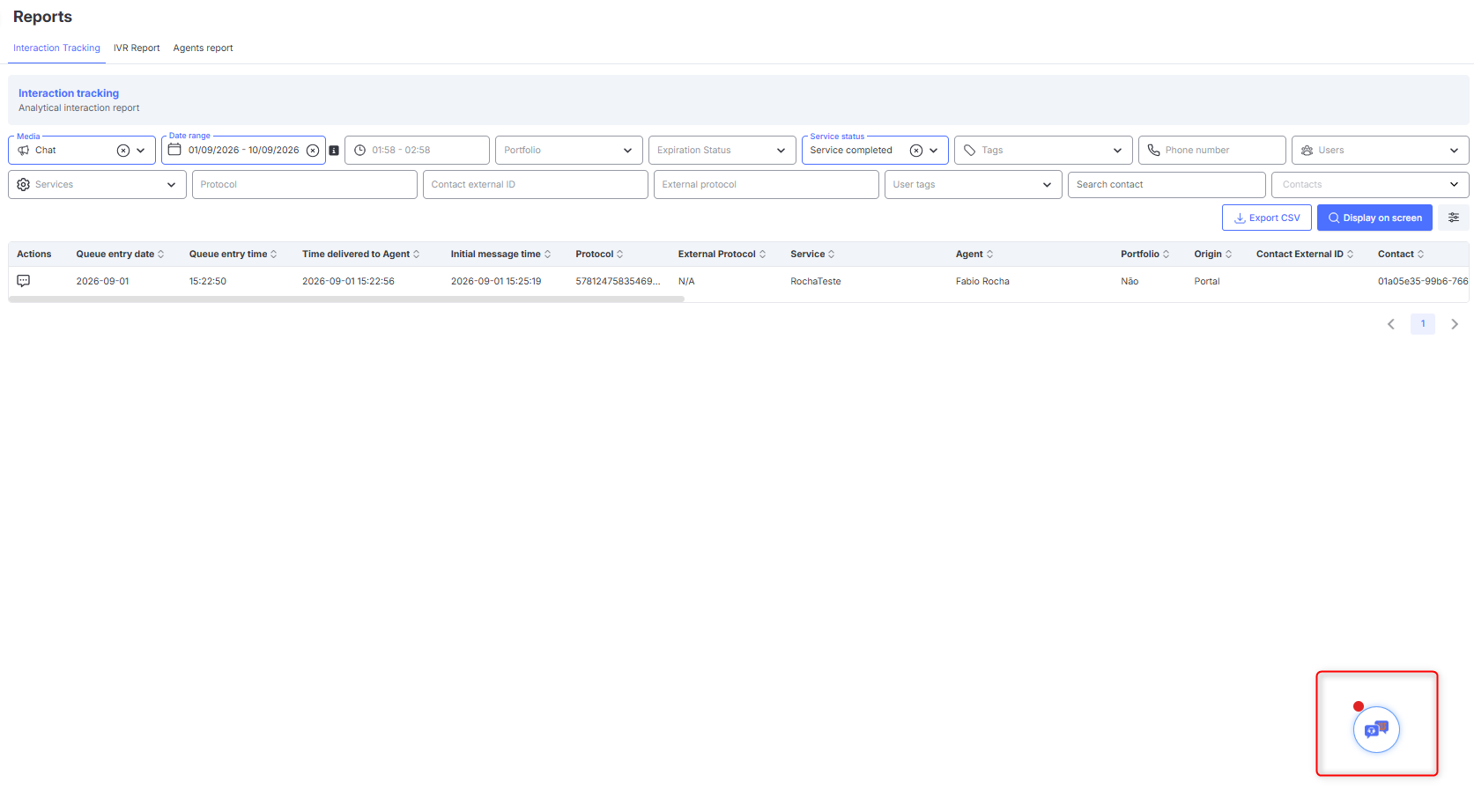
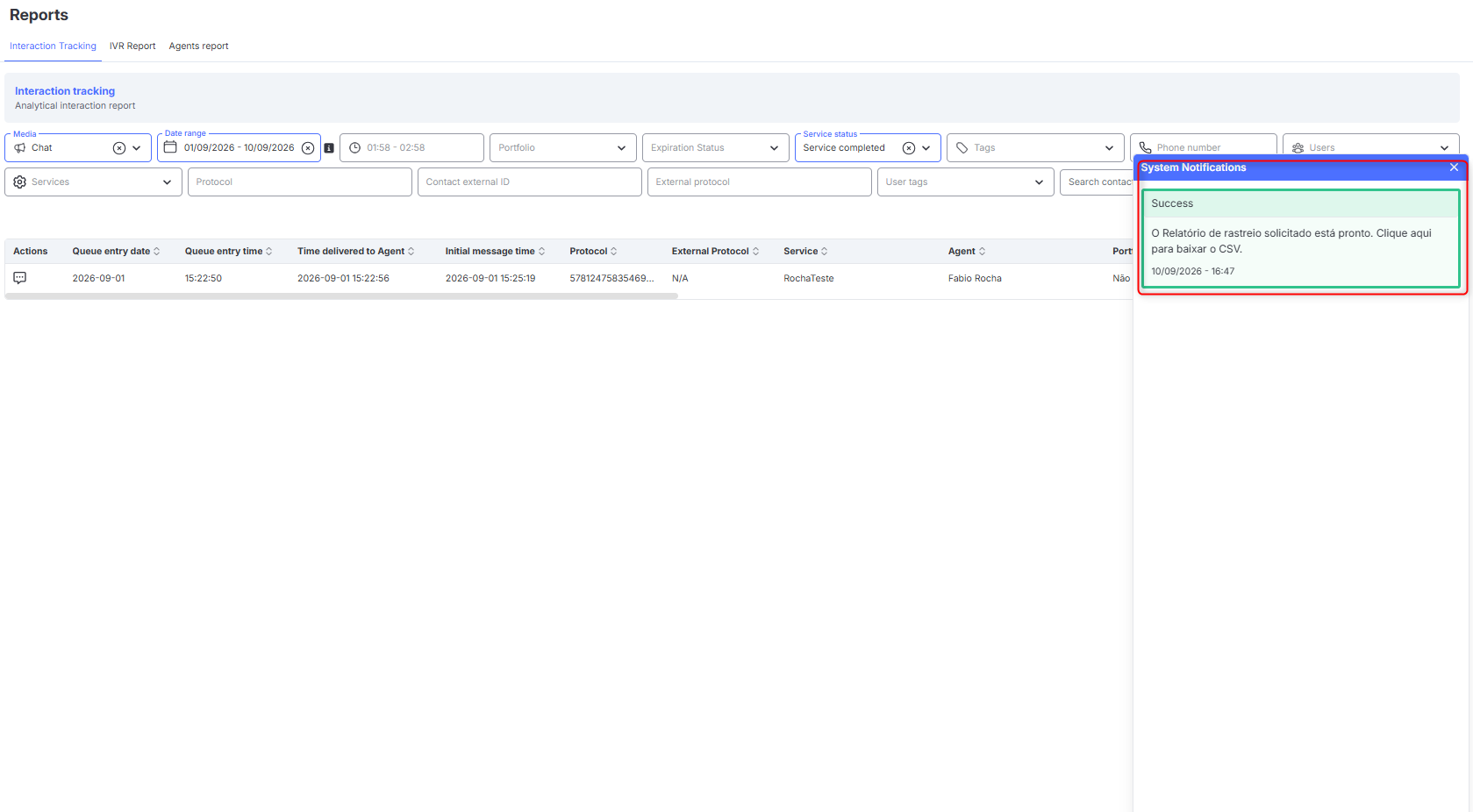
The process is simple: after requesting the export, the system will process the data in the background. As soon as the report is completed, a notification will instantly appear on your screen. To download the file, simply click directly on the warning message.
⚠️ Warning: The order of column generation in the CSV report will follow what is configured in the Reports screen. To revert to the original initial format, select: Manage Columns > Restore Default Columns.
Interaction History
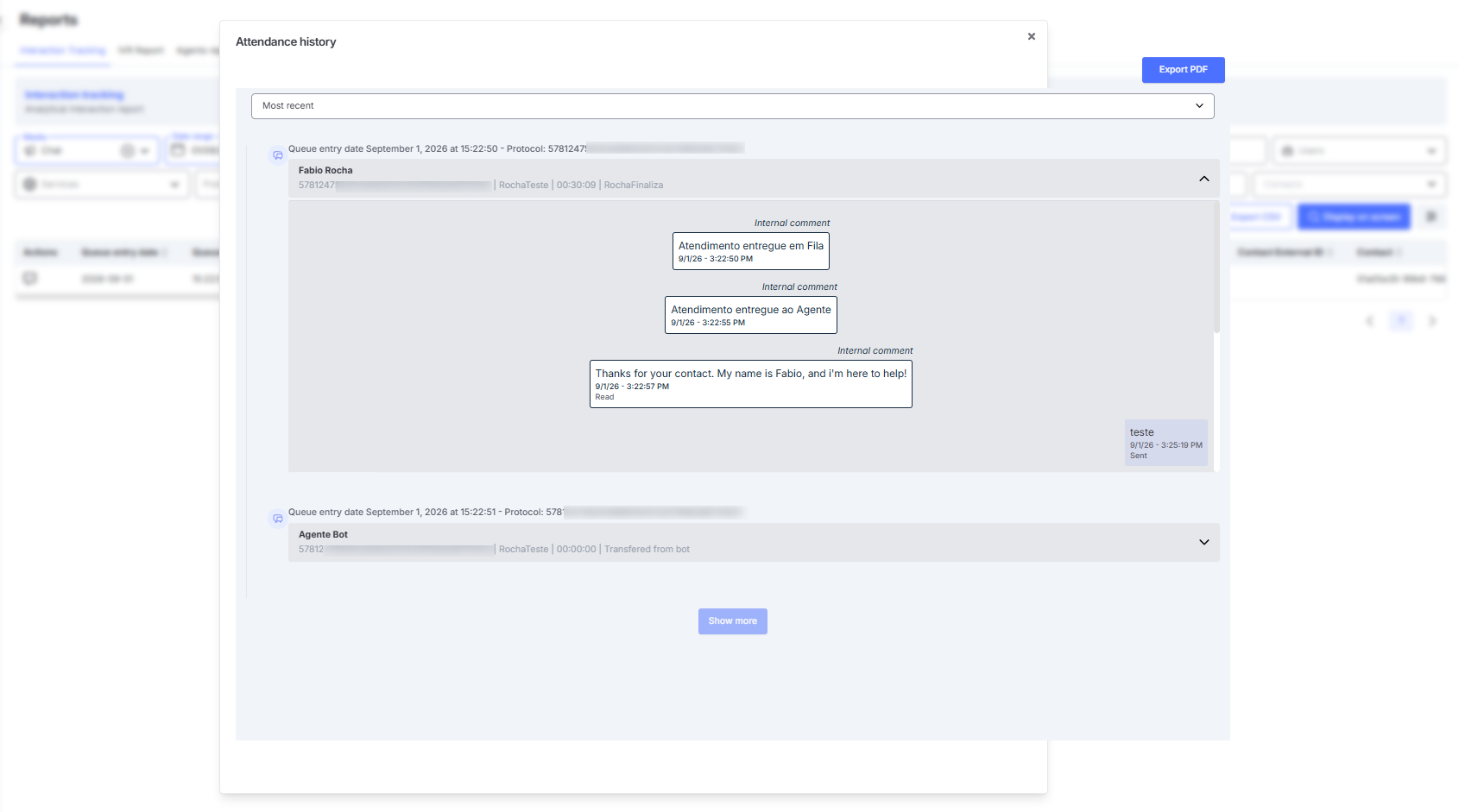
To check the history of a finalized interaction, you must perform a search by selecting the desired media and date. In the listing, click the View History button and a new screen will appear with the requested information.
This history is similar to what the agent can see on the interaction screen while the interaction is still open.
If the interaction has been transferred, the complete path will be displayed, showing the interactions handled by each agent involved. In addition, it is possible to sort the interactions by date, displaying either the most recent or the oldest first. In this way, the interactions are reorganized chronologically, regardless of the number of transfers made during the process.
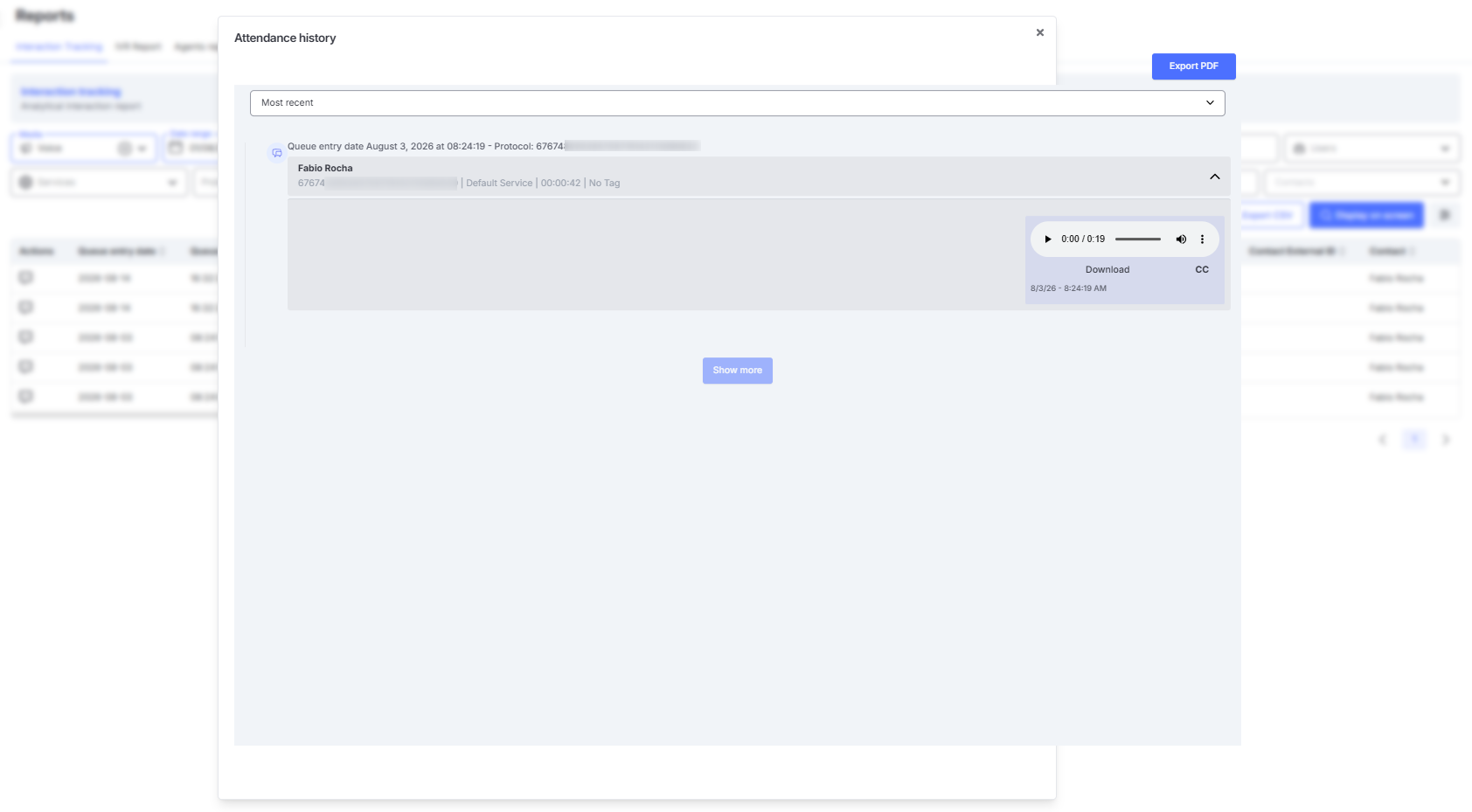
In the case of voice interactions, you can check the call details as well as listen to the recorded audio of the call.
Report Fields in Screen and CSV for Interaction Tracking
The Interaction Tracking report contains detailed information about each interaction or call recorded in the system. The fields described below correspond to the data shown on screen and exported in CSV format, allowing a complete analysis of the interaction history.
The table below presents each field available in the report, explaining its meaning and how the data is structured.
| FIELD | DESCRIPTION | VISUALIZATION | DETAILS |
|---|---|---|---|
| DATE | Date when the interaction was transferred to OMNI. | CSV Report | Date when the interaction was transferred to OMNI for distribution, in the format YYYY-MM-DD. |
| TIME | Time when the interaction was transferred to OMNI. | CSV Report | Hour, minute, and seconds when the interaction was transferred to OMNI for distribution, in the format HH:MM:SS. |
| PROTOCOL | Interaction protocol number. | Screen and CSV Report | For Voice interactions: YEAR-MONTH-DAY-HOUR-MINUTES-SECONDS in UTC-0. For WhatsApp: YEAR-MONTH-DAY-HOUR-MINUTES-SECONDS-TICKS (10 ticks = 1 millisecond). For Chat: YEAR-MONTH-DAY-HOUR-MINUTES-SECONDS plus epoch time, in reverse. Example: 2025-03-17 13:20:45. Epoch: 1742217645000. Reverse (up to 30 characters): 00054762174205143271307252. |
| SERVICE | Service name. | Screen and CSV Report | Name of the service to which the interaction is linked. |
| AGENT | Name of the agent. | Screen and CSV Report | Name of the agent who handled the interaction. |
| ORIGIN | Integration used to handle the interaction. | CSV Report | Portal, if the service has no integration. If integrated, it may be: Zendesk, Salesforce, or Pipedrive. |
| TYPE | Indicates whether the call was outbound or inbound. | Screen and CSV Report | Inbound: Call initiated by the customer. Outbound: Call initiated by the agent. This field applies only to voice calls. |
| TO | Number/Extension that received the contact. | Screen and CSV Report | Recipient of the interaction. In case of a voice transfer, it will be the extension of the agent or the service. This field applies only to voice calls. |
| CONTACT | Contact name. | Screen and CSV Report | The contact name is only available in the report after the interaction has been logged. |
| FROM | Number/Extension that initiated the contact. | Screen and CSV Report | Phone number or extension of the origin, which may be a customer or another agent within the system. |
| DURATION | Total interaction time. | Screen and CSV Report | Calculated as the difference between DATE ANSWERED and DATE FINISHED. |
| APT | Average Productive Time. | Screen and CSV Report | Measures the period when the interaction was active, i.e., messages exchanged between agent and customer. Applies only to Chat and WhatsApp. |
| AUT | Average Unproductive Time. | Screen and CSV Report | Measures the period when the interaction was on Hold / Personal Queue. Applies only to Chat and WhatsApp. |
| AFRT | Average time of the first response sent. | Screen and CSV Report | Time between delivery to the agent and the first response sent. |
| ART | Average time of all responses sent by the agent. | Screen and CSV Report | Average time considering all responses sent by the agent throughout the interaction. |
| STATUS | Final status of the call. | Screen and CSV Report | abandoned: Queue abandonment. bad phone: Unavailable number. bad number: Invalid number. dequeued: Timeout reached. service completed: Interaction finished. service transferred: Interaction transferred. |
| PORTFOLIO | Indicates whether the customer is assigned in the platform. | CSV Report | No: Customer not assigned. Yes: Customer assigned. |
| EXTERNAL ID | External ID of the customer. | CSV Report | External ID registered in the contact screen. |
| INTERNAL COMMENTS | Internal comments of the interaction. | CSV Report | Internal notes written by agents, including navigation data in IVR/BOT. |
| DOCUMENT | Customer’s CPF or CNPJ. | Screen and CSV Report | CPF or CNPJ number of the customer, registered without punctuation or special characters. |
| DATE ANSWERED | Date and time when the agent started the interaction or when the customer answered the call. | Screen and CSV Report | Format: YYYY-MM-DD HH:MM:SS. |
| DATE FINISHED | Date and time when the agent finalized the interaction or when the call ended. | CSV Report | Format: YYYY-MM-DD HH:MM:SS. |
| DATE FIRST MESSAGE | Date and time when the agent sent the first message or started the call. | Screen and CSV Report | Format: YYYY-MM-DD HH:MM:SS. |
| LAST RESPONSE | Who sent the last response in the interaction. | Screen and CSV Report | Indicates whether the last interaction was by agent, customer, or bot. |
| EXTERNAL PROTOCOL | External protocol number. | Screen and CSV Report | External protocol entered by the agent during logging (if configured). |
| DATE/TIME QUEUED | Date and time when the interaction entered the queue. | Screen and CSV Report | Exact timestamp when the interaction entered the queue, applicable to digital media (chat, WhatsApp, Instagram, etc.). |
| EXPIRATION STATUS | Status of the interaction when logged. | Screen and CSV Report | Active or Expired. |
| TAG | Attendance tabulation tag. | Screen and CSV Report | Shows the closing tag selected when ending the attendance. |
| TAG ASSIGNED BY | Identifies who assigned the tabulation tag. | Screen and CSV Report | Displays the name of the agent responsible for the tabulation. If it was an automatic action by the platform, it will be identified as SYSTEM. |
| FIELD | DESCRIPTION | VISUALIZATION | DETAILS |
|---|---|---|---|
| JITTER | Delay between packets; lower values mean better call quality. | CSV Report | High: < 70ms. Medium: 71–150ms. Low: ≥151ms. Applies only to voice calls. |
| PACKET LOSS | Indicates packet loss in the connection; lower values mean better quality. | CSV Report | High: ≤ 1%. Medium: 1–5%. Low: > 5%. Applies only to voice calls. |
| CALL QUALITY | Call quality level. | Screen and CSV Report | High: Jitter < 70ms and Packet Loss < 1%. Medium: Jitter 71–150ms and Packet Loss < 1%. Low: Jitter ≥151ms or Packet Loss >5%. Applies only to voice calls. |
| VOICE SERVER | Internal server that processed the call. | Screen and CSV Report | Example: server.voip.example.com. Applies only to voice calls. |
| DIALED NUMBER | Dialed number, including technical prefixes and server. | CSV Report | Example: Phone: 5511999990000. Extension: 1005. Server: PJSIP/7010092987654321123456789@voip_endpoint_123.456. Applies only to voice calls. |
| EXTERNAL CHANNEL NAME | External channel of the call (outside Omni). | CSV Report | Example: PJSIP/voip_server_generic_123.456-0001abcd. Applies only to voice calls. |
| INTERNAL CHANNEL NAME | Internal channel of the call (inside Omni). | CSV Report | Example: PJSIP/internal_generic_123.45.678.90-0001bcde. Applies only to voice calls. |
| CLIENT END DATE/TIME | Date and time when the customer ended the call. | Screen and CSV Report | Format: DD-MM-YYYY HH:MM:SS. Applies only to voice calls. |
| AGENT END DATE/TIME | Date and time when the agent ended the call. | Screen and CSV Report | Format: DD-MM-YYYY HH:MM:SS. Applies only to voice calls. |
| PRIORITY | Indicates whether the distribution of the attendance occurred with priority criteria or not. | Screen and CSV Report | Records the marking of Priority if the attendance was distributed through specific rules, such as Transfer by Pause or Access Grid. |
Voice Call Information
In cases of voice calls, in addition to the fields mentioned above, the following information will be available in the columns:
| FIELD | DESCRIPTION | VIEW | DETAILS |
|---|---|---|---|
| DESTINATION ORGANIZATION OF TRANSFER | Identifies to which Organization the call was transferred. | Screen and CSV Report | Field identifying to which Organization the transfer was made. |
| ORIGIN ORGANIZATION OF VOICE TRANSFER | Identifies from which Organization the call was transferred. | Screen and CSV Report | Field identifying from which Organization the transfer was made. |
| DATE OF TRANSFER | Identifies the date on which the transfer occurred. | Screen and CSV Report | Field identifying the date on which the transfer was made. |
📊 Types of Attendance Priority
For auditing, reporting, and distribution control purposes on the platform, Omni categorizes the routing of Attendance into two distinct types of priority:
-
📈 Prioritário: Indicates that the Attendance was redistributed on the platform due to an agent pause or by specific access grid rules. In these scenarios, the Attendance receives immediate preference in Omni’s distribution queue, being directed to available operators before any Attendance classified as normal.
-
📋 Normal: Indicates that the Attendance was distributed without any special priority rule, strictly following the standard First-In, First-Out (FIFO) distribution flow, in which the oldest records in the queue are delivered first.
This default classification is automatically applied by the system in the following scenarios:
- 📥 Attendance that enter the platform for the first time;
- 🔄 Attendance voluntarily transferred between Attendance;
- 👥 Attendance directly transferred between agents;
- 💼 Attendance transferred by portfolio rules.
WhatsApp Interaction Tracking
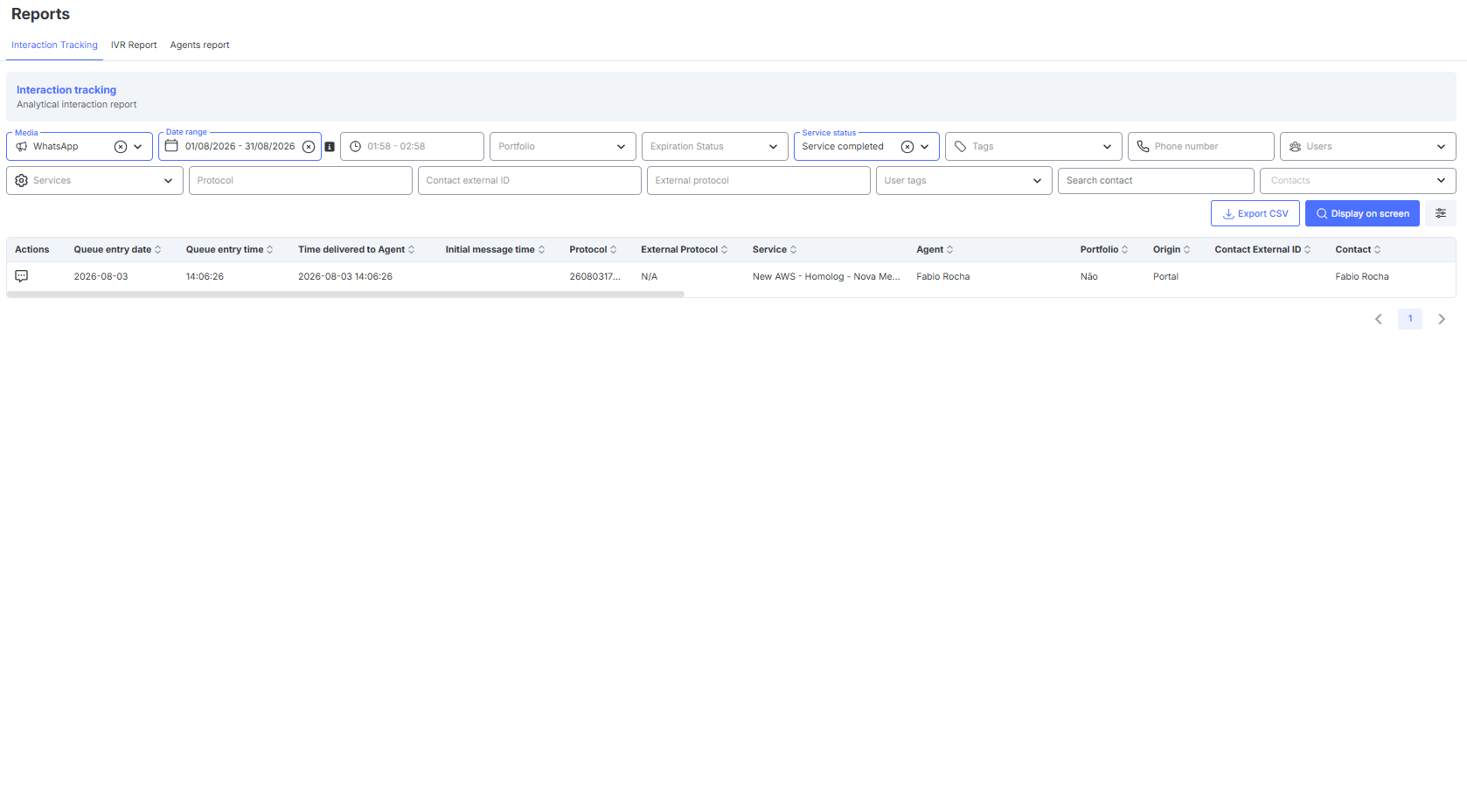
To better identify the type of communication carried out — whether initiated by the Customer or by the Company — there is a field indicating the Origin of the conversation, making it easier to understand the data.
WhatsApp Interaction Tracking Filter
Chat Interaction Tracking
To make it easier to identify the entry times of interactions into the system, this filter includes the following fields in the Interaction Tracking Report when generated from the chat media:
- Queue Entry Date: Date when the interaction entered the queue.
- Queue Entry Time: Time when the interaction entered the queue.
- Time Delivered to Agent: Date and time when the interaction was distributed to the agent.
- Initial Message Time: Date and time of the first message sent by the agent.
- AFRT: Average time of the first response.
- ART: Average response time.
Chat Interaction Tracking Filter
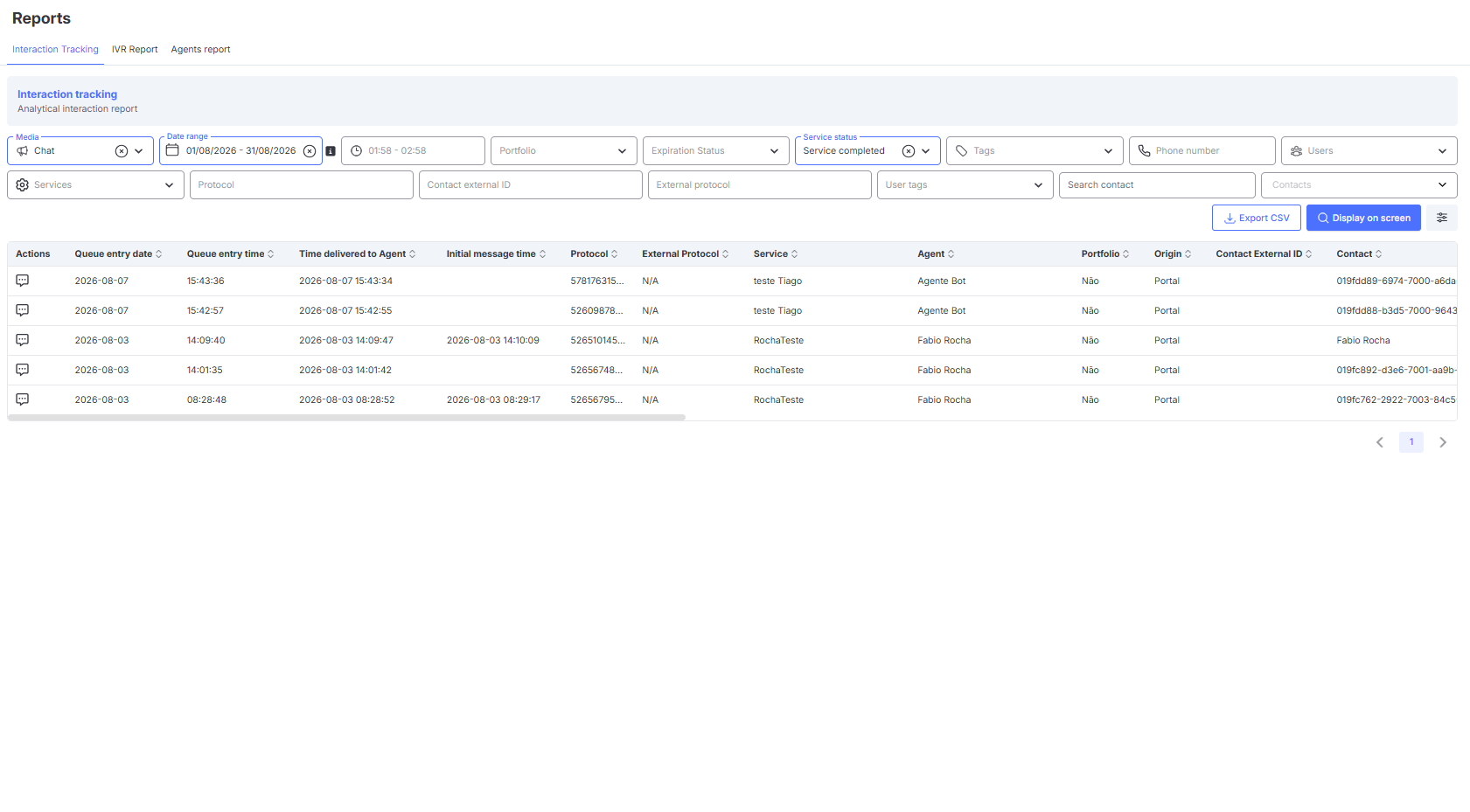
These queue entry date and time details can also be viewed directly on the interaction screen.
When a chat interaction is transferred to a human agent, the message Interaction Started (Queue Date/Time) appears, followed by the corresponding information.
Queue Date and Time on Interaction Screen
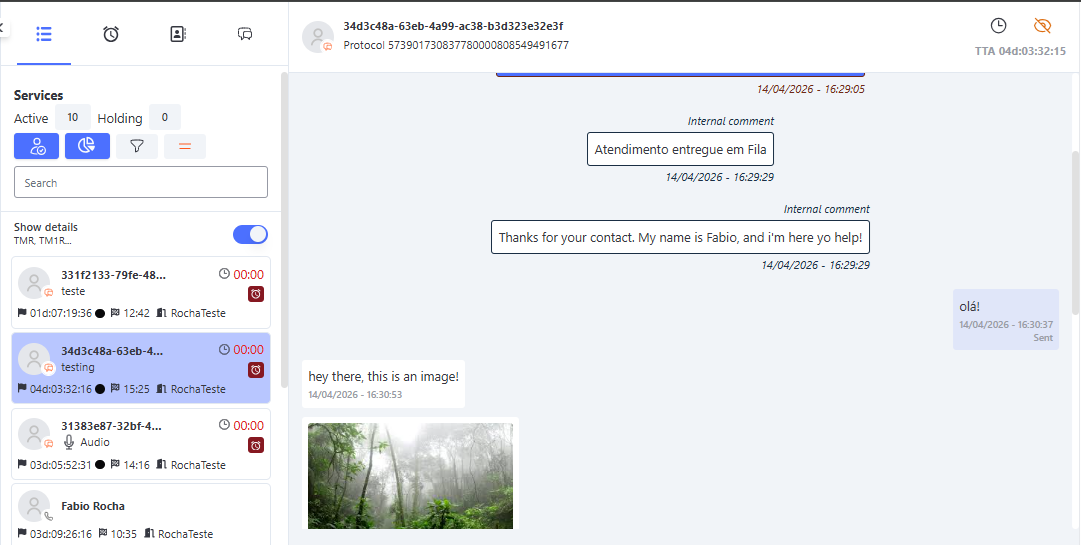
IVR Report
Provides information about received calls, which can be extracted using the following filters:
- Grouping
- IVR
- Service
- Agent
- Hour
- Day
- Date
- Agent
- Service
- IVR (IVR menu available for receiving calls)
- User Tags
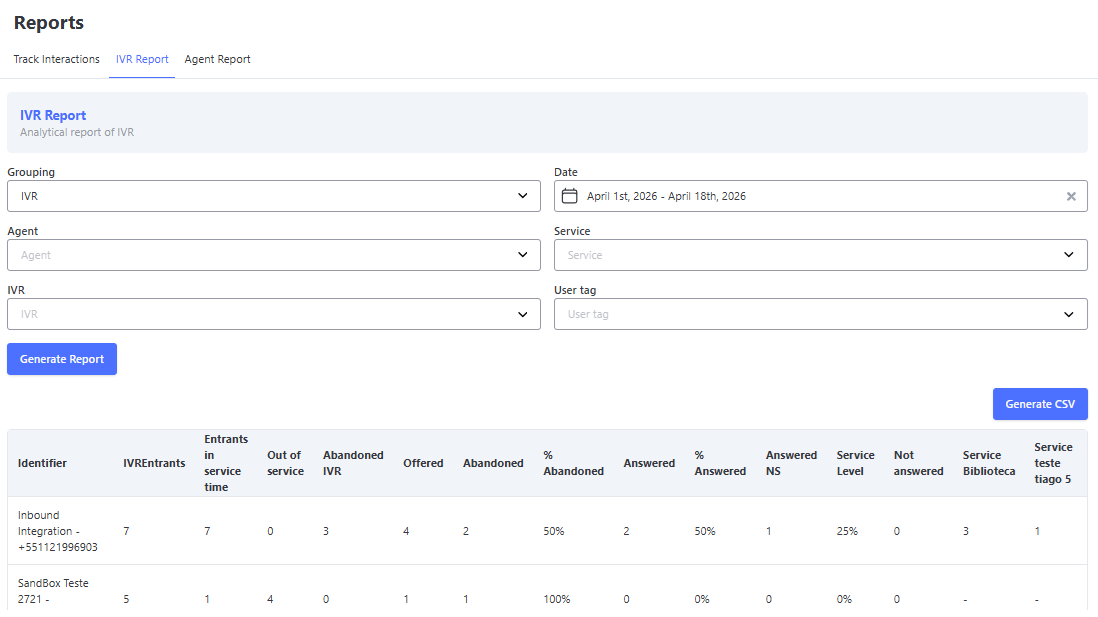
Information present in the IVR Report
IVR Report Filters
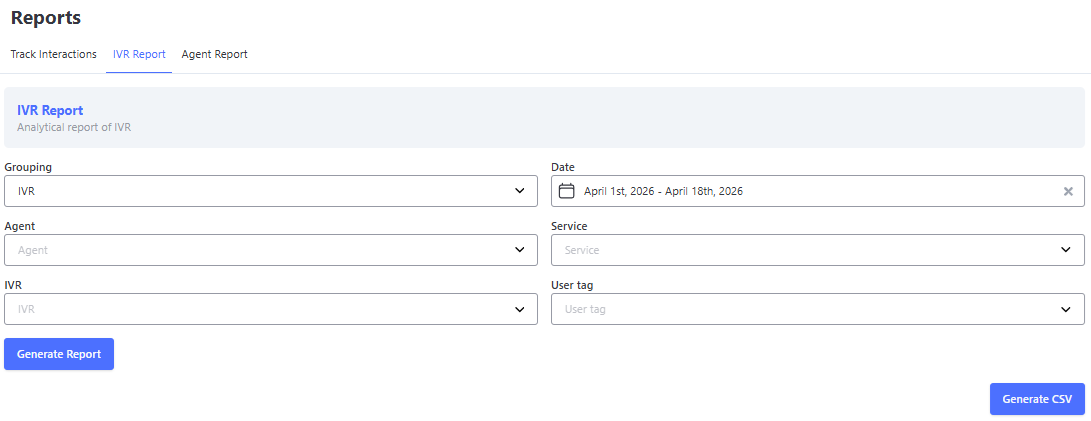
📊 IVR Report — Behavior and Filters
The IVR Report aims to present all calls that went through the selected service, considering the IVR (Interactive Voice Response) perspective.
🔎 How it works
When filters are applied, the report returns all interactions associated with the protocol that went through the specified service — even if, during the call, there was a transfer between different services.
In other words:
- If a call enters one service and is later transferred to another,
- Both services will appear in the report, as long as the protocol passed through the filtered service.
🔁 Transfer between services
In transfer scenarios:
- The same protocol may be associated with multiple services
- This happens because the report follows the complete IVR view, not just an isolated step
- All services the call went through are considered in the result
👤 Agents
This behavior also applies to the agents involved:
- If the call goes through more than one agent
- All may be associated with the same protocol within the IVR context
📌 Important!
The IVR Report does not present the individual details of interactions, but rather the call journey within the IVR.
✅ When to use another report
If it is necessary to analyze interactions in a more specific way, such as:
- Detailed view of each interaction
- Identification of transfers between services
- Analysis by agent
It is recommended to use the Interaction Tracking Report or the Agents Report, which provide a more granular view of the call handling.
Agents Report
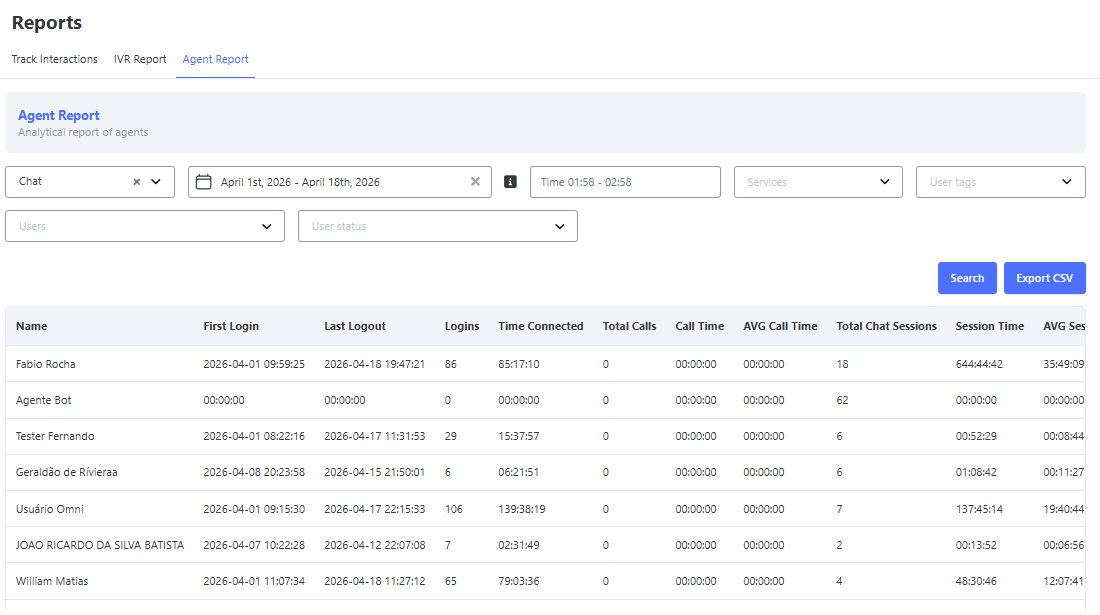
Provides information about agents, which can be extracted using the following filters:
- Media
- Date
- Time
- Services
- User Tags
- Users
- User Status