Softphone
Omni's Softphone was developed to make telephone attendance a natural part of the workflow, eliminating the need for hardphones or external applications. Fully integrated into the platform, it places the agent at the center of the attendance: it is possible to call, transfer, pause, conduct conferences, and track call status in real-time — all within the same interface.
This integration brings agility and traceability, ensuring that each call is recorded, monitored, and linked to the customer's history. The result is a unified experience — where voice and data go together, without interruptions or tool switching.
Understanding the Softphone
The Softphone functions as an extension of the agent within Omni, taking on different formats depending on the call's progress. It is not a fixed window: it adapts to the action performed — whether dialing, answering, or transferring a call.
Each format changes the displayed interface and the available resources, allowing the agent to focus only on what matters at each stage. In this way, the Softphone keeps the attendance fluid and intuitive, with all options always just a click away.
Below, see how the Softphone presents itself according to the actions performed by the agent while using the tool.
Minimized Softphone
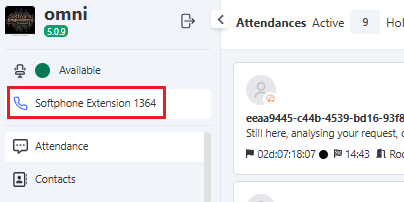
When minimized, the Softphone appears in the left side column, just below the agent's availability status. In this view, the user can monitor their active extension and expand the panel to start a call.
Dialing Action
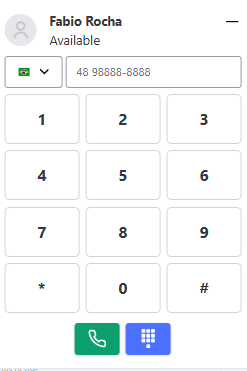
When expanding the Softphone, the agent has access to the numeric keypad and the call buttons.
It is possible to dial a number manually, select the country code, and start the call directly through the system.
🎯 Main Actions
- ☑️ Enter phone number (with IDD and area code).
- 🟩 Call using the green button.
- 🔢 Access the expanded keypad.
- ↩️ Minimize the panel when necessary.
🌍 IDD Selection
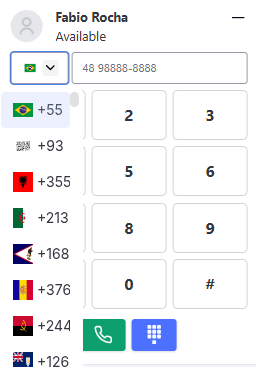
The IDD field comes with the country flag, making visual identification easier.
By default, only 🇧🇷 Brazil (+55) is displayed in the list, and it is necessary to check the international call authorization for other countries to become available.
🪄 Step-by-Step to Make a Call
- ▶️ Expand the Softphone by clicking on the extension shown in the sidebar.
- 🇧🇷 In the top field, confirm the IDD (country flag).
- ☎️ Enter the full number (area code + client number).
- 🟩 Press the green button to start the call.
- 🔊 Wait for the ringing — the status will change to Dialing and then to “Connected”.
After the connection, the panel automatically switches to the active call view, displaying the control options.
🔊 During the Call
When the call is active, the Softphone displays the information of the contact in attendance, the call duration, and the available interaction controls.
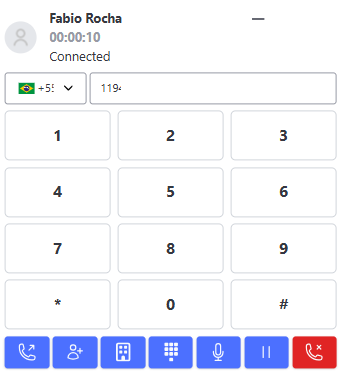
⚙️ Available Functions (from left to right)
- 🔁 Transfer: redirects the call to another agent or service.
- 👥 Conference: adds another participant to the call.
- 🔢 Show/Hide Keypad: displays the numeric keypad during the call.
- 🔇 Mute: silences the agent’s microphone.
- 🎵 Pause Call: puts the client on hold with music, keeping the audio available only to the agent.
- 🔴 End Call: terminates the call.
Transfer and Conference
During the process of transfer or conference creation, the Softphone displays the dialing panel with connection options between agents or services.
This action is temporary and represents the moment when the agent decides to redirect or share the call with another participant.
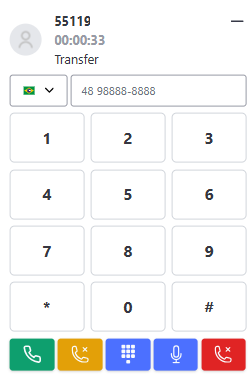
🔁 Agent Transfer
- 🔘 Click the transfer button — the call status will change to “Transfer”.
- 🔡 Enter the agent extension (4 or 5 characters).
- 🟩 Press the green button to start the transfer — the other agent will be called.
- Up to this point, the agent still hears the client normally, even with the call in pause for the system.
- 🟩 Click the green button again to complete the transfer.
- 🟨 Click the yellow button to cancel and return to the original call.
🧩 Service Transfer
- 🔘 Click the transfer button — the call status will change to “Transfer”.
- 🔡 Enter the service extension (3 digits).
- 🟩 Press the green button to start the transfer — the service will be called immediately.
- The agent still hears the client until the action is completed.
- 🟩 Click the green button again to confirm and complete the transfer.
- 🔴 After confirming, click the red button to end your participation.
- 🟨 If you want to cancel before finishing, click the yellow button to return to the original call.
👥 Conference
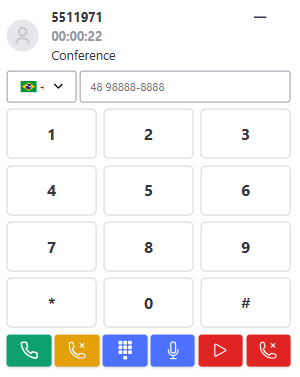
- 🔘 Click the conference button — the status will change to “Conference”.
- 🔡 Enter the agent extension (4 or 5 digits).
- 🟩 Press the green button to start the conference — the other agent will be called.
- Until completion, the main agent still hears the client.
- 🟩 Click the green button again to merge the calls.
- 🟨 If you don’t want to proceed, click the yellow button to cancel and return to the original call.
💡 Note: During transfer or conference, the call goes into Pause, but the agent continues hearing the client until the action is completed with the green button.
📘 Practical Example
Imagine the agent is in attendance with a client who needs to speak with the 💰 Financial department:
- 📞 During the call, click the transfer button.
- 🔁 The call status changes to “Transfer”, and the keypad is displayed.
- 🔡 Enter the financial service extension (e.g.,
301). - 🟩 Since this is a service transfer, the call is completed automatically.
- ✅ The client is directed to the correct department, and the initial agent can end their participation.
If the attendance were for another specific agent, it would be enough to enter the full extension (e.g., 12345), wait for the response, and decide whether to complete or cancel the transfer.
General Notes
- 📱 The Softphone uses the extension of the logged-in agent to make and receive calls.
- 🔄 The Softphone status automatically follows the agent’s availability status (available, in pause, in call).
- 🧾 All actions performed — calls, transfers, and conferences — are automatically recorded in the history.
- 🧭 Transfers and conferences are linked to the original attendance, ensuring complete traceability.
- 🎧 During transition pauses (such as the start of transfers or conferences), the client’s audio remains audible until completion.
- 🧱 If the agent loses connection or closes the browser, the Softphone automatically ends the voice session to avoid stuck calls.
Call Blocking During Pause
The Call Blocking During Pause feature is an operational control resource that allows management to restrict the use of the softphone when the agent is not in a productive status.
💡 When this option is active, the system technically prevents the agent from making active calls while in any pause status (such as "Break", "Restroom", "Training", etc.).
In practice, the softphone remains visible on the screen, but the action buttons to dial or call are blocked 🚫. To make a new call, the agent must change their status back to "Available".
Activating the Blocking
The configuration is simple and performed in the administrative panel:
- Access the Administrative ⚙️ menu and click on Companies.
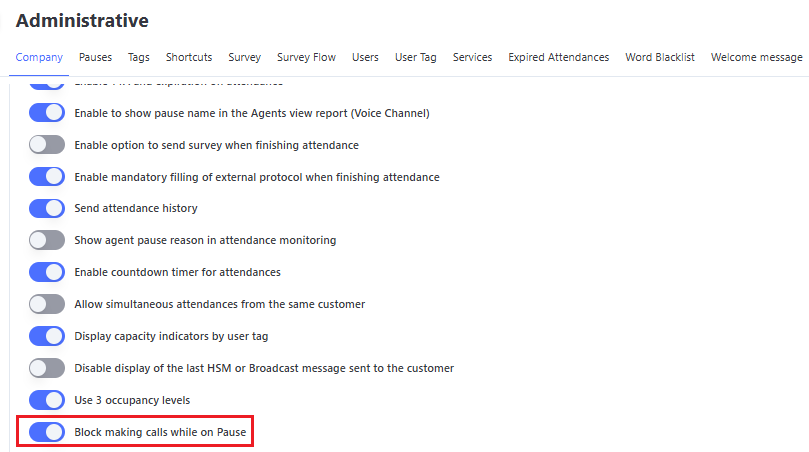
- In the company settings, go to the end of the page and check the box: Block calls during Pause.
- Click Save 💾 to record the change in the system.
⚠️ Important: For the new blocking rule to take effect, it is necessary for users to log off and log in again to the platform. The restriction will be applied starting from the next session initiated by the agent.
Softphone Visualization
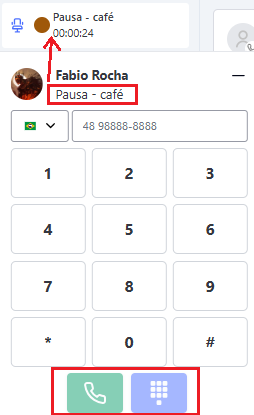
In addition to blocking dialing actions, the system provides clear visual feedback to the agent:
- The name of the selected pause (e.g., Break, Meeting) is displayed in the softphone.
- The dialing fields are visually disabled.
This ensures that the user knows exactly why they cannot make the call at that moment.
Benefits
🎯 Adherence to Schedule (WFM): Ensures that pause times are effectively used for rest or activities outside the system, aligning planned with executed.
📊 Accuracy in Metrics: Prevents distortions in operational reports. Stops productive activities (talking on the phone) from being masked under an unproductive status (pause), ensuring the integrity of AHT and Occupancy data.
🛡️ Process Standardization: Reinforces the company’s operational policy through the system, not relying solely on the agent’s manual discipline to avoid calls at inappropriate times.
Transfer Between Organizations (Multi-Org)
Business Objective
This functionality allows the transfer of voice calls between different organizations/units within the same attendance structure. It aims to optimize call overflow, enabling an operator to direct the client to another operation in a transparent and integrated way.
Functionality Operation
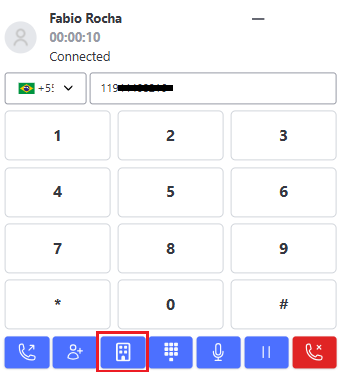
The system provides a selector in the Softphone that lists the organizations allowed for transfer. By selecting the desired destination, the system automatically forwards the call to the IVR of the destination organization.
Requirements and Settings
- Enablement: The functionality must be administratively enabled via N3 request for the transfer button to be visible to operators.
- Linking: The source and destination organizations must be previously linked in the system’s database.
- Voice Technology: Both operations must use compatible cloud telephony infrastructure.
Usage Limitations
To ensure the integrity of voice signaling, transfers between organizations have the following restrictions:
- Only Inbound Calls: The functionality is available exclusively for calls that entered through the attendance queue.
- Active Calls (Outbound): It is not possible to perform this type of transfer on calls initiated by the agent.
- Successive Transfers: Calls that have already been transferred previously do not allow a new transfer between organizations.
- Direct Extensions: Calls received directly on extensions, without passing through a queue, are not eligible for this feature.
⚠️ Important: If the transfer button between ORGs appears in scenarios not allowed, the transfer may not be successfully completed.
Benefits
- Agility: The client does not need to hang up and make a new call to be attended in another unit.
- Traceability: Maintains the record of the call flow in each company involved in the process.
- Simplicity: The operator does not need to memorize or dial external numbers; just select the destination unit from a preconfigured list.
Recontact Indicator (Recurrence) in Softphone
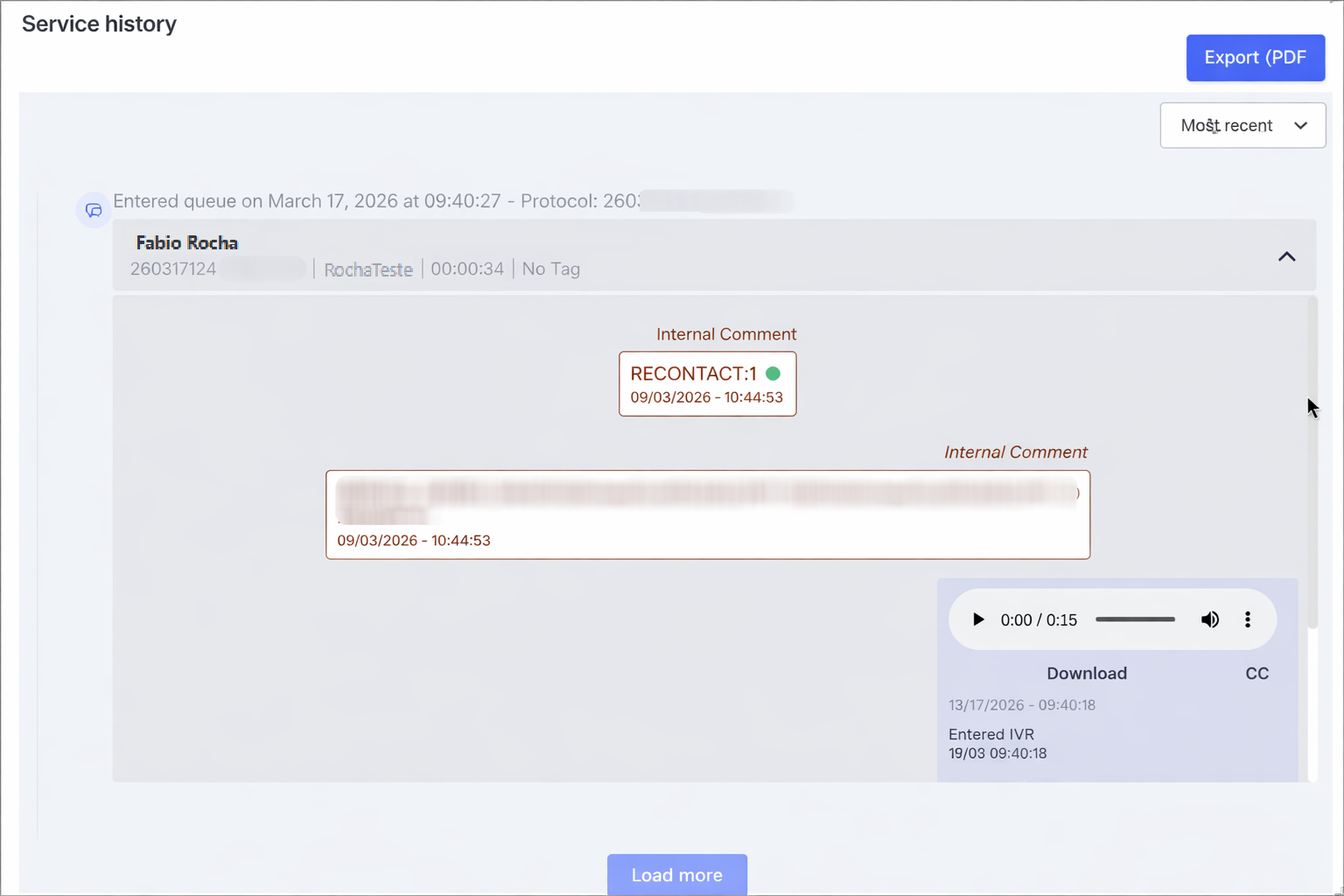
The Recontact Indicator in Softphone is a visual feature that allows the operator to instantly identify how many times the customer has called the contact center on the same day. 📞
This signaling is essential for the agent to recognize cases of high criticality or customers facing persistent difficulties, enabling more assertive and prioritized support.
💡 Did you know that Omni also handles this in text channels? The same recontact feature is available for Chat (Bot) media. To understand the visual rules and the full operation of this indicator there, check out the link to our dedicated documentation:
Prerequisites and Configuration
This feature is not automatic for all calls. The control and configuration of recontact must be carried out exclusively in the URA Cloud, with Omni being responsible only for displaying the information to the operator.
For the indicator to be displayed correctly:
- Configuration at the Source: The call flow in URA Cloud must be properly parameterized to identify recurrence of the originating number on the same day.
- Parameter Transmission: URA Cloud must send Omni the recontact count data at the exact moment the call is forwarded to the queue.
- Role of Omni: Once the information sent by URA is received, Omni processes the data and generates the corresponding internal comment (Green, Yellow, or Red).
Note: If the count parameters are not configured or sent by URA Cloud, the call will follow the normal flow without the insertion of the internal recontact comment.
How the Signaling Works
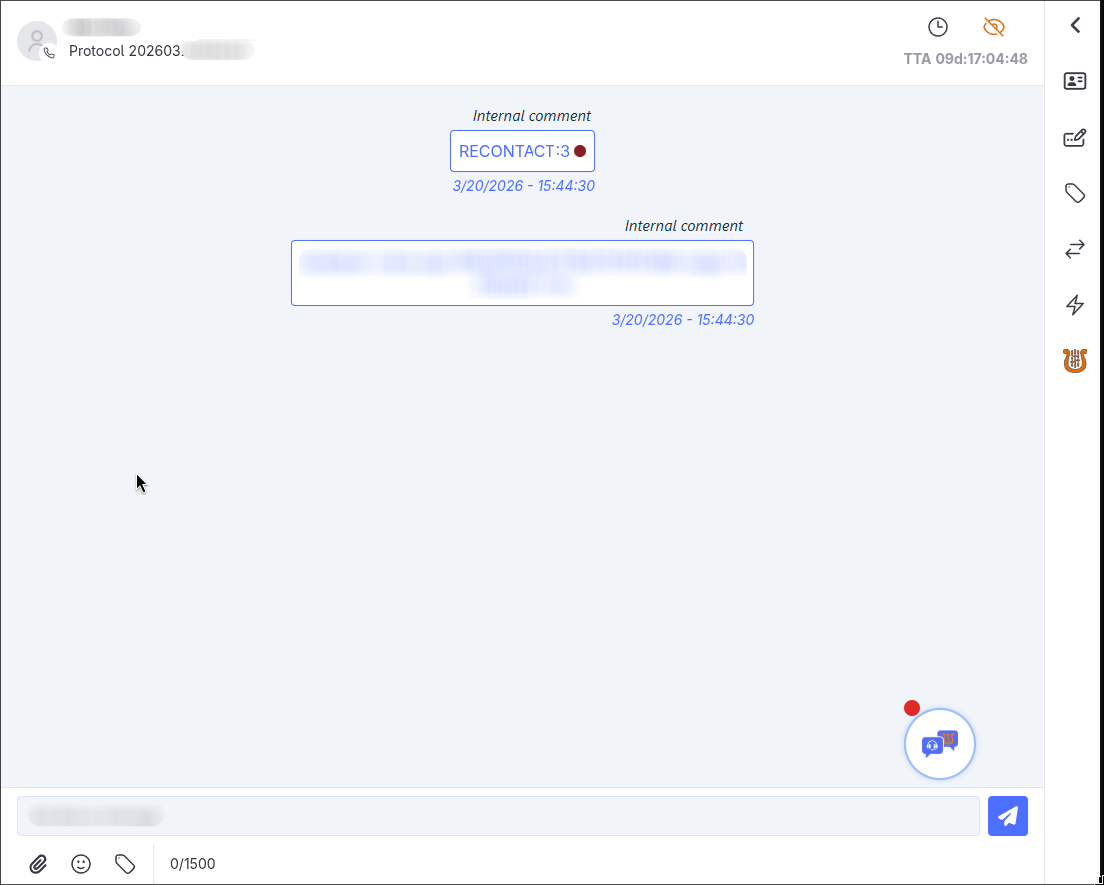
When receiving a call, the system automatically generates an internal comment containing a colored icon (badge). The color reflects the frequency of calls from that number on the current day:
- 🟢 Green (1st Contact): Indicates this is the customer’s first call of the day. Standard handling.
- 🟡 Yellow (2nd Contact): Indicates recurrence. The customer has already called once today. Requires special attention.
- 🔴 Red (3rd Contact or more): Indicates high recurrence. The customer is on their third (or more) call on the same day. Maximum priority recommended.
System Visualization
The information is recorded to ensure traceability:
- Call Handling: The indicator appears as an internal comment as soon as the call is initiated.
- History and Tracking: The signaling is recorded in the Interaction Tracking (Screen and CSV), allowing audits of the customer’s recurrence journey.