Zendesk
Introduction
With this integration, you will be able to create and update tickets in Zendesk. Voice attendance is carried out within Zendesk through the Omni application, available in the Zendesk Marketplace.
How to configure in Zendesk
Requirements
The integration requires one of the following Zendesk versions: Suite Growth, Suite Professional, or Suite Enterprise. The Zendesk plan must be Team or higher, and the version must support external API calls and allow the installation of applications via Marketplace.
Configuring the integration in Zendesk
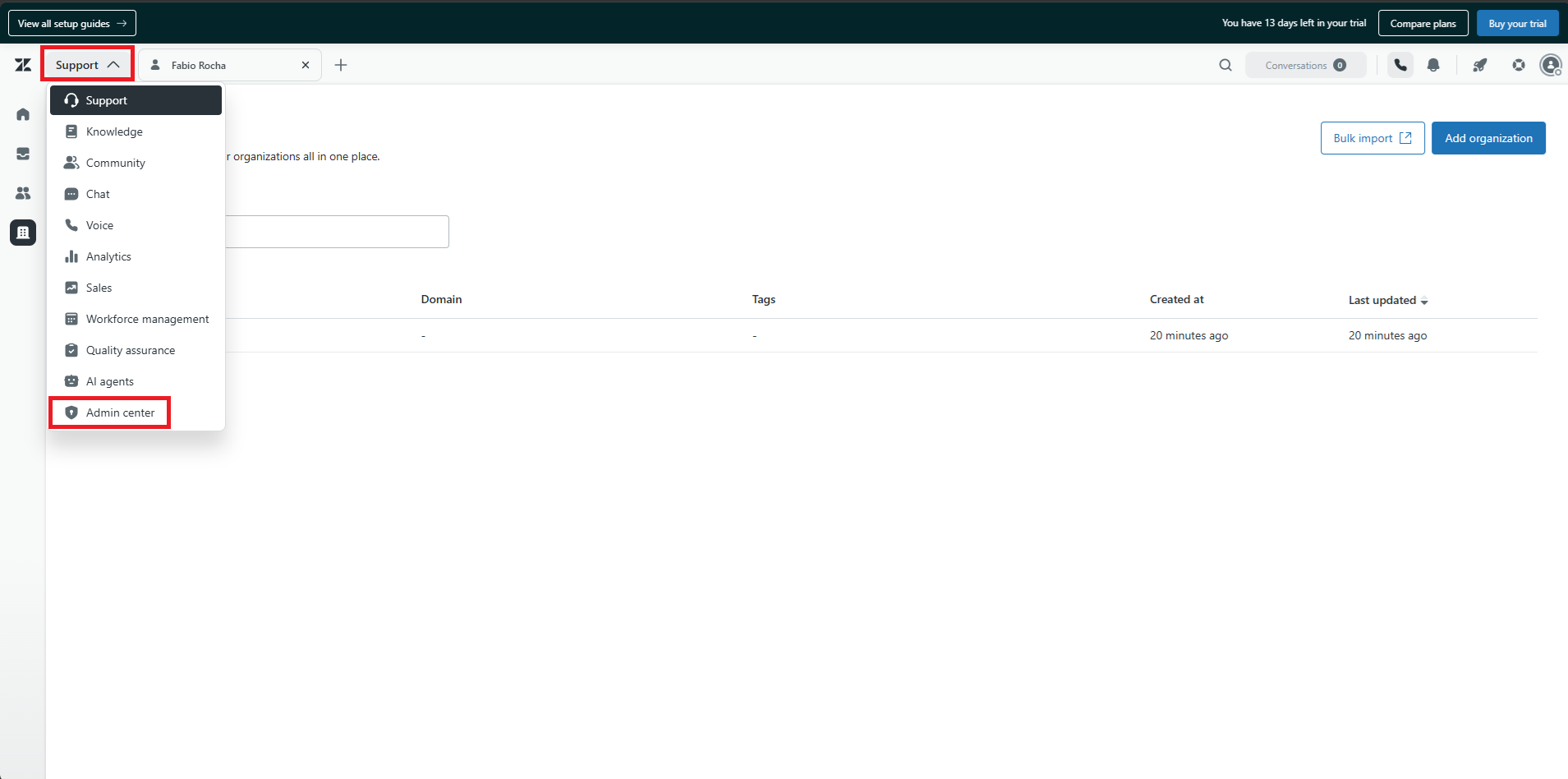
First, it is necessary to open a support ticket to configure the org to receive interactions in Zendesk, requiring the submission of the API token. To do this, click on the Zendesk products icon and select the "Admin Center" option. As shown in the screenshot below:
In the "Admin Center" menu, search for "Zendesk API" in the search field and then select it. As shown in the image below:
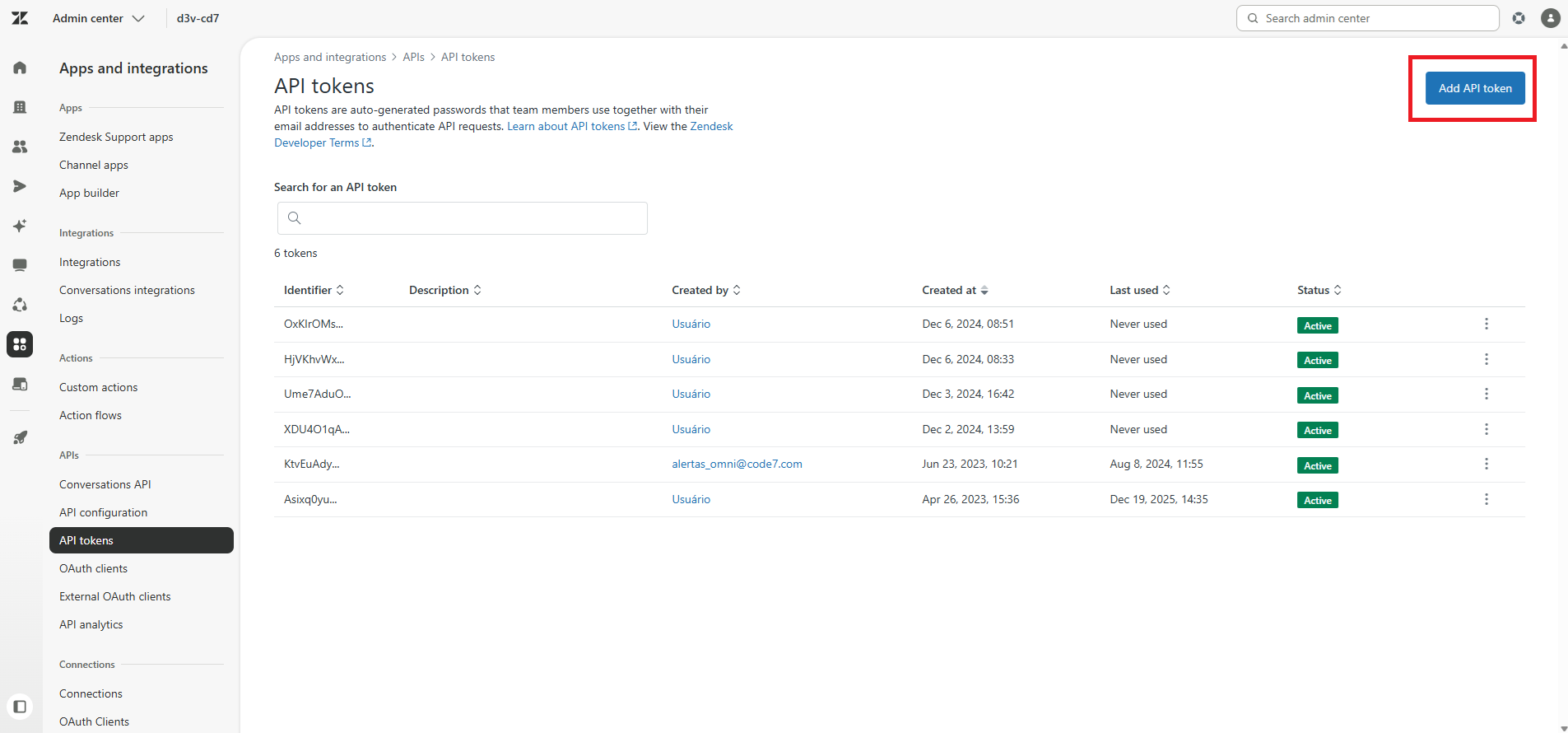
After this step, click the "Add API token" button:
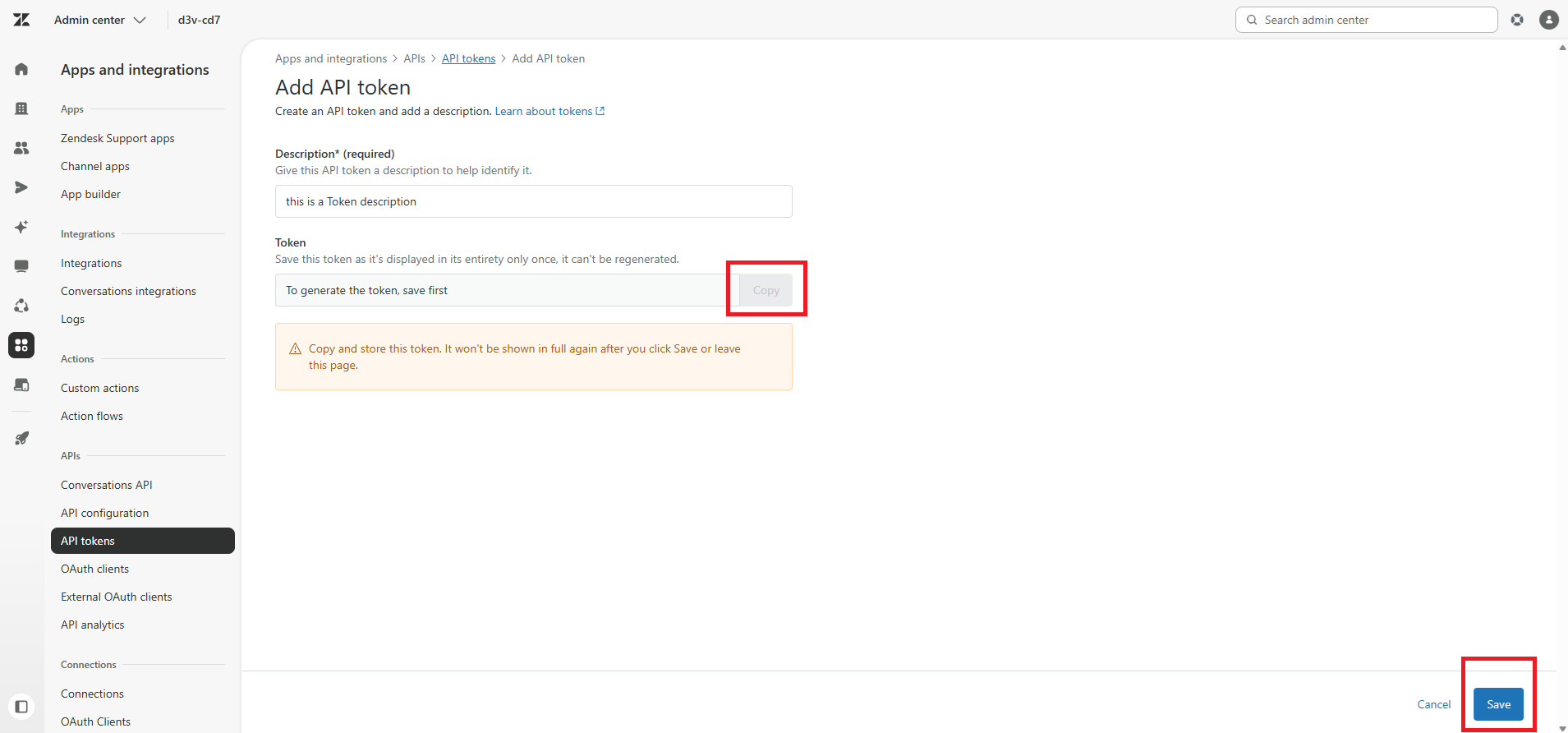
This will generate a token that needs to be copied, and after that, just click save. As illustrated below:
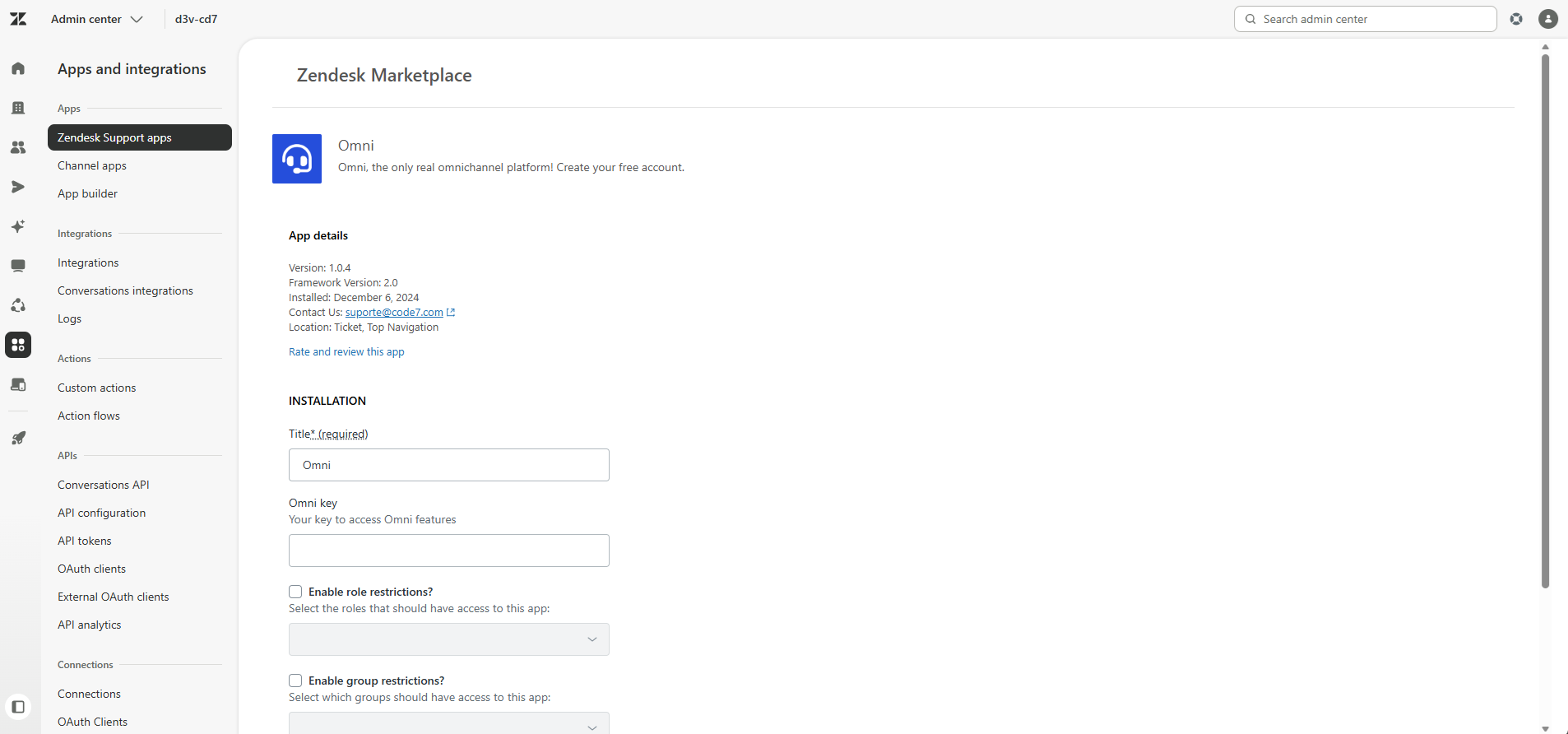
The next step is to install the integration within Zendesk via Marketplace. After accessing the "Admin Center" menu, search for the "Zendesk Support Apps" option and select it in the search field. As demonstrated in the screenshot below:
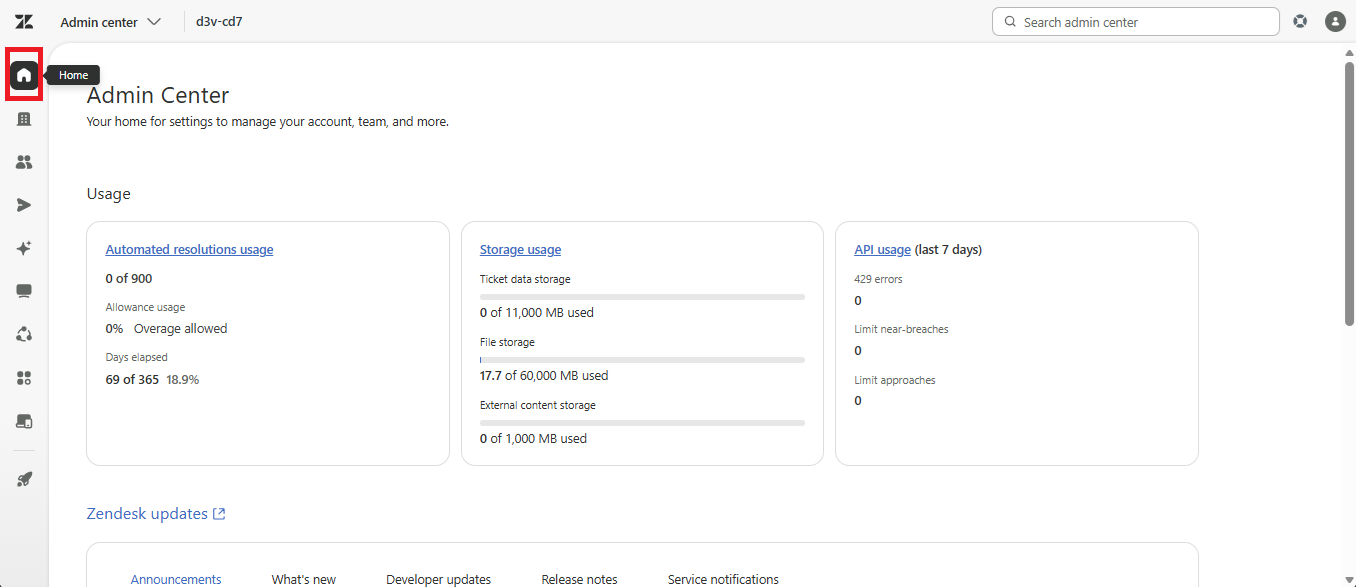
Inside the apps menu, click the "Marketplace" button:
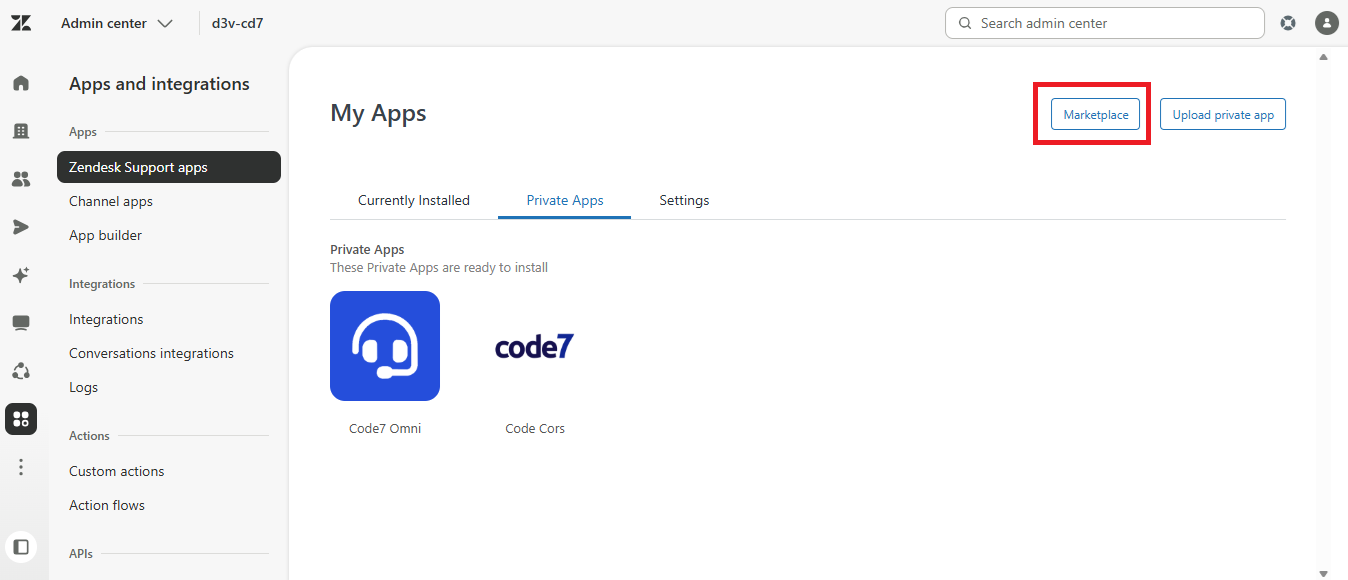
Then, search for "Omni" in the search field and select the Omni application. As shown in the screenshot below:
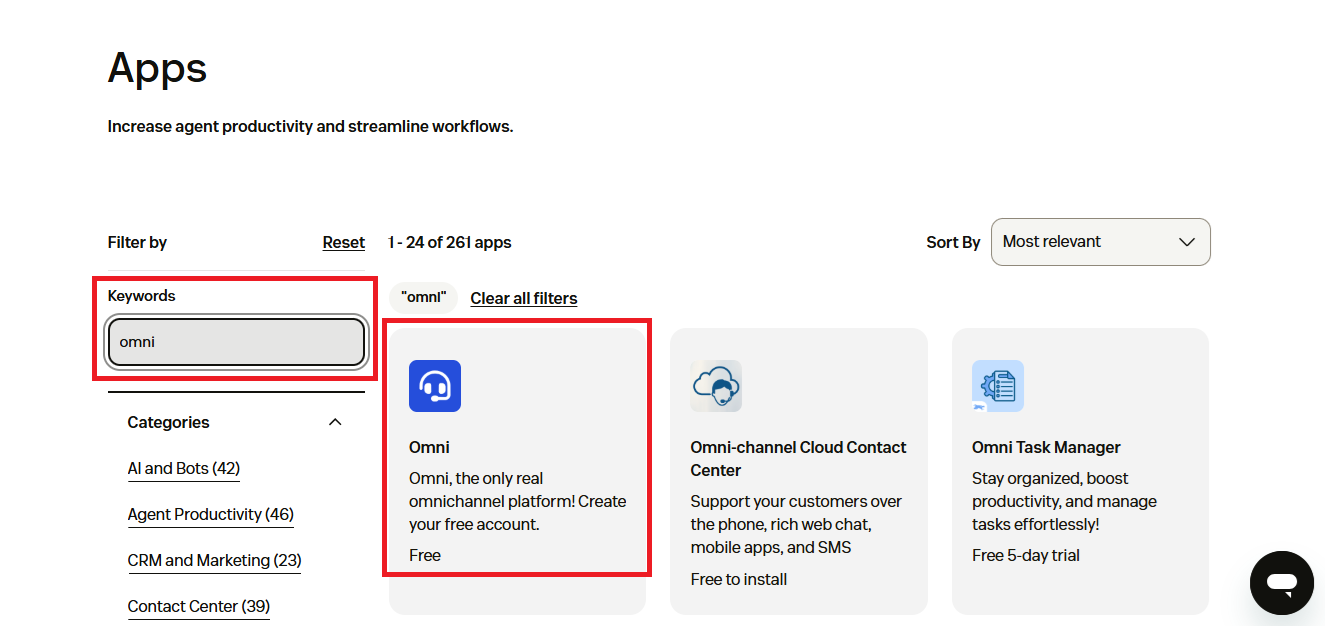
Next, click "Install":
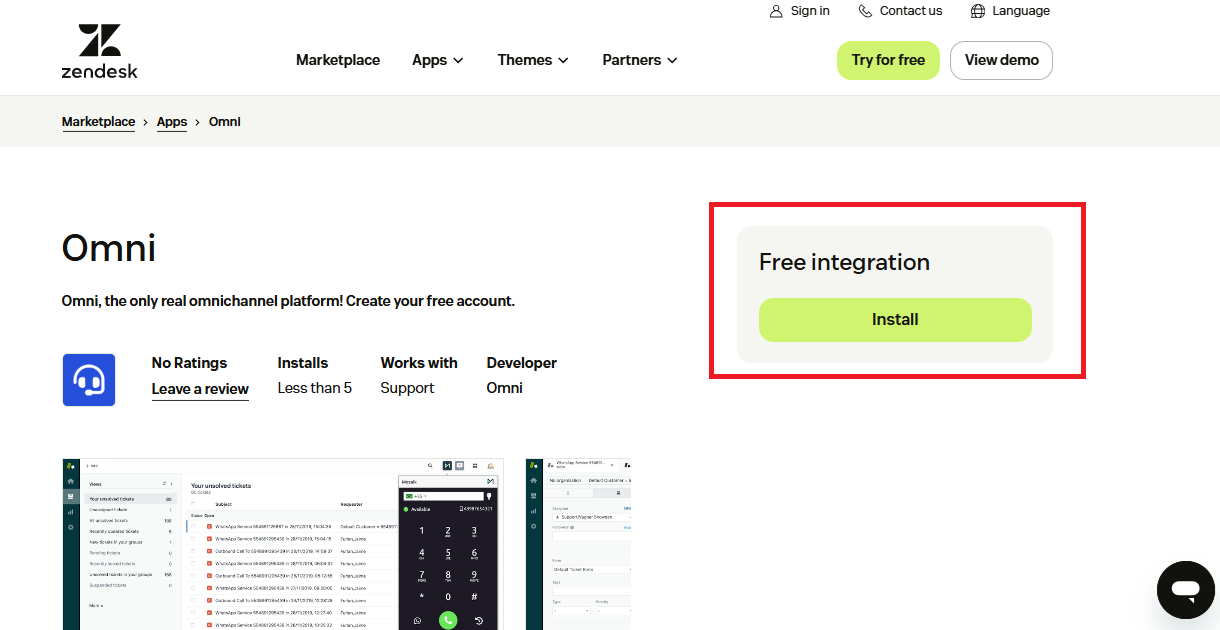
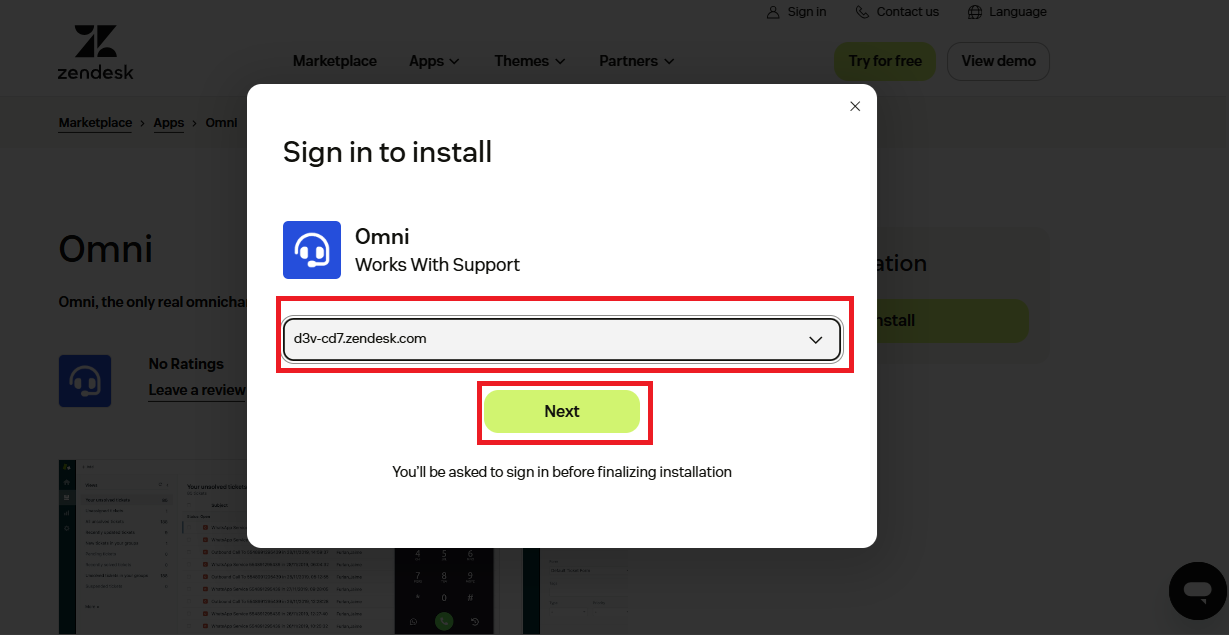
Then, select the Zendesk account and click the "Install" button again. As shown in the screenshot below:
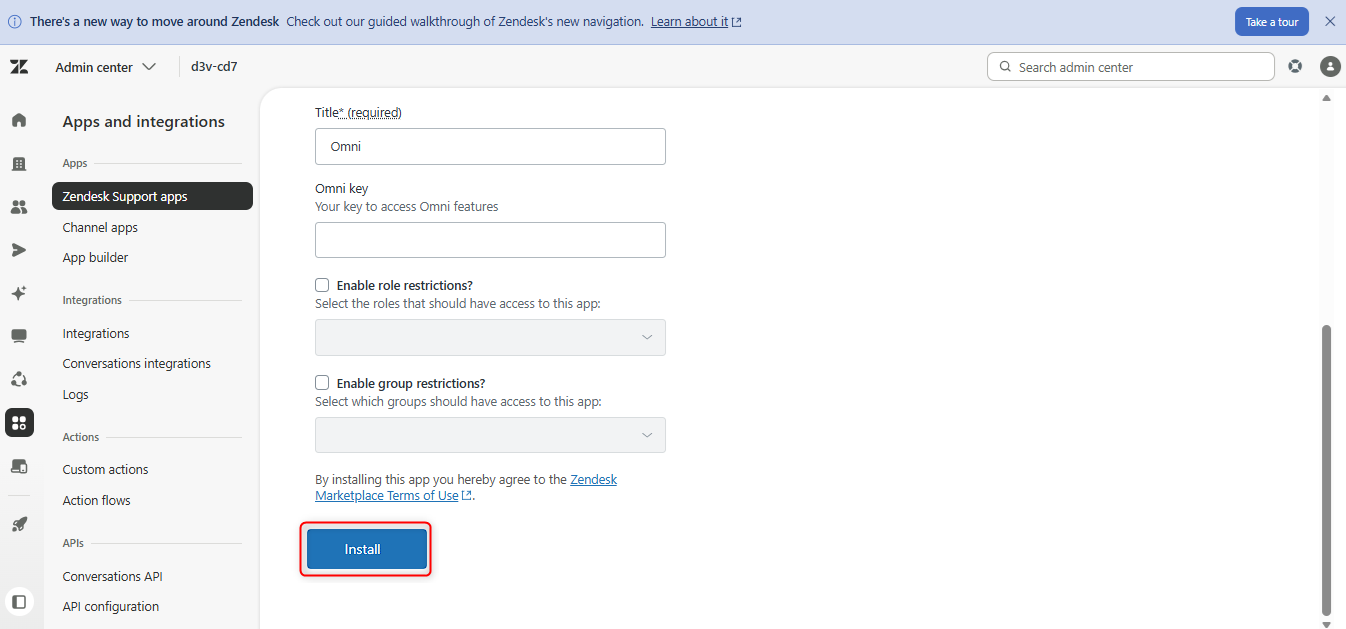
Finally, complete the installation by adding the API key provided by support in the ticket:
Here is the video detailing the steps shown above:
How to configure Zendesk integration in Omni
To use the integration in Omni, it is necessary to configure the integration in the user. For this, you need the user's ID and email in Zendesk. Below is the detailed step-by-step guide to retrieve this data.
Step-by-step to capture the ID
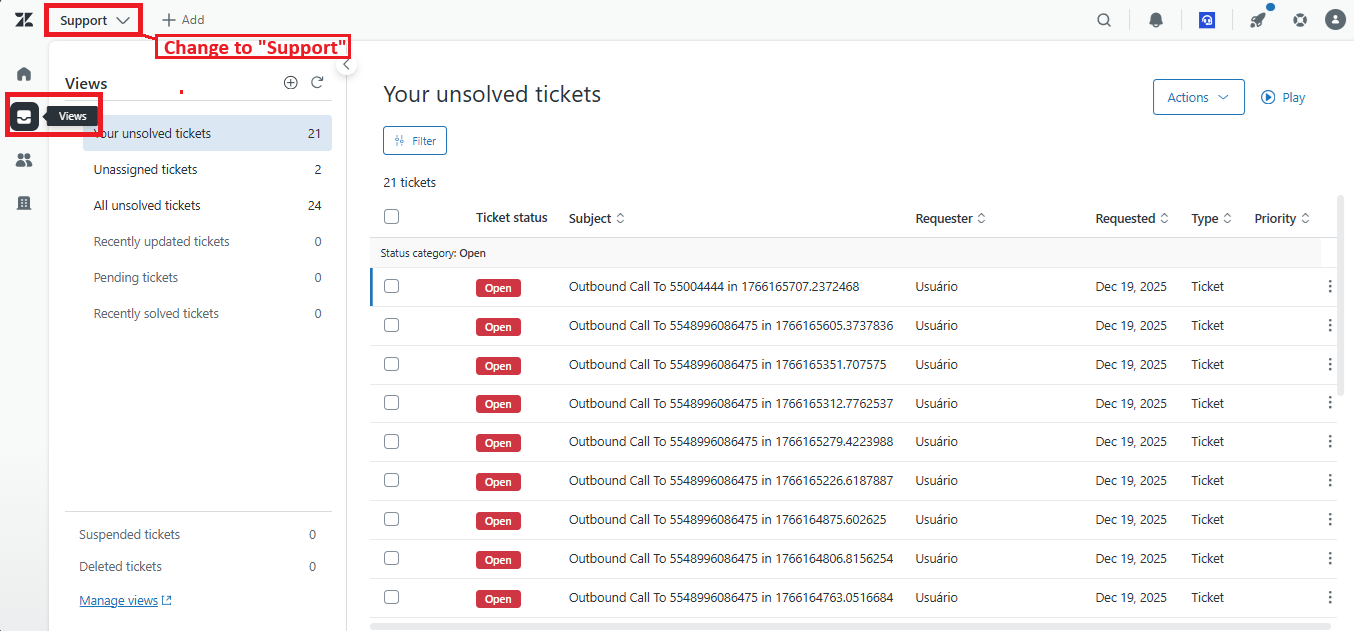
On the Zendesk home screen, change to "Support" screen, then, select the "Views" option:
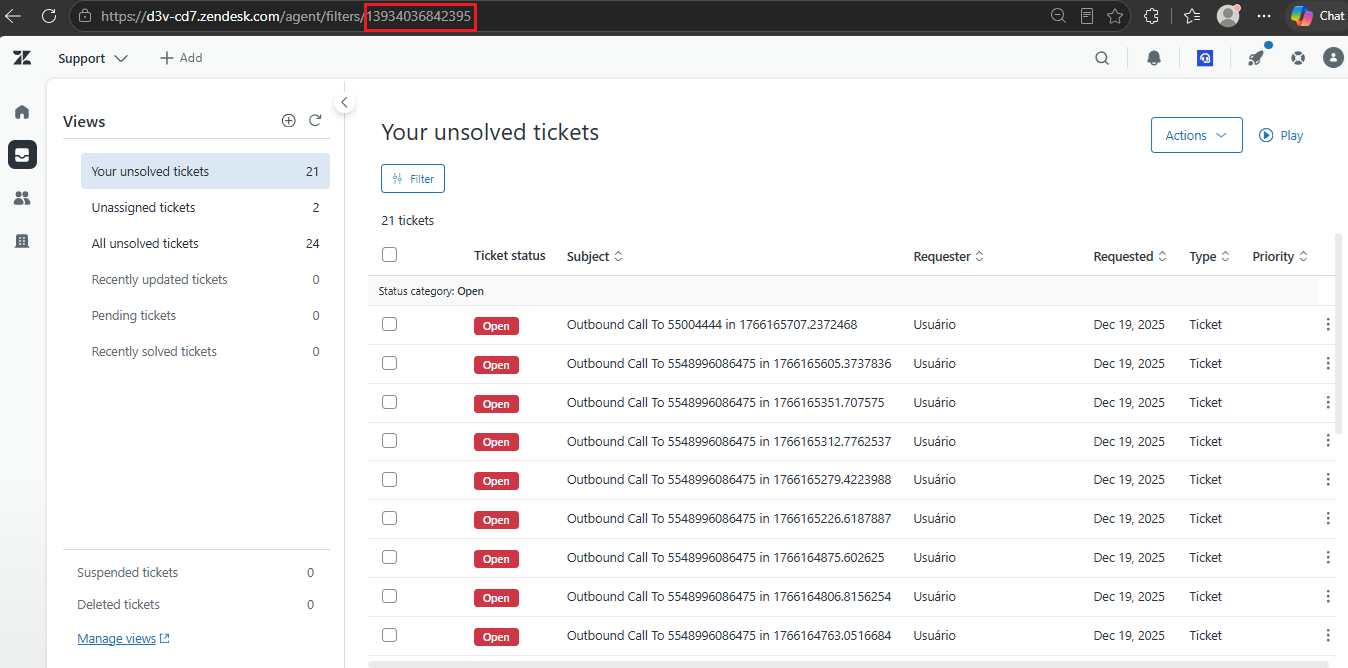
After that, the ID can be copied from the page URL after "users/". See the explanatory image:
Step-by-step to capture the email
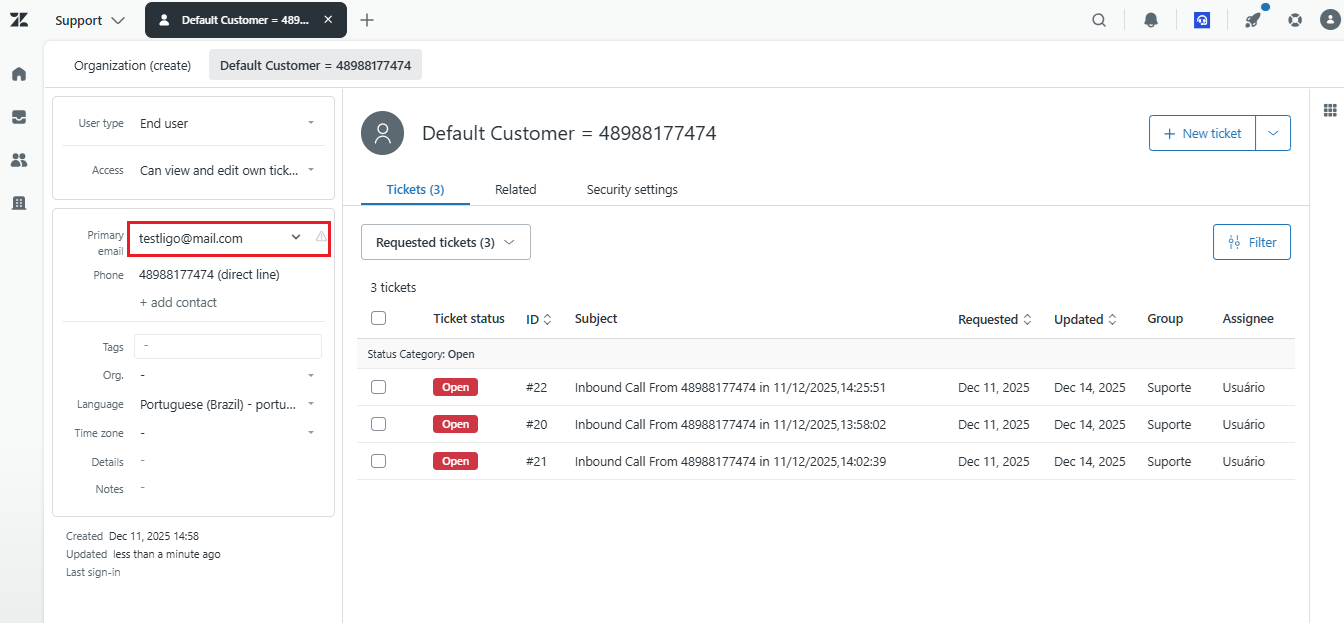
By accessing the profile screen using the step-by-step guide for capturing the ID, the user's email in Zendesk will be right below, as shown in the image below:
Configuring the integration in the user
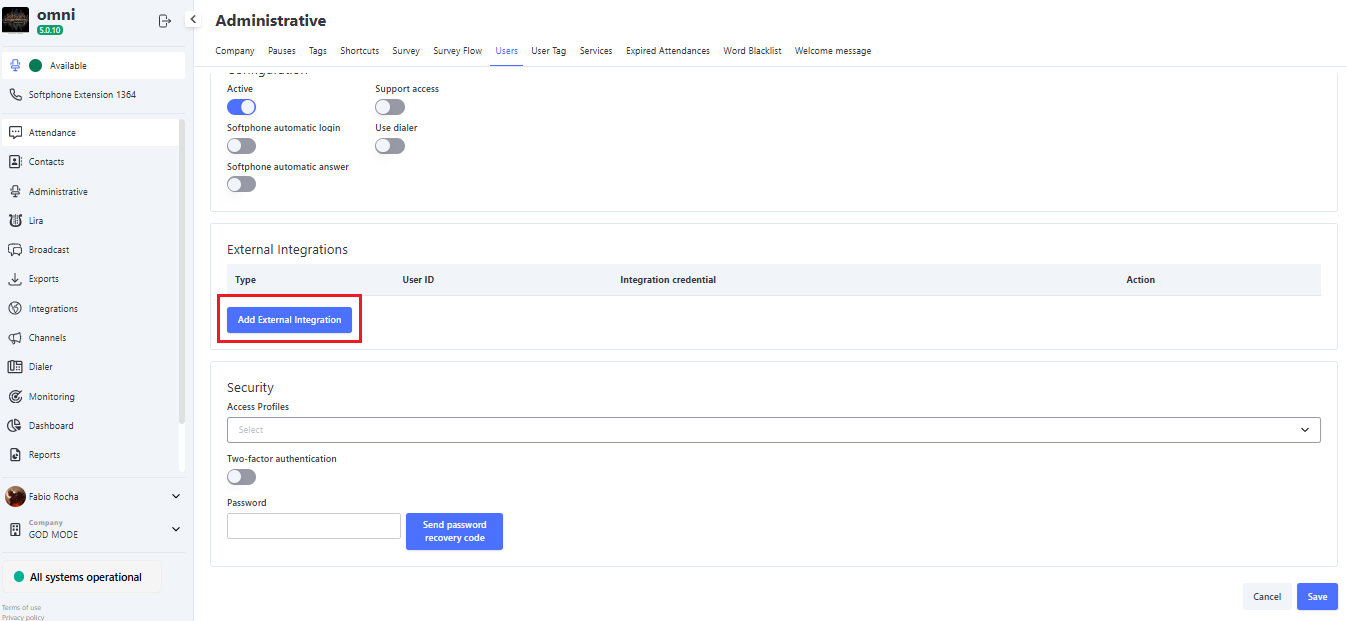
With the copied data, now we just need to configure the integration in the user. To do this, access the user menu and edit the user who will be integrated. On the user edit screen, click the "Add External Integration" button. As shown in the image below:
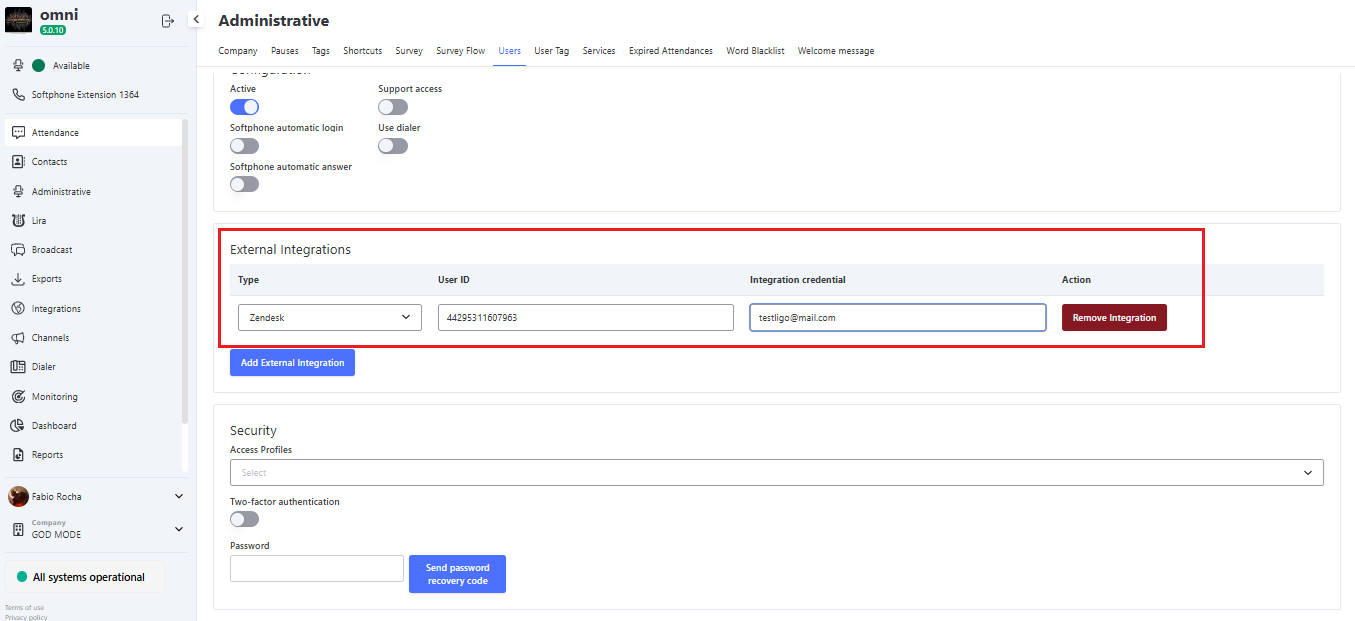
Next, it will be necessary to select the Zendesk integration and then enter the previously copied ID and email information. As shown in the image below:
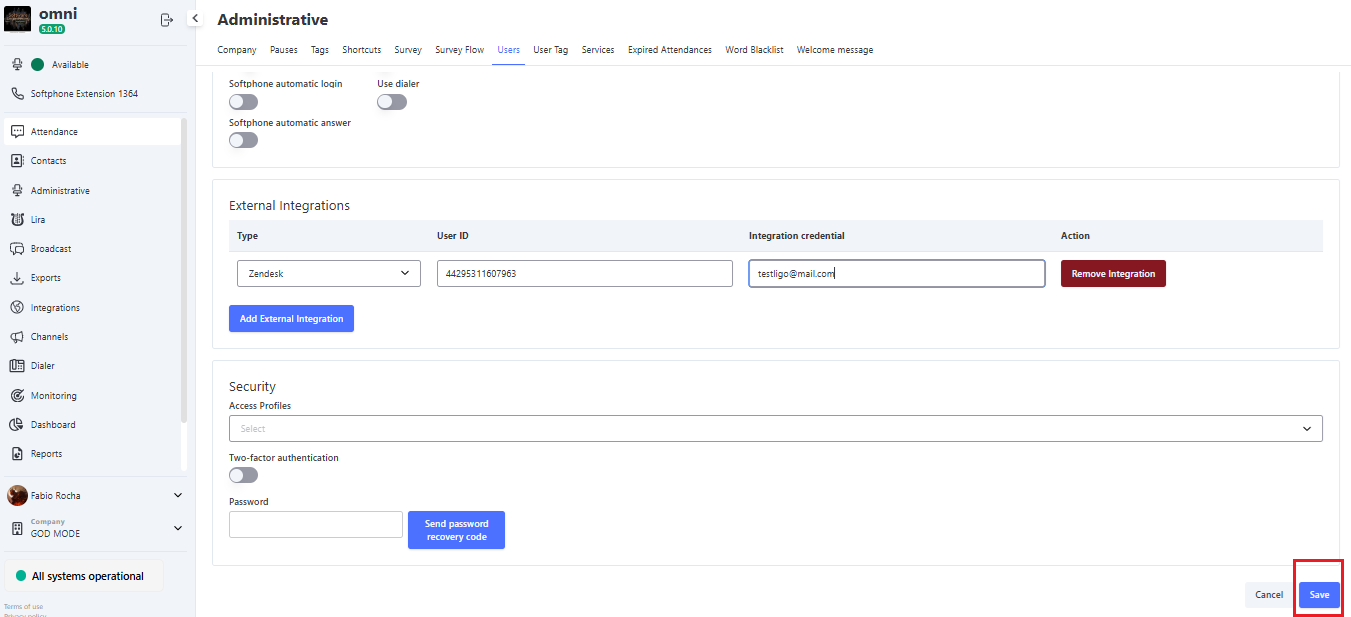
After configuring the integration, simply save the changes made to the user by clicking the "Update" button.
Here is the detailed video of the steps performed to configure the integration in Omni:
Notes on user integration configuration
After configuring the integration in the user, they must log out of the platform and then log in again so that the new settings are properly applied to the user.
How the Zendesk integration works
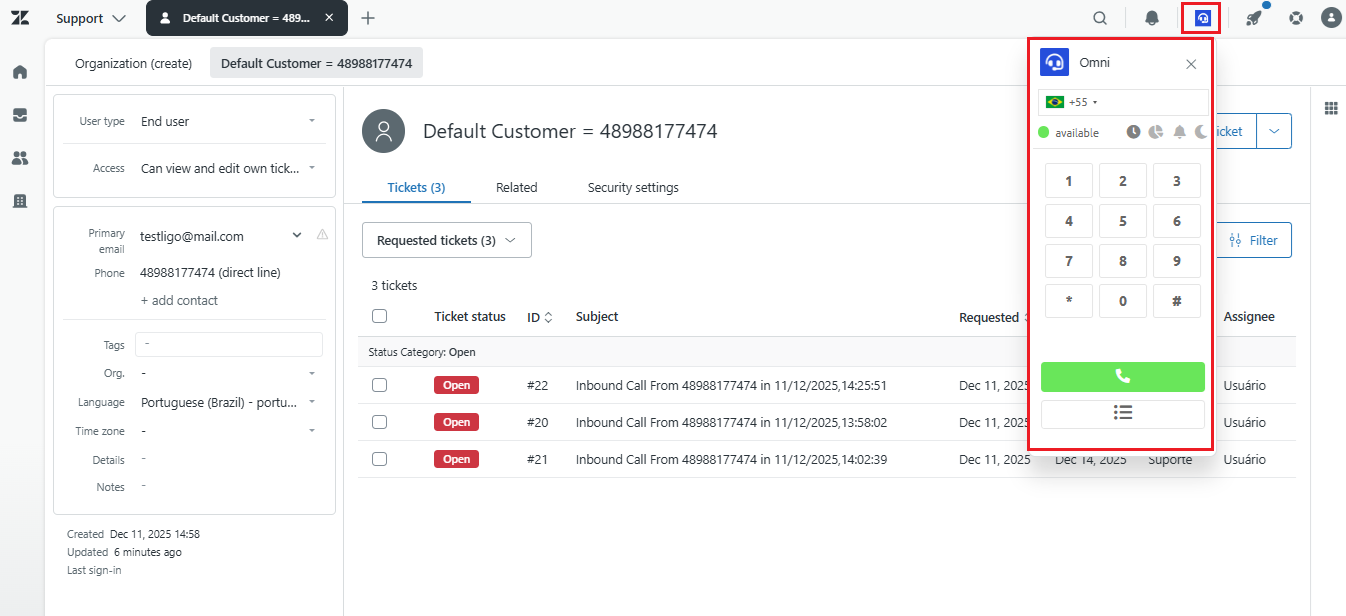
Now we will show how the integration works in Zendesk. First, the integration works via softphone integrated into the screen. The softphone is located in the upper right corner of the screen, by clicking the button with the Omni icon. As shown in the screenshot below:
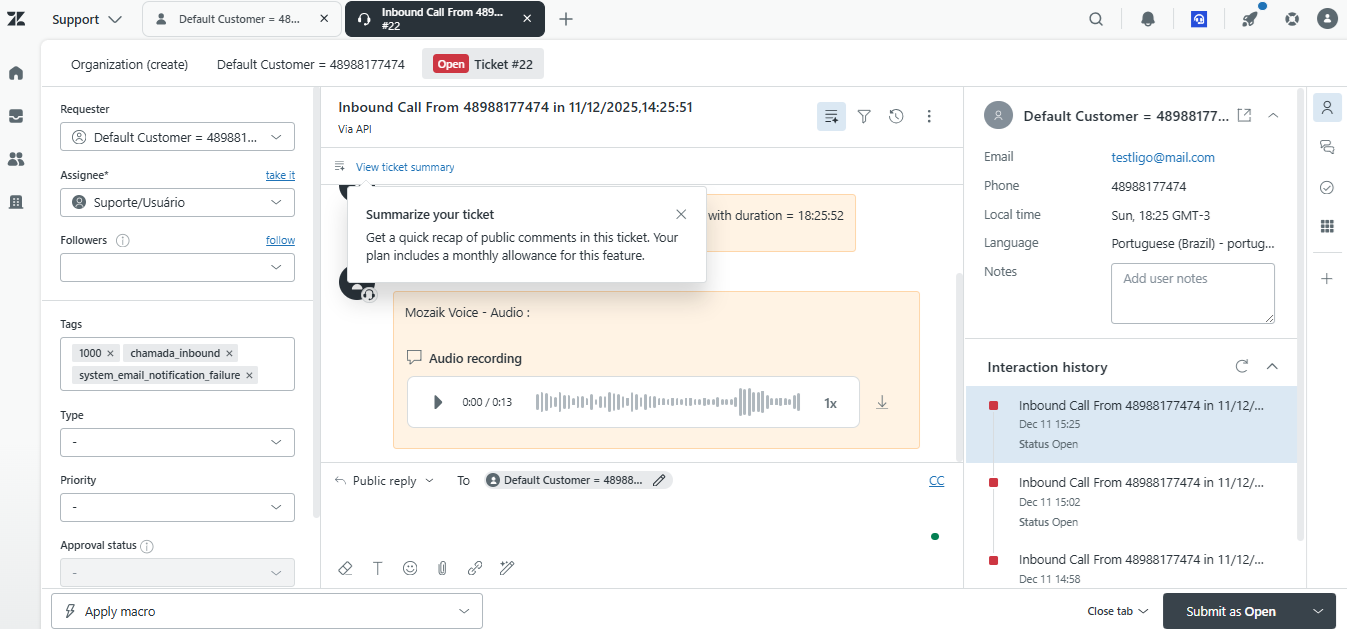
The Softphone in question is integrated with Omni, allowing calls to be made or received. When the call ends, a ticket is automatically created, assigning responsibility to the agent who answered or made the call. The ticket in question will be available on the Zendesk dashboard, as shown in the screenshot below:
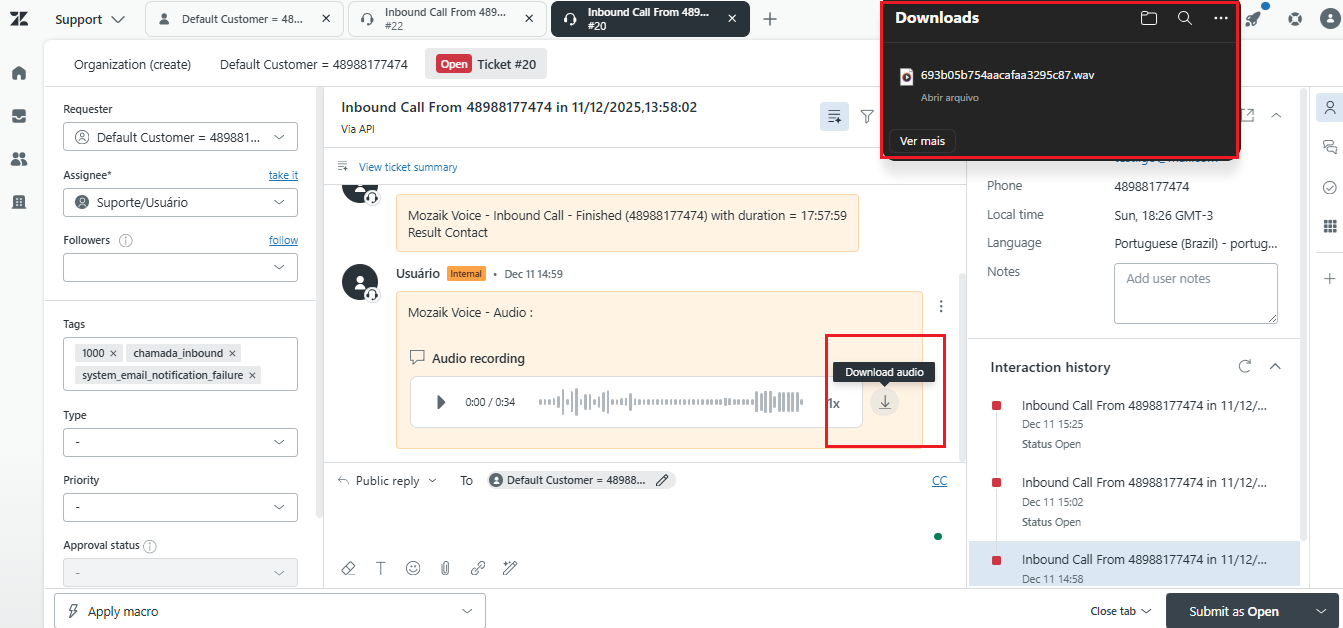
In addition, it is possible to download the recording of the call in question. As shown in the image below:
Here is a video showing the integration in action: