Salesforce
Introdução
Improve the experience in attendance and organize everything on a single screen to be more productive. Handle calls directly through the Salesforce Call Center module (CTI), create and update task statuses, and have the recording link for each voice attendance.
How to configure in Salesforce
Requirements
To perform the integration, the Salesforce account must have a version that supports the Open CTI Module, Salesforce Call Center, and support for the Web Service API.
Configuring the integration in Salesforce
The first step is to request via ticket the generation of the XML file. Below are the details that must be provided:
- Account email
- Account password
- Main user ID
- Main user token*
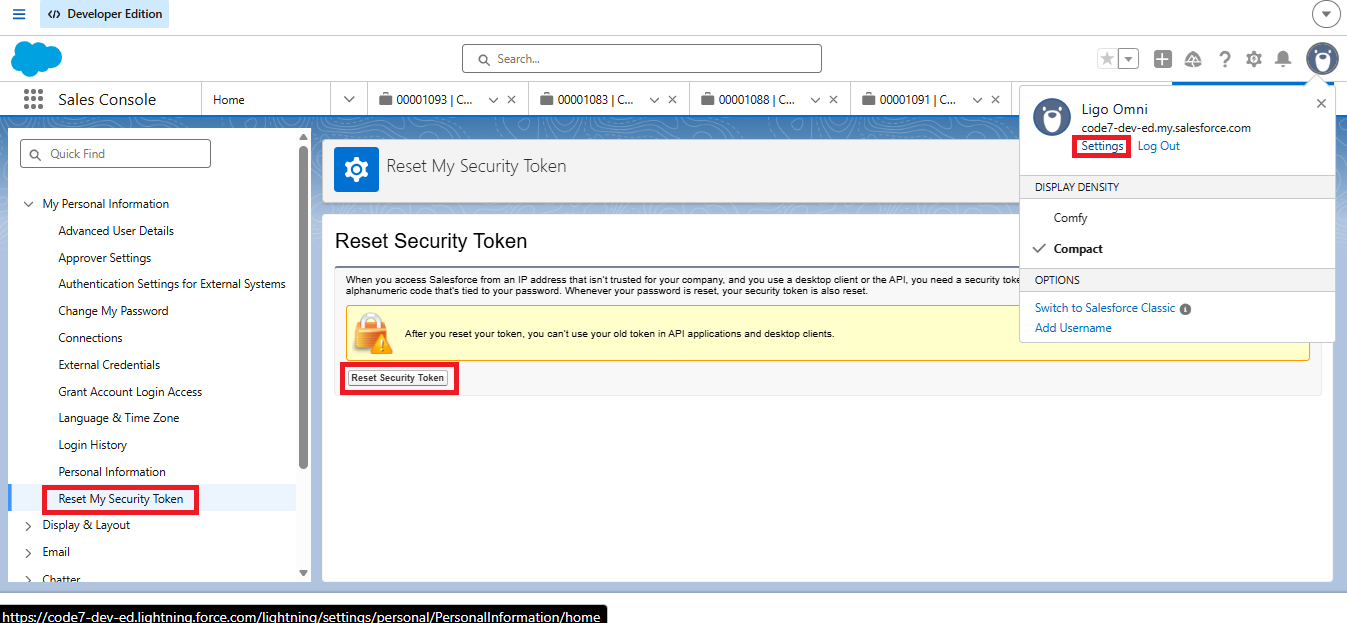
- The main user token can be retrieved by accessing the security key reset menu. To do this, click on the profile picture, select the settings option, and after the menu opens, select the option "Reset my security key" and click the button "Reset your security key." As shown in the screenshot below:
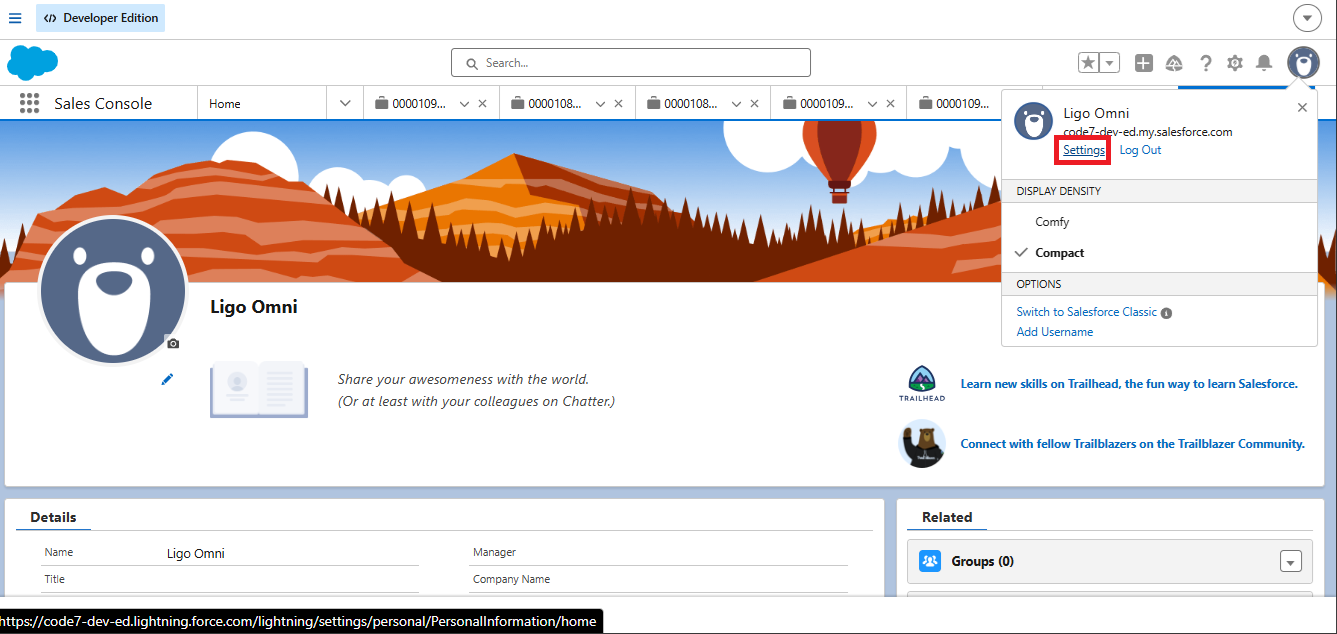
Done! The token of your user will be sent to the user's email. After this step, it will be essential to access the call center screen to import the forwarded XML. To do this, simply click on the gear icon and then select the "Setup" option. As shown in the image below:
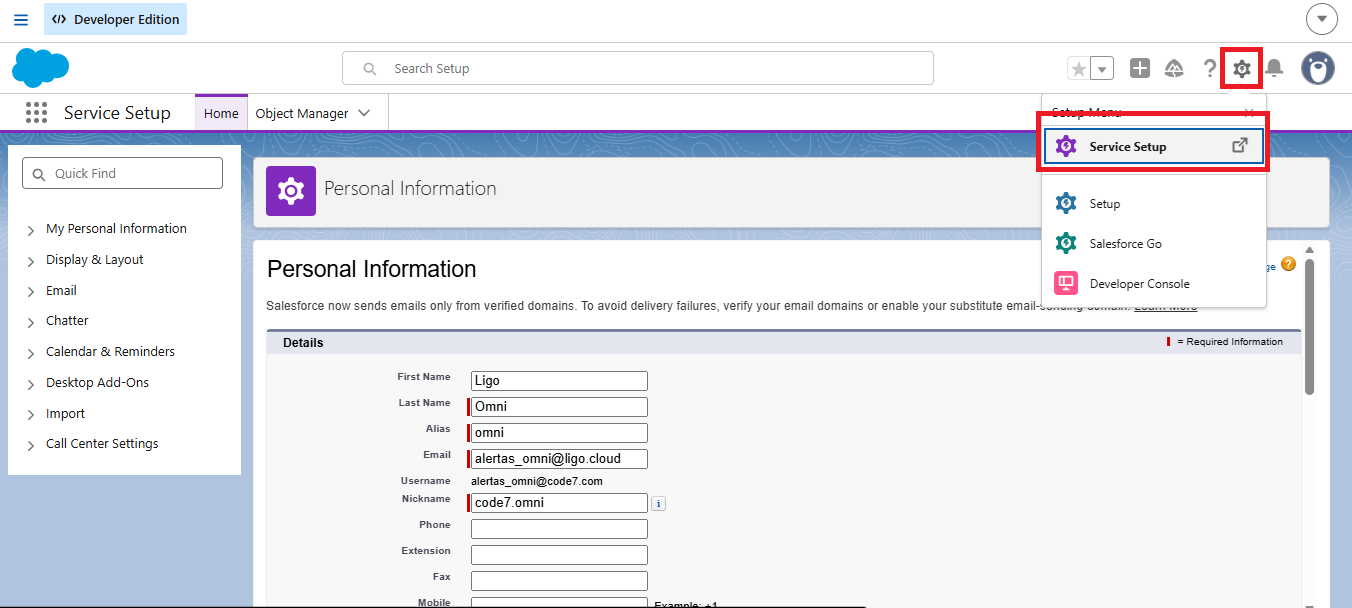
After accessing the setup menu, we need to search for the "call center" menu and select it in the search field. As demonstrated in the following screenshot:
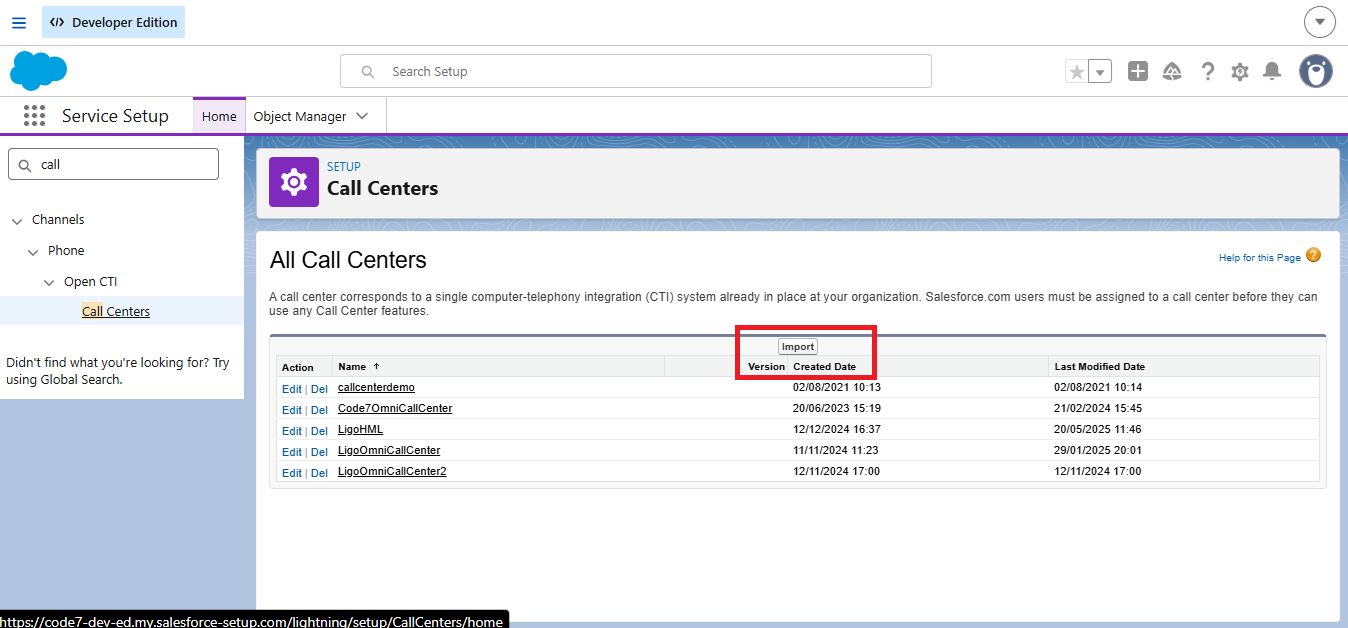
Inside the call center menu, click on the "Import" button:
Click on the "Choose file" button:
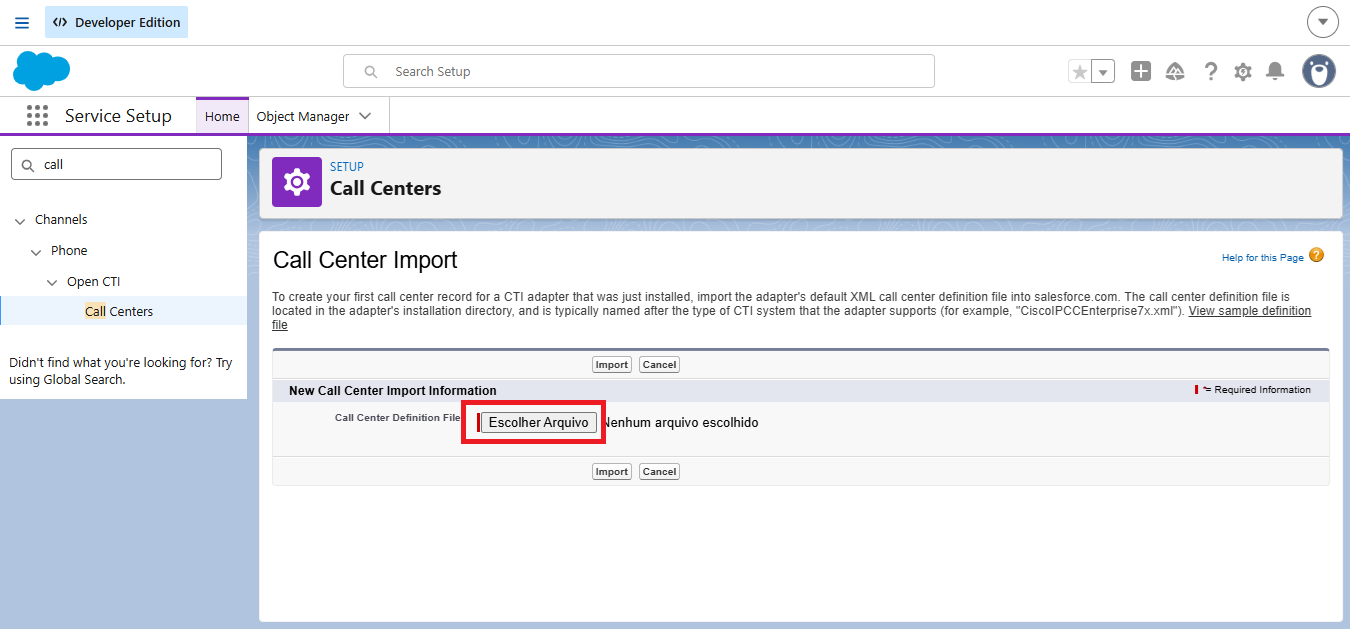
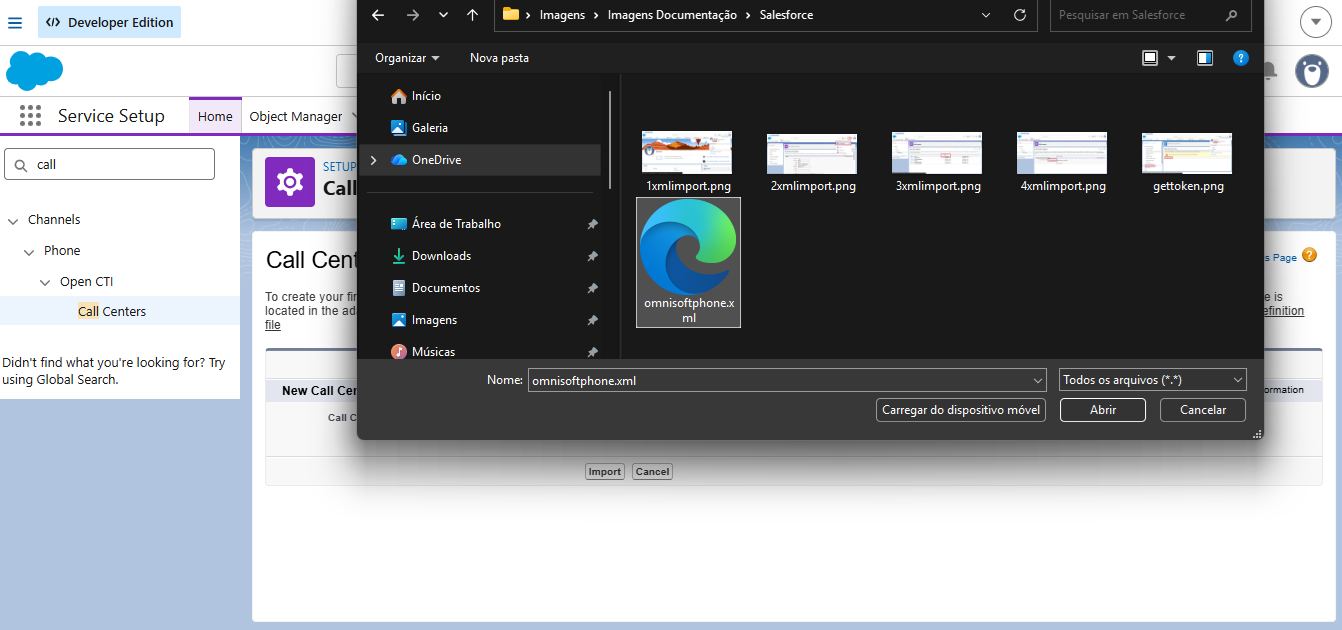
Now just select the forwarded XML file and click on the "Import" button. As shown in the screenshots below:
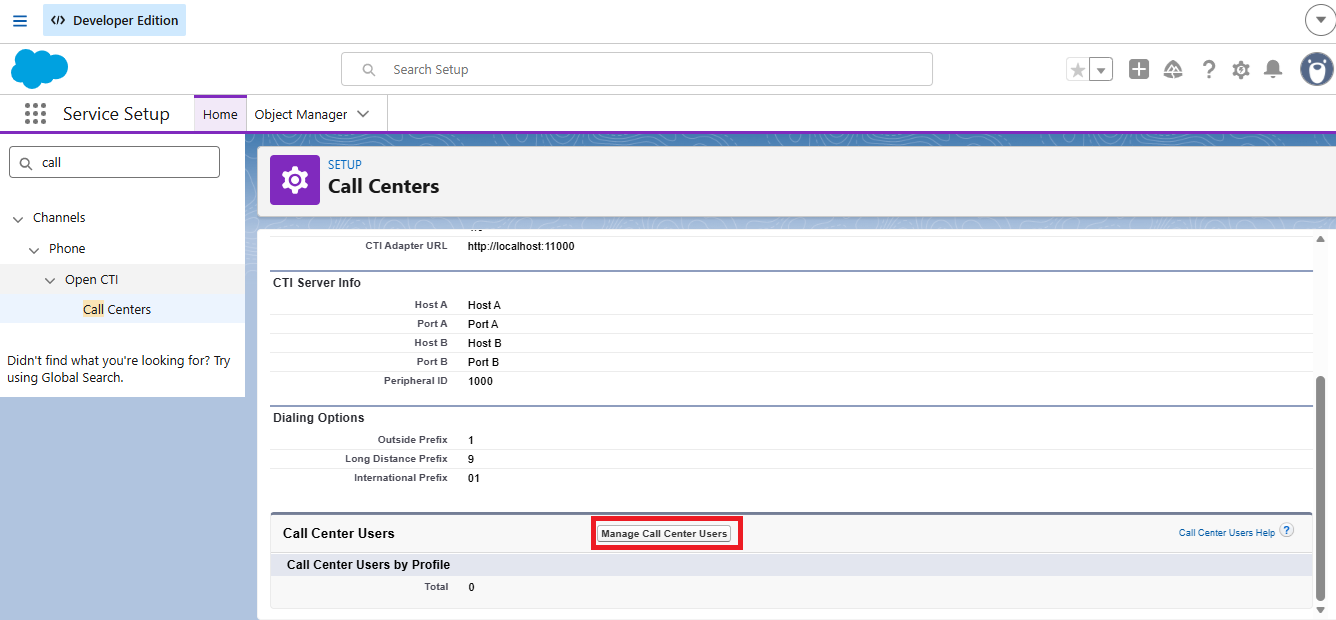
After importing the XML, we will add the users who will handle the attendance. To do this, simply click on the "Manage call center users" button. As shown in the image below:
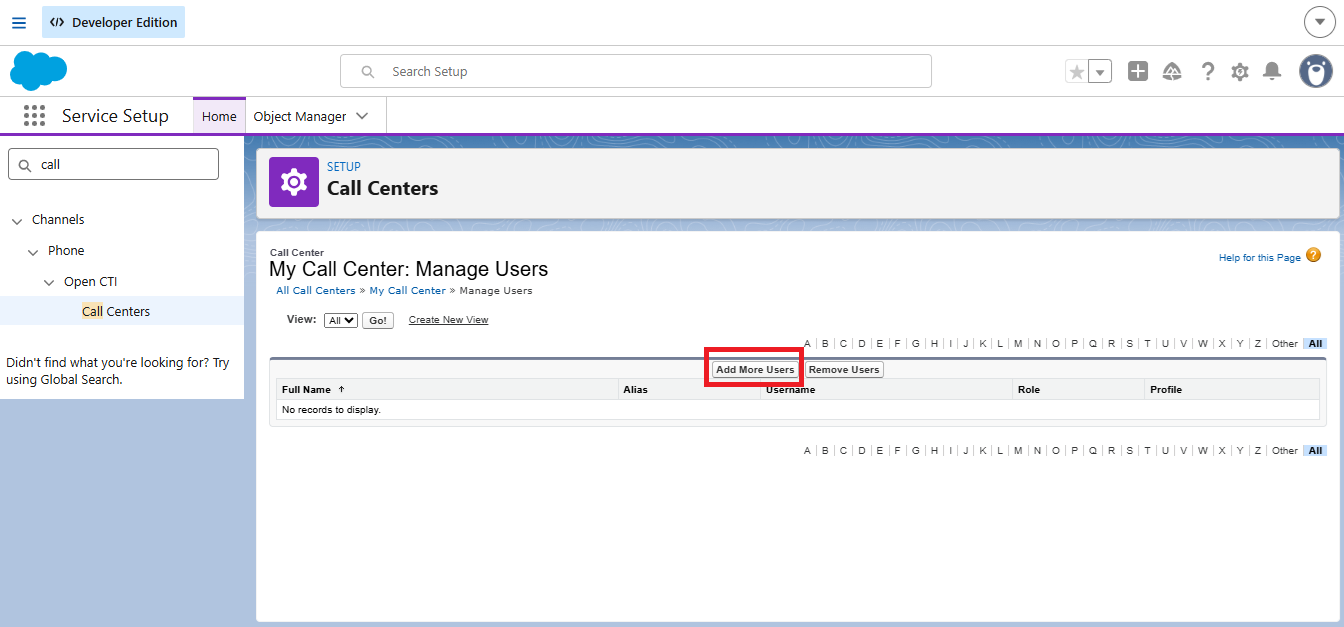
Click on the "Add more users" button:
Now just add the filters and select "Find":
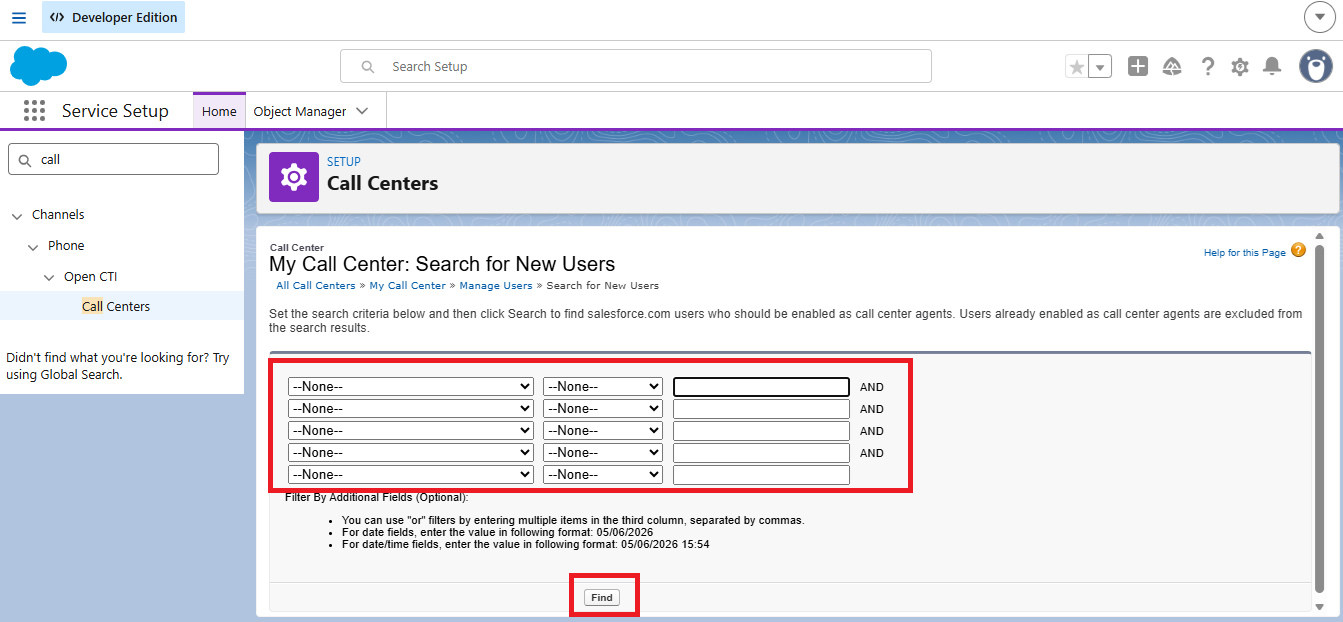
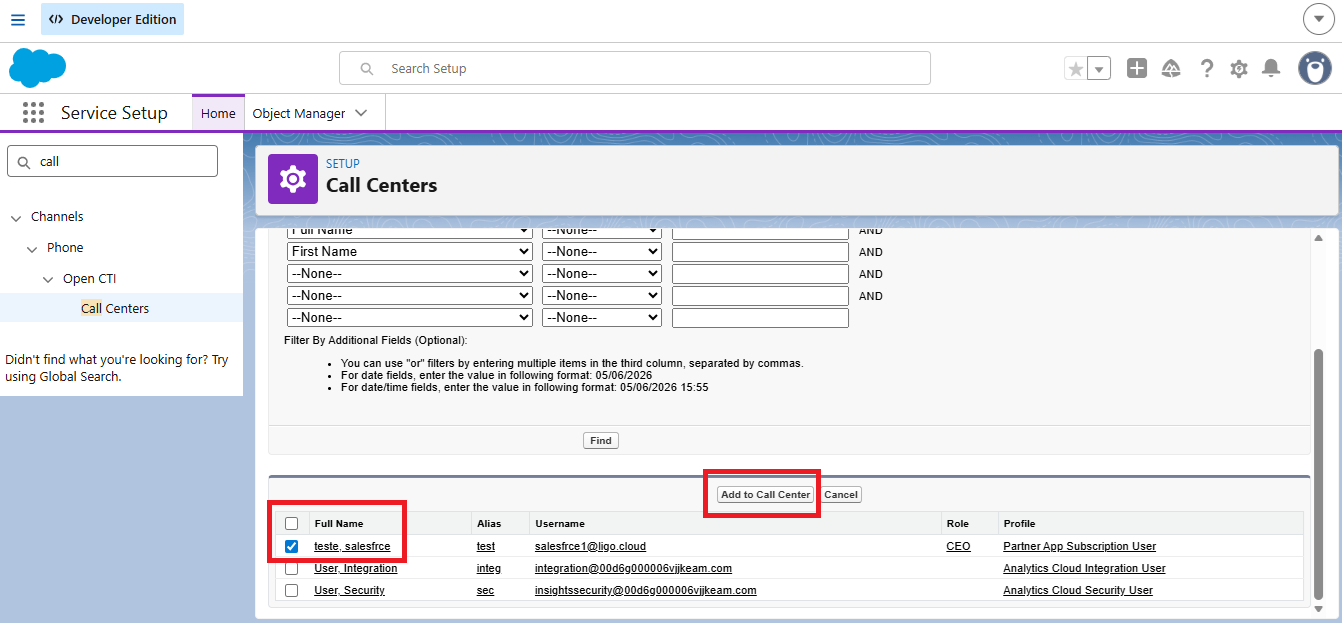
After that, it is necessary to select the users and click on "Add to call center":
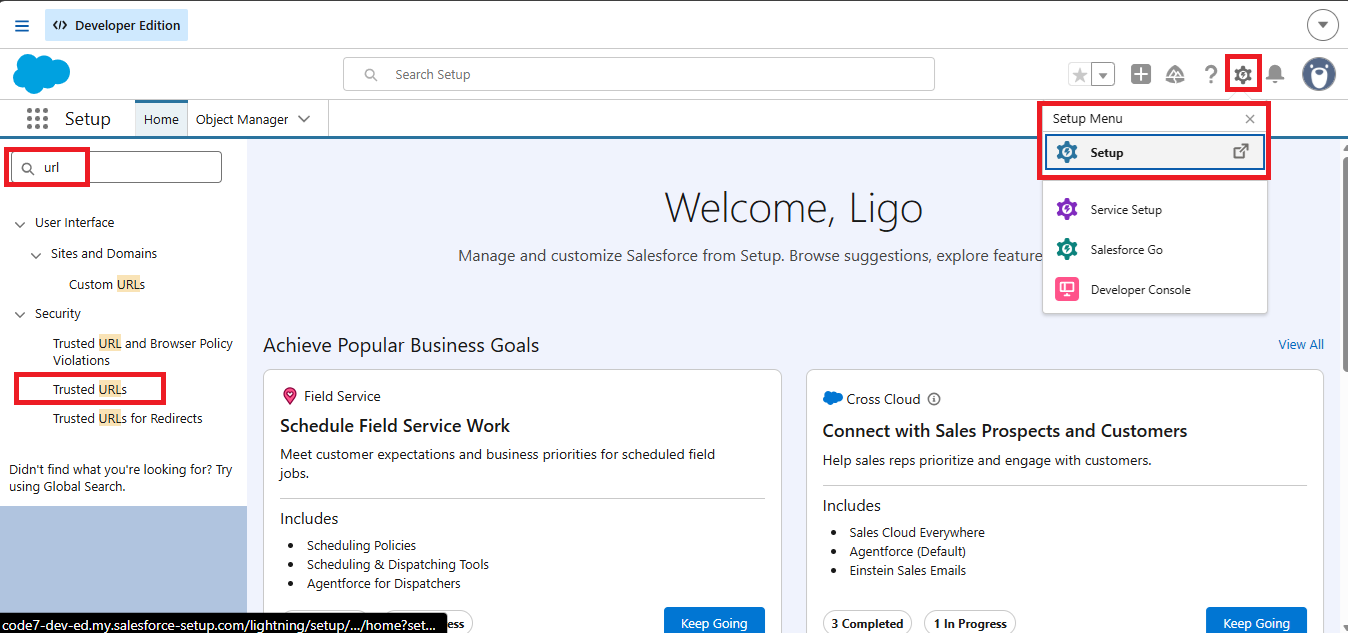
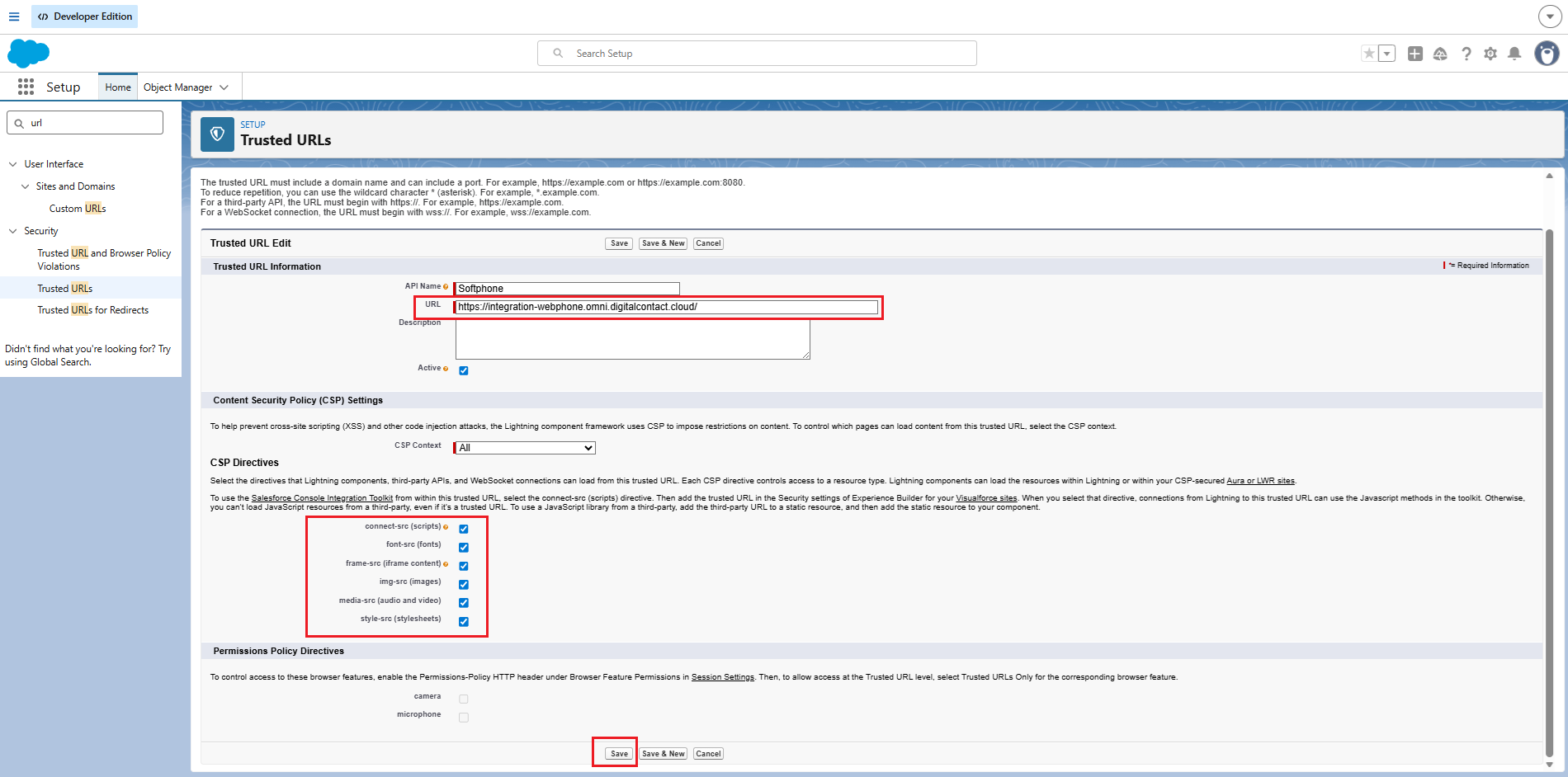
To be able to use the integration in Salesforce, it is necessary to enable the webphone as a trusted URL and configure user access to the Softphone. For this, you need to access the same setup menu accessed earlier, search for "URL" and select the "Trusted URLs" option. As shown in the screenshot below:
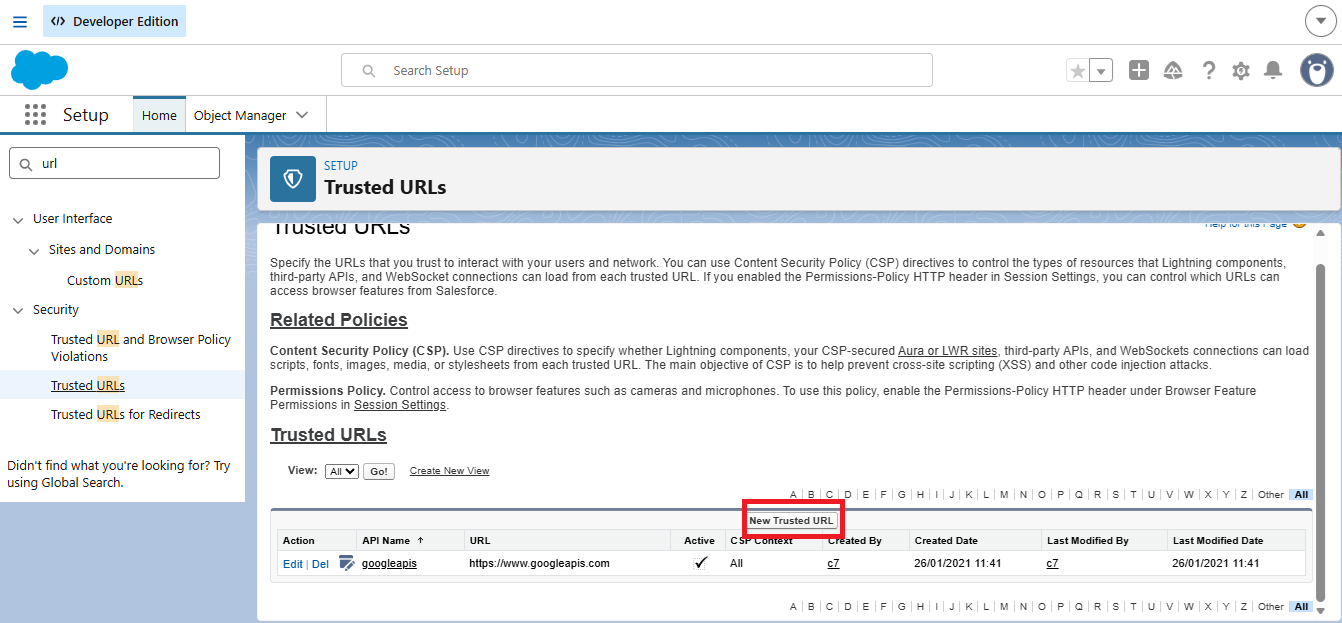
After this step, click on the "New trusted URL" option:
Now you will need to add the link "https://integration-webphone.omni.digitalcontact.cloud/" in the URL field and check all permissions in the "CSP Directives" field. As demonstrated in the following screenshot:
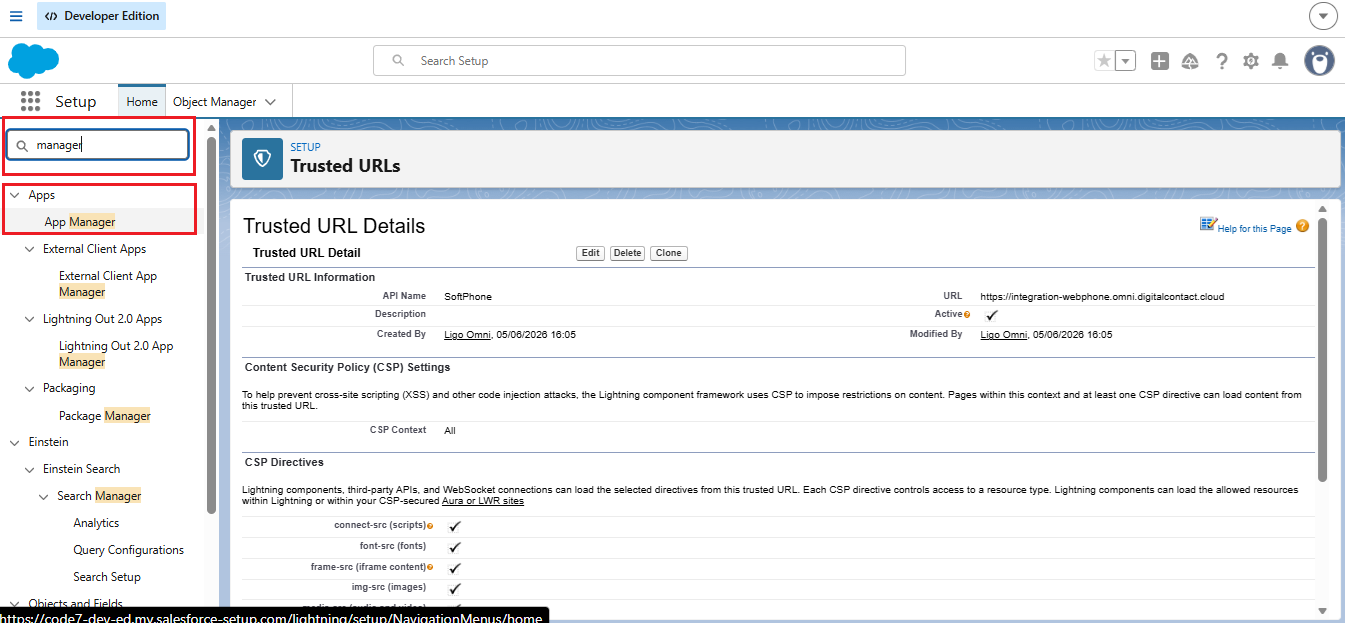
Next, we need to enable the softphone for users. In the same setup menu, search for "App Manager" and then select the option with the same name. As demonstrated in the following screenshot:
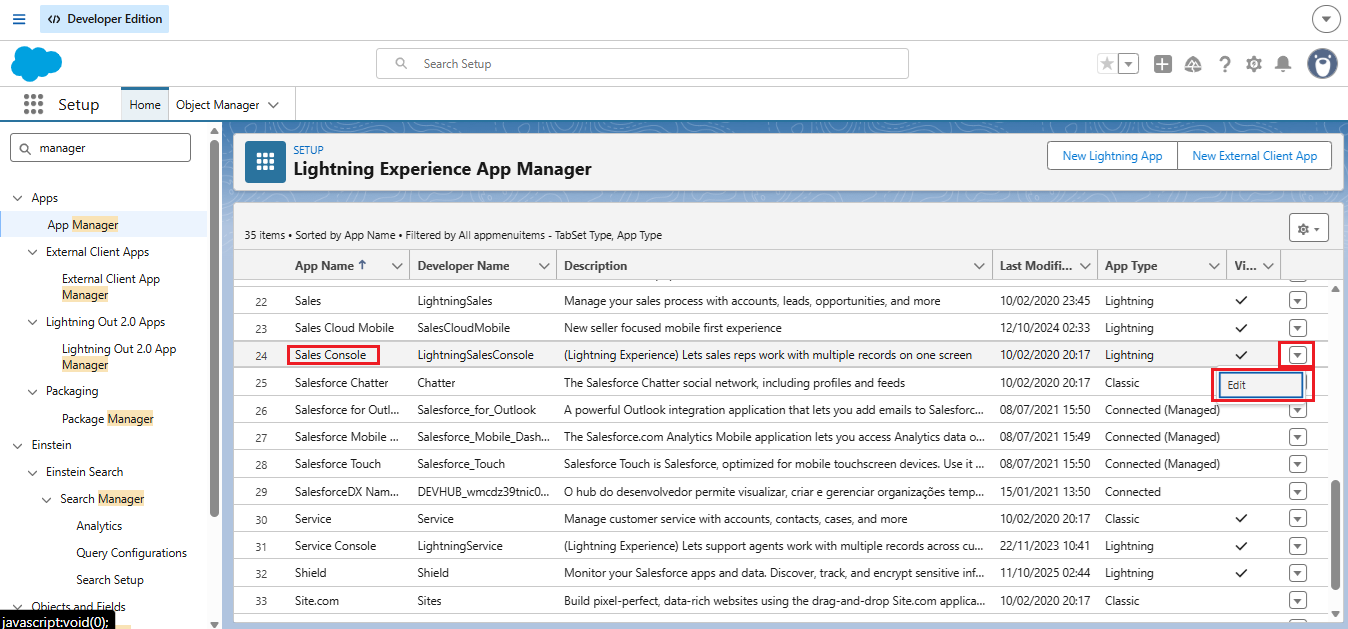
Next, click on the options arrow on the right, related to the "Sales Console" option, and select the edit field. As shown in the screenshot below:
After that, click on the "Utility Items" option:
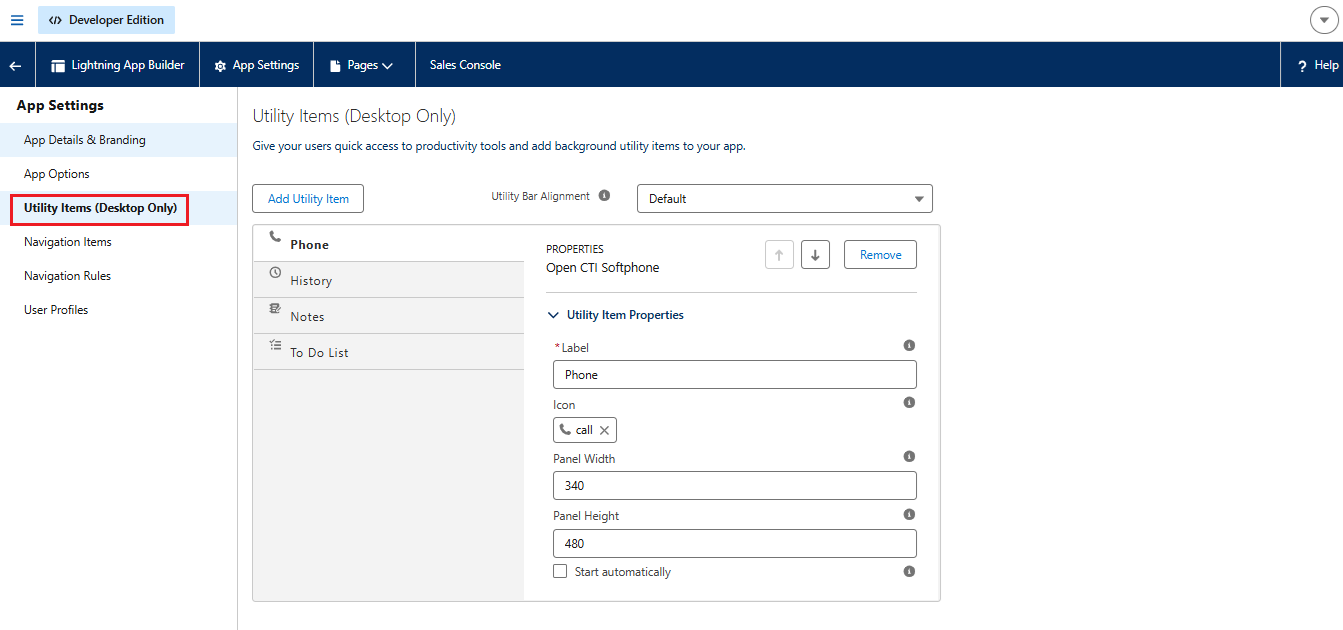
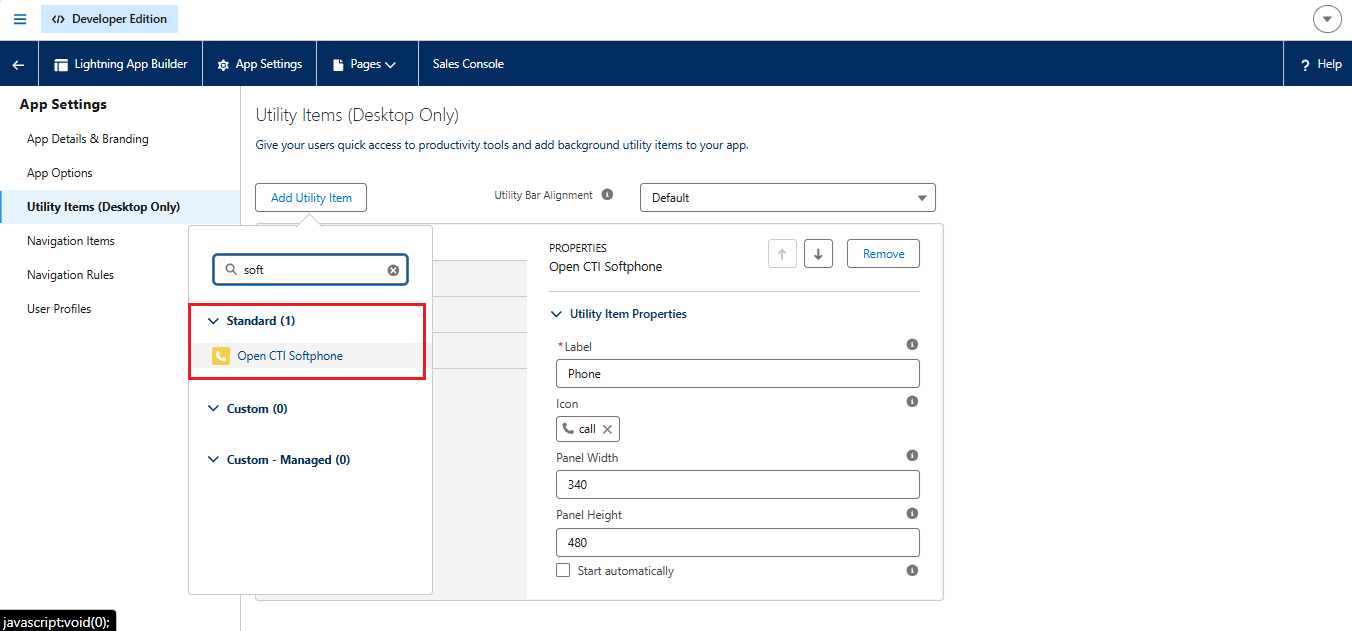
Now it will be necessary to check if the "Phone" item is appearing on the screen. If it is not, it will need to be added. To do this, just click on "Add Utility Item," search for softphone, and select the "Open CTI Softphone" option. As illustrated in the screenshot below:
Here is the video detailing the steps shown above:
How to configure the integration in Omni
To use the integration in Omni, it is necessary to configure the integration in the user. For this, you need the user's ID and email in Salesforce. Below is the detailed step-by-step guide to retrieve this data.
Step-by-step to capture the ID
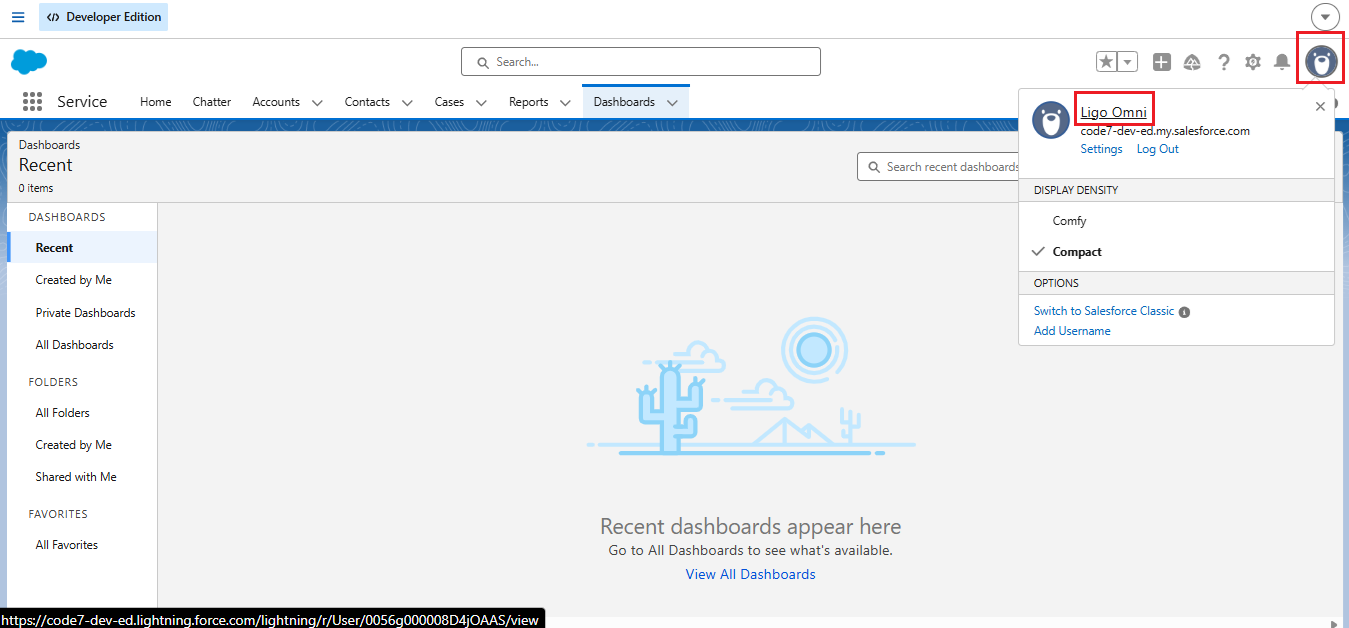
On the Salesforce home screen, click on the profile picture and then click on the user's name, as shown in the screenshot below:
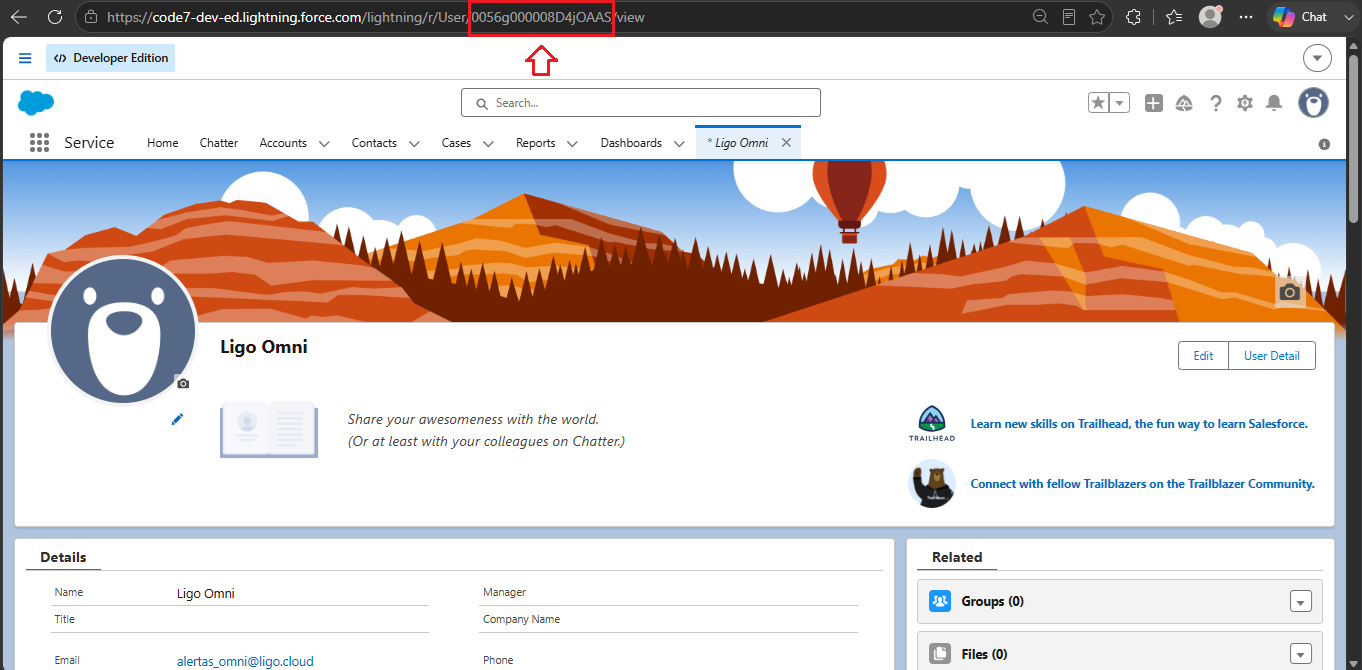
After that, the ID can be copied from the page URL after "user/". See the explanatory image:
Step-by-step to capture the email
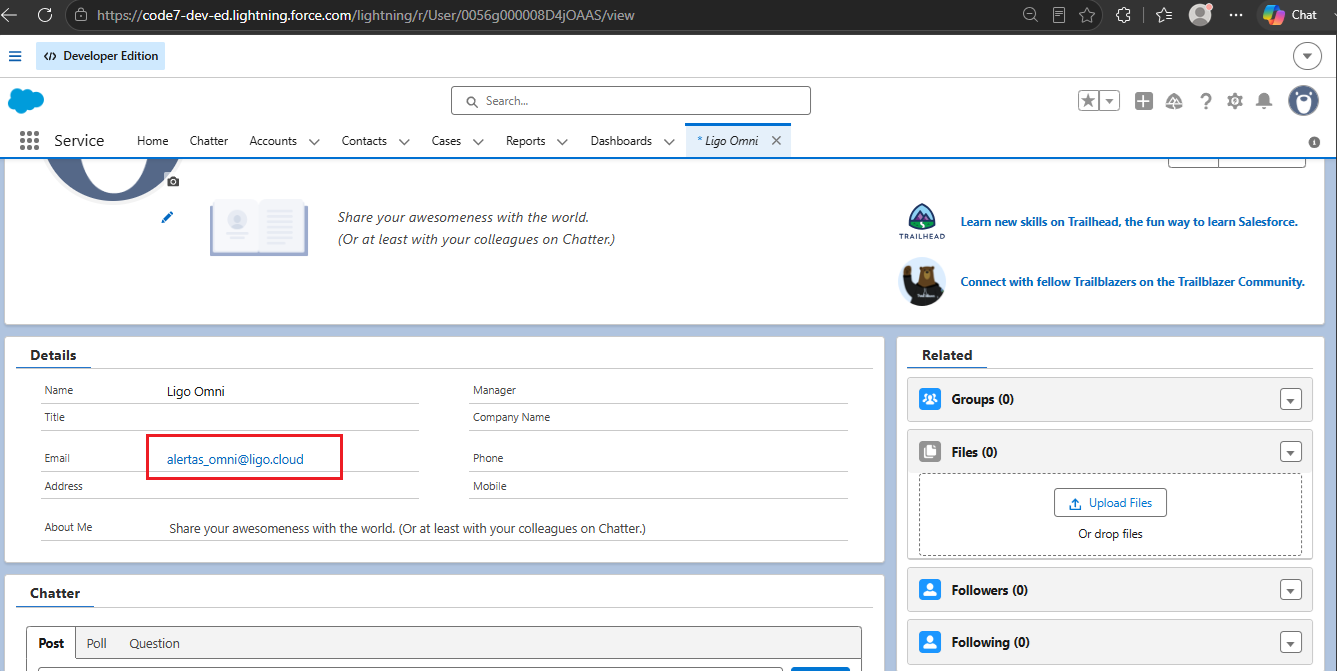
By accessing the profile screen using the step-by-step guide for capturing the ID, the user's email in Salesforce will be right below, as shown in the image below:
Configuring the integration in the user
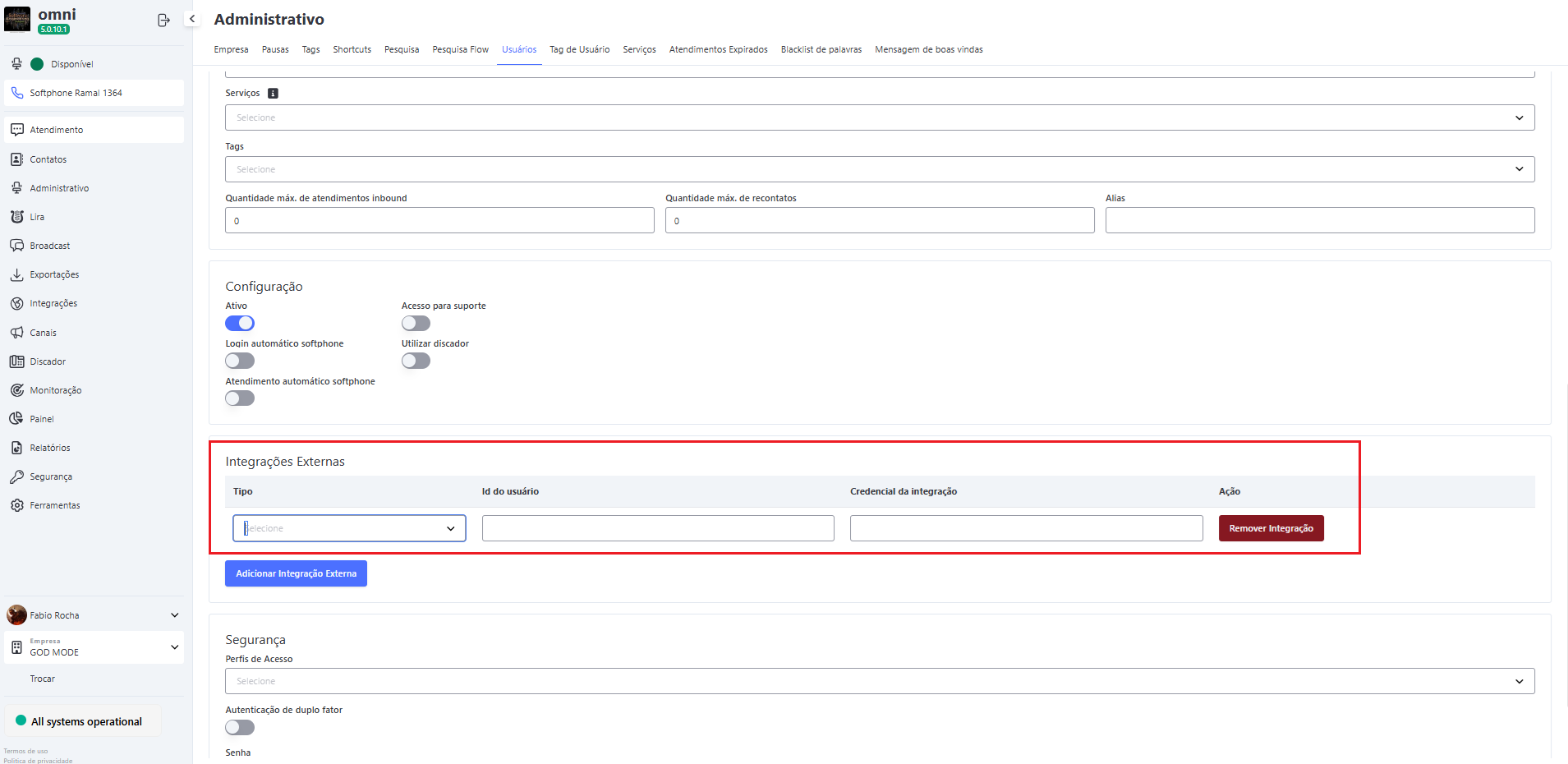
With the copied data, now we just need to configure the integration in the user. To do this, access the user menu and edit the user who will be integrated. On the user edit screen, click the "Add External Integration" button. As shown in the image below:
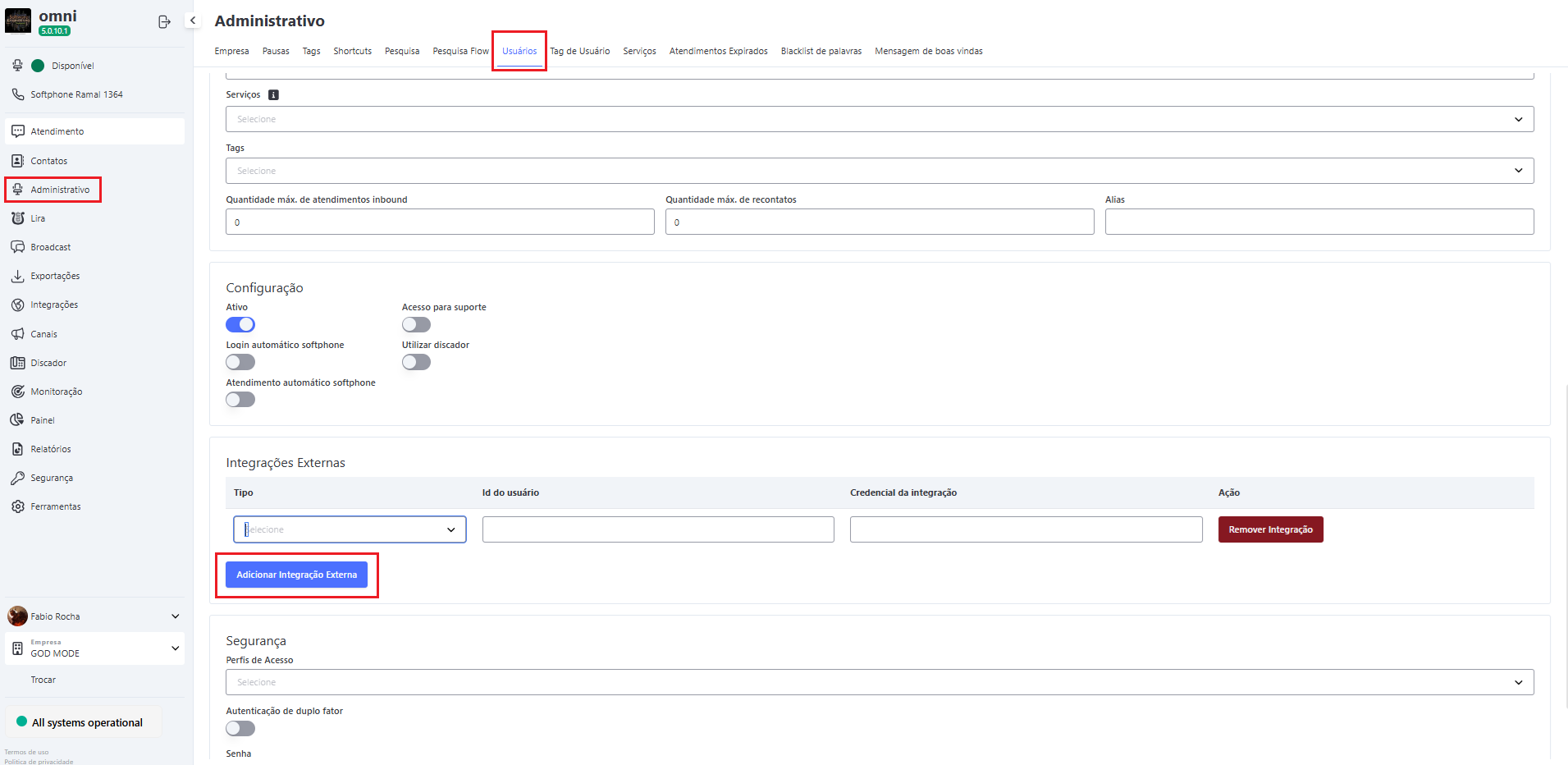
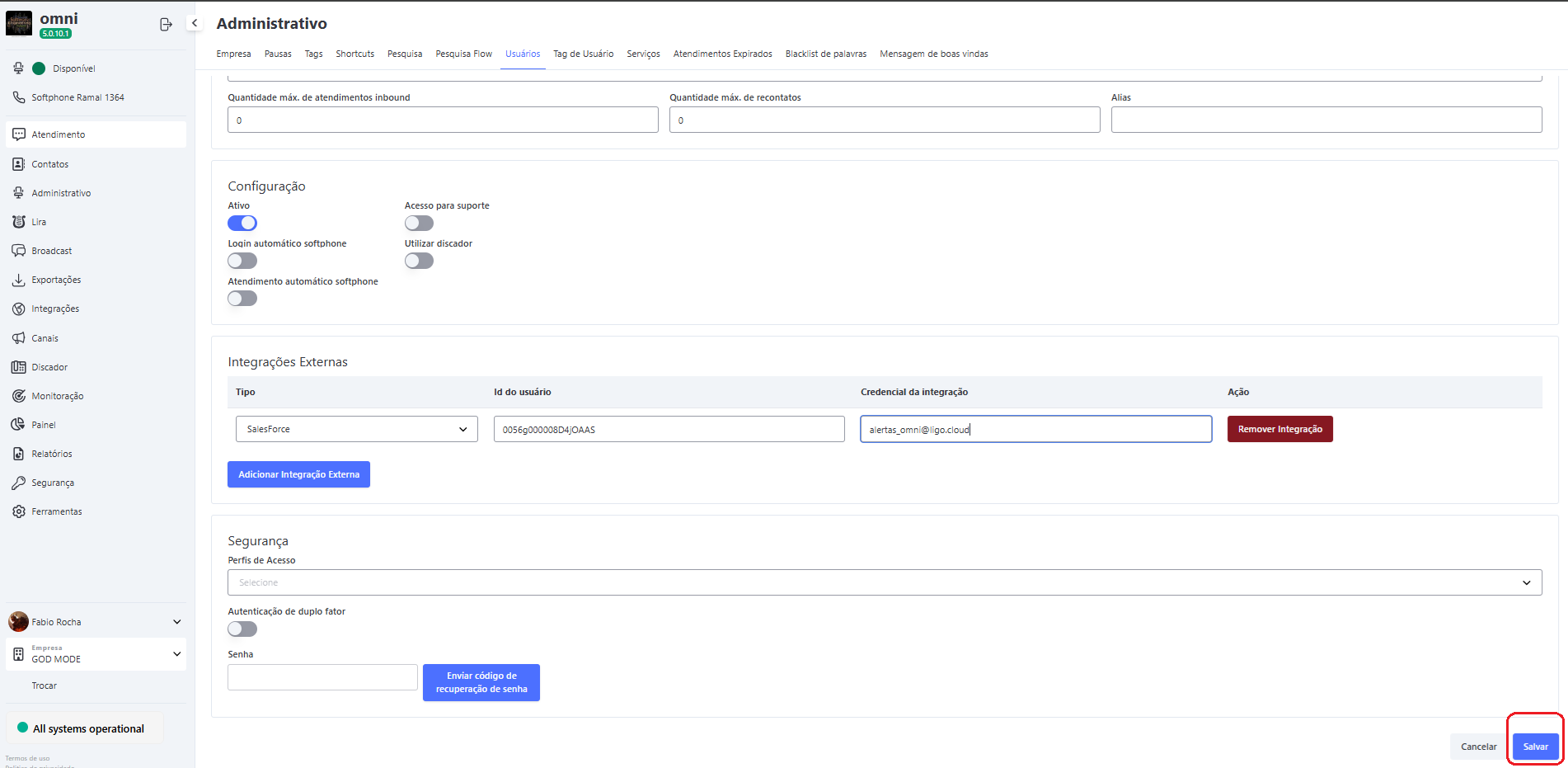
Next, it will be necessary to select the Salesforce integration and then enter the previously copied ID and email information. As shown in the image below:
After configuring the integration, simply save the changes made to the user by clicking the "Update" button.
Here is the detailed video of the steps performed to configure the integration in Omni:
Notes on user integration configuration
After configuring the integration in the user, they must log out of the platform and then log in again so that the new settings are loaded correctly.
How the integration works in practice
Now we will show how the integration works in Salesforce. First, the integration works via softphone integrated into the sales screen. The softphone is located in the lower left corner of the screen, by clicking the "Phone" button. As shown in the screenshot below:
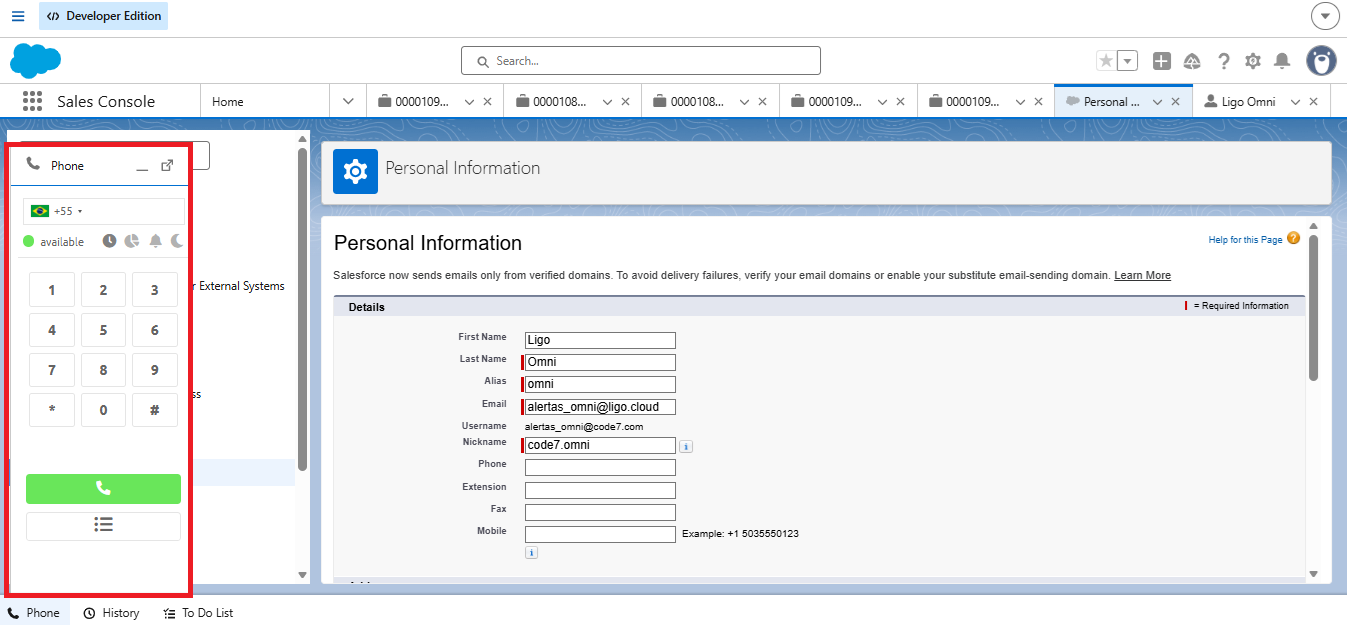
The Softphone in question is integrated with Omni, allowing calls to be made or received. When the call ends, a task is automatically created, assigning responsibility to the agent who answered or made the call:
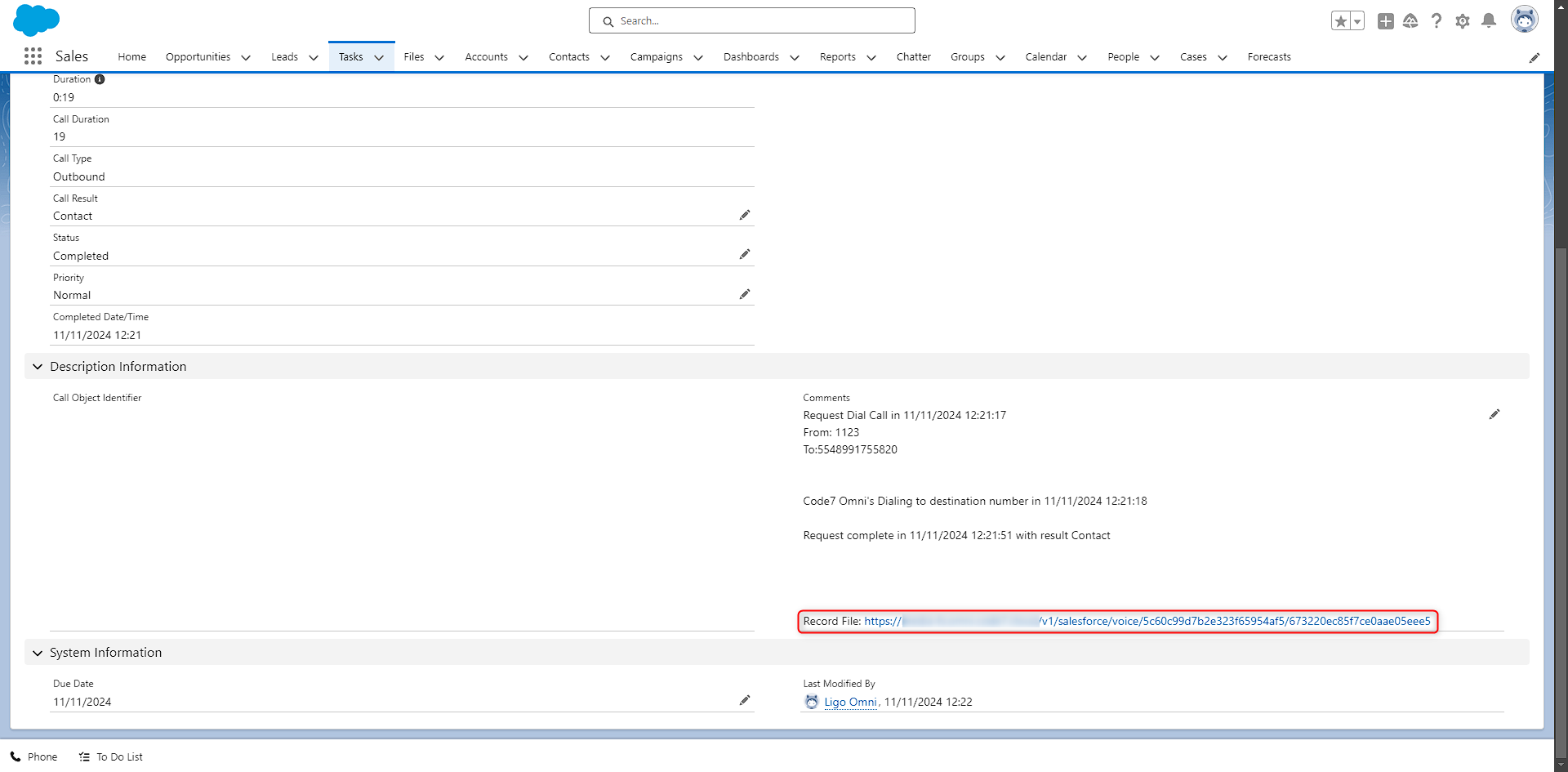
In addition, it is possible to download the recording of the call in question. As shown in the image below:
Here is a video showing the integration in action:
Notes on integration functionality
For the task to be automatically created in an outbound call, it is necessary to have a lead registered and to call by clicking on the registered number. We recommend registering outbound leads in the following format: +DDIDDD+DIGIT+NUMBER. Example: +5548932987500.